# Express Checkout with the Payflow Gateway (/api/nvp-soap/payflow/express-checkout)
## Overview [#overview]
The PayPal Express Checkout button gives your buyers another way to pay, and it complements your existing Payflow payment solution.
Online shoppers appreciate the convenience and security of PayPal, where they can pay with their PayPal balance, bank account or credit card without sharing or entering any information on the merchant's site.
To use this service, merchants must have a merchant/business account with PayPal.
PayPal also provides a sandbox environment to [test](/api/nvp-soap/payflow/express-checkout/testing/) your integration end-to-end.
## User experience [#user-experience]
The new enhanced Express Checkout flow provides a simplified checkout experience that replaces the classic Express Checkout full page redirect flow.
 On desktops, the PayPal payment flow takes place in a secure window that opens in front of the merchant website, while on small-screen devices (tablets and smartphones) the PayPal payment screens are optimized for full-page mode.
Express Checkout flow offers a streamlined checkout flow that keeps customers local to your website throughout the payment authorization process. The redesigned checkout experience presents PayPal screens in a secure overlay window that sits atop your webpage, providing a more natural and user-friendly checkout experience.
### Checkout flow [#checkout-flow]
On desktops, the PayPal payment flow takes place in a secure window that opens in front of the merchant website, while on small-screen devices (tablets and smartphones) the PayPal payment screens are optimized for full-page mode.
Express Checkout flow offers a streamlined checkout flow that keeps customers local to your website throughout the payment authorization process. The redesigned checkout experience presents PayPal screens in a secure overlay window that sits atop your webpage, providing a more natural and user-friendly checkout experience.
### Checkout flow [#checkout-flow]
 The following breaks down the checkout steps in the previous figure:
1. The buyer chooses to checkout with PayPal and clicks on the button. Upon clicking, the JavaScript triggers open the overlay window and waits for your form submit to complete the `SetExpressCheckout` API request to PayPal. PayPal responds with a token, an alphanumeric identifier in the format `EC-123456789`. The token indicates that the checkout process was initiated successfully. You now redirect the buyer to the PayPal URL with the token appended. If you have implemented the JavaScript correctly this redirect will be managed within the overlay.
2. The buyer logs in to PayPal in a secure window that overlays your website.
3. The buyer also authorizes the payment in the secure window.
The following breaks down the checkout steps in the previous figure:
1. The buyer chooses to checkout with PayPal and clicks on the button. Upon clicking, the JavaScript triggers open the overlay window and waits for your form submit to complete the `SetExpressCheckout` API request to PayPal. PayPal responds with a token, an alphanumeric identifier in the format `EC-123456789`. The token indicates that the checkout process was initiated successfully. You now redirect the buyer to the PayPal URL with the token appended. If you have implemented the JavaScript correctly this redirect will be managed within the overlay.
2. The buyer logs in to PayPal in a secure window that overlays your website.
3. The buyer also authorizes the payment in the secure window. 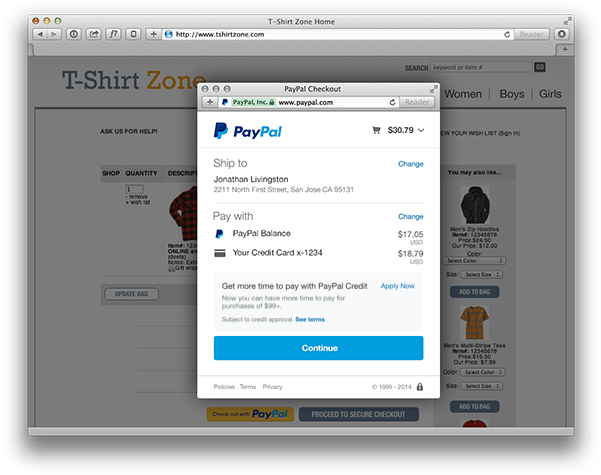 4. PayPal returns the buyer to your website to review the charges and transaction details on your confirmation page. You can make a `GetExpressCheckoutDetails` API call to get the details you display on this confirmation page.
5. The confirmation page should have a confirm payment button that triggers the `DoExpressCheckoutPayment` API call. The transaction is now completed.
## Next steps [#next-steps]
* [Set up a basic integration](/api/nvp-soap/payflow/express-checkout/sale/).
* [Set up other transactions](/api/nvp-soap/payflow/express-checkout/other/) — includes authorization and capture, refunds and voids.
* [Test your integration](/api/nvp-soap/payflow/express-checkout/testing/).
4. PayPal returns the buyer to your website to review the charges and transaction details on your confirmation page. You can make a `GetExpressCheckoutDetails` API call to get the details you display on this confirmation page.
5. The confirmation page should have a confirm payment button that triggers the `DoExpressCheckoutPayment` API call. The transaction is now completed.
## Next steps [#next-steps]
* [Set up a basic integration](/api/nvp-soap/payflow/express-checkout/sale/).
* [Set up other transactions](/api/nvp-soap/payflow/express-checkout/other/) — includes authorization and capture, refunds and voids.
* [Test your integration](/api/nvp-soap/payflow/express-checkout/testing/).