# Express Checkout with Payflow Gateway - basic integration (/api/nvp-soap/payflow/express-checkout/sale)
A Sale payment action is straight-forward. With a Sale payment action (`TRXTYPE=S`) funds are immediately captured at the time the customer places an order on the website and moved from the buyer's PayPal account to the merchant's PayPal account.
Sale is used as the payment action when merchants sell digital goods or products that they usually ship within 3-4 days of the order date.
## Integration steps [#integration-steps]
1. Meet the [prerequisites](#prerequisites).
2. Add the [JavaScript](#javascript).
3. Integrate the [Express Checkout](#the-express-checkout-basic-integration) basic APIs.
### Prerequisites [#prerequisites]
To use the PayPal Payflow API, you must have API credentials that identify you as a PayPal business or premier account holder authorized to perform various API operations. To set up the required test accounts and credentials, see [Express Checkout with Payflow Gateway - Testing](/api/nvp-soap/payflow/express-checkout/testing/).
> **Note:** **Note:** Do not URL encode the request. Payflow only accepts ASCII English characters.
The endpoints for all Payflow API calls are:
Live: `https://payflowpro.paypal.com`\
Test (sandbox): `https://pilot-payflowpro.paypal.com`
> **Note:** **Note** Since Payflow is operating out of multiple data centers we highly suggest that all API calls are done using the host URLs above. Should you hard code the IP addresses to send transactions via the Payflow API, PayPal cannot be responsible should your transactions fail should a data center be offline due to any issues or any scheduled maintenances.
## JavaScript [#javascript]
Include the PayPal JavaScript SDK on the page hosting the PayPal button, then add your sandbox `client-id` to the script tag. Do not download a local copy. Use the full PayPal URL for the JavaScript file as follows:
```html lineNumbers
```
### Basic implementation [#basic-implementation]
A basic Express Checkout integration assumes that you are sending the API calls from your own server. See the following example code:
> **Note:** **Note:** In the example code below, replace `mystore.com` with your own URL.
```html lineNumbers
PayPal JS SDK
```
> **Note:** **Note**: If you are still using the
> \<
> form
> \>
> method of JavaScript, you must update your integration as that method is no longer supported.
#### How the JavaScript works [#how-the-javascript-works]
* The setup call in the PayPal checkout JavaScript method populates a PayPal button automatically in the container specified.
* When the button is clicked, this action invokes your `SetExpressCheckout` code.
* This redirects the buyer to a PayPal URL containing the appended token.
* The PayPal JavaScript displays the PayPal payment page within a secure overlay on your website. The buyer can complete the PayPal checkout within the PayPal managed overlay.
* When the buyer completes PayPal checkout, the buyer is redirected to the return URL specified in your `SetExpressCheckout` API call.
For more integration details and options, see the [Express Checkout integration guide](/archive/express-checkout/ec-integration).
> **Note:** **Note:** If you are experiencing issues while implementing the JavaScript, please reach out to your integration engineer at PayPal for assistance.
### Features and browser support [#features-and-browser-support]
Please refer to the [features and browser support](/archive/express-checkout/integration-guide/ECReference) page to determine if your Express Checkout integration is a good candidate for the JavaScript checkout experience option described above.
In the case of all PayPal features not supported by this particular JavaScript checkout, the full-page checkout flow is presented.
## The Express Checkout basic integration [#the-express-checkout-basic-integration]
A basic Express Checkout integration consists of three API calls:
1. [SetExpressCheckout](#setexpresscheckout)
2. [GetExpressCheckoutDetails](#getexpresscheckoutdetails)
3. [DoExpressCheckoutPayment](#doexpresscheckoutpayment)
### SetExpressCheckout [#setexpresscheckout]
A `SetExpressCheckout` call (`ACTION=S`) initiates the Express Checkout process and generates a token that is used to track the buyer through the rest of the checkout process.
Below is a simple `SetExpressCheckout` call containing the minimum parameters.
> **Note:** **Note:** For more information about Payflow parameters specifically for the `setExpressCheckout` call (`ACTION=S`), see the [Express Checkout for Payflow](https://www.paypalobjects.com/webstatic/en_US/developer/docs/pdf/pfp_expresscheckout_pp.pdf) reference.
**Request**
```text lineNumbers
USER=username
VENDOR=vendor
PARTNER=PayPal
PWD=password
TRXTYPE=S
TENDER=P
ACTION=S
AMT=0.01
CURRENCY=USD
RETURNURL=https://www.paypal.com/checkoutnow/error
CANCELURL=https://www.paypal.com/checkoutnow/cancel
ORDERDESC=test order
INVNUM=INX123
```
The amount (`AMT`) of the transaction does not have to be final. Adjustments can be made later for shipping and tax, for example. `RETURNURL` is the URL of the payment review page on your website where the buyer confirms the order and payment. `CANCELURL` is the URL of the original page on the merchant's website where the buyer initially chose PayPal as a payment type.
**Response**
```text lineNumbers
RESULT=0
RESPMSG=Approved
TOKEN=EC-CK3O9GB4M911WAMPD
CORRELATIONID=ec093d08c9f3
```
The two fields to note in the response are `RESULT` and `TOKEN`. `RESULT` indicates the success or failure of the request. Check the [Results values](/api/nvp-soap/payflow/integration-guide/transaction-responses/#result-values-and-respmsg-text) table, in the Payflow developer guide, for the different result codes you might receive in case of error. The `TOKEN` returned identifies this Express Checkout transaction with PayPal. You pass the `TOKEN` back to PayPal in the subsequent API calls.
#### Passing line item details [#passing-line-item-details]
In the `SetExpressCheckout` API request, you need to pass line items to make sure the buyers can see the amount while completing the checkout at PayPal. The total amount of the transaction will not be displayed in the PayPal screen if line items are not passed. This is also a recommended and ideal way of implementing Express Checkout.
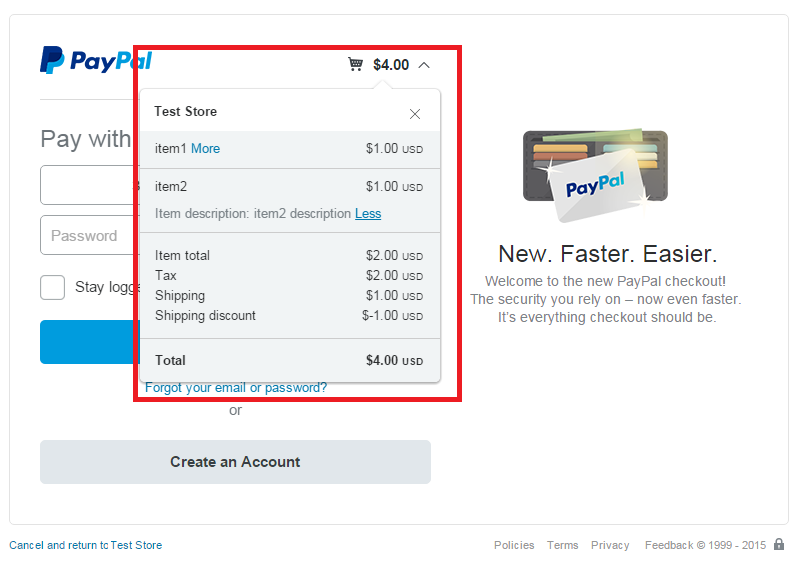 Below is a snippet from an API call with all the line item parameters,
```text lineNumbers
// Order totals
AMT=13.00
TAXAMT=6.00
ITEMAMT=7.00 // item totals
FREIGHTAMT=3.00
DISCOUNT=3.00 //this will be considered as -3 as it's a discount field.
// Line item details – line item 1
L_NAME0=Burton Lucky Pants - Womens
L_DESC0=Item 1 desc
L_ITEMNUMBER0=123456
L_COST0=1.00
L_TAXAMT0=1.00
L_QTY0=5
// Line item details – line item 2
L_NAME1=Arbor Roundhouse CX Snowboard 2013
L_DESC1=Item 2 desc
L_ITEMNUMBER1=98765
L_COST1=2.00
L_TAXAMT1=1.00
L_QTY1=1
```
This is how the line items show up in the user interface.
#### Redirect the buyer to PayPal [#redirect-the-buyer-to-paypal]
Once you receive the `SetExpressCheckout` response, redirect the buyer to PayPal and append the `TOKEN` to the redirect URL.
Live:
```html lineNumbers
https://www.paypal.com/checkoutnow?token=EC-
```
Test-sandbox:
```html lineNumbers
https://www.sandbox.paypal.com/checkoutnow?token=EC-
```
Once on the PayPal payment page, the buyer does the following:
* Logs in to PayPal.
* Selects shipping and a funding source.
* Continues the transaction and returns to your site.
The return URL is the URL you specified in the `SetExpressCheckout` API request. PayPal appends the `PayerID` and `token` to the return URL.
```html lineNumbers
https://example.com/return?token=EC-7BX27754BT8623257&PayerID=UPGGM5VND8D5Q
```
The token is used to keep track of the transaction as a whole and the payer ID is used to track the buyer paying with PayPal.
### GetExpressCheckoutDetails [#getexpresscheckoutdetails]
The `GetExpressCheckoutDetails` call `(ACTION=G)` retrieves the buyer's information, such as, name, email address, and shipping address, from PayPal. You can use this information then to dynamically display the shipping method and amount to the buyer when the buyer returns to your site for Payment confirmation.
Provide the token obtained from the `SetExpressCheckout` response in the `GetExpressCheckoutDetails` request.
Below is a sample request and its response containing the minimum parameters.
> **Note:** **Note:** For more information about Payflow parameters specifically for the `GetExpressCheckoutDetails` call `(ACTION=G)`, see the [Express Checkout for Payflow](https://www.paypalobjects.com/webstatic/en_US/developer/docs/pdf/pfp_expresscheckout_pp.pdf) reference.
**Request**
```text lineNumbers
USER=username
VENDOR=vendor
PARTNER=PayPal
PWD=password
TRXTYPE=S
TENDER=P
ACTION=G
TOKEN=EC-561546500C9429808
```
**Response**
```text lineNumbers
RESULT=0
RESPMSG=Approved
AVSADDR=Y
AVSZIP=Y
TOKEN=EC-561546500C9429808
PAYERID=3T5GGNEZ8T33S
CORRELATIONID=96336a90caa9
EMAIL=buyer@umulla.com
PAYERSTATUS=verified
PHONENUM=408-841-8029
FIRSTNAME=Usman Adeel
LASTNAME=Mulla
SHIPTOSTREET=1 Main St
SHIPTOCITY=San Jose
SHIPTOSTATE=CA
SHIPTOZIP=95131
SHIPTOCOUNTRY=US
DISCOUNT=3.00
SHIPTONAME=Usman Adeel Mulla
COUNTRYCODE=US
ADDRESSSTATUS=Y
```
### DoExpressCheckoutPayment [#doexpresscheckoutpayment]
`DoExpressCheckoutPayment` call (`ACTION=D`) authorizes the buyer's funding sources. In the case of a Sale transaction (`TRXTYPE=S`), `DoExpressCheckoutPayment` finalizes the transaction and moves the money to the merchant's PayPal account.
In the request, include the final line item details, including any changes that may have occurred, for example, any additional shipping costs or taxes based on the address provided by PayPal in the `GetExpressCheckoutDetails` call. Also include the token and the payer ID in the `DoExpressCheckoutPayment` request.
Below is a sample request and response containing the minimum parameters.
> **Note:** **Note:** For more information about Payflow parameters specifically for the `DoExpressCheckoutPayment` call (`ACTION=D`), see the [Express Checkout for Payflow](https://www.paypalobjects.com/webstatic/en_US/developer/docs/pdf/pfp_expresscheckout_pp.pdf) reference.
**Request**
```text lineNumbers
USER=username
VENDOR=vendor
PARTNER=PayPal
PWD=password
TRXTYPE=S
TENDER=P
ACTION=D
TOKEN=EC-561546500C9429808
PAYERID=3T5GGNEZ8T33S
CURRENCY=USD
ORDERDESC=test order
AMT=13.00
TAXAMT=6.00
ITEMAMT=7.00
FREIGHTAMT=3.00
DISCOUNT=3.00
L_NAME0=Burton Pants - Womens
L_DESC0=Item 1 desc
L_ITEMNUMBER0=123456
L_COST0=1.00
L_TAXAMT0=1.00
L_QTY0=5
L_NAME1=Arbor Roundhouse CX Snowboard 2013
L_DESC1=Item 2 desc
L_ITEMNUMBER1=98765
L_COST1=2.00
L_TAXAMT1=1.00
L_QTY1=1
```
**Response**
```text lineNumbers
RESULT=0
PNREF=B1PP8B8EE9EE
RESPMSG=Approved
AVSADDR=Y
AVSZIP=Y
TOKEN=EC-561546500C9429808
PAYERID=3T5GGNEZ8T33S
PPREF=6M668496YP144384E
CORRELATIONID=e7186a87e275f
FEEAMT=0.81
TAXAMT=6.00
PAYMENTTYPE=instant
PENDINGREASON=completed
```
The transaction is now complete and appears in your PayPal account.
Display a *Receipt* or a *Thank You* page to the customer.
> **Note:** **Note:** Use the transaction `PNREF` returned in the `DoExpressCheckoutPayment` response as the transaction ID for processing refunds.
Below is a snippet from an API call with all the line item parameters,
```text lineNumbers
// Order totals
AMT=13.00
TAXAMT=6.00
ITEMAMT=7.00 // item totals
FREIGHTAMT=3.00
DISCOUNT=3.00 //this will be considered as -3 as it's a discount field.
// Line item details – line item 1
L_NAME0=Burton Lucky Pants - Womens
L_DESC0=Item 1 desc
L_ITEMNUMBER0=123456
L_COST0=1.00
L_TAXAMT0=1.00
L_QTY0=5
// Line item details – line item 2
L_NAME1=Arbor Roundhouse CX Snowboard 2013
L_DESC1=Item 2 desc
L_ITEMNUMBER1=98765
L_COST1=2.00
L_TAXAMT1=1.00
L_QTY1=1
```
This is how the line items show up in the user interface.
#### Redirect the buyer to PayPal [#redirect-the-buyer-to-paypal]
Once you receive the `SetExpressCheckout` response, redirect the buyer to PayPal and append the `TOKEN` to the redirect URL.
Live:
```html lineNumbers
https://www.paypal.com/checkoutnow?token=EC-
```
Test-sandbox:
```html lineNumbers
https://www.sandbox.paypal.com/checkoutnow?token=EC-
```
Once on the PayPal payment page, the buyer does the following:
* Logs in to PayPal.
* Selects shipping and a funding source.
* Continues the transaction and returns to your site.
The return URL is the URL you specified in the `SetExpressCheckout` API request. PayPal appends the `PayerID` and `token` to the return URL.
```html lineNumbers
https://example.com/return?token=EC-7BX27754BT8623257&PayerID=UPGGM5VND8D5Q
```
The token is used to keep track of the transaction as a whole and the payer ID is used to track the buyer paying with PayPal.
### GetExpressCheckoutDetails [#getexpresscheckoutdetails]
The `GetExpressCheckoutDetails` call `(ACTION=G)` retrieves the buyer's information, such as, name, email address, and shipping address, from PayPal. You can use this information then to dynamically display the shipping method and amount to the buyer when the buyer returns to your site for Payment confirmation.
Provide the token obtained from the `SetExpressCheckout` response in the `GetExpressCheckoutDetails` request.
Below is a sample request and its response containing the minimum parameters.
> **Note:** **Note:** For more information about Payflow parameters specifically for the `GetExpressCheckoutDetails` call `(ACTION=G)`, see the [Express Checkout for Payflow](https://www.paypalobjects.com/webstatic/en_US/developer/docs/pdf/pfp_expresscheckout_pp.pdf) reference.
**Request**
```text lineNumbers
USER=username
VENDOR=vendor
PARTNER=PayPal
PWD=password
TRXTYPE=S
TENDER=P
ACTION=G
TOKEN=EC-561546500C9429808
```
**Response**
```text lineNumbers
RESULT=0
RESPMSG=Approved
AVSADDR=Y
AVSZIP=Y
TOKEN=EC-561546500C9429808
PAYERID=3T5GGNEZ8T33S
CORRELATIONID=96336a90caa9
EMAIL=buyer@umulla.com
PAYERSTATUS=verified
PHONENUM=408-841-8029
FIRSTNAME=Usman Adeel
LASTNAME=Mulla
SHIPTOSTREET=1 Main St
SHIPTOCITY=San Jose
SHIPTOSTATE=CA
SHIPTOZIP=95131
SHIPTOCOUNTRY=US
DISCOUNT=3.00
SHIPTONAME=Usman Adeel Mulla
COUNTRYCODE=US
ADDRESSSTATUS=Y
```
### DoExpressCheckoutPayment [#doexpresscheckoutpayment]
`DoExpressCheckoutPayment` call (`ACTION=D`) authorizes the buyer's funding sources. In the case of a Sale transaction (`TRXTYPE=S`), `DoExpressCheckoutPayment` finalizes the transaction and moves the money to the merchant's PayPal account.
In the request, include the final line item details, including any changes that may have occurred, for example, any additional shipping costs or taxes based on the address provided by PayPal in the `GetExpressCheckoutDetails` call. Also include the token and the payer ID in the `DoExpressCheckoutPayment` request.
Below is a sample request and response containing the minimum parameters.
> **Note:** **Note:** For more information about Payflow parameters specifically for the `DoExpressCheckoutPayment` call (`ACTION=D`), see the [Express Checkout for Payflow](https://www.paypalobjects.com/webstatic/en_US/developer/docs/pdf/pfp_expresscheckout_pp.pdf) reference.
**Request**
```text lineNumbers
USER=username
VENDOR=vendor
PARTNER=PayPal
PWD=password
TRXTYPE=S
TENDER=P
ACTION=D
TOKEN=EC-561546500C9429808
PAYERID=3T5GGNEZ8T33S
CURRENCY=USD
ORDERDESC=test order
AMT=13.00
TAXAMT=6.00
ITEMAMT=7.00
FREIGHTAMT=3.00
DISCOUNT=3.00
L_NAME0=Burton Pants - Womens
L_DESC0=Item 1 desc
L_ITEMNUMBER0=123456
L_COST0=1.00
L_TAXAMT0=1.00
L_QTY0=5
L_NAME1=Arbor Roundhouse CX Snowboard 2013
L_DESC1=Item 2 desc
L_ITEMNUMBER1=98765
L_COST1=2.00
L_TAXAMT1=1.00
L_QTY1=1
```
**Response**
```text lineNumbers
RESULT=0
PNREF=B1PP8B8EE9EE
RESPMSG=Approved
AVSADDR=Y
AVSZIP=Y
TOKEN=EC-561546500C9429808
PAYERID=3T5GGNEZ8T33S
PPREF=6M668496YP144384E
CORRELATIONID=e7186a87e275f
FEEAMT=0.81
TAXAMT=6.00
PAYMENTTYPE=instant
PENDINGREASON=completed
```
The transaction is now complete and appears in your PayPal account.
Display a *Receipt* or a *Thank You* page to the customer.
> **Note:** **Note:** Use the transaction `PNREF` returned in the `DoExpressCheckoutPayment` response as the transaction ID for processing refunds.