# Change payment methods (/archive/change-payment-methods)
> **Note:** **Important:** Change payment methods is a legacy product. We accept new integrations and support existing integrations, but there are [new solutions](/).
Give your buyers the option to change the payment method for a specific transaction. For example, buyers might choose a credit card with more points or a bank account with more funds.
This page is for merchants who have a PayPal NVP/SOAP billing agreement with their buyer. When changing the payment method, the buyer can select an existing payment method or add a new one.
> **Note:** **Note:** Changing the payment method doesn't replace the buyer's original payment method.
> **Note:** **Warning:** To continue providing a Pay Later option at checkout, it is essential that you integrate Billing With Purchase. This solution offers the same functionalities as Billing Agreement and is compatible with your existing payment options.
## Know before you code [#know-before-you-code]
* Before you can create the option to change the payment method, integrate the [PayPal NVP/Soap billing agreement API](/archive/express-checkout/ec-set-up-reference-transactions#set-up-a-billing-agreement-during-purchase) with [reference transactions](/archive/express-checkout/integration-guide/ECReferenceTxns).
* The buyer must already have a billing agreement with the merchant before they can change their payment method. The billing agreement ID should be in your records.
* The buyer can change the payment option only if they're present to complete the transaction.
* This integration works for **instant sale** and **authorization and capture** transactions.
* This integration uses NVP/SOAP (version 215 or higher).
## How it works [#how-it-works]
The following is a sample workflow:
1. Call the `SetExpressCheckout` object and pass a new parameter called `BILLING_AGREEMENT_ID` along the other request parameters.
2. Use the token from the response of the `SetExpressCheckout` call to create the redirect URL.
3. On the checkout page, add an **Options** link next to the vaulted PayPal email address.
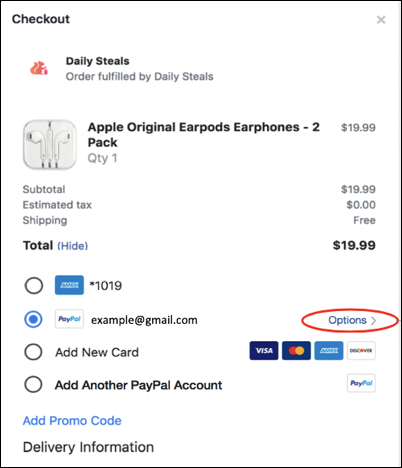
*Figure 1: Checkout page with the option to change the payment method.*
4. When the buyer selects the **Options** link, the buyer is redirected to a page and chooses a different payment method. After the buyer chooses a payment method, the redirect URL takes them back to the merchant website.
5. If the buyer chooses to change the payment method, first call the `GetExpressCheckoutDetails` object to get the PayerID, then call the `DoExpressCheckoutPayment` object.
Otherwise, if the buyer chooses not to use the **Options** link to change the payment method, call the `DoReferenceTransaction` object.
## 1. Set up the payment authorization [#1-set-up-the-payment-authorization]
After setting up a billing agreement, help the buyer change the payment method that's associated with their billing agreement. Start by calling the PayPal `SetExpressCheckout` object.
### Sample request [#sample-request]
```text lineNumbers
Request
-------
Endpoint URL: https://api-3t.sandbox.paypal.com/nvp
HTTP method: POST
POST data:
USER=insert_merchant_user_name_here
&PWD=insert_merchant_password_here
&SIGNATURE=insert_merchant_signature_value_here
&METHOD=SetExpressCheckout
&VERSION=215
&PAYMENTREQUEST_0_PAYMENTACTION=SALE
&PAYMENTREQUEST_0_AMT=25.00
&PAYMENTREQUEST_0_CURRENCYCODE=USD
&BILLING_AGREEMENT_ID=B-8SX93041AH336464H
&cancelUrl=https://example.com/cancel
&returnUrl=https://example.com/success
Response
--------
TOKEN=EC%2d2B984685J43051234
&ACK=Success
...
```
### Modify the code [#modify-the-code]
After you copy the code in the sample request, modify the following:
* (Required) Change `cancelUrl` to the URL where the buyer is redirected after choosing not to pay with PayPal.
* (Required) Change `returnUrl` to the URL where the buyer is redirected after choosing to pay with PayPal.
* Change `PAYMENTREQUEST_0_PAYMENTACTION` to your desired payment action, such as an authorization or a final sale.
* Change `PAYMENTREQUEST_0_AMT` to the total cost of the transaction.
* Change `PAYMENTREQUEST_0_CURRENCYCODE` to the country currency of your choice.
* Change `L_BILLINGTYPE0` to your type of billing agreement, such as `MerchantInitiatedBilling`.
* Change `BILLING_AGREEMENT_ID` to the billing agreement ID that associates the buyer to a billing agreement or reference transaction.
### Step result [#step-result]
A successful request returns:
* A `&ACK=Success` message
* A token ID in the format `EC%`
## 2. Create a redirect URL [#2-create-a-redirect-url]
Use the token from the response of the `SetExpressCheckout` call to create the redirect URL.
```html lineNumbers
Example: https://www.paypal.com/webapps/hermes?token=EC%
```
## 3. Redirect the buyer to the approval page [#3-redirect-the-buyer-to-the-approval-page]
On your checkout page, add an edit link or button using the redirect URL from step 2. When buyers select this option, they're redirected to the buyer approval page.
### Step result [#step-result-1]
The buyer sees a page displaying a list of payment methods associated with the buyer. The buyer can select any payment method for this transaction.
## 4. (Conditional) Redirect the buyer to the cancel URL [#4-conditional-redirect-the-buyer-to-the-cancel-url]
If the buyer didn't authorize changing the payment method, the API redirects them to the cancel URL that the `SetExpressCheckout` call specified. This means the buyer didn't approve paying with the new payment method.
### Capture future payments [#capture-future-payments]
You can capture future payments by calling the `DoReferenceTransaction` API on behalf of the buyer.
However, a `DoReferenceTransaction` call moves the money from the payment method that's initially associated with existing billing agreement.
Learn more about [capturing future payments](/archive/express-checkout/ec-set-up-reference-transactions#capture-future-payments).
## 5. Get the required details to process the transaction [#5-get-the-required-details-to-process-the-transaction]
If the buyer approves the payment, call the `GetExpressCheckoutDetails` object to get the PayerID (which uniquely identifies the customer) and other details you might need to process the transaction.
### Sample request [#sample-request-1]
```text lineNumbers
Request
-------
Endpoint URL: https://api-3t.sandbox.paypal.com/nvp
HTTP method: GET
USER=insert_merchant_user_name_here
&PWD=insert_merchant_password_here
&SIGNATURE=insert_merchant_signature_value_here
&METHOD=GetExpressCheckoutDetails
&VERSION=215
&TOKEN=EC-XXXXXXX
```
### Step result [#step-result-2]
The API response returns:
* A `&ACK=Success` message
* A `PayerID`
* The EC token
## 6. Capture the payments [#6-capture-the-payments]
Call the `DoExpressCheckoutPayment` object to capture the payment against the new payment method chosen by the buyer.
### Sample requests [#sample-requests]
```text lineNumbers
Request
----date: 2021-09-08T18:25:59Z
date: 2022-02-14T20:13:37Z
---
Endpoint URL: https://api-3t.sandbox.paypal.com/nvp
HTTP method: POST
POST data:
USER=insert_merchant_user_name_here
&PWD=insert_merchant_password_here
&SIGNATURE=insert_merchant_signature_value_here
&METHOD=DoExpressCheckoutPayment
&VERSION=215
&PAYERID=payerID
&TOKEN=EC-XXXXXXXX
```
### Step result [#step-result-3]
The API response returns:
* A `&ACK=Success` message
* A `PayerID`
* The EC token
PayPal processes the `DoExpressCheckoutPayment` object. During the process, PayPal captures the payment by transferring the funds from the buyer account to the merchant account. PayPal then sends a confirmation e-mail to the buyer.