# Customize PayPal checkout pages (/archive/paypal-payments-standard/admin/checkout-settings)
> **Warning:** This product is [deprecated](/archive/product-lifecycle) and should not be used for new integrations. Use [Payment Links and Buttons](/payment-links-buttons/overview) instead. For information about migrating, visit the [Upgrade Hub](https://developer.paypal.com/upgrade/wps/guide/).
Your PayPal Business or Premier account profile contains the account information, financial information, and selling preferences for your organization. Using your account profile, you can set options to control the way your PayPal checkout pages look and operate, regardless of which PayPal payment solutions you use as a PayPal merchant.
Your PayPal Business or Premier account profile contains the account information, financial information, and selling preferences for your organization. Using your account profile, you can set options to control the way your PayPal checkout pages look and operate, regardless of which PayPal payment solutions you use as a PayPal merchant.
* Merchants who use PayPal payment buttons (PayPal Payments Standard) can set the `image_url` HTML variable.
* Merchants who use Express Checkout can call the `SetExpressCheckout` API operation `LOGOIMG` NVP field or `cpp-logo-image` SOAP field to include your company logo.
## Customize the checkout experience [#customize-the-checkout-experience]
You can customize the checkout experience further using the following features:
* [Auto return the buyer to your website](#auto-return-the-buyer-to-your-website)
* [Make PayPal account optional at checkout](#make-paypal-account-optional-at-checkout)
* [Provide your customer service number](#provide-your-customer-service-number)
* [Get contact telephone numbers](#get-contact-telephone-numbers)
### Auto return the buyer to your website [#auto-return-the-buyer-to-your-website]
With auto return for PayPal payments, buyers do not click a button to return to your website after completing payments with PayPal. Auto return applies to Express Checkout and all PayPal Payments Standards payment buttons, including Buy Now, Shopping Cart, Subscription, and Donate buttons.
With auto return for PayPal payments, buyers do not click a button to return to your website after completing payments with PayPal. Auto return applies to Express Checkout and all PayPal Payments Standards payment buttons, including Buy Now, Shopping Cart, Subscription, and Donate buttons.
> **Note:** **Note:** If auto return is enabled and make PayPal account optional at checkout for new users is enabled, a new user is not automatically directed to but can choose to return to your website.
As specified in the PayPal User Agreement and PayPal Merchant Services Agreement, you must provide verbiage on the page displayed by the return URL that includes the following information:
* Communicate to the buyer that the payment was made and the transaction completed.
* Explain that payment transaction details are emailed to the buyer.
#### What payers see with auto return enabled [#what-payers-see-with-auto-return-enabled]
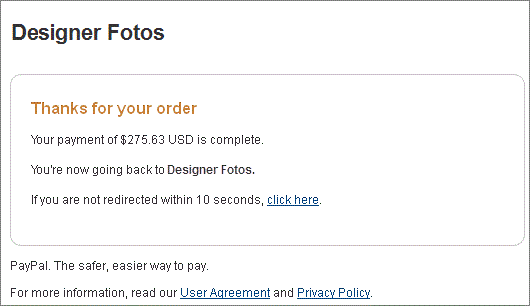
When you enable auto return, payers see an alternative payment confirmation page for a few seconds before PayPal automatically returns them to your website.
**Momentary payment confirmation with auto return enabled**
#### Enable auto return [#enable-auto-return]
By default, auto return is disabled.
By default, auto return is disabled.
1. Log in to your PayPal business account at [paypal.com](https://www.paypal.com).
2. In the **Profile** menu, click **Profile and settings**.
3. In the left menu, click **My selling tools**.
4. In the **Selling online** section, click **Update** next to **Website preferences**.
5. In **Auto Return for Website Payments**, click **On**.
6. In the **Return URL** field, enter the full path of the URL to which you want to redirect buyers when their payment is complete. Include `HTTP://` or `HTTPS://` in the path.
> **Note:** **Note:** PayPal verifies the return URL. If the URL is not properly formatted or cannot be validated, PayPal does not activate auto return.
7. At the bottom of the page, click **Save**.
#### Set the return URL for individual transactions [#set-the-return-url-for-individual-transactions]
Merchants who use PayPal Payments Standard buttons can [override the return URL on individual transactions](/archive/paypal-payments-standard/integration-guide/ProfileAndTools#override-the-return-url-on-individual-transactions).
Merchants who use PayPal Payments Standard buttons can `RETURNURL`.`CANCELURL` fields with the `SetExpressCheckout` API operation. For an example, see [initiate a payment](/archive/express-checkout/integration-jsv4/ec-initiate-payment) in the Express Checkout integration guide.
#### Subscriptions password management and auto return [#subscriptions-password-management-and-auto-return]
If you use the Subscriptions Password Management feature of PayPal Payments Standard subscribe buttons, make sure that auto return is disabled to display the PayPal-generated user name and password to the subscriber.
> **Note:** **Note:** You can enable auto return with subscriptions. Auto return is a separate feature from subscriptions password management.
### Make PayPal account optional at checkout [#make-paypal-account-optional-at-checkout]
When you enable PayPal account optional, buyers can pay by credit card without signing up for PayPal accounts. Buyers can, but they are not required to, sign up for a PayPal account by using the address and credit card from the completed transaction. By default, PayPal account optional is enabled for new PayPal Premier and Business accounts.
When you enable PayPal account optional, buyers can pay by credit card without signing up for PayPal accounts. Buyers can, but they are not required to, sign up for a PayPal account by using the address and credit card from the completed transaction. By default, PayPal account optional is enabled for new PayPal Premier and Business accounts.
#### The checkout experience with account optional disabled [#the-checkout-experience-with-account-optional-disabled]
The diagram illustrates the checkout steps when the PayPal account optional is disabled.
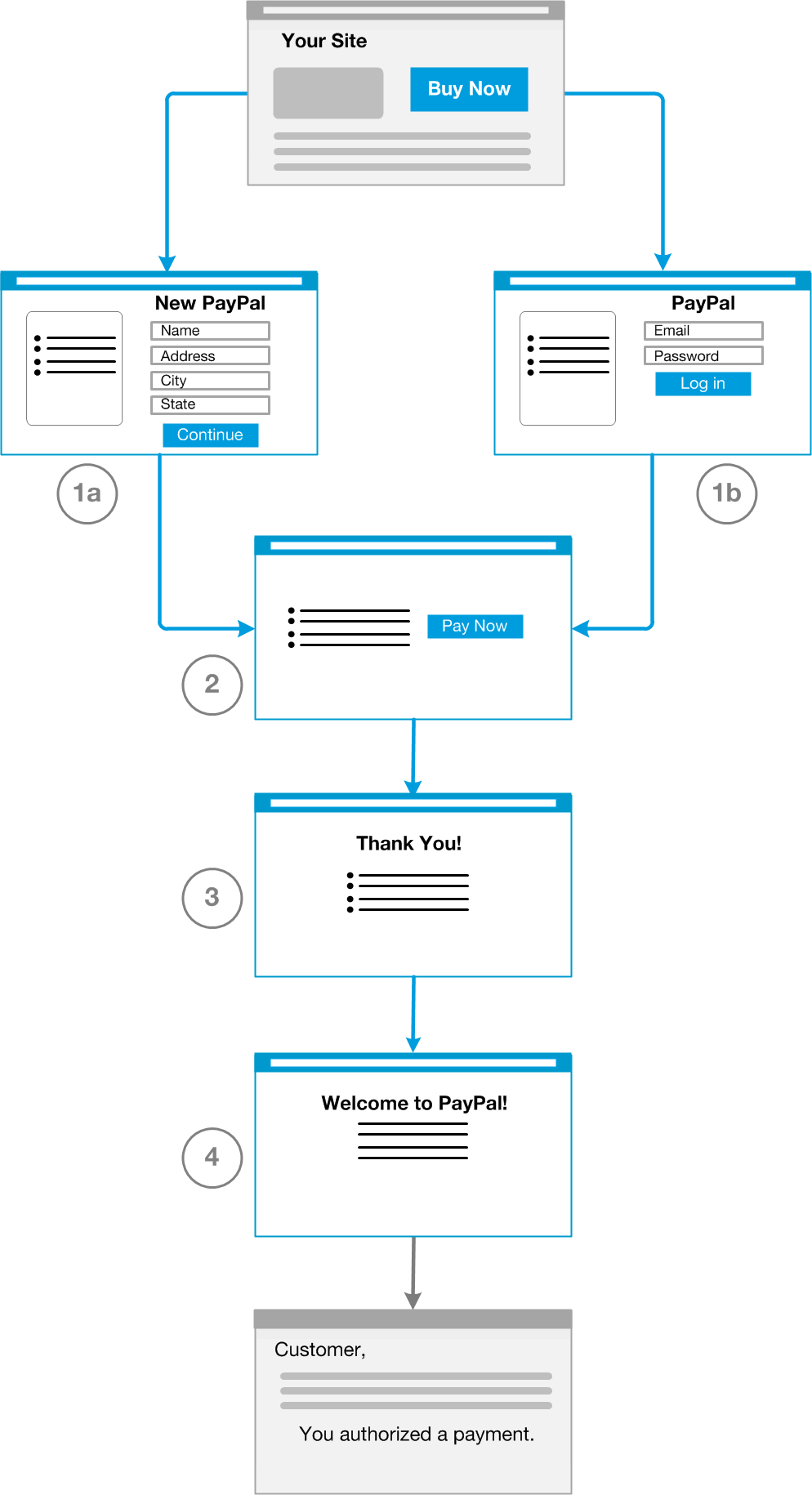
This checkout flow begins when the buyer is ready to purchase an item from your website and clicks **Buy Now**.
1. With PayPal account optional disabled, the buyer must either log in to PayPal or create a PayPal account.
2. The buyer confirms the transaction details before paying. PayPal displays a transaction confirmation page to let buyers confirm the details before completing the transaction. If the buyer created a new PayPal account, an account confirmation message is displayed at the top of the page. The buyer clicks **Pay Now** on the confirmation page.
3. The buyer views and prints the PayPal payment confirmations. PayPal displays a payment confirmation page after the buyer pays to notify the buyer that the transaction completed successfully. This page contains the PayPal transaction ID and a link to the buyer's PayPal account overview or Activity page. The buyer can click **Print Receipt**.
4. PayPal sends email notices to the buyer confirming the transaction and in the case of new PayPal members, an account creation notice.
#### Disable PayPal account optional [#disable-paypal-account-optional]
By default, the PayPal account optional feature is enabled.
By default, the PayPal account optional feature is enabled.
1. Log in to your PayPal business account at [paypal.com](https://www.paypal.com).
Click your profile name in the top right corner of your account and then click **Account Settings**.
2. From the left menu, click **My selling tools**.
3. In the **Selling online** section, click the **Update** link next to **Website preferences**.
4. In the **PayPal Account Optional** section, select **Off**.
5. At the bottom of the page, click **Save**.
### Provide your customer service number [#provide-your-customer-service-number]
If you offer buyers customer service by phone, you can provide your customer service phone number on the PayPal checkout pages. Buyers who have questions during checkout can talk to customer service agents before completing their purchases.
If you offer buyers customer service by phone, you can provide your customer service phone number on the PayPal checkout pages. Buyers who have questions during checkout can talk to customer service agents before completing their purchases.
1. Access your custom payment page settings.
2. Under the **Merchant service options** heading on the **Options** tab, select **Display your phone number to customers**.
Your current phone number appears. If you do not have a phone number on file, you might see a link to **Change or enter your phone number**.
3. Click **Save**.
### Get contact telephone numbers [#get-contact-telephone-numbers]
Contact Telephone Number is a feature that lets you obtain the contact telephone numbers that PayPal collects from your buyers. Contact Telephone Number is off by default. PayPal always collects contact telephone numbers from PayPal account holders to help confirm their identities and to contact them if that is required to resolve problems on their accounts.
Contact Telephone Number is a feature that lets you obtain the contact telephone numbers that PayPal collects from your buyers. Contact Telephone Number is off by default. PayPal always collects contact telephone numbers from PayPal account holders to help confirm their identities and to contact them if that is required to resolve problems on their accounts.
* Enable buyers to share their telephone numbers during checkout
* Require that buyers share their telephone numbers during checkout
When people share their contact telephone numbers with you, PayPal includes their shared numbers in the transaction details section of payment authorization notices sent by email. Also, PayPal displays the shared numbers in the Transaction Details page for transactions in which contact telephone numbers were shared. These actions let you and your payers know that contact telephone numbers were shared as part of the transaction.
> **Note:** **Important:** In accordance with the PayPal User Agreement and PayPal Merchant Services Agreement, you may use contact telephone numbers only to communicate with the payer about the related transaction. *You may not use them for unsolicited communication.*
1. Log in to your PayPal business account at [paypal.com](https://www.paypal.com).
Click your profile name in the top right corner of your account and then click **Account Settings**.
2. From the left menu, click **My selling tools**.
3. In the **Selling online** section, click the **Update** link next to **Website preferences** to see the **Website Payment Preferences** page.
4. In the **Contact Telephone Number** section, select one of the following options:
* **On (Optional Field)**. PayPal lets payers share their telephone numbers with you, as an option.
* **On (Required Field)**. PayPal informs payers that their telephone numbers will be shared with you because you require it.
* **Off (PayPal recommends this option)**. PayPal does not share payers' telephone numbers with you.
5. Click **Save**.
## Auto-calculate sales tax [#auto-calculate-sales-tax]
With PayPal payment buttons (PayPal Payments Standard), you can have PayPal calculate sales tax (also called value-added tax or VAT) automatically. PayPal calculates sales taxes based on rates that you specify in your account profile.
> **Note:** **Note:** This feature does not apply to Express Checkout. Express Checkout merchants must calculate and pass sales tax to PayPal.
You can set up the following types of tax rates:
* Domestic (U.S. only) tax rates by state or zip code.
* Canadian tax rates by province.
* International sales tax rates by country or jurisdiction.
After you set up sales tax rates in your account profile, PayPal calculates the tax for purchase transactions automatically. Buyers see the tax as a separate item during checkout, based on the shipping addresses that they provide.
**Buyers see sales taxes before they pay**
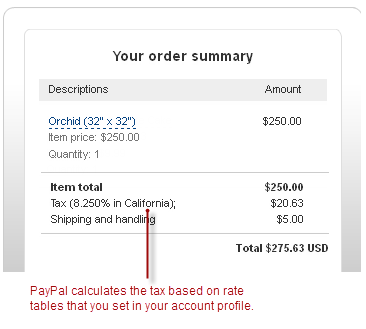
If buyers change their shipping addresses, PayPal re-calculates the tax and displays the new amount.
If buyers change their shipping addresses, PayPal re-calculates the tax and displays the new amount.
Use the PayPal automatic sales tax calculation feature to set up and manage domestic or international sales tax rates and override sales tax calculations on individual transactions.
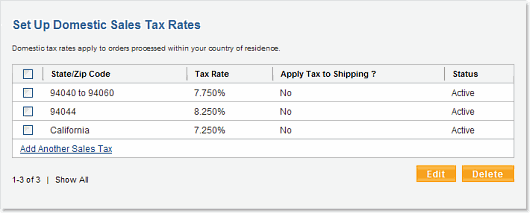
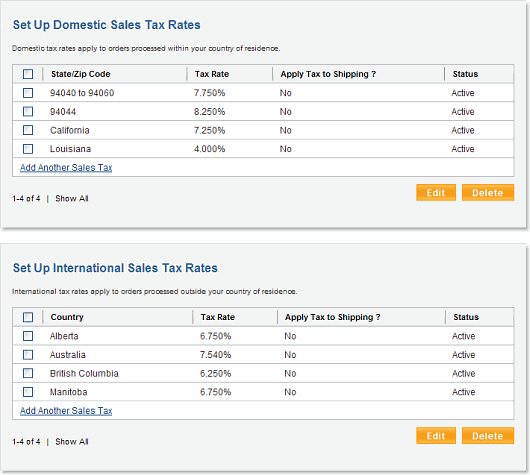
This feature also automatically resolves overlapping tax rates. More than one sales tax rate can apply to a buyer. For example, in the following image, all three of the domestic sales tax rates apply to a buyer in the 94044 zip code.
**Three domestic sales tax rates**
### Access your sales tax rates in your account profile [#access-your-sales-tax-rates-in-your-account-profile]
To view or modify your sales tax rates in your account profile:
1. Log in to your PayPal business account at [paypal.com](https://www.paypal.com).
Click your profile name in the top right corner of your account and then click **Account Settings**.
2. From the left menu, click **My selling tools**.
3. In the **Selling online** section, click the **Update** link next to **Sales tax** to see the **Sales Tax** page.
**Sales tax rates in your account profile**
### Set up domestic sales tax rates [#set-up-domestic-sales-tax-rates]
From the sales tax settings in your PayPal account profile, you can create sales tax rates for a state, zip code, or zip code range. To add a rate, click the **Add New Sales Tax** link in the **Set Up Domestic Tax Rates** box.
From the sales tax settings in your PayPal account profile, you can create sales tax rates for a state, zip code, or zip code range. To add a rate, click the
* A [state](#add-a-tax-rate-for-a-state)
* A [zip code](#add-a-tax-rate-for-a-zip-code)
* A [range of zip codes](#add-a-tax-rate-for-a-zip-code-range)
#### Add a tax rate for a state [#add-a-tax-rate-for-a-state]
1. The **Configure sales tax by** field defaults to the **State** option, which is correct.
2. Select one or more states for the rate that you want to create. To select more than one state, press **CTRL** or **Command**.
3. In the **Tax Rate** field, enter the sales tax rate.
4. If applicable, select **Apply rate to shipping amount**.
5. To add the rate, click **Continue**.
6. To add the rate and another domestic sales tax rate, click **Create another**.
#### Add a tax rate for a zip code [#add-a-tax-rate-for-a-zip-code]
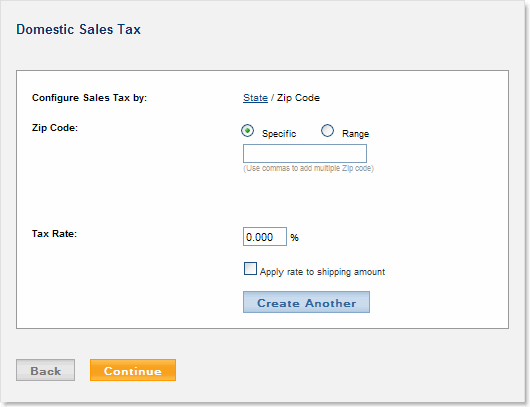
1. For **Configure Sales Tax by**, click **Zip Code**.
2. Select **Specific**.
3. Enter the zip code for the rate you want to create.
4. Enter the sales tax rate in the **Tax Rate** field.
5. If applicable, select **Apply rate to shipping amount**.
6. To add the rate, click **Continue**.
7. To add the rate and another domestic sales tax rate, click **Create another**.
**Set up a domestic sales tax rate by zip code**
#### Add a tax rate for a zip code range [#add-a-tax-rate-for-a-zip-code-range]
1. For **Configure Sales Tax by**, click the **Zip Code** option.
2. Select **Range**.
3. Enter the starting and ending zip code for the rate you want to create.
4. Enter the sales tax rate in the **Tax Rate** field.
5. If applicable, select **Apply rate to shipping amount**.
6. To add the rate, click **Continue**.
7. To add the rate and another domestic sales tax rate, click **Create another**.
### Set up international sales tax rates [#set-up-international-sales-tax-rates]
You can create the following types of international sales tax rates:
* For Canada, sales tax rates can be for one or more provinces.
* For countries other than the U.S. and Canada, sales tax rates apply to the entire country.
1. Access your sales tax settings in your PayPal account profile.
2. To add a rate, click **Add New Sales Tax** in the **Set Up International Tax Rates** box.
3. Select the country.
4. If you selected Canada, select one or more or all provinces. To select more than one province, press **CTRL** or **Command**.
5. Enter the sales tax rate in the **Tax Rate** field.
6. If applicable, select **Apply rate to shipping amount**.
7. To add the rate, click **Continue**.
8. To add the rate and another international sales tax rate, click **Create Another**.
### Edit or delete sales tax rates [#edit-or-delete-sales-tax-rates]
First, access your sales tax settings in your PayPal account profile.
* To edit a sales tax rate, select the rate and click **Edit**.
* To delete a sales tax rate, select the rate and click **Delete**.
### Override sales tax calculations on individual transactions [#override-sales-tax-calculations-on-individual-transactions]
Merchants who use PayPal payment buttons (PayPal Payments Standard) can override automatic tax calculation on an individual transaction or on individual items in a transaction, regardless of a buyer's location.
Merchants who use PayPal payment buttons (PayPal Payments Standard) can override automatic tax calculation on an individual transaction or on individual items in a transaction, regardless of a buyer's location.`SetExpressCheckout` ([NVP](/api/nvp-soap/set-express-checkout-nvp/), [SOAP](/api/nvp-soap/set-express-checkout-soap/)) API operation reference page.
## Auto-calculate shipping charges [#auto-calculate-shipping-charges]
Merchants who use PayPal payment buttons (PayPal Payments Standard) can take advantage of PayPal's automatic shipping charge calculation feature. PayPal calculates shipping charges based on rates that you specify in your account profile.
> **Note:** **Note:** Merchants who use Express Checkout must calculate their own shipping charges. For how to use Express Checkout to pass shipping rates to PayPal, see the Express Checkout [Instant Update API](/archive/express-checkout/integration-guide/ECInstantUpdateAPI). Also, see [manage shipping addresses](/archive/express-checkout/integration-guide/ECCustomizing#manage-shipping-addresses) through the API.
You can set up shipping rates in your PayPal account profile as follows:
* Domestic (U.S. only) shipping rates for regions defined by state or zip code.
* International shipping rates for regions defined by country or jurisdiction.
The following topics describe how to specify rates for different shipping methods, such as standard and express delivery, within shipping regions:
* [Shipping calculations overview](#shipping-calculations-overview)
* [Configure auto-calculation of shipping charges](#configure-auto-calculation-of-shipping-charges)
* [Override shipping calculations on individual items or transactions](#override-shipping-calculations-on-individual-items-or-transactions)
### Shipping calculations overview [#shipping-calculations-overview]
To set up shipping calculations in your PayPal account profile, see [configure auto-calculation of shipping charges](#configure-auto-calculation-of-shipping-charges).
#### What buyers see during checkout [#what-buyers-see-during-checkout]
After you set up shipping rates in your account profile, PayPal calculates the shipping charges for purchase transactions automatically. PayPal prompts buyers to enter their shipping destinations on the first checkout page.
1. **PayPal prompts buyers for shipping destinations**

Buyers click the **calculate total order amount** link to enter information about their shipping destinations.
2. **Buyers enter shipping destinations to calculate shipping charges**
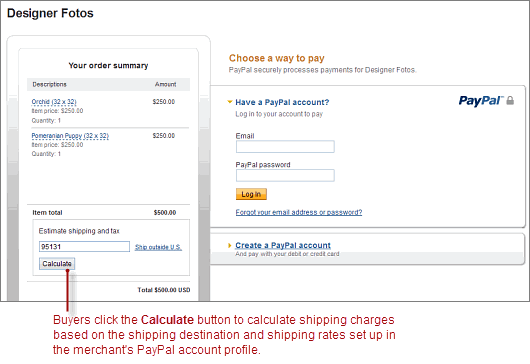
Buyers enter information about their shipping destinations, and click **Update**.
3. **Buyers see shipping charges before they pay**
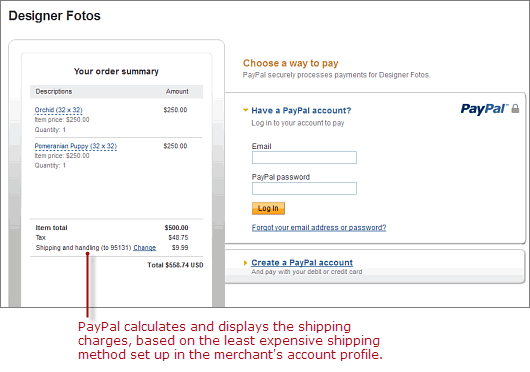
PayPal calculates the shipping charges using the least expensive shipping method that you set up for the destination.
4. **Buyers select their preferred shipping methods**
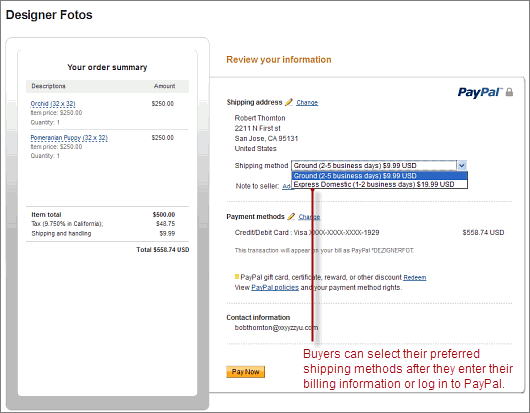
PayPal lets buyers select their preferred shipping methods after they enter their billing information or log in to PayPal. If buyers change their shipping addresses or select a different shipping method, PayPal calculates the shipping charges again and displays the new amount.
#### Shipping regions [#shipping-regions]
You organize your shipping rates primarily by the states and countries to which you ship your products. Some merchants make only domestic shipments. Other merchants make both domestic shipments and international shipments. Depending on territorial size, some merchants divide their domestic markets into smaller shipping regions, each with their own shipping rates.
You organize your shipping rates primarily by the states and countries to which you ship your products. Some merchants make only domestic shipments. Other merchants make both domestic shipments and international shipments. Depending on territorial size, some merchants divide their domestic markets into smaller shipping regions, each with their own shipping rates.
* You ship only domestically or both domestically and internationally
* You want one set of rates for all U.S. domestic shipments, or you want rates for different domestic regions, such as western and eastern states
* You want one set of rates for all international shipments, or you want rates for different international regions, such as Europe and Asia
You can establish one set of shipping rates for all domestic and international destinations, but your shipping rates should reflect your costs of shipping, which generally vary between different domestic and international regions.
#### Shipping methods [#shipping-methods]
Within each shipping region that you define, you specify specific shipping rates for the different *shipping methods* you want to offer buyers. A shipping method specifies a mode of shipment and the general time frame for delivery. For example, you might offer your domestic buyers two shipping methods: `Standard Shipping` and `Priority`.
Within each shipping region that you define, you specify specific shipping rates for the different
For each region in which you offer a specified shipping method, you generally select different delivery time frames and different rates. Otherwise, you should not set up separate shipping regions.`Standard Shipping` method for the region where your shipments originate might specify a time frame of `2-3 Days`. A more distant domestic shipping region might specify a time frame of `3-7 Days`. You set the same rates for `Standard Shipping` in all regions, but delivery times are longer for more distant ones.
For example, your `Standard Shipping` method for the region where your shipments originate might specify a time frame of `2-3 Days`. A more distant domestic shipping region might specify a time frame of `3-7 Days`. You set the same rates for
#### Shipping rate bases [#shipping-rate-bases]
For each shipping method in each shipping region that you define, you specify the *basis* upon which your shipping rates are used to calculate the shipping charges for specific purchases. You can choose from the following shipping rate bases:
* Total order amount
* Total order weight
* Total item quantity
Generally, you specify the same shipping rate basis for all shipping regions and shipping methods that you define. Before you begin setting up the shipping rates that PayPal uses to calculate shipping charges, decide which basis is most suitable for the kinds of products you sell and the typical orders that your buyers place.
#### Shipping rate tables [#shipping-rate-tables]
For each shipping method you define, fill in a *rate table* to specify the rates that PayPal uses to calculate shipping charges. Rate tables let you specify *tiered* rates.
**Shipping rate table with a basis of total order amount**
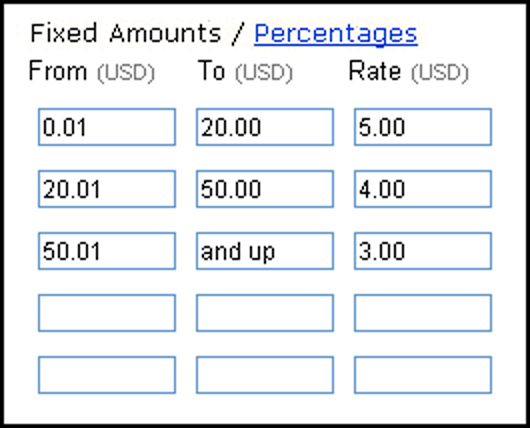
Each row in a rate table represents a different tier. Each successive tier encompasses a successively increasing range within the rate basis. You specify a separate rate for each tier.
Each row in a rate table represents a different tier. Each successive tier encompasses a successively increasing range within the rate basis. You specify a separate rate for each tier.
#### Shipping rates and currencies [#shipping-rates-and-currencies]
When you set up shipping methods, specify the same currency for the shipping rates that you used to price the products on your website. Specify shipping rates for both domestic shipments and international shipments in your domestic currency, provided that you priced your products for international buyers in your domestic currency.
When you set up shipping methods, specify the same currency for the shipping rates that you used to price the products on your website. Specify shipping rates for both domestic shipments and international shipments in your domestic currency, provided that you priced your products for international buyers in your domestic currency.
#### Examples of cost methods and shipping calculations [#examples-of-cost-methods-and-shipping-calculations]
The following examples demonstrate how different cost methods are applied when calculating shipping charges.
**Calculate shipping charges with the flat amount cost method**
When you choose **Calculate shipping charges with the flat amount cost method** as the cost method for shipping rates, PayPal expresses the costs for each price range as fixed amounts.
##### Flat amount cost method and shipping calculations [#flat-amount-cost-method-and-shipping-calculations]
Assume the following shipping rates with a cost method of **Flat Amount**:
```text lineNumbers
Cost Price Ranges
3,00 EUR 0,00 EUR - 49,99 EUR
6,00 EUR 50,00 EUR - and up
```
The shipping charge for an order price of
€
36,50 is
€
3,00. The shipping charge for an order price of
€
66,50 is
€
6,00. This rate structure helps you recover your shipping costs from buyers.\`
**Calculate shipping charges with the percentage cost method**
When you choose **Calculate shipping charges with the percentage cost method** as the cost method for shipping rates, costs for each price range are expressed as percentages of the actual order price.
When you choose **Percentage** as the cost method for shipping rates, costs for each price range are expressed as percentages of the actual order price.
```text lineNumbers
Cost Price Ranges
5.00 GBP % 0.00 GBP - 49.99 GBP
4.00 GBP % 50.00 GBP - and up
```
The shipping charge for an order price of
£
36.50 is
£
1.83. The shipping charge for an order price of
£
66.50 is
£
2.66.
The shipping charge for an order price of
£
36.50 is
£
1.83. The shipping charge for an order price of
£
66.50 is
£
2.66.
#### Examples of rate bases and shipping calculations [#examples-of-rate-bases-and-shipping-calculations]
The following examples demonstrate how different shipping rates are applied when calculating shipping charges:
**Calculate shipping charges based on amount of purchase**
When you choose **Calculate shipping charges based on amount of purchase** or **By Amount** as the basis for shipping rates, tiers in the rate table represent increasing ranges of order amounts. Generally, you select **By Amount** as the rate basis if you want to encourage your buyers to buy more with increasing discounts on shipping charges.
When you choose **Total Order Amount** or **By Amount** as the basis for shipping rates, tiers in the rate table represent increasing ranges of order amounts. Generally, you select **By Amount** as the rate basis if you want to encourage your buyers to buy more with increasing discounts on shipping charges.
##### Flat rate shipping calculations [#flat-rate-shipping-calculations]
Assume the following shipping rate table with a basis of **By Order** and fixed amount pricing selected:
```text lineNumbers
From(EUR) To(EUR) Rate(EUR)
0.01 49.99 3.00
50.00 and up 2.00
```
The shipping charge for an order amount of
€
36.50 EUR is
€
3.00 EUR. The shipping charge for an order amount of
€
66.50 EUR is
€
2.00 EUR This rate structure encourages buyers to purchase more with discounted shipping on larger orders.
##### Percentage Rate Shipping Calculation [#percentage-rate-shipping-calculation]
Assume the following shipping rate table with a basis of **By Order** and percentage rate pricing selected:
```text lineNumbers
From(JPY) To(JPY) Rate(%)
0.01 49.99 5
50.00 and up 4
```
The shipping charge for an order amount of
¥
36.50 JYP is
¥
1.38 JYP (36.50 x 5%). The shipping charge for an order amount of
¥
66.50 JYP is
¥
2.66 JYP (66.50 x 4%).
**Calculate shipping charges based on weight of shipment**
When you choose **Calculate shipping charges based on weight of shipment** or **By Weight** as the basis for shipping rates, tiers in the rate table represent increasing ranges of order weights. Generally, you select **By Weight** as the rate basis if you want to recover your shipping costs.
When you choose **Total Order Weight** or **By Weight** as the basis for shipping rates, tiers in the rate table represent increasing ranges of order weights. Generally, you select **By Weight** as the rate basis if you want to recover your shipping costs.
##### Weight-Based Shipping Calculations [#weight-based-shipping-calculations]
Assume the following shipping rate table with a basis of **By Weight**:
```text lineNumbers
From(Kgs) To(Kgs) Rate(GBP)
0.01 49.99 3.00
50.00 and up 6.00
```
The shipping charge for an order that weighs 36.50 kg is
£
3.00 GBP. The shipping charge for an order that weighs 66.50 kg is
£
6.00 GBP.
**Calculate shipping charges based on quantity of items shipped**
When you choose **Calculate shipping charges based on quantity of items shipped** or **By Quantity** as the basis for shipping rates, tiers in the rate table represent increasing ranges of order item counts. Generally, select **By Quantity** as the rate basis if all your products have a generally uniform size and weight, such as shoes.
##### Quantity-Based Shipping Calculations [#quantity-based-shipping-calculations]
Assume the following shipping rate table with a basis of **By Quantity**:
```text lineNumbers
From To Rate(USD)
1 49 3.00
50 and up 6.00
```
The shipping charge for an order with 36 items is $3.00 USD. The shipping charge for an order with 66 items is $6.00 USD.
### Configure auto-calculation of shipping charges [#configure-auto-calculation-of-shipping-charges]
**US Merchants**
* [Access the Shipping Calculations page](#access-the-shipping-calculations-page)
* [Add shipping methods](#add-shipping-methods)
* [View the configuration for a shipping method](#view-the-configuration-for-a-shipping-method)
* [Edit the configuration for a shipping method](#edit-the-configuration-for-a-shipping-method)
* [Delete shipping methods](#delete-shipping-methods)
**Non-US Merchants**
* [Calculate shipping charges automatically for non-US merchants](#calculate-shipping-charges-automatically-for-non-us-merchants)
#### Access the Shipping Calculations page [#access-the-shipping-calculations-page]
The first time that you set up shipping rates, the page sequence is tailored for creating your initial shipping regions, methods, and rates.
The first time that you set up shipping rates, the page sequence is tailored for creating your initial shipping regions, methods, and rates.
1. Log in to your PayPal business account at [paypal.com](https://www.paypal.com).
Click your profile name in the top right corner of your account and then click **Account Settings**.
2. From the left menu, click **My selling tools**.
3. In the **Shipping my items** section, click the **Update** link next to **Shipping calculations**.
4. You might see the Shipping Calculations setup page if you're accessing this feature for the first time.
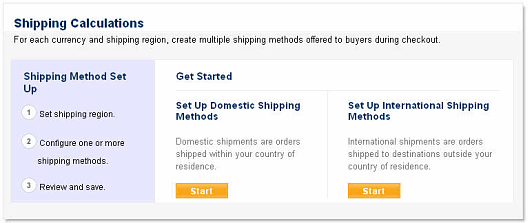
Or you might see the Shipping Calculations review page
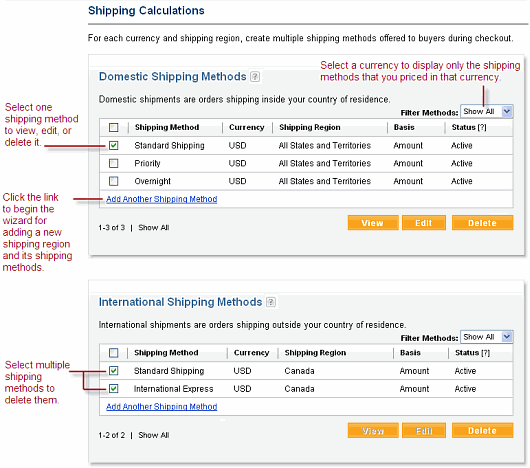
#### Add shipping methods [#add-shipping-methods]
Whenever you add a shipping method, you use one of two wizards to step you through the process. The domestic shipping wizard lets you configure shipping regions within the U.S., and the international shipping wizard lets configure foreign shipping regions. Shipping wizards let you configure a shipping region and all the shipping methods for it at one time.
[Access the Shipping Calculations page](#access-the-shipping-calculations-page)Whenever you add a shipping method, you use one of two wizards to step you through the process. The domestic shipping wizard lets you configure shipping regions within the U.S., and the international shipping wizard lets configure foreign shipping regions. Shipping wizards let you configure a shipping region and all the shipping methods for it at one time.
* Click **Start** on the Shipping Calculations setup page.
* Click **Add New Shipping Method** or **Add Another Shipping Method** link from the Shipping Calculations review page.
The steps in domestic and international shipping wizards are the same.
**Page Sequence in a Shipping Wizard**

1. Setting up the shipping region.
Select the U.S. states or the foreign countries for the shipping region, and select the currency in which you want to price the shipping rates for the shipping region.
> **Note:** **Note:** You cannot change the currency later when you edit shipping methods. After you select the U.S. states or foreign countries you want for the shipping region, click **Continue** to proceed to the second step of the shipping wizard.
2. Configuring the shipping methods within the region.
Select a name and delivery time frame, specify a rate basis, and fill in the rate table. Repeat this step to configure all shipping methods for the shipping region.
Click **Create Another** to begin the configuration of the next shipping method or click **Continue** to proceed to the third and final step of the shipping wizard.
3. Saving the shipping methods configured with a shipping wizard.
Review the shipping region and the shipping methods, and **Change** them if you like before you save them.
You can also [override shipping calculations on individual items or transactions](#override-shipping-calculations-on-individual-items-or-transactions).
Finally, click **Save Shipping Methods** to preserve the shipping methods that you set up with the shipping wizard. The shipping methods become available to buyers as soon as you save them.
#### View the configuration for a shipping method [#view-the-configuration-for-a-shipping-method]
To view the configuration for a shipping method:
1. On the [Access the Shipping Calculations page](#access-the-shipping-calculations-page), select a domestic or international shipping method.
2. Click **View**.
3. On the review page, click **Edit Settings** to update the shipping method.
4. Click **Back to Shipping Methods**.
#### Edit the configuration for a shipping method [#edit-the-configuration-for-a-shipping-method]
To edit the configuration settings for a shipping method:
1. On the Access the Shipping Calculations page, select a domestic or international shipping method.
2. Click **Edit**.
3. Change any of the following settings:
| | |
| ------------------------------------------------------------------------------- | ----------------------------------------------------------------------------------------------------------------------------------------------------------------------------------------------------------------------------------------------------------------------------------------------------------------------------------------------------------------------------- |
| **Status** | Whether the shipping method is actively used to calculate shipping charges. A valid value is **Active** or **Inactive**, which control whether the shipping option is shown or hidden from buyers, respectively. |
| **Currency** and **Region** | The domestic regions or foreign countries currently selected for the shipping region. You cannot change the currency. To select different regions or countries, click the **Change** link. |
| **Use the shipping fee in the transaction instead of my calculator's settings** | Whether the shipping rates can be overridden by individual transactions if the information is passed to PayPal with HTML variables in the transaction. Valid value is **Yes** or **No**. > **Note:** Important: Changing this setting for a specific shipping method changes the setting for all U.S. domestic and international shipping methods that use the same currency. |
| **Shipping Method Name** | A name for the shipping method. |
| **Select Delivery Time** | (Optional) A delivery time. |
| **Based On** | The rate basis for the shipping method. Valid value is **By Amount**, **By Weight**, or **By Quantity**. See [Examples of Rate Bases and Shipping Calculations](#examples-of-rate-bases-and-shipping-calculations). |
| **Shipping Rates** | The shipping rates that PayPal uses to calculate shipping charges when buyers select the shipping method. Set shipping rates as fixed amounts or as percentages. > **Note:** **Note:** Changes that you make to active shipping methods become effective after a momentary delay. |
4. Click **Save Changes**.
#### Delete shipping methods [#delete-shipping-methods]
You can delete one or more domestic or international shipping methods at one time. Follow the procedure below in either the **Domestic Shipping Methods** section or the **International Shipping Methods** section of the **Shipping Calculations** review page.
> **Note:** **Important:** After you delete a shipping method, it cannot be recovered for use in future shipping calculations.
To delete one or more shipping methods:
1. On the Access the Shipping Calculations page, select a domestic or international shipping method.
2. Click **Delete**.
3. Click **Yes** in the **Delete Confirmation** message box.
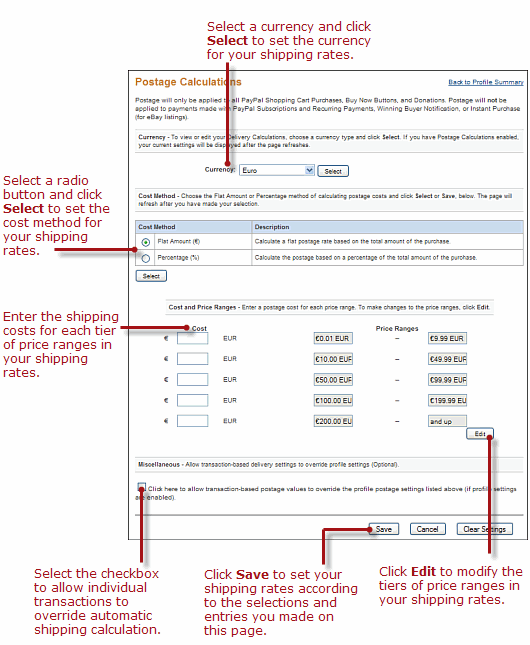
#### Calculate shipping charges automatically for non-US merchants [#calculate-shipping-charges-automatically-for-non-us-merchants]
You can set up shipping rates in your account profile and let PayPal calculate shipping charges automatically.
You can set up shipping rates in your account profile and let PayPal calculate shipping charges automatically.
1. Log in to your PayPal business account at [paypal.com](https://www.paypal.com).
Click your profile name in the top right corner of your account and then click **Account Settings**.
2. From the left menu, click **My selling tools**.
3. In the **Shipping my items** section, click the **Update** link next to **Postage calculations**.
4. The Postage Calculations page appears.
**Postage Calculations Page for non-U.S. Merchants**
### Override shipping calculations on individual items or transactions [#override-shipping-calculations-on-individual-items-or-transactions]
Sometimes you want to set special shipping rates for certain items, such as especially heavy ones that cost more to ship, or services and digital downloads that do not require shipping.
Sometimes you want to set special shipping rates for certain items, such as especially heavy ones that cost more to ship, or services and digital downloads that do not require shipping.
#### Enable overrides of shipping rates for individual transactions [#enable-overrides-of-shipping-rates-for-individual-transactions]
By defaults, this feature is enabled for U.S. merchants.
By defaults, this feature is enabled for U.S. merchants.
> **Note:** **Important:** Changing this setting for a specific shipping method also changes the setting for all U.S. domestic and international shipping methods that use the same currency.
1. On the [Shipping Calculations page](#access-the-shipping-calculations-page), select the shipping method.
2. Click **Edit**.
3. Within that shipping method, select **Yes** or **No** for the field.
4. Click **Save**.
By default, this feature is disabled for non-U.S. merchants.
By default, this feature is disabled for non-U.S. merchants.
1. On the [Postage Calculations page](#calculate-shipping-charges-automatically-for-non-us-merchants), select **Click here to allow transaction-based postage values to override the profile postage settings listed above (if profile settings are enabled).**
2. Click **Save**.
## Configure language encoding [#configure-language-encoding]
Websites that use PayPal in different parts of the world work with different languages and different character encoding schemes. PayPal refers collectively to these differences as *language encoding*. You can set the default language encoding for your checkout pages as well as for the data that you exchange with PayPal.
### Configure the language encoding of checkout pages [#configure-the-language-encoding-of-checkout-pages]
PayPal checkout pages are localized automatically. The display language of PayPal checkout pages can depend on the country of the buyer and of the merchant. You can also attempt to change the display language using API fields or an HTML form variable.
### Configure the language encoding of your data [#configure-the-language-encoding-of-your-data]
You can set the default language encoding that your website uses to exchange data with PayPal. When you sign up for a PayPal account, the system determines your default language and encoding based on your country of origin. For example, if you sign up with a French postal address, your language and encoding are set for Western European languages. The default settings are used for all transactions sent from your website to PayPal and all automated notifications sent from PayPal to your website. PayPal Payments Standard merchants who use PayPal payment buttons can override the default settings on individual transactions with the HTML `charset` form variable.
> **Note:** **Important:** If your language encoding preferences do not match the
> language and encoding that your website uses, your data cannot be exchanged with PayPal.
Generally, the default language encoding preferences selected by PayPal is appropriate. In some cases, particularly in Asian countries or with certain operating systems, your default website language and/or encoding preferences may not match those used by your website. If they do not match, you must set your language encoding preferences to match the language and encoding that your website uses. Otherwise, data cannot be exchanged with PayPal.
Generally, the default language encoding preferences selected by PayPal is appropriate. In some cases, particularly in Asian countries or with certain operating systems, your default website language and/or encoding preferences may not match those used by your website. If they do not match, you must set your language encoding preferences to match the language and encoding that your website uses. Otherwise, data cannot be exchanged with PayPal.
* [Your website's language](#change-your-default-website-language). Set the character set used on your website, such as Western European, Japanese, or Russian.
* [Encoding](#change-the-encoding-used-by-your-website). Set the character encoding used on your website, such as `UTF-8`, `EUC-JP`, or `KOI8-R`.
#### Change your default website language [#change-your-default-website-language]
Changing your website language changes the character set used on your website, such as Western European, Japanese, or Russian.
1. Log in to your PayPal business account at [paypal.com](https://www.paypal.com).
2. In the top right hand corner, click your name. In the dropdown that appears, chose **Account Settings**.
3. From the left hand menu, select **Website payments** and then click update on **PayPal button language encoding**.
4. On the Language Encoding screen, choose a language from the drop-down menu and click **Save**.
You will be taken back to your profile screen, but if you need to make further edits click on your name to go back and make other changes.
#### Change the encoding used by your website [#change-the-encoding-used-by-your-website]
This feature enables you to select an encoding for data that your website sends to PayPal. You can also choose a different encoding for the data sent by PayPal to you through Instant Payment Notification, history logs that you can download, and email notifications.
1. Log in to your PayPal business account at [paypal.com](https://www.paypal.com).
Click your profile name in the top right corner of your account and then click **Account Settings**.
2. From the left menu, click **My selling tools**.
3. Scroll to the bottom, and under **More selling tools** click **PayPal button language encoding**. The **Language Encoding** page appears.
4. Ensure that the setting for **Your website's language** is correct.
5. Click **More Options**. The **More Encoding Options** page appears.
6. From the **Encoding** drop-down menu, select the appropriate character encoding scheme for data that your website sends to PayPal.
* To use the same encoding scheme for receiving data that PayPal sends to your website, ensure that **Yes** is selected.
* To use a different encoding scheme, select **No** and select the encoding scheme to use to receive data from PayPal from the **No, use** drop-down menu.
7. Click **Save** to preserve both the encoding options that you selected on this page.
To return to the previous page and review your website language choice, click **Cancel**. However, selections that you made on the **More Encoding Options** page are lost.
## Additional information [#additional-information]
* [HTML Variables for PayPal Payments Standard](/archive/paypal-payments-standard/integration-guide/Appx-websitestandard-htmlvariables)
* [Include your company logo](/archive/express-checkout/integration-guide/ECCustomizing#include-your-company-logo)
* [Initiate a payment](/archive/express-checkout/integration-jsv4/ec-initiate-payment)
* `SetExpressCheckout` ([NVP](/api/nvp-soap/set-express-checkout-nvp/) | [SOAP](/api/nvp-soap/set-express-checkout-soap/))
* [Generate subscriber user names and passwords](/archive/paypal-payments-standard/integration-guide/user-names-passwords)
* [Checkout settings](/archive/paypal-payments-standard/integration-guide/ProfileAndTools)
* [PayPal API locale codes](/api/codes/locale)
* [Instant Payment Notification](/api/nvp-soap/ipn/IPNIntro/)
* [Download Account History](/archive/paypal-payments-standard/admin/download-history)
* [Setting the Character Set
—
charset](/archive/paypal-payments-standard/integration-guide/formbasics)
* [PayPal User Agreement](https://www.paypal.com/webapps/mpp/ua/useragreement-full)
* [PayPal Merchant Services Agreement](https://www.paypal.com/au/webapps/mpp/ua/merchservices-full)