# Donate: checkout experience (/archive/paypal-payments-standard/integration-guide/checkout-exp-donate)
> **Warning:** This product is [deprecated](/archive/product-lifecycle) and should not be used for new integrations. Use [Payment Links and Buttons](/payment-links-buttons/overview) instead. For information about migrating, visit the [Upgrade Hub](https://developer.paypal.com/upgrade/wps/guide/).
The donate experience begins when a donor clicks the **Donate** button on your website.
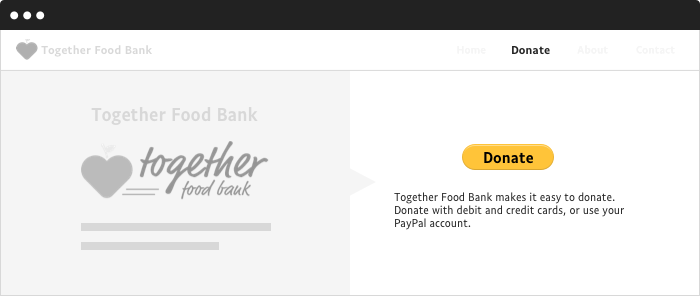 When the donor clicks the **Donate** button, PayPal displays the donate landing page.
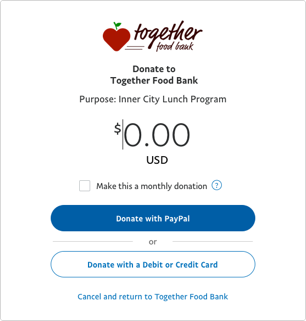 On this page, the donor can:
* Enter the donation amount or verify the amount designated from your donate button.
* Click the **Make this a monthly donation** checkbox to make this donation a recurring gift.
* Click **Donate with PayPal** or **Donate with a Debit or Credit Card**.
## Paying with PayPal [#paying-with-paypal]
If the donor logs in to PayPal, the review page is displayed.
On this page, the donor can:
* Enter the donation amount or verify the amount designated from your donate button.
* Click the **Make this a monthly donation** checkbox to make this donation a recurring gift.
* Click **Donate with PayPal** or **Donate with a Debit or Credit Card**.
## Paying with PayPal [#paying-with-paypal]
If the donor logs in to PayPal, the review page is displayed.
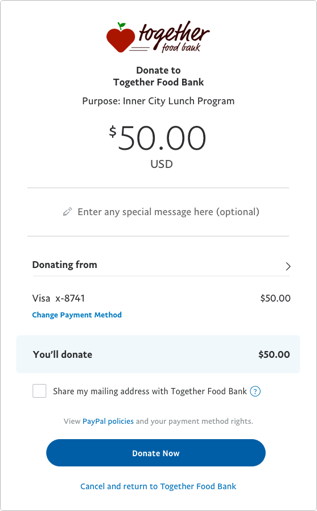 The donor can verify the donation amount and payment details or change the payment method. The donor can also choose to share their mailing address with the organization. When the donor clicks **Donate Now**, the payment is authorized and PayPal displays a confirmation page.
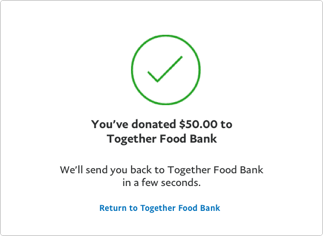 Finally, PayPal sends the donor an email to confirm the transaction.
## Paying with debit or credit card [#paying-with-debit-or-credit-card]
If the donor chooses to pay with a debit or credit card, the guest donation form opens.
Finally, PayPal sends the donor an email to confirm the transaction.
## Paying with debit or credit card [#paying-with-debit-or-credit-card]
If the donor chooses to pay with a debit or credit card, the guest donation form opens.
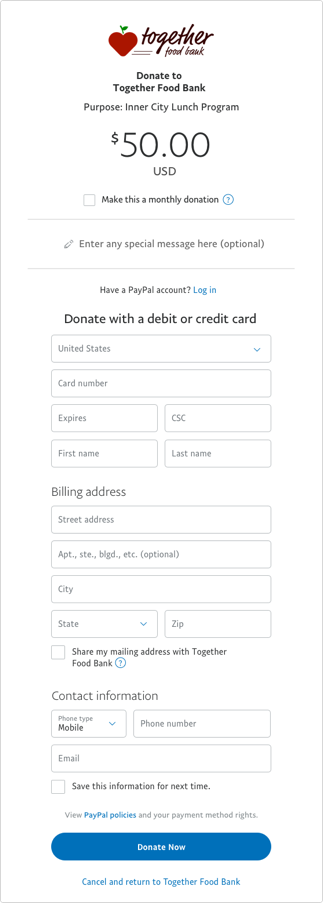 The donor can:
* Enter debit or credit card information.
* Enter billing and contact information.
* Optionally, make this a recurring monthly donation.
* Optionally, create a PayPal account.
When the donor clicks **Donate Now**, the payment is authorized and PayPal displays a confirmation page.
The donor can:
* Enter debit or credit card information.
* Enter billing and contact information.
* Optionally, make this a recurring monthly donation.
* Optionally, create a PayPal account.
When the donor clicks **Donate Now**, the payment is authorized and PayPal displays a confirmation page.
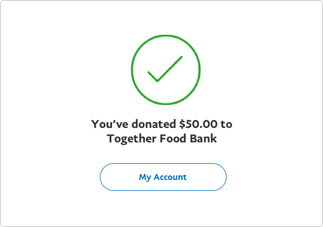 Finally, PayPal sends the donor an email to confirm the transaction.
## Enhance the checkout experience [#enhance-the-checkout-experience]
To enhance the donor's checkout experience, you can add custom options to your Donate button. These topics describe custom button options and other PayPal Payment Standard product features:
* [Customize advanced features](/archive/paypal-payments-standard/integration-guide/step-3) — Configure options in Step 3: Customize advanced features on the Create a PayPal payment button page.
* [Account profile settings](/archive/paypal-payments-standard/integration-guide/ProfileAndTools) — Configure your PayPal account profile to add your company logo.
* [Merchant Setup and Administration Guide](/archive/paypal-payments-standard/admin/checkout-settings#auto-return-the-buyer-to-your-website) — Implement the Auto-Return feature so donors are automatically returned to your website when they complete a donation.
* [Payment Data Transfer](/api/nvp-soap/payment-data-transfer) — Return transaction information to donors after completing a donation, including a Thank You message.
* [Filling out FORMs automatically with HTML variables](/archive/paypal-payments-standard/integration-guide/formbasics#auto-fill-forms-with-html-variables)
* [HTML variables for filling out PayPal checkout pages automatically](/archive/paypal-payments-standard/integration-guide/Appx-websitestandard-htmlvariables#recurring-payment-variables)
Finally, PayPal sends the donor an email to confirm the transaction.
## Enhance the checkout experience [#enhance-the-checkout-experience]
To enhance the donor's checkout experience, you can add custom options to your Donate button. These topics describe custom button options and other PayPal Payment Standard product features:
* [Customize advanced features](/archive/paypal-payments-standard/integration-guide/step-3) — Configure options in Step 3: Customize advanced features on the Create a PayPal payment button page.
* [Account profile settings](/archive/paypal-payments-standard/integration-guide/ProfileAndTools) — Configure your PayPal account profile to add your company logo.
* [Merchant Setup and Administration Guide](/archive/paypal-payments-standard/admin/checkout-settings#auto-return-the-buyer-to-your-website) — Implement the Auto-Return feature so donors are automatically returned to your website when they complete a donation.
* [Payment Data Transfer](/api/nvp-soap/payment-data-transfer) — Return transaction information to donors after completing a donation, including a Thank You message.
* [Filling out FORMs automatically with HTML variables](/archive/paypal-payments-standard/integration-guide/formbasics#auto-fill-forms-with-html-variables)
* [HTML variables for filling out PayPal checkout pages automatically](/archive/paypal-payments-standard/integration-guide/Appx-websitestandard-htmlvariables#recurring-payment-variables)