# HTML Form Basics for PayPal Payments Standard (/archive/paypal-payments-standard/integration-guide/formbasics)


> **Warning:** This product is [deprecated](/archive/product-lifecycle) and should not be used for new integrations. Use [Payment Links and Buttons](/payment-links-buttons/overview) instead. For information about migrating, visit the [Upgrade Hub](https://developer.paypal.com/upgrade/wps/guide/).

This chapter describes in technical terms the basic functionality of PayPal
Payments Standard and its use of HTML Forms. Use the information in this
chapter as a guide to writing the HTML code yourself for PayPal Payments
Standard payment buttons. A wide variety of HTML authoring tools exist. This
guide does not describe all the possibilities.

This chapter describes in technical terms the basic functionality of PayPal
Payments Standard and its use of HTML Forms. Use the information in this
chapter as a guide to writing the HTML code yourself for PayPal Payments
Standard payment buttons. A wide variety of HTML authoring tools exist. This
guide does not describe all the possibilities.

## Form attributes — ACTION and METHOD [#form-attributes--action-and-method]

The `FORM` tag includes two required attributes,
`action` and `method`, which always look like this:

<div className="pl-[1.625rem]" />

```html lineNumbers
<FORM action="https://www.paypal.com/cgi-bin/webscr" method="post">
```

**Important:** Do not change these values. These attributes are
required for all payment buttons and the Cart Upload command.

## Hidden input variables [#hidden-input-variables]

HTML input variables in a PayPal Payments Standard `FORM` are
always hidden from the payer's view. They have the following general format:

`<INPUT TYPE="hidden" name="variableName" value="allowedValue">`

Where:

* is an HTML variable name.

* is an HTML variable value.

For information, see
[HTML Variables for PayPal Payments Standard](/archive/paypal-payments-standard/integration-guide/Appx-websitestandard-htmlvariables).

## Specifying button type — cmd [#specifying-button-type--cmd]

The `cmd` variable is always required in a `FORM`. Its
value determines which PayPal Payments Standard checkout experience you are
using to obtain payment.

**Allowable Values for the cmd HTML Variable**

| Value of cmd            | Description                                                                                                                                                                                                                                                                                                                                                                |
| ----------------------- | -------------------------------------------------------------------------------------------------------------------------------------------------------------------------------------------------------------------------------------------------------------------------------------------------------------------------------------------------------------------------- |
| `_xclick`               | The button that the person clicked was a Buy Now button.                                                                                                                                                                                                                                                                                                                   |
| `_cart`                 | For shopping cart purchases. The following variables specify the kind of                 shopping cart button that the person clicked:                                  `add` — Add to Cart buttons for the PayPal Shopping Cart`display` — View Cart buttons for the PayPal Shopping                         Cart`upload` — The Cart Upload command for third-party carts |
| `_xclick-subscriptions` | The button that the person clicked was a Subscribe button.                                                                                                                                                                                                                                                                                                                 |
| `_xclick-auto-billing`  | The button that the person clicked was an Automatic Billing button.                                                                                                                                                                                                                                                                                                        |
| `_donations`            | The button that the person clicked was a Donate button.                                                                                                                                                                                                                                                                                                                    |
| `_s-xclick`             | The button that the person clicked was protected from tampering by using                 encryption, or the button was saved in the merchant's PayPal account.                 PayPal determines which kind of button was clicked by decoding the                 encrypted code or by looking up the saved button in the merchant's                 account.              |

The input tag looks like one of the following:

* **Buy Now buttons** —
  `<INPUT TYPE="hidden" name="cmd" value="_xclick">`

* **Shopping cart buttons** —
  `<INPUT TYPE="hidden" name="cmd" value="_cart">`

* **Subscribe buttons** —

  ```html lineNumbers
  <INPUT TYPE="hidden" name="cmd"
              value="_xclick-subscriptions">
  ```

* **Automatic Billing buttons** —
  `<INPUT TYPE="hidden" name="cmd" value="_xclick-auto-billing">`

* **Donate buttons** —
  `<INPUT TYPE="hidden" name="cmd" value="_donations">`

> **Note:** **Important:** These INPUT tags are required exactly as shown
> above. Do not alter them.

## Variations on basic variables [#variations-on-basic-variables]

This section highlights a few ways to use PayPal Payments Standard
`FORM` variables.

This section highlights a few ways to use PayPal Payments Standard
[HTML Variables for PayPal Payments Standard](/archive/paypal-payments-standard/integration-guide/Appx-websitestandard-htmlvariables) variables.
[Address Handling (U.S. Merchants Only)](/archive/paypal-payments-standard/integration-guide/Appx-BillingShippingAddress).

### Recordkeeping with passthrough variables [#recordkeeping-with-passthrough-variables]

Some variables are exclusively for your own use, such as order management.
PayPal returns the values that you send through Instant Payment Notification
exactly as you sent them. For this reason, they are called
*passthrough* variables. Their values are not recorded or used by
PayPal.

Some variables are exclusively for your own use, such as order management.
PayPal returns the values that you send through Instant Payment Notification
exactly as you sent them. For this reason, they are called

* `custom`

* `item_number` or`item_number_`*x*

* `invoice`

### Setting the character set — charset [#setting-the-character-set--charset]

Use the `charset` HTML variable to specify the character set and
character encoding for the billing information/log-in page on the PayPal
website. In addition, this variable sets the same values for information that
you send to PayPal in your HTML button code.

Use the `charset` HTML variable to specify the character set and
character encoding for the billing information/log-in page on the PayPal
website. In addition, this variable sets the same values for information that
you send to PayPal in your HTML button code.

`<INPUT TYPE="hidden" name="charset" value="utf-8">`

#### Character Sets and Encoding Schemes Supported by PayPal [#character-sets-and-encoding-schemes-supported-by-paypal]

:::list--columns list--columns--third

* Big5 (Traditional Chinese in Taiwan)

* EUC-JP

* EUC-KR

* EUC-TW

* gb2312 (Simplified Chinese)

* gbk

* HZ-GB-2312 (Traditional Chinese in Hong Kong)

* ibm-862 (Hebrew with European characters)

* ISO-2022-CN

* ISO-2022-JP

* ISO-2022-KR

* ISO-8859-1 (Western European Languages)

* ISO-8859-2

* ISO-8859-3

* ISO-8859-4

* ISO-8859-5

* ISO-8859-6

* ISO-8859-7

* ISO-8859-8

* ISO-8859-9

* ISO-8859-13

* ISO-8859-15

* KOI8-R (Cyrillic)

* Shift\_JIS

* UTF-7

* UTF-8

* UTF-16

* UTF-16BE

* UTF-16LE

* UTF16\_PlatformEndian

* UTF16\_OppositeEndian

* UTF-32

* UTF-32BE

* UTF-32LE

* UTF32\_PlatformEndian

* UTF32\_OppositeEndian

* US-ASCII

* windows-1250

* windows-1251

* windows-1252

* windows-1253

* windows-1254

* windows-1255

* windows-1256

* windows-1257

* windows-1258

* windows-874 (Thai)

* windows-949 (Korean)

* x-mac-greek

* x-mac-centraleurroman

* x-mac-cyrillic

* ebcdic-cp-us

* ibm-1047

### Setting the return URL on individual transactions [#setting-the-return-url-on-individual-transactions]

With Auto Return turned on in your account profile, you can set the value of
the return URL on each individual transaction to override the value that you
have stored on PayPal. For example, you might want to return the payer's
browser to a URL on your site that is specific to that payer, perhaps with a
session ID or other transaction-related data included in the URL.

With Auto Return turned on in your account profile, you can set the value of
the return URL on each individual transaction to override the value that you
have stored on PayPal. For example, you might want to return the payer's
browser to a URL on your site that is specific to that payer, perhaps with a
session ID or other transaction-related data included in the URL.
`return` variable in the HTML `FORM`:

<div className="pl-[1.625rem]" />

```html lineNumbers
<INPUT TYPE="hidden" NAME="return" value="URLspecificToThisTransaction">
```

### Desired currency on individual transactions [#desired-currency-on-individual-transactions]

Use the `currency_code` variable on individual transactions to
specify the currency of the payment:

`<INPUT TYPE="hidden" NAME="currency_code" value="CurrencyCode">`

For allowable values in `currency_code`, see
[Currencies Supported by PayPal](/api/nvp-soap/currency-codes/). PayPal uses 3-character ISO-4217 codes for specifying currencies in fields
and variables."

> **Note:** **Note:** If the `currency_code` variable is not
> included, the currency defaults to USD.

## Using HTML variables with saved payment buttons [#using-html-variables-with-saved-payment-buttons]

When you create payment buttons on the PayPal website and save them in your
PayPal account, PayPal generates HTML code for the saved button. You must add
this generated code to your website. Otherwise, buyers have nothing to click
on.

When you create payment buttons on the PayPal website and save them in your
PayPal account, PayPal generates HTML code for the saved button. You must add
this generated code to your website. Otherwise, buyers have nothing to click
on.

<div className="pl-[1.625rem]" />

```html lineNumbers
<form action="https://www.paypal.com/cgi-bin/webscr" method="post">

  <!-- Saved buttons use the "secure click" command -->
  <input type="hidden" name="cmd" value="_s-xclick">

  <!-- Saved buttons are identified by their button IDs -->
  <input type="hidden" name="hosted_button_id" value="221">

  <!-- Saved buttons display an appropriate button image. -->
  <input type="image" name="submit"
    src="https://www.paypalobjects.com/en_US/i/btn/btn_buynow_LG.gif"
    alt="PayPal - The safer, easier way to pay online">
  <img alt="" width="1" height="1"
    src="https://www.paypalobjects.com/en_US/i/scr/pixel.gif" >

</form>
```

**Important:** Do not write HTML button code for saved payment
buttons yourself. The value for the `hosted_button_id` variable
is generated solely by PayPal. Results are unpredictable if you use your own
value.

You should not write HTML button code for saved buttons. Always use the code
that PayPal generates. However, you can enhance the generated code for saved
buttons by adding hidden HTML variables that do not affect the transaction
amount. For example, you can enhance saved buttons with automatic fill-out
variables.

## Auto-fill forms with HTML variables [#auto-fill-forms-with-html-variables]

With PayPal Account Optional turned on in your Account Profile, you can accept
payments from buyers without PayPal accounts. However, checking out by paying
with PayPal is often faster for buyers because they do not re-enter
information that is stored by them on PayPal. For repeat buyers, it is to your
advantage to encourage them to sign up for PayPal accounts.

With PayPal Account Optional turned on in your Account Profile, you can accept
payments from buyers without PayPal accounts. However, checking out by paying
with PayPal is often faster for buyers because they do not re-enter
information that is stored by them on PayPal. For repeat buyers, it is to your
advantage to encourage them to sign up for PayPal accounts.

Billing Information Page without Buyer Information Filled Out Automatically
![](https://www.paypalobjects.com/webstatic/en_US/developer/docs/pps/Billing_Normal.gif)

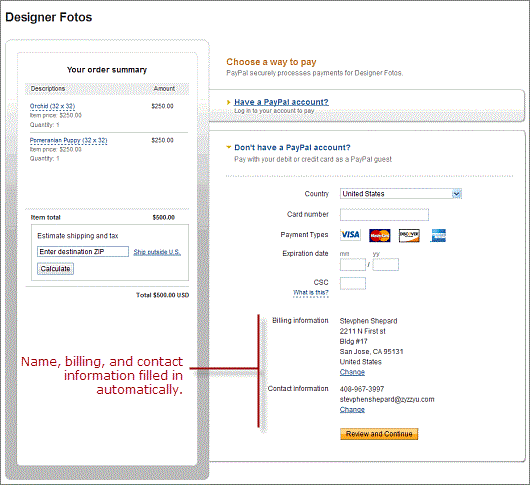
When you initiate a checkout process, you can fill out the Billing Information
page automatically by including special HTML input variables. When you pass
these variables in your button code, with the buyer's name, billing address,
and contact information, PayPal fills out the page automatically and displays
a simpler version.

Billing Information Page Filled Out Automatically with the Buyer's Name,
Address, and Other Contact Information
![](https://www.paypalobjects.com/webstatic/en_US/developer/docs/pps/Billing-auto-fill.gif)

*Change*

The automatically filled-out form displays

Filling out the Billing Information page automattically with buyers' names,
billing addresses, and contact information streamlines the checkout
experience, reduces buyer friction, and helps improve the conversion of
shopping carts to completed purchases.
[Auto fill PayPal checkout page variables](/archive/paypal-payments-standard/integration-guide/Appx-websitestandard-htmlvariables#auto-fill-paypal-checkout-page-variables).

For information about the variables to use, see
[Auto fill PayPal checkout page variables](/archive/paypal-payments-standard/integration-guide/Appx-websitestandard-htmlvariables#auto-fill-paypal-checkout-page-variables).

### Sample HTML code for auto-fill forms [#sample-html-code-for-auto-fill-forms]

The following sample HTML code shows a payment button with variables for
automatically filling out PayPal forms for the buyer. Your website generates
the field entries dynamically from information that your website gathers about
the buyer. The variables and their values are included in the URL to which
buyers are sent when they click the payment button.

The following sample HTML code shows a payment button with variables for
automatically filling out PayPal forms for the buyer. Your website generates
the field entries dynamically from information that your website gathers about
the buyer. The variables and their values are included in the URL to which
buyers are sent when they click the payment button.

> **Note:** **Important:** This page contains unencrypted button code for
> illustrative purposes only. To prevent malicious tampering of buttons on
> your live website, always encrypt your manually created buttons.

<div className="pl-[1.625rem]" />

```html lineNumbers
<form action="https://www.paypal.com/cgi-bin/webscr" method="post"> <input type="hidden" name="cmd" value="_cart"> <input type="hidden" name="business" value="seller@designerfotos.com"> <input type="hidden" name="item_name" value="hat"> <input type="hidden" name="item_number" value="123"> <input type="hidden" name="amount" value="15.00"> <input type="hidden" name="first_name" value="John"> <input type="hidden" name="last_name" value="Doe"> <input type="hidden" name="address1" value="9 Elm Street"> <input type="hidden" name="address2" value="Apt 5"> <input type="hidden" name="city" value="Berwyn"> <input type="hidden" name="state" value="PA"> <input type="hidden" name="zip" value="19312"> <input type="hidden" name="night_phone_a" value="610"> <input type="hidden" name="night_phone_b" value="555"> <input type="hidden" name="night_phone_c" value="1234"> <input type="hidden" name="email" value="jdoe@zyzzyu.com"> <input type="image" name="submit" src="https://www.paypalobjects.com/en_US/i/btn/btn_buynow_LG.gif" alt="PayPal - The safer, easier way to pay online"> </form>
```

## Overriding addresses stored with PayPal [#overriding-addresses-stored-with-paypal]

For people who already have PayPal accounts and whom you already prompted for
a shipping address before they choose to pay with PayPal, you can use the
entered address instead of the address the person has stored with PayPal. Set
the `address_override` variable to 1, as in the following example:

`<INPUT TYPE="hidden" name="address_override" value="1">`

You must also include `FORM` variables that contain the person's
address information, as detailed in
[Auto fill PayPal checkout page variables](/archive/paypal-payments-standard/integration-guide/Appx-websitestandard-htmlvariables#auto-fill-paypal-checkout-page-variables)."

You must also include

The payer is shown the passed-in address but cannot edit it. No address is
shown if the address is invalid, such as missing required fields like country,
or if the address is not included at all.
[Address Handling (U.S. Merchants Only)](/archive/paypal-payments-standard/integration-guide/Appx-BillingShippingAddress)."

### Sample HTML code for overriding addresses stored with PayPal [#sample-html-code-for-overriding-addresses-stored-with-paypal]

The following sample HTML code shows the
`address_override` variable in conjunction with variables for
overriding a buyer's address that is stored with PayPal.

> **Note:** **Important:** The example button code shown below is
> unencrypted for illustrative purposes only. In reality, you must
> always use encrypted or hosted buttons in your web pages to prevent
> malicious users from tampering with the code.

> **Note:** <div className="pl-[1.625rem]" />
>
> ```html lineNumbers
> <form action="https://www.paypal.com/cgi-bin/webscr" method="post"> <input type="hidden" name="cmd" value="_xclick"> <input type="hidden" name="business" value="seller@designerfotos.com"> <input type="hidden" name="item_name" value="Memorex 256MB Memory Stick"> <input type="hidden" name="item_number" value="MEM32507725"> <input type="hidden" name="amount" value="3"> <input type="hidden" name="tax" value="1"> <input type="hidden" name="quantity" value="1"> <input type="hidden" name="currency_code" value="USD"> <!-- Enable override of buyers's address stored with PayPal . --> <input type="hidden" name="address_override" value="1"> <!-- Set variables that override the address stored with PayPal. --> <input type="hidden" name="first_name" value="John"> <input type="hidden" name="last_name" value="Doe"> <input type="hidden" name="address1" value="345 Lark Ave"> <input type="hidden" name="city" value="San Jose"> <input type="hidden" name="state" value="CA"> <input type="hidden" name="zip" value="95121"> <input type="hidden" name="country" value="US"> <input type="image" name="submit" src="https://www.paypalobjects.com/en_US/i/btn/btn_buynow_LG.gif" alt="PayPal - The safer, easier way to pay online"> </form>
> ```

## Instant Payment Notification — notify\_url [#instant-payment-notification--notify_url]

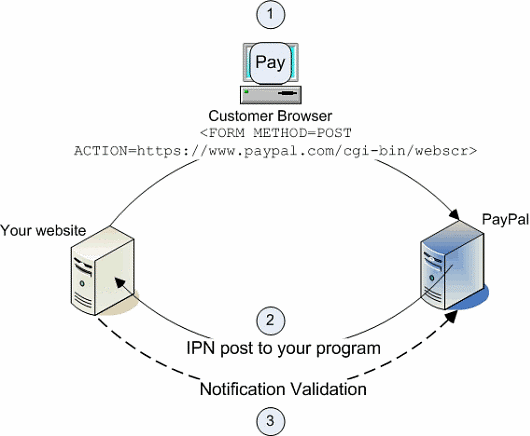
1. Someone pays you.

2. PayPal `POST`s `FORM` variables to a URL you specify
   that runs a program to process the variables.

3. You validate the notification.

   Figure 3. How IPN Works — General Steps
   ![](https://www.paypalobjects.com/webstatic/en_US/developer/docs/pps/ipn_overview.gif)

Detailed description of each step:

1. A payment or a refund triggers IPN. This payment can be via PayPal Payments
   Standard `FORM`s or via the PayPal Web Services APIs for Express
   Checkout, MassPay, or RefundTransaction. If the payment has a "Pending"
   status, you receive another IPN when the payment clears, fails, or is
   denied.

2. PayPal posts HTML `FORM` variables to a program at a URL you
   specify. You can specify this URL either in your account profile or with the
   `notify_url`
   variable on each transaction. This post is the heart of IPN. Included in the
   notification is the payment information, such as the payer's name and the
   amount paid. All possible variables in IPN posts are detailed in the
   [Instant Payment Notification Guide](/api/nvp-soap/ipn/IPNIntro/). When your server receives a notification, it must process the incoming
   data.

3. Your server must then validate the notification to ensure that it is
   legitimate. For details, see the
   [Instant Payment Notification Guide](/api/nvp-soap/ipn/IPNIntro/).
