# Buy Now: Sample HTML button code (/archive/paypal-payments-standard/integration-guide/html-example-buy-now)
> **Warning:** This product is [deprecated](/archive/product-lifecycle) and should not be used for new integrations. Use [Payment Links and Buttons](/payment-links-buttons/overview) instead. For information about migrating, visit the [Upgrade Hub](https://developer.paypal.com/upgrade/wps/guide/).
These code samples show how to configure PayPal-hosted Buy Now buttons:
* [A basic Buy Now button](#a-basic-buy-now-button)
* [Buy Now with product options](#buy-now-with-product-options)
* [Buy Now that prompts for quantities](#buy-now-button-that-prompts-for-quantities)
* [Buy Now with discounts](#buy-now-button-with-discounts)
> **Note:** **Important:** This page contains unencrypted button code for
> illustrative purposes only. To prevent malicious tampering of buttons on
> your live website, always encrypt your manually created buttons.
## A basic Buy Now button [#a-basic-buy-now-button]
This code sample configures a basic Buy Now button with these features:
* "Hot Sauce-12 oz. Bottle" item.
* $5.95 USD price.
* PayPal calculates tax and shipping based on rates that you set up in your PayPal account.
```html lineNumbers
```
## Buy Now with product options [#buy-now-with-product-options]
This code sample configures a basic Buy Now button with an option menu named
"Type of umbrella."
```text lineNumbers
```
This sample code displays this image on your web page:
This sample code displays this image on your web page: ## Buy Now button with product options with prices [#buy-now-button-with-product-options-with-prices]
This code sample configures a basic Buy Now button with a drop-down menu of
product options. Each option has its own price.
This code sample configures a basic Buy Now button with a drop-down menu of
product options. Each option has its own price.
* The drop-down menu displays the prices for each option. Buyers see the prices they pay for each option.
* A list of hidden HTML variables repeats the prices for each option. PayPal uses these prices to charge buyers for the options they choose.
Drop-down menus with option prices use the following variables:
* **`currency_code`**: Sets the currency for option prices.
* **`item_index`**: Identifies which drop-down menu of product option has prices.
* **`option_select`** and **`option_amount`**: Repeats the prices for each option.
Paste this code onto your web page below an image or a text description of the
item.
```html lineNumbers
```
This sample code displays this image on your web page:
This sample code displays this image on your web page:
## Buy Now button with product options with prices [#buy-now-button-with-product-options-with-prices]
This code sample configures a basic Buy Now button with a drop-down menu of
product options. Each option has its own price.
This code sample configures a basic Buy Now button with a drop-down menu of
product options. Each option has its own price.
* The drop-down menu displays the prices for each option. Buyers see the prices they pay for each option.
* A list of hidden HTML variables repeats the prices for each option. PayPal uses these prices to charge buyers for the options they choose.
Drop-down menus with option prices use the following variables:
* **`currency_code`**: Sets the currency for option prices.
* **`item_index`**: Identifies which drop-down menu of product option has prices.
* **`option_select`** and **`option_amount`**: Repeats the prices for each option.
Paste this code onto your web page below an image or a text description of the
item.
```html lineNumbers
```
This sample code displays this image on your web page:
This sample code displays this image on your web page: ### Buy Now button with product options as a text box [#buy-now-button-with-product-options-as-a-text-box]
This code sample configures a basic Buy Now button with a text box for
entering product options.
```html lineNumbers
```
This sample code displays this image on your web page:
This sample code displays this image on your web page:
### Buy Now button with product options as a text box [#buy-now-button-with-product-options-as-a-text-box]
This code sample configures a basic Buy Now button with a text box for
entering product options.
```html lineNumbers
```
This sample code displays this image on your web page:
This sample code displays this image on your web page: ## Buy Now button that prompts for quantities [#buy-now-button-that-prompts-for-quantities]
This sample code configures a basic Buy Now button that prompts buyers to
specify item quantities. Use this option carefully because buyers might
request more items than you have in your inventory. To avoid this issue,
[set up inventory tracking](/archive/paypal-payments-standard/integration-guide/step-2).
This sample code configures a basic Buy Now button that prompts buyers to
specify item quantities. Use this option carefully because buyers might
request more items than you have in your inventory. To avoid this issue,
```html lineNumbers
```
This sample code displays a similar image during checkout:
This sample code displays a similar image during checkout:
## Buy Now button that prompts for quantities [#buy-now-button-that-prompts-for-quantities]
This sample code configures a basic Buy Now button that prompts buyers to
specify item quantities. Use this option carefully because buyers might
request more items than you have in your inventory. To avoid this issue,
[set up inventory tracking](/archive/paypal-payments-standard/integration-guide/step-2).
This sample code configures a basic Buy Now button that prompts buyers to
specify item quantities. Use this option carefully because buyers might
request more items than you have in your inventory. To avoid this issue,
```html lineNumbers
```
This sample code displays a similar image during checkout:
This sample code displays a similar image during checkout: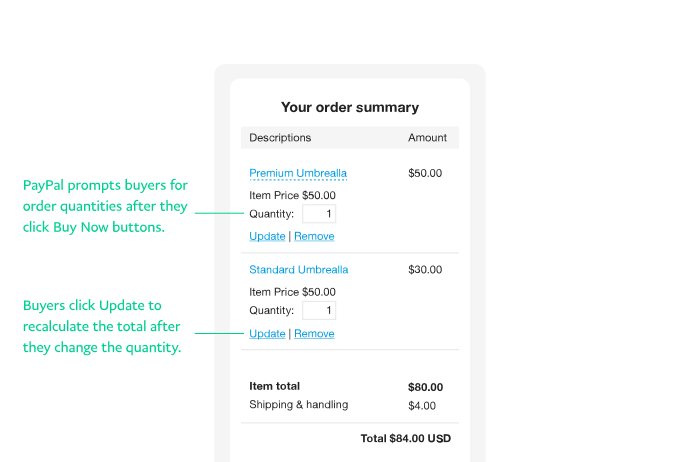 ## Buy Now button with discounts [#buy-now-button-with-discounts]
* [A flat discount amount](#a-flat-discount-amount)
* [Multiple discount amounts](#multiple-discount-amounts)
* [Discount percentages](#discount-percentages)
* [Buy one, get one free discount](#buy-one-get-one-free-discount)
### A flat discount amount [#a-flat-discount-amount]
This sample code configures a basic Buy Now button that:
* Provides a $2.00 discount on the entire order.
* Prompts buyers to also specify item quantities. Use this option carefully because buyers might request more items than you have in your inventory. To avoid this issue, [set up inventory tracking](/archive/paypal-payments-standard/integration-guide/step-2).
Paste this code onto your web page below an image or a text description of the
item.
```html lineNumbers
```
### Multiple discount amounts [#multiple-discount-amounts]
This sample code configures a basic Buy Now button that:
* Provides a $0.15 discount on the first item ordered.
* Provides a $0.20 discount on the next four items.
* Prompts buyers to specify item quantities. Use this option carefully because buyers might request more items than you have in your inventory. To avoid this issue, [set up inventory tracking](/archive/paypal-payments-standard/integration-guide/step-2).
Paste this code onto your web page below an image or a text description of the
item.
```html lineNumbers
```
### Discount percentages [#discount-percentages]
This sample code configures a basic Buy Now button that:
* Provides a 5% discount on the first item ordered.
* Provides a 10% discount on the next four items.
* Prompts buyers to specify item quantities. Use this option carefully because buyers might request more items than you have in your inventory. To avoid this issue, [set up inventory tracking](/archive/paypal-payments-standard/integration-guide/step-2).
Paste this code onto your web page below an image or a text description of the
item.
```html lineNumbers
```
### Buy one, get one free discount [#buy-one-get-one-free-discount]
This sample code shows a basic Buy Now button that:
* Offers a "Buy one, get one free" discount. To receive the discount, the buyer must purchase two of the item; the second one is free (100% discount).
* Prompts buyers to specify item quantities. Use this option carefully because buyers might request more items than you have in your inventory. To avoid this issue, [set up inventory tracking](/archive/paypal-payments-standard/integration-guide/step-2).
If the buyer purchases only 1 unit of the item, it is the full price. If the
buyer purchases more than 2 units, the 2nd unit is free and any additional
units are full price.
If the buyer purchases only 1 unit of the item, it is the full price. If the
buyer purchases more than 2 units, the 2nd unit is free and any additional
units are full price.
```html lineNumbers
```
## See also [#see-also]
* [HTML reference](/archive/paypal-payments-standard/integration-guide/html-reference-landing)
* [Buy Now basic payment options](/archive/paypal-payments-standard/integration-guide/buy-now-step-1)
* [Customize advanced features](/archive/paypal-payments-standard/integration-guide/step-3)
* [Buy Now checkout experience](/archive/paypal-payments-standard/integration-guide/checkout-exp-buy-now)
## Buy Now button with discounts [#buy-now-button-with-discounts]
* [A flat discount amount](#a-flat-discount-amount)
* [Multiple discount amounts](#multiple-discount-amounts)
* [Discount percentages](#discount-percentages)
* [Buy one, get one free discount](#buy-one-get-one-free-discount)
### A flat discount amount [#a-flat-discount-amount]
This sample code configures a basic Buy Now button that:
* Provides a $2.00 discount on the entire order.
* Prompts buyers to also specify item quantities. Use this option carefully because buyers might request more items than you have in your inventory. To avoid this issue, [set up inventory tracking](/archive/paypal-payments-standard/integration-guide/step-2).
Paste this code onto your web page below an image or a text description of the
item.
```html lineNumbers
```
### Multiple discount amounts [#multiple-discount-amounts]
This sample code configures a basic Buy Now button that:
* Provides a $0.15 discount on the first item ordered.
* Provides a $0.20 discount on the next four items.
* Prompts buyers to specify item quantities. Use this option carefully because buyers might request more items than you have in your inventory. To avoid this issue, [set up inventory tracking](/archive/paypal-payments-standard/integration-guide/step-2).
Paste this code onto your web page below an image or a text description of the
item.
```html lineNumbers
```
### Discount percentages [#discount-percentages]
This sample code configures a basic Buy Now button that:
* Provides a 5% discount on the first item ordered.
* Provides a 10% discount on the next four items.
* Prompts buyers to specify item quantities. Use this option carefully because buyers might request more items than you have in your inventory. To avoid this issue, [set up inventory tracking](/archive/paypal-payments-standard/integration-guide/step-2).
Paste this code onto your web page below an image or a text description of the
item.
```html lineNumbers
```
### Buy one, get one free discount [#buy-one-get-one-free-discount]
This sample code shows a basic Buy Now button that:
* Offers a "Buy one, get one free" discount. To receive the discount, the buyer must purchase two of the item; the second one is free (100% discount).
* Prompts buyers to specify item quantities. Use this option carefully because buyers might request more items than you have in your inventory. To avoid this issue, [set up inventory tracking](/archive/paypal-payments-standard/integration-guide/step-2).
If the buyer purchases only 1 unit of the item, it is the full price. If the
buyer purchases more than 2 units, the 2nd unit is free and any additional
units are full price.
If the buyer purchases only 1 unit of the item, it is the full price. If the
buyer purchases more than 2 units, the 2nd unit is free and any additional
units are full price.
```html lineNumbers
```
## See also [#see-also]
* [HTML reference](/archive/paypal-payments-standard/integration-guide/html-reference-landing)
* [Buy Now basic payment options](/archive/paypal-payments-standard/integration-guide/buy-now-step-1)
* [Customize advanced features](/archive/paypal-payments-standard/integration-guide/step-3)
* [Buy Now checkout experience](/archive/paypal-payments-standard/integration-guide/checkout-exp-buy-now)