# Accept Sofort payments (/limited-release/apm/sofort)
> **Warning:** **\*** **Important:** Sofort will be sunset on April 18, 2024. PayPal will not support Sofort payments starting April 19, 2024. Offer your users PayPal wallet and other alternative payment methods. [Learn more](https://www.paypal.com/us/cshelp/article/sofort-deprecation-help1145).
Sofort is a payment method in Europe.
| Countries | Payment type | Payment flow | Currencies | Minimum amount | Maximum amount | Refunds |
| ---------------------------------------------------------------------------------------------------- | ------------- | ------------ | ---------- | -------------- | -------------- | --------------- |
| Austria (`AT`)
Belgium (`BE`)
Germany (`DE`)
Spain (`ES`)
Netherlands (`NL`) | bank redirect | redirect | `EUR` | 1 `EUR` | 5000 `EUR` | Within 180 days |
| United Kingdom (`GB` only) | | | `GBP` | | 5000 `GB` | |
## How it works [#how-it-works]
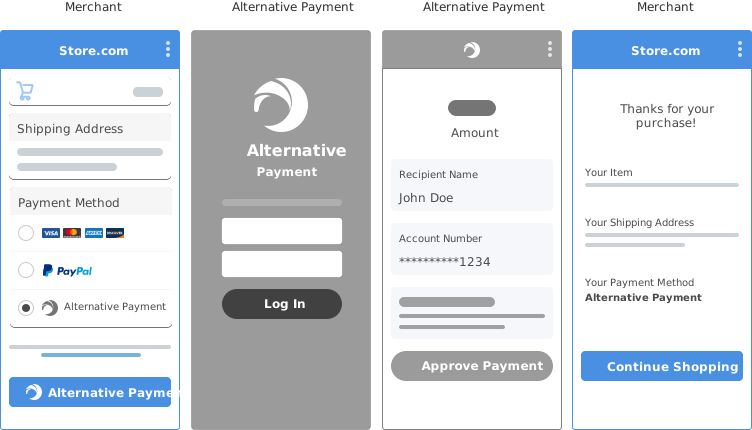 1. Your checkout page offers alternative payment methods.
2. The buyer enters their personal details and selects an alternative payment method from your checkout page.
3. The buyer is redirected to their selected issuing bank to confirm the purchase.
4. The buyer authorizes and completes the payment.
5. The buyer returns to your website to see the confirmation of the purchase.
6. The merchant completes the payment process. PayPal transfers the funds to the merchant, and the transaction shows up in your PayPal account with the buyer's chosen payment method.
## Eligibility [#eligibility]
* Available to merchants globally, except in Russia, Japan, and Brazil.
* Billing agreements, multiple seller payments, and shipping callback aren't supported.
* Support for order capture only (order authorize is not supported). See [authorized and captured payments](/api/nvp-soap/paypal-payments-pro/integration-guide/authorizations).
* Chargebacks aren't supported.
* Transaction must be an online purchase (buy online, pay in store is not supported).
## Integrate [#integrate]
There are 2 integration paths you can take:
* **JavaScript SDK:** Merchants can use PayPal-hosted UI components, called payment fields, to collect payment information for alternative payment methods.
* **Orders REST API:** Integrate directly with the Orders API to fully customize the checkout experience.
#### JS SDK
Use the JavaScript SDK to render payment fields and buttons and process payments with Orders API.
### Buyer experience [#buyer-experience]
> **Note:** **Note:** The payment button is disabled in the buyer experience demo. On button click, the user is redirected to their bank to authorize the transaction.
### Know before you code [#know-before-you-code]
* Complete the steps in [Get started](/api/rest/) to get your sandbox account information from the Developer Dashboard:
* Client ID: Authenticates your account with PayPal and identifies an app in your sandbox.
* Client Secret: Authorizes an app inyour sandbox. Keep this secret safeand don't share it.
* Business account credentials
* Make sure the preference for receiving payments in your PayPal business account is set to accept and convert them to the default currency. In your profile, select **Account Settings** > **Payment preferences** > **Block payments** and click **Update** to mark this preference.
* This client-side and server-side integrations uses the following:
* [PayPal JavaScript SDK](/sdk/js/)
* [Webhooks Management REST API](/api/webhooks/v1/)
* [Orders REST API](/api/orders/v2/)
* Make sure you're [subscribed to the following webhook events](/payment-methods/webhooks):
* `CHECKOUT.ORDER.APPROVED` - Listen for this webhook and then capture the payment.
* `CHECKOUT.PAYMENT-APPROVAL.REVERSED` - This webhook tells you when an approved order is cancelled and refunded because it wasn't captured within the capture window. Let the payer know about the problem and the reversed order.
* By adding funding sources to your checkout integration, you agree to the [PayPal alternative payment methods agreement](https://www.paypal.com/us/webapps/mpp/ua/apm-tnc). This is in addition to the user agreement applicable to the country in which your business is physically located.
* Request approval to enable iDEAL by visiting these Sandbox and Live links. Replace `MERCHANT-COUNTRY` in the URL with the 2-character [country code](/api/codes/country-region) for the merchant's country of operation:
* **Sandbox:** `https://www.sandbox.paypal.com/bizsignup/entry?product=ideal&capabilities=IDEAL&country.x=MERCHANT-COUNTRY`
* **Live:** `https://www.paypal.com/bizsignup/entry?product=ideal&capabilities=IDEAL&country.x=MERCHANT-COUNTRY`
> **Note:** **Note:** The integration steps for implementing alternative payment methods are similar. If you've integrated another alternative payment method before, you can likely reuse that code with adjustments for this payment method.
* Use Postman to explore and test PayPal APIs.
Get up and running in GitHub Codespaces
GitHub Codespaces are cloud-based development environments where you can code and test your PayPal integrations. [Learn more](/sandbox-testing/overview)
[Open in Codespaces](https://codespaces.new/paypal-examples/googlepay)
### 1. Add PayPal JavaScript SDK [#1-add-paypal-javascript-sdk]
Add or update the JavaScript SDK script on your web page.
```text lineNumbers
```
See the [JS SDK reference](/platforms/checkout/apm/reference/js-sdk-params-payment-fields/) for a list of parameters you pass to the JavaScript SDK.
### 2. Render payment mark [#2-render-payment-mark]
You can use a [mark integration](/v5/checkout/show-payment-method) for payment fields components to present the payment method options to the buyer as radio buttons.
1. Your checkout page offers alternative payment methods.
2. The buyer enters their personal details and selects an alternative payment method from your checkout page.
3. The buyer is redirected to their selected issuing bank to confirm the purchase.
4. The buyer authorizes and completes the payment.
5. The buyer returns to your website to see the confirmation of the purchase.
6. The merchant completes the payment process. PayPal transfers the funds to the merchant, and the transaction shows up in your PayPal account with the buyer's chosen payment method.
## Eligibility [#eligibility]
* Available to merchants globally, except in Russia, Japan, and Brazil.
* Billing agreements, multiple seller payments, and shipping callback aren't supported.
* Support for order capture only (order authorize is not supported). See [authorized and captured payments](/api/nvp-soap/paypal-payments-pro/integration-guide/authorizations).
* Chargebacks aren't supported.
* Transaction must be an online purchase (buy online, pay in store is not supported).
## Integrate [#integrate]
There are 2 integration paths you can take:
* **JavaScript SDK:** Merchants can use PayPal-hosted UI components, called payment fields, to collect payment information for alternative payment methods.
* **Orders REST API:** Integrate directly with the Orders API to fully customize the checkout experience.
#### JS SDK
Use the JavaScript SDK to render payment fields and buttons and process payments with Orders API.
### Buyer experience [#buyer-experience]
> **Note:** **Note:** The payment button is disabled in the buyer experience demo. On button click, the user is redirected to their bank to authorize the transaction.
### Know before you code [#know-before-you-code]
* Complete the steps in [Get started](/api/rest/) to get your sandbox account information from the Developer Dashboard:
* Client ID: Authenticates your account with PayPal and identifies an app in your sandbox.
* Client Secret: Authorizes an app inyour sandbox. Keep this secret safeand don't share it.
* Business account credentials
* Make sure the preference for receiving payments in your PayPal business account is set to accept and convert them to the default currency. In your profile, select **Account Settings** > **Payment preferences** > **Block payments** and click **Update** to mark this preference.
* This client-side and server-side integrations uses the following:
* [PayPal JavaScript SDK](/sdk/js/)
* [Webhooks Management REST API](/api/webhooks/v1/)
* [Orders REST API](/api/orders/v2/)
* Make sure you're [subscribed to the following webhook events](/payment-methods/webhooks):
* `CHECKOUT.ORDER.APPROVED` - Listen for this webhook and then capture the payment.
* `CHECKOUT.PAYMENT-APPROVAL.REVERSED` - This webhook tells you when an approved order is cancelled and refunded because it wasn't captured within the capture window. Let the payer know about the problem and the reversed order.
* By adding funding sources to your checkout integration, you agree to the [PayPal alternative payment methods agreement](https://www.paypal.com/us/webapps/mpp/ua/apm-tnc). This is in addition to the user agreement applicable to the country in which your business is physically located.
* Request approval to enable iDEAL by visiting these Sandbox and Live links. Replace `MERCHANT-COUNTRY` in the URL with the 2-character [country code](/api/codes/country-region) for the merchant's country of operation:
* **Sandbox:** `https://www.sandbox.paypal.com/bizsignup/entry?product=ideal&capabilities=IDEAL&country.x=MERCHANT-COUNTRY`
* **Live:** `https://www.paypal.com/bizsignup/entry?product=ideal&capabilities=IDEAL&country.x=MERCHANT-COUNTRY`
> **Note:** **Note:** The integration steps for implementing alternative payment methods are similar. If you've integrated another alternative payment method before, you can likely reuse that code with adjustments for this payment method.
* Use Postman to explore and test PayPal APIs.
Get up and running in GitHub Codespaces
GitHub Codespaces are cloud-based development environments where you can code and test your PayPal integrations. [Learn more](/sandbox-testing/overview)
[Open in Codespaces](https://codespaces.new/paypal-examples/googlepay)
### 1. Add PayPal JavaScript SDK [#1-add-paypal-javascript-sdk]
Add or update the JavaScript SDK script on your web page.
```text lineNumbers
```
See the [JS SDK reference](/platforms/checkout/apm/reference/js-sdk-params-payment-fields/) for a list of parameters you pass to the JavaScript SDK.
### 2. Render payment mark [#2-render-payment-mark]
You can use a [mark integration](/v5/checkout/show-payment-method) for payment fields components to present the payment method options to the buyer as radio buttons.
 ```text lineNumbers
const sofortButton = paypal.Buttons({
fundingSource: paypal.FUNDING.SOFORT
});
```
You can also [render a set of eligible payment methods](/platforms/checkout/standard/customize/standalone-buttons/).
### 3. Render payment fields [#3-render-payment-fields]
Use payment fields to collect payment information from buyers. Fields dynamically render based on the selected funding source and you can customize the fields to align with your brand.
Choose from a single page checkout flow or a multi-page checkout flow.
### Single page [#single-page]
For Sofort, payment fields country, first name, and last name.
If there are validation errors in the input fields, they'll show on the click of the button.
```text lineNumbers
paypal.PaymentFields({
fundingSource: paypal.FUNDING.SOFORT,
/* style object (optional) */
style: {
/* customize field attributes (optional) */
variables: {},
/* set custom rules to apply to fields classes (optional) */
rules: {},
},
fields: {
/* fields prefill info (optional) */
name: {
value: "John Doe",
},
}
})
.render("#sofort-container");
```
### Multi-page [#multi-page]
A multi-page checkout flow spreads the checkout steps into two or more pages. This experience is applicable when an order details page needs to be shown to the buyer before an order is placed.
> **Note:** **Tip:** German merchants can leverage the multi-page flow to comply with local regulations.
### First page of the checkout flow [#first-page-of-the-checkout-flow]
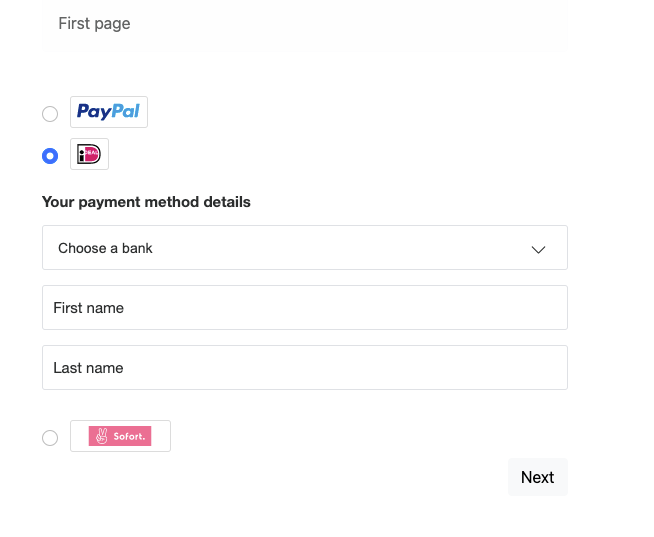
This example renders the mark and payment fields, but not the payment button, on your checkout page.
```text lineNumbers
const sofortButton = paypal.Buttons({
fundingSource: paypal.FUNDING.SOFORT
});
```
You can also [render a set of eligible payment methods](/platforms/checkout/standard/customize/standalone-buttons/).
### 3. Render payment fields [#3-render-payment-fields]
Use payment fields to collect payment information from buyers. Fields dynamically render based on the selected funding source and you can customize the fields to align with your brand.
Choose from a single page checkout flow or a multi-page checkout flow.
### Single page [#single-page]
For Sofort, payment fields country, first name, and last name.
If there are validation errors in the input fields, they'll show on the click of the button.
```text lineNumbers
paypal.PaymentFields({
fundingSource: paypal.FUNDING.SOFORT,
/* style object (optional) */
style: {
/* customize field attributes (optional) */
variables: {},
/* set custom rules to apply to fields classes (optional) */
rules: {},
},
fields: {
/* fields prefill info (optional) */
name: {
value: "John Doe",
},
}
})
.render("#sofort-container");
```
### Multi-page [#multi-page]
A multi-page checkout flow spreads the checkout steps into two or more pages. This experience is applicable when an order details page needs to be shown to the buyer before an order is placed.
> **Note:** **Tip:** German merchants can leverage the multi-page flow to comply with local regulations.
### First page of the checkout flow [#first-page-of-the-checkout-flow]
This example renders the mark and payment fields, but not the payment button, on your checkout page.
 ```text lineNumbers
paypal.Marks({
fundingSource: paypal.FUNDING.SOFORT
}).render('#sofort-mark')
```
```text lineNumbers
paypal.PaymentFields({
fundingSource: paypal.FUNDING.SOFORT,
/* style object (optional) */
style: {
/* customize field attributes (optional) */
variables: {},
/* set custom rules to apply to fields classes (optional) */
rules: {},
},
onInit: (data, actions) => {
const form = document.querySelector("form.paypal-payment-form");
form.addEventListener("submit", (e) => {
const formData = new FormData(form);
const paymentSource = formData.get("payment-option");
if (paymentSource === paypal.FUNDING.SOFORT) {
e.preventDefault();
actions.validate().then((valid) => {
if (valid) {
window.location.href = `/second-page.html?payment-option=${paypal.FUNDING.SOFORT}`;
}
});
}
});
},
fields: {
/* fields prefill info (optional) */
name: {
value: "John Doe",
},
},
})
.render("#sofort-container");
```
### Second page of the checkout flow [#second-page-of-the-checkout-flow]
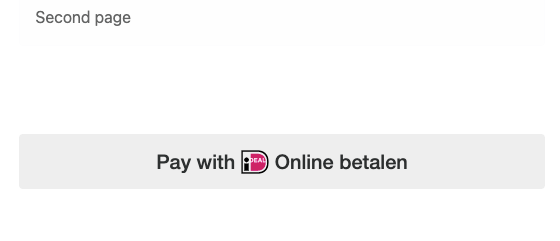
Based on the payment method selected on the first page, this example renders only the payment button along with the order details on the page. To complete checkout, the buyer clicks the payment button, authorizes, and confirms payment. You get the code to render the payment button in step 4.
```text lineNumbers
paypal.Marks({
fundingSource: paypal.FUNDING.SOFORT
}).render('#sofort-mark')
```
```text lineNumbers
paypal.PaymentFields({
fundingSource: paypal.FUNDING.SOFORT,
/* style object (optional) */
style: {
/* customize field attributes (optional) */
variables: {},
/* set custom rules to apply to fields classes (optional) */
rules: {},
},
onInit: (data, actions) => {
const form = document.querySelector("form.paypal-payment-form");
form.addEventListener("submit", (e) => {
const formData = new FormData(form);
const paymentSource = formData.get("payment-option");
if (paymentSource === paypal.FUNDING.SOFORT) {
e.preventDefault();
actions.validate().then((valid) => {
if (valid) {
window.location.href = `/second-page.html?payment-option=${paypal.FUNDING.SOFORT}`;
}
});
}
});
},
fields: {
/* fields prefill info (optional) */
name: {
value: "John Doe",
},
},
})
.render("#sofort-container");
```
### Second page of the checkout flow [#second-page-of-the-checkout-flow]
Based on the payment method selected on the first page, this example renders only the payment button along with the order details on the page. To complete checkout, the buyer clicks the payment button, authorizes, and confirms payment. You get the code to render the payment button in step 4.
 For `style` parameters, please reference this style page: [Custom style for payment fields](/payment-methods/style)
### 4. Render payment button [#4-render-payment-button]
```text lineNumbers
paypal.Buttons({
fundingSource: paypal.FUNDING.SOFORT,
style: {
label: "pay",
},
createOrder() {
return fetch("/my-server/create-paypal-order", {
method: "POST",
headers: {
"Content-Type": "application/json",
},
// use the "body" param to optionally pass additional order information
// like product skus and quantities
body: JSON.stringify({
cart: [
{
sku: "YOUR_PRODUCT_STOCK_KEEPING_UNIT",
quantity: "YOUR_PRODUCT_QUANTITY",
},
],
}),
})
.then((response) => response.json())
.then((order) => order.id);
},
onApprove(data) {
return fetch("/my-server/capture-paypal-order", {
method: "POST",
headers: {
"Content-Type": "application/json",
},
body: JSON.stringify({
orderID: data.orderID
})
})
.then((response) => response.json())
.then((orderData) => {
// Successful capture! For dev/demo purposes:
console.log('Capture result', orderData, JSON.stringify(orderData, null, 2));
const transaction = orderData.purchase_units[0].payments.captures[0];
console.log('Transaction Status:', transaction.status);
console.log('Transaction ID:', transaction.id);
// When ready to go live, remove the alert and show a success message within this page. For example:
// const element = document.getElementById('paypal-button-container');
// element.innerHTML = '
For `style` parameters, please reference this style page: [Custom style for payment fields](/payment-methods/style)
### 4. Render payment button [#4-render-payment-button]
```text lineNumbers
paypal.Buttons({
fundingSource: paypal.FUNDING.SOFORT,
style: {
label: "pay",
},
createOrder() {
return fetch("/my-server/create-paypal-order", {
method: "POST",
headers: {
"Content-Type": "application/json",
},
// use the "body" param to optionally pass additional order information
// like product skus and quantities
body: JSON.stringify({
cart: [
{
sku: "YOUR_PRODUCT_STOCK_KEEPING_UNIT",
quantity: "YOUR_PRODUCT_QUANTITY",
},
],
}),
})
.then((response) => response.json())
.then((order) => order.id);
},
onApprove(data) {
return fetch("/my-server/capture-paypal-order", {
method: "POST",
headers: {
"Content-Type": "application/json",
},
body: JSON.stringify({
orderID: data.orderID
})
})
.then((response) => response.json())
.then((orderData) => {
// Successful capture! For dev/demo purposes:
console.log('Capture result', orderData, JSON.stringify(orderData, null, 2));
const transaction = orderData.purchase_units[0].payments.captures[0];
console.log('Transaction Status:', transaction.status);
console.log('Transaction ID:', transaction.id);
// When ready to go live, remove the alert and show a success message within this page. For example:
// const element = document.getElementById('paypal-button-container');
// element.innerHTML = 'Thank you for your payment!
';
// Or go to another URL: window.location.href = 'thank_you.html';
});
},
onCancel(data, actions) {
console.log(`Order Canceled - ID: ${data.orderID}`);
},
onError(err) {
console.error(err);
}
})
.render("#sofort-btn");
```
* `createOrder`
Implement the `createOrder` function to allow the JavaScript SDK to submit buyer information and set up the transaction on the click of the button.
> **Note:** **Note:** Create Sofort orders in EUR/GBP currency.
Use your server-side [Create order](/api/orders/v2/orders-create) call to set up the details of a one-time transaction including the amount, line item detail, and more.
If order creation fails, the Orders API can [return an error](/api/orders/v2/error-messages) in the console.
After order creation, orders are confirmed with buyer selected payment source. If the order cannot be processed with the selected payment source, the relevant errors are returned in the console.
* `onCancel`
Implement the optional `onCancel()` function to show a cancellation page or return to the shopping cart.
* `onError`
Implement the optional `onError()` function to handle errors and display generic error message or page to the buyers. This error handler is a catch-all. Errors at this point are not expected to be handled beyond showing a generic error message or page.
### 5. Capture the transaction [#5-capture-the-transaction]
Implement the `onApprove` function, which is called after the buyer approves the transaction.
Captures the funds from the transaction and shows a message to the buyer to let them know the transaction is successful. The method is called after the buyer approves the transaction on paypal.com.
Because this is a client-side call, PayPal calls the [Orders API](/api/orders/v2/orders-capture) on your behalf, so you don't need to provide the headers and body.
capture() - Promise returning the [order details](/api/orders/v2#orders-capture-response).
```text lineNumbers
paypal.Buttons({
fundingSource: paypal.FUNDING.SOFORT,
createOrder() {
return fetch("/my-server/create-paypal-order", {
method: "POST",
headers: {
"Content-Type": "application/json",
},
// use the "body" param to optionally pass additional order information
// like product skus and quantities
body: JSON.stringify({
cart: [
{
sku: "YOUR_PRODUCT_STOCK_KEEPING_UNIT",
quantity: "YOUR_PRODUCT_QUANTITY",
},
],
}),
})
.then((response) => response.json())
.then((order) => order.id);
},
onApprove(data) {
return fetch("/my-server/capture-paypal-order", {
method: "POST",
headers: {
"Content-Type": "application/json",
},
body: JSON.stringify({
orderID: data.orderID
})
})
.then((response) => response.json())
.then((orderData) => {
// Successful capture! For dev/demo purposes:
console.log('Capture result', orderData, JSON.stringify(orderData, null, 2));
const transaction = orderData.purchase_units[0].payments.captures[0];
console.log('Transaction Status:', transaction.status);
console.log('Transaction ID:', transaction.id);
// When ready to go live, remove the alert and show a success message within this page. For example:
// const element = document.getElementById('paypal-button-container');
// element.innerHTML = 'Thank you for your payment!
';
// Or go to another URL: window.location.href = 'thank_you.html';
});
},
onCancel(data, actions) {
console.log(`Order Canceled - ID: ${data.orderID}`);
},
onError(err) {
console.error(err);
}
})
.render('#sofort-button-container');
//This function displays payment buttons on your web page.
```
For the capture call details and example responses, see [Capture payment for order](/api/orders/v2/orders-capture) in the Orders API reference.
If order capture fails, the Orders API can [return an error](/api/orders/v2/error-messages) in the console.
### 6. Handle webhook events [#6-handle-webhook-events]
A webhook handler is a script you create on your server that completes specific actions on webhooks that hit your listener URL.
* We recommend subscribing to `CHECKOUT.ORDER.APPROVED` webhook event in case a customer accidentally closes the browser and exits the checkout process after approving the transaction through their APM but before finalizing the transaction on your site.
* Listen for the `CHECKOUT.PAYMENT-APPROVAL.REVERSED` webhook as an indication that an approved order wasn't captured within the capture window resulting in a cancellation of the order and a refund the buyer's account. Then notify your buyer of the problem and the reversed order.
* `PAYMENT.CAPTURE.PENDING`, `PAYMENT.CAPTURE.COMPLETED`, and `PAYMENT.CAPTURE.DENIED` webhooks indicate capture status.
See [Subscribe to checkout webhooks](/api/webhooks) for more information.
Here are some additional resources as you create webhook handler code:
* [Webhook Management API](/api/webhooks/v1/) - Manage webhooks, list event notifications, and more.
* Webhook events
* [Checkout webhook events](/api/rest/webhooks/event-names/#checkout-buyer-approval) - Checkout buyer approval-related webhooks.
* [Order webhook events](/api/rest/webhooks/event-names/) - Other order-related webhooks.
* [Show order details endpoint](/api/orders/v2/orders-get) - Determine the status of an order.
### Sample integration [#sample-integration]
See a sample Sofort integration in the [PayPal GitHub repository](https://github.com/paypal-examples/sofort-paypal-payment-js-sdk).
#### Orders API
Render payment buttons and process payments with Orders API.
### Know before you code [#know-before-you-code-1]
* Make sure you're [subscribed to the following webhook events](/payment-methods/webhooks):
* `PAYMENT.CAPTURE.COMPLETED` - Listen for this webhook to get notified about a successful order capture.
* `PAYMENT.CAPTURE.DENIED` - This webhook tells you when an order capture fails.
* Make sure your preference for receiving payments in your PayPal business or merchant account is set to accept and convert to the currency in your account. In your profile, select **Account Settings** > **Payment preferences** > **Block payments** and click **Update** to mark this preference.
* Request approval to enable iDEAL by visiting these Sandbox and Live links. Replace `MERCHANT-COUNTRY` in the URL with the 2-character [country code](/api/codes/country-region) for the merchant's country of operation:
* **Sandbox:** `https://www.sandbox.paypal.com/bizsignup/entry?product=ideal&capabilities=IDEAL&country.x=MERCHANT-COUNTRY`
* **Live:** `https://www.paypal.com/bizsignup/entry?product=ideal&capabilities=IDEAL&country.x=MERCHANT-COUNTRY`
> **Note:** **Note:** The integration steps for implementing alternative payment methods using the Orders v2 REST API are similar. If you've integrated another alternative payment method before, you can likely reuse that code with adjustments for this payment method.
* When processing Sofort payments, capture payment for order is not required.
### 1. Offer Sofort on your checkout page [#1-offer-sofort-on-your-checkout-page]
You'll need to create the user interface to offer Sofort and collect the buyer's information, then you'll use the API calls described in the remainder of this topic to:
* Create the order with Sofort as the payment source and buyer's `full_name` and `country_code`.
* Redirect the buyer to Sofort.
Refer to [Payment method icons](/platforms/checkout/apm/reference/method-icons/) for icons you can use and download locations.
### 2. Create an order with Sofort as the payment source [#2-create-an-order-with-sofort-as-the-payment-source]
Use the buyer information you captured from your user interface to create an order with Sofort as the payment source.
#### Sample request [#sample-request]
API endpoint used: [Create order](/api/orders/v2/orders-create)
```text lineNumbers
curl -v -k -X POST 'https://api-m.sandbox.paypal.com/v2/checkout/orders' \
-H 'PayPal-Request-Id: ' \
-H 'Authorization: Bearer ' \
-H 'Content-Type: application/json' \
-d '{
"intent": "CAPTURE",
"purchase_units": [
{
"reference_id": "d9f80740-38f0-11e8-b467-0ed5f89f718b",
"amount": {
"currency_code": "EUR",
"value": "1.00"
}
}
],
"payment_source": {
"sofort": {
"country_code": "DE",
"name": "John Doe",
"email": "john.doe@example.com"
}
},
"processing_instruction": "ORDER_COMPLETE_ON_PAYMENT_APPROVAL",
"application_context": {
"locale": "en-DE",
"return_url": "https://example.com/returnUrl",
"cancel_url": "https://example.com/cancelUrl"
}
}'
```
#### Modify the code [#modify-the-code]
After you copy the code in the sample request, modify the following:
* `Access-Token` - Your [access token](/api/rest/authentication).
* `PayPal-Request-Id` - Replace the sample ID with a unique ID you generate. This ID helps prevent duplicate authorizations in the event that the API call is disrupted. See also: [API idempotency](/reference/guidelines/idempotency/)
* `intent` - To use an alternative payment method, this parameter must be set to `CAPTURE` as it is in this sample code.
* `payment_source` - Specify `sofort` as the payment method and include the country code and account holder's full name.
* `purchase_units: amount` - Pass the amount of the order and the currency code.
* `processing_instruction` - Set this value to `ORDER_COMPLETE_ON_PAYMENT_APPROVAL` as it is in this sample code.
* `application_context` - Specify the preferred language for returned errors, the URL the buyer is returned to after approving the purchase with their selected payment method, and the URL the buyer is returned to after canceling an approval with their selected payment method. While `return_url` and `cancel_url` are optional fields, this integration requires you specify them to handle the handoff from the payment method back to your site. You can use the `cancel_url` to redirect buyers when an error occurs while they're on the payment method's site, so make sure your cancel URL works for that situation as well as an actual cancellation by the buyer.
> **Note:** **Note:** Change or add other parameters in the [Create order request body](/api/orders/v2/orders-create) to create an order that reflects the actual order details.
#### Step result [#step-result]
A successful request results in the following:
* A return status code of HTTP `200 OK`.
* A JSON response body that contains the order ID. You'll use the order ID and `payer-action` HATEOAS URL in the next step. See also: [HATEOAS links](/api/rest/responses/#hateoas-links).
##### Sample response [#sample-response]
```text lineNumbers
{
"id": "5KP92830L1747245S",
"intent": "CAPTURE",
"status": "PAYER_ACTION_REQUIRED",
"payment_source": {
"sofort": {
"name": "John Doe",
"country_code": "DE"
}
},
"links": [
{
"href": "https://api-m.sandbox.paypal.com/v2/checkout/orders/5KP92830L1747245S",
"rel": "self",
"method": "GET"
},
{
"href": "https://www.sandbox.paypal.com/payment/sofort?token=5KP92830L1747245S",
"rel": "payer-action",
"method": "GET"
}
]
}
```
### 3. Redirect buyer to issuing bank's website or app to approve the purchase [#3-redirect-buyer-to-issuing-banks-website-or-app-to-approve-the-purchase]
In your user interface, attach the `payer-action` redirect URL returned in the `Create Order` response to the Sofort payment button. This sends the buyer to their bank to approve the purchase. Once the buyer approves the purchase, the payment is automatically captured.
In the sample, the redirect URL is: `"https://sandbox.paypal.com/payment/sofort?token=5KP92830L1747245S"`.
#### Step result [#step-result-1]
After successfully completing the bank approval:
* The buyer is redirected to the `return_url` mentioned in the Create Order request.
* The `PAYMENT.CAPTURE.COMPLETED` webhook event is triggered, which indicates that payment capture was successful.
After unsuccessful bank approval:
* The buyer is redirected to the `cancel_url` mentioned in the Create Order request.
### 4. Listen to webhooks to get the result of payment status [#4-listen-to-webhooks-to-get-the-result-of-payment-status]
Listen to the following webhooks to get the result of order capture:
* The `PAYMENT.CAPTURE.COMPLETED` webhook event indicates a successful order capture.
* The `PAYMENT.CAPTURE.DENIED` webhook events indicate a failed order capture.
* Optional: Use [Show order details](/api/orders/v2/orders-get) endpoint to determine the status of an order.
* The `up` HATEOAS link indicates the order associated with this capture.
See [Subscribe to checkout webhooks](/payment-methods/webhooks) for more information.
Here are some additional resources as you create webhook handler code:
* [Webhook Management API](/api/webhooks/v1) - Manage webhooks, list event notifications, and more.
* Webhook events
* [Checkout webhook events](/api/rest/webhooks/event-names/#checkout-buyer-approval) - Checkout buyer approval-related webhooks.
* [Order webhook events](/api/rest/webhooks/event-names/) - Other order-related webhooks.
* [Show order details endpoint](/api/orders/v2/orders-get) - Determine the status of an order.
### Sample PAYMENT.CAPTURE.COMPLETED webhook [#sample-paymentcapturecompleted-webhook]
```text lineNumbers
{
"id": "WH-2B342482FC0449155-12X09416XP387753C",
"event_version": "1.0",
"zts": 1481046241,
"create_time": "2022-04-08T10:37:05Z",
"resource_type": "capture",
"resource_version": "2.0",
"event_type": "PAYMENT.CAPTURE.COMPLETED",
"summary": "Payment completed for EUR 1.00 EUR",
"resource": {
"amount": {
"value": "1.00",
"currency_code": "EUR"
},
"create_time": "2022-04-08T10:37:05Z",
"update_time": "2022-04-08T10:37:05Z",
"final_capture": true,
"seller_receivable_breakdown": {
"paypal_fee": {
"value": "0.20",
"currency_code": "EUR"
},
"gross_amount": {
"value": "1.00",
"currency_code": "EUR"
},
"net_amount": {
"value": "0.80",
"currency_code": "EUR"
}
},
"links": [
{
"method": "GET",
"rel": "self",
"href": "https://api-m.sandbox.paypal.com/v2/payments/captures/8SS60826HT082593F"
},
{
"method": "POST",
"rel": "refund",
"href": "https://api-m.sandbox.paypal.com/v2/payments/captures/8SS60826HT082593F/refund"
},
{
"method": "GET",
"rel": "up",
"href": "https://api-m.sandbox.paypal.com/v2/checkout/orders/5KP92830L1747245S"
}
],
"id": "8SS60826HT082593F",
"status": "COMPLETED"
},
"links": [
{
"href": "https://api-m.sandbox.paypal.com/v1/notifications/webhooks-events/WH-2B342482FC0449155-12X09416XP387753C",
"rel": "self",
"method": "GET"
},
{
"href": "https://api-m.sandbox.paypal.com/v1/notifications/webhooks-events/WH-2B342482FC0449155-12X09416XP387753C/resend",
"rel": "resend",
"method": "POST"
}
]
}
```
> **Note:** **Note:** order ID from **Step 2** should match `resource.supplementary_data.related_ids.order_id` parameter in the webhook payload.
### Sample PAYMENT.CAPTURE.DENIED webhook [#sample-paymentcapturedenied-webhook]
```text lineNumbers
{
"id": "WH-2B342482FC0449155-12X09416XP387753C",
"event_version": "1.0",
"create_time": "2022-04-08T10:37:05Z",
"resource_type": "capture",
"resource_version": "2.0",
"event_type": "PAYMENT.CAPTURE.DENIED",
"summary": "Payment denied for EUR 1.00 EUR",
"resource": {
"amount": {
"value": "1.00",
"currency_code": "EUR"
},
"supplementary_data": {
"related_ids": {
"order_id": "5KP92830L1747245S"
}
},
"create_time": "2022-04-08T10:37:05Z",
"update_time": "2022-04-08T10:37:05Z",
"final_capture": true,
"seller_receivable_breakdown": {
"paypal_fee": {
"value": "0.20",
"currency_code": "EUR"
},
"gross_amount": {
"value": "1.00",
"currency_code": "EUR"
},
"net_amount": {
"value": "0.80",
"currency_code": "EUR"
}
},
"links": [
{
"method": "GET",
"rel": "self",
"href": "https://api-m.sandbox.paypal.com/v2/payments/captures/8SS60826HT082593F"
},
{
"method": "POST",
"rel": "refund",
"href": "https://api-m.sandbox.paypal.com/v2/payments/captures/8SS60826HT082593F/refund"
},
{
"method": "GET",
"rel": "up",
"href": "https://api-m.sandbox.paypal.com/v2/checkout/orders/5KP92830L1747245S"
}
],
"id": "8SS60826HT082593F",
"status": "DECLINED"
},
"links": [
{
"href": "https://api-m.sandbox.paypal.com/v1/notifications/webhooks-events/WH-2B342482FC0449155-12X09416XP387753C",
"rel": "self",
"method": "GET"
},
{
"href": "https://api-m.sandbox.paypal.com/v1/notifications/webhooks-events/WH-2B342482FC0449155-12X09416XP387753C/resend",
"rel": "resend",
"method": "POST"
}
]
}
```
> **Note:** **Note:** order ID from **Step 2** should match `resource.supplementary_data.related_ids.order_id` parameter in the webhook payload.
Alternatively, you can get the order capture result from the [Show order details](/api/orders/v2/orders-get) endpoint.
> **Note:** **Important:** Exercise caution when polling for order capture result using the [Show order details](/api/orders/v2/orders-get) endpoint. PayPal enforces rate limits on API requests.
### Sample request [#sample-request-1]
```text lineNumbers
curl -v -X GET https://api-m.sandbox.paypal.com/v2/checkout/orders/5KP92830L1747245S \
-H "Content-Type: application/json" \
-H "Authorization: Bearer "
```
### Sample response [#sample-response-1]
```text lineNumbers
{
"id": "5KP92830L1747245S",
"intent": "CAPTURE",
"status": "COMPLETED",
"payment_source": {
"sofort": {
"name": "John Doe",
"country_code": "DE"
}
},
"processing_instruction": "ORDER_COMPLETE_ON_PAYMENT_APPROVAL",
"purchase_units": [
{
"reference_id": "default",
"amount": {
"currency_code": "EUR",
"value": "1.00"
},
"payments": {
"captures": [
{
"id": "8SS60826HT082593F",
"status": "COMPLETED",
"amount": {
"currency_code": "EUR",
"value": "1.00"
},
"final_capture": true,
"seller_receivable_breakdown": {
"gross_amount": {
"currency_code": "EUR",
"value": "1.00"
},
"paypal_fee": {
"currency_code": "EUR",
"value": "0.20"
},
"net_amount": {
"currency_code": "EUR",
"value": "0.80"
}
},
"links": [
{
"href": "https://api-m.sandbox.paypal.com/v2/payments/captures/8SS60826HT082593F",
"rel": "self",
"method": "GET"
},
{
"href": "https://api-m.sandbox.paypal.com/v2/payments/captures/8SS60826HT082593F/refund",
"rel": "refund",
"method": "POST"
},
{
"href": "https://api-m.sandbox.paypal.com/v2/checkout/orders/5KP92830L1747245S",
"rel": "up",
"method": "GET"
}
],
"create_time": "2022-04-08T10:37:05Z",
"update_time": "2022-04-04T10:37:05Z"
}
]
}
}
],
"create_time": "2022-04-08T10:37:05Z",
"update_time": "2022-04-08T10:37:05Z",
"links": [
{
"href": "https://api-m.sandbox.paypal.com/v2/checkout/orders/5KP92830L1747245S",
"rel": "self",
"method": "GET"
}
]
}
```
### Step result [#step-result-2]
A successful request returns the HTTP `200 OK` status code with a JSON response body that returns a `COMPLETED` status.
A successfully captured order has the following:
* The order status as `COMPLETED`, which means the order was captured successfully.
* A capture with `COMPLETED` status is present in the response parameter `purchase_units[0].payments.captures[0]`.
* The `up` HATEOAS link indicates the order associated with this capture.
### 5. Notify buyer of success [#5-notify-buyer-of-success]
After a successful payment, notify the buyer of a successful transaction. You can do this by sending a confirmation email.
## Next steps [#next-steps]
* [Test in PayPal sandbox](/sandbox-testing/overview), then [go live in PayPal's production environment](/api/rest/production/).