# Review transactions (/platforms/checkout/advanced/customize/fraud-protection/fraud-protection-advanced/review)
Transactions that are flagged for review will go into a single queue. The **Review** tab displays the filters that flagged the transaction, causing it to end up in the review queue, the time that the transaction occurred, and the risk score. The risk score ranges from 0 to 100, where 0 indicates no risk and 100 represents a highly risky transaction.
 ## Review a transaction [#review-a-transaction]
Your merchants can review transactions using the following steps:
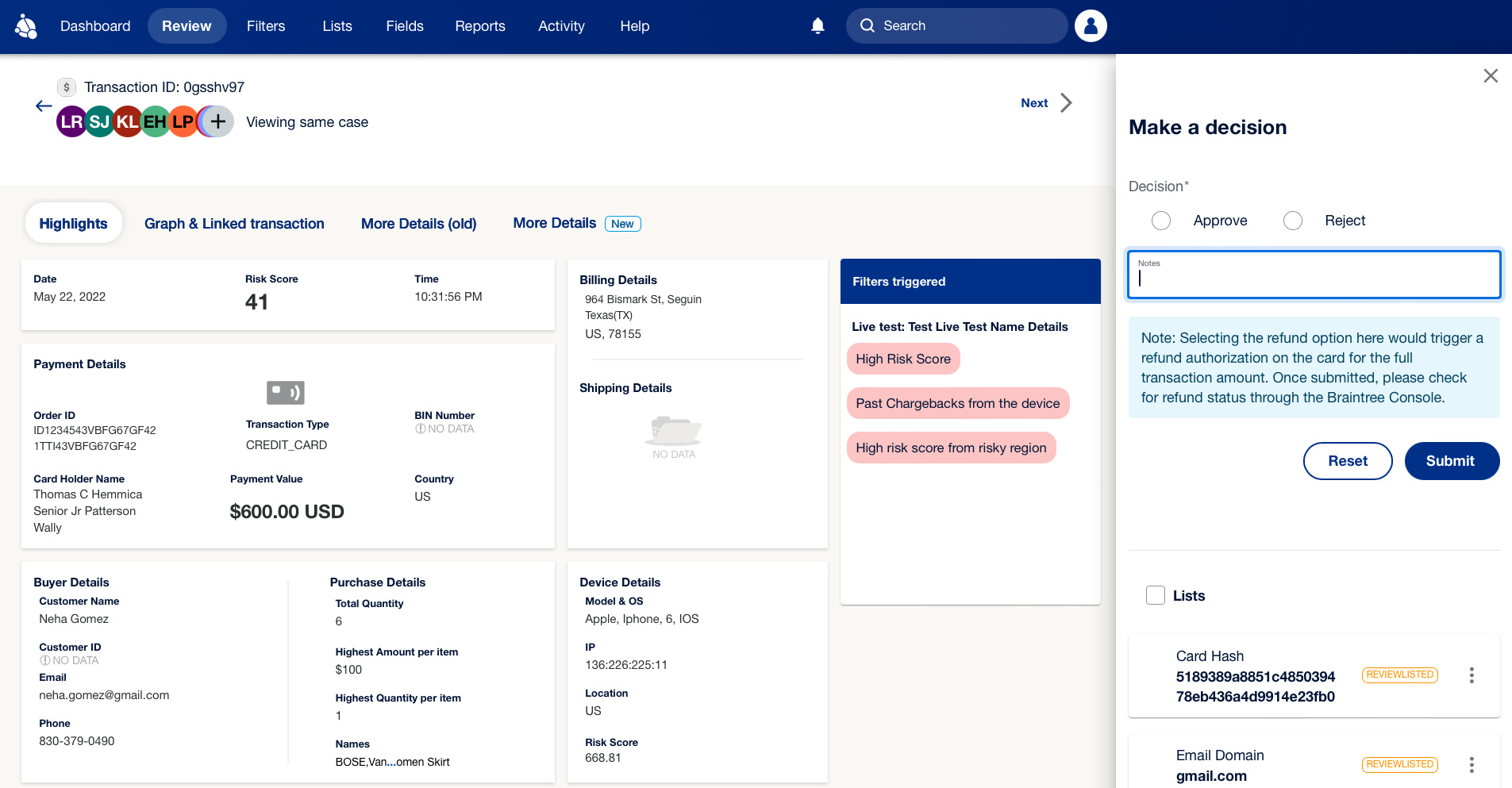
1. From the **Review** tab, select the **Transaction ID** of the transaction you'd like to review. This will take you to a **Single Case View**.
2. Review all the details. If you select **Approve**, the transaction process will not be affected, and the end-to-end payment will be completed. If you select **Reject**, the transaction will be refunded or rendered void.
3. After making a decision, select **Submit**.
## Review a transaction [#review-a-transaction]
Your merchants can review transactions using the following steps:
1. From the **Review** tab, select the **Transaction ID** of the transaction you'd like to review. This will take you to a **Single Case View**.
2. Review all the details. If you select **Approve**, the transaction process will not be affected, and the end-to-end payment will be completed. If you select **Reject**, the transaction will be refunded or rendered void.
3. After making a decision, select **Submit**.
 > **Note:** **Note**: Anything labeled as pending requires action within 30 days.
To view a detailed report of attempted and declined transactions, see [Attempts and Declines Report User Guide](/platforms/reports/partner-merchant-reconciliation/attempts-declines/).
## Related resources [#related-resources]
> **Info:** Create and set up filters
>
> Use filters to decide whether FPA approves, rejects, or puts a transaction into a review queue.
> **Info:** Manage lists
>
> Use the lists feature to manage information and work with their rules to help prevent fraud.
> **Info:** Monitor FPA activity
>
> You can track which users made changes and when these changes occurred in your merchant records.
> **Note:** **Note**: Anything labeled as pending requires action within 30 days.
To view a detailed report of attempted and declined transactions, see [Attempts and Declines Report User Guide](/platforms/reports/partner-merchant-reconciliation/attempts-declines/).
## Related resources [#related-resources]
> **Info:** Create and set up filters
>
> Use filters to decide whether FPA approves, rejects, or puts a transaction into a review queue.
> **Info:** Manage lists
>
> Use the lists feature to manage information and work with their rules to help prevent fraud.
> **Info:** Monitor FPA activity
>
> You can track which users made changes and when these changes occurred in your merchant records.