# Alternative payment methods (/platforms/checkout/apm)
## Overview [#overview]
Alternative payment methods (APMs) allow you to accept payments from customers worldwide who use their bank accounts, wallets, and local payment methods. When a buyer pays in a currency other than yours, PayPal handles currency conversion for you and presents conversion information to the buyer during checkout.
While displaying and accepting APMs is included with the checkout integration, we recommend subscribing to the `CHECKOUT.ORDER.APPROVED` webhook event in case a customer accidentally closes the browser and exits the checkout process after approving the transaction through their APM but *before* finalizing the transaction on your site.
> **Info:** **Note:** Inform your payers that PayPal is processing the payment by implementing one of the following options:
>
> 1. At checkout, include the following text and a link to the PayPal privacy notice - **By paying with your card, you acknowledge that PayPal will process your data according to the PayPal Privacy Statement available at PayPal.com.**
> 2. Include the following text in your privacy notice, which you'll need to show before payment - **We use PayPal for payments and other services. If you want to use one of these services and pay on our website, PayPal may collect the personal data you provide, such as payment and other identifying information. PayPal uses this information to operate and improve the services it provides to us and others, including for fraud detection, harm and loss prevention, authentication, analytics related to the performance of its services, and to comply with applicable legal requirements. The processing of this information will be subject to the PayPal Privacy Statement available at PayPal.com.**
## Know before you code [#know-before-you-code]
> **Info:** ### You need the following to use this integration: [#you-need-the-following-to-use-this-integration]
>
> * This integration is available to select partners only.
> * If you don't want to accept APMs on your site, use the [`disable-funding`](/sdk/js/configuration/#disable-funding) parameter in the JavaScript SDK call disable APMs.
> * Refer to [Supported alternative payment methods](/platforms/checkout/apm/supported-apms/) to become familiar with which APMs are accepted in different countries.
> * This procedure adds to an existing [client-side checkout integration](/platforms/checkout/standard/).
> * By adding funding sources to your checkout integration, you agree to the [PayPal Alternative Payment Methods Agreement](https://www.paypal.com/us/legalhub/apm-tnc?_ga=1.26741438.2048893575.1718610820). This is in addition to the user agreement applicable to the country in which your business is physically located.
> * Complete the steps in [Get started](/platforms/get-started/) to get your credentials
>
> [Get access token](/platforms/create-account/#link-exchangeyourapicredentialsforanaccesstoken)
>
> [Read the guide](/platforms/checkout/standard/)
> **Info:** ### You need a developer account to get sandbox credentials [#you-need-a-developer-account-to-get-sandbox-credentials]
>
> PayPal uses the following REST API credentials, which you can get from the developer dashboard:
>
> * **Client ID**: Authenticates your account with PayPal and identifies an app in your sandbox.
> * **Client secret**: Authorizes an app in your sandbox. Keep this secret safe and don't share it.
>
> [Dashboard](/dashboard/)
>
> [Read the guide](/sandbox-testing/overview)
> **Info:** ### You need both PayPal and third-party tools [#you-need-both-paypal-and-third-party-tools]
>
> * [PayPal JavaScript SDK](/sdk/js/)
> * [Webhooks Management REST API](/api/webhooks/v1)
> * [Orders REST API](/api/orders/v2)
> **Info:** ### Explore PayPal APIs with Postman [#explore-paypal-apis-with-postman]
>
> You can use Postman to explore and test PayPal APIs. Learn more in our [Postman guide](/api/rest/postman).
## How it works [#how-it-works]
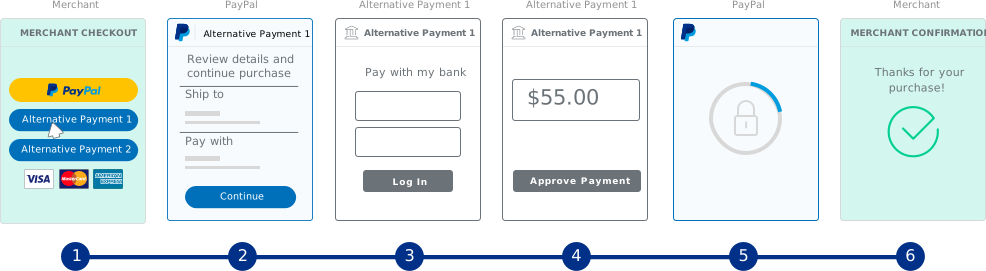
APMs show up automatically and differ by country or region. The flow for completing a payment through an APM is as follows:
1. The buyer selects an APM at checkout.
2. The buyer provides purchase details.
3. To confirm the purchase, PayPal redirects the buyer to an alternative payment provider, such as a bank or wallet.
4. The buyer approves and confirms payment.
5. The buyer returns to the merchant page to finalize the transaction.
6. The merchant initiates the completion of payment. PayPal moves the money to the merchant.
 ## Maintain default integration values [#maintain-default-integration-values]
While the checkout integration includes APMs by default, they display only when the buyer is eligible for one of the methods and when the following default integration values are maintained:
| Parameter | Value | Description |
| -------------- | ---------- | ------------------------------------------------------------------------------------------------------------------------------------------------------------------------------------------------------------------------------------------------- |
| `style.layout` | `vertical` | Default. Buttons are stacked vertically with a maximum of four buttons. Recommended when: Presenting a dynamic list of payment options on checkout and shopping cart pages.Leveraging Checkout as a full stack payments platform. |
| `intent` | `capture` | The money is captured immediately while the buyer is on your site. |
| `commit` | `true` | Show a Pay Now button in the Checkout flow. The final amount will not change after the buyer returns from PayPal to your site. |
| `vault` | `false` | Show all funding sources. |
Because these are default values, you don't have to specify them in the JavaScript SDK call, but make sure you don't explicitly change any of them by passing a non-default value for the parameter.
> **Info:** **Note:** APMs don't work with all payment configurations because some configurations change these default values. Payment configurations that don't work with APMs because they change these default values include: authorize and capture later, subscriptions, vaulting, and shipping changes callback scenarios.
## 1. Subscribe to webhook [#1-subscribe-to-webhook]
To subscribe to the `CHECKOUT.ORDER.APPROVED` event, copy the following code and modify it.
> **Tip:** **Tip:** For a no-code option, subscribe to the **Checkout order approved** webhook event in your sandbox REST API app in the Developer Dashboard. Open then app you're using for development, scroll to the webhooks section, and click **Add Webhook**.
### Sample request [#sample-request]
API endpoint used: [Create webhook](/api/webhooks/v1/webhooks-post)
```text lineNumbers
curl -v -X POST https://api-m.sandbox.paypal.com/v1/notifications/webhooks \
-H "Content-Type: application/json" \
-H "Authorization: Bearer " \
-H 'PayPal-Partner-Attribution-Id: <BN-Code>' \
-d '{
"url": "https://example.com/example_webhook",
"event_types": [
{
"name": "CHECKOUT.ORDER.APPROVED"
}
]
}'
```
### Modify the code [#modify-the-code]
After you copy the code in the sample request, modify the following:
* `Access-Token` - Your access token.
* `BN-Code` - Change to your [PayPal Partner Attribution ID](/api/rest/requests/#paypal-partner-attribution-id).
* `url` - The URL of your webhook handler that listens for webhooks you're subscribed to.
### Step result [#step-result]
A successful request results in the following:
* A return status code of HTTP `201 Created`.
* A JSON response body that contains the webhook ID.
* An entry for the webhook in the REST API app you're using for development. Open then app you're using and scroll to the webhooks section to confirm the webhook appears with the same ID returned in this call.
### Sample response [#sample-response]
```text lineNumbers
{
"id": "2CJ781045X895601X",
"url": "https://example.com/example_webhook",
"event_types": [{
"name": "CHECKOUT.ORDER.APPROVED",
"description": "An order has been approved by buyer."
}],
"links": [{
"href": "https://api-m.sandbox.paypal.com/v1/notifications/webhooks/2CJ781045X895601X",
"rel": "self",
"method": "GET"
},
{
"href": "https://api-m.sandbox.paypal.com/v1/notifications/webhooks/2CJ781045X895601X",
"rel": "update",
"method": "PATCH"
},
{
"href": "https://api-m.sandbox.paypal.com/v1/notifications/webhooks/2CJ781045X895601X",
"rel": "delete",
"method": "DELETE"
}
]
}
```
## 2. Update handler logic [#2-update-handler-logic]
A webhook handler is a script you create on your server that completes specific actions on webhooks that hit your listener URL. Each handler script implementation is different, but for this task, ensure you have logic in your handler script that verifies each `CHECKOUT.ORDER.APPROVED` event has a completed transaction in your database. An incomplete transaction might signal a dropped cart, and you'll have to [capture the payment to finalize the transaction](/platforms/checkout/apm/#3-capture-payments).
The following resources might be useful as you create webhook handler code:
* [Webhook Management API](/api/webhooks/v1#webhooks) - Manage webhooks, list event notifications, and more.
* Webhook event
* [Checkout webhook events](/api/rest/webhooks/event-names/#checkout-buyer-approval) - Checkout buyer approval-related webhooks.
* [Order webhook events](/api/rest/webhooks/event-names/) - Other order-related webhooks.
* [Show order details endpoint](/api/orders/v2/orders-get) - Determine the status of an order.
## 3. Capture payments [#3-capture-payments]
If there are incomplete transactions that indicate a customer completed authorization with their APM but closed the window before finalizing the transaction on your site, you can capture the payments for those transactions.
To capture the payment for an authorized but incomplete transaction, copy the following code and modify it.
### Sample request [#sample-request-1]
API endpoint used: [Capture payment for order](/api/orders/v2/orders-capture)
```text lineNumbers
curl -v -X POST https://api-m.sandbox.paypal.com/v2/checkout/orders/2BE65243S8119680R/capture \
-H "Content-Type: application/json" \
-H "Authorization: Bearer Access-Token" \
-H 'PayPal-Partner-Attribution-Id: <BN-Code>' \
-H "PayPal-Request-Id: 123e4567-e89b-12d3-a456-426655440040" \
```
### Modify the code [#modify-the-code-1]
After you copy the code in the sample request, modify the following:
* `Access-Token` - Your access token.
* Order ID - In the URI for the API call, replace the sample ID with the order ID returned by the `CHECKOUT.ORDER.APPROVED` webhook event.
* `BN-Code` - Change to your [PayPal Partner Attribution ID](/api/rest/requests/#paypal-partner-attribution-id).
* `PayPal-Request-Id` - Replace the sample ID with a unique ID you generate. This ID helps prevent duplicate captures if the API call is disrupted. See also: [API Idempotency](/reference/guidelines/idempotency/).
### Step result [#step-result-1]
A successful request results in the following:
* A return status code of HTTP `201 Created`.
* A JSON response body that contains details for the captured payment. Use the ID returned if you need to [refund the transaction](/api/payments/v2/captures-refund) in the future.
### Sample response [#sample-response-1]
```text lineNumbers
{
"id": "2BE65243S8119680R",
"purchase_units": [{
"reference_id": "default",
"shipping": {
"name": {
"full_name": "John Doe"
},
"address": {
"address_line_1": "Badensche Straße 24",
"admin_area_2": "Berlin-Wilmersdorf",
"postal_code": "10715",
"country_code": "DE"
}
},
"payments": {
"captures": [{
"id": "9XR60255JN8591232",
"status": "PENDING",
"status_details": {
"reason": "RECEIVING_PREFERENCE_MANDATES_MANUAL_ACTION"
},
"amount": {
"currency_code": "EUR",
"value": "15.00"
},
"final_capture": true,
"seller_protection": {
"status": "ELIGIBLE",
"dispute_categories": [
"ITEM_NOT_RECEIVED",
"UNAUTHORIZED_TRANSACTION"
]
},
"links": [{
"href": "https://api-m.sandbox.paypal.com/v2/payments/captures/9XR60255JN8591232",
"rel": "self",
"method": "GET"
},
{
"href": "https://api-m.sandbox.paypal.com/v2/payments/captures/9XR60255JN8591232/refund",
"rel": "refund",
"method": "POST"
},
{
"href": "https://api-m.sandbox.paypal.com/v2/checkout/orders/2BE65243S8119680R",
"rel": "up",
"method": "GET"
}
],
"create_time": "2020-02-26T22:52:00Z",
"update_time": "2020-02-26T22:52:00Z"
}]
}
}],
"payer": {
"name": {
"given_name": "John",
"surname": "Doe"
},
"email_address": "buyer@example.com",
"payer_id": "PPFAH5AWAX7RS",
"address": {
"country_code": "DE"
}
},
"links": [{
"href": "https://api-m.sandbox.paypal.com/v2/checkout/orders/2BE65243S8119680R",
"rel": "self",
"method": "GET"
}],
"status": "COMPLETED"
}
```
## 4. Test [#4-test]
APMs show up automatically and differ by country based on locale and country settings. You can force APMs to show to test an APM transaction.
1. Add the following parameters to the JavaScript SDK call with an associated code:
* `currency` - [Supported currency codes](/api/codes/currency)
* `locale `- [Supported locale codes](/api/codes/locale)
* `buyer-country` - [Supported country codes](/api/codes/country-region)
#### Sample call: [#sample-call]
```text lineNumbers
```
2. Test the transaction as a buyer: On your checkout page, click one of the APM payment buttons. For example, if you are testing a German APM transaction, you might select the **giropay** button. \*
> **Warning:** **Important:** giropay will be sunset on June 30, 2024. PayPal will not support giropay payments starting July 1, 2024. Offer your users PayPal wallet and other alternative payment methods.
3. Click the pre-fill information button at the top of the checkout screen to enter test user information. In the following example, you'd select: [Pre-fill button](https://www.paypalobjects.com/ppdevdocs/img/docs/ppcp-b/configure-payments/apm/prefill.png).
4. Enter a test email address. You can use the email address for your personal sandbox account.
5. Click through the flow to complete the transaction. The simulation server displays options for testing successful and failed authorizations.
6. Confirm the money shows up in the merchant account.
1) Log into the [PayPal sandbox](https://www.sandbox.paypal.com/us/signin) using the *business* sandbox account from the Developer Dashboard.
2) Verify that the money, minus any fees, has been received in the business account.
7. You can confirm the `CHECKOUT.ORDER.APPROVED` event fires as you expect in any of the following ways:
* **In Developer Dashboard** - Confirm the **Checkout order approved** webhook shows up in the REST API app you're using for development. Open the app you're using and scroll to the webhooks section to confirm the webhook shows up with the same ID returned in the [Create Webhook REST API call](/api/webhooks/v1/webhooks-post).
* **On your listener URL** - Confirm your listener URL received the webhook when you completed a test transaction.
* **In your Webhook handler** - Run any tests you've developed for your webhook handler script to confirm code updates you've made for handling the `CHECKOUT.ORDER.APPROVED` webhook.
## Next steps & customizations [#next-steps--customizations]
> **Info:** ### Go live [#go-live]
>
> How to take your integration live.
>
> [Go live](/api/rest/production/)
> **Info:** ### See also [#see-also]
>
> Learn more about working with PayPal webhooks
>
> [Read the guide](/api/rest/webhooks/)
## Maintain default integration values [#maintain-default-integration-values]
While the checkout integration includes APMs by default, they display only when the buyer is eligible for one of the methods and when the following default integration values are maintained:
| Parameter | Value | Description |
| -------------- | ---------- | ------------------------------------------------------------------------------------------------------------------------------------------------------------------------------------------------------------------------------------------------- |
| `style.layout` | `vertical` | Default. Buttons are stacked vertically with a maximum of four buttons. Recommended when: Presenting a dynamic list of payment options on checkout and shopping cart pages.Leveraging Checkout as a full stack payments platform. |
| `intent` | `capture` | The money is captured immediately while the buyer is on your site. |
| `commit` | `true` | Show a Pay Now button in the Checkout flow. The final amount will not change after the buyer returns from PayPal to your site. |
| `vault` | `false` | Show all funding sources. |
Because these are default values, you don't have to specify them in the JavaScript SDK call, but make sure you don't explicitly change any of them by passing a non-default value for the parameter.
> **Info:** **Note:** APMs don't work with all payment configurations because some configurations change these default values. Payment configurations that don't work with APMs because they change these default values include: authorize and capture later, subscriptions, vaulting, and shipping changes callback scenarios.
## 1. Subscribe to webhook [#1-subscribe-to-webhook]
To subscribe to the `CHECKOUT.ORDER.APPROVED` event, copy the following code and modify it.
> **Tip:** **Tip:** For a no-code option, subscribe to the **Checkout order approved** webhook event in your sandbox REST API app in the Developer Dashboard. Open then app you're using for development, scroll to the webhooks section, and click **Add Webhook**.
### Sample request [#sample-request]
API endpoint used: [Create webhook](/api/webhooks/v1/webhooks-post)
```text lineNumbers
curl -v -X POST https://api-m.sandbox.paypal.com/v1/notifications/webhooks \
-H "Content-Type: application/json" \
-H "Authorization: Bearer " \
-H 'PayPal-Partner-Attribution-Id: <BN-Code>' \
-d '{
"url": "https://example.com/example_webhook",
"event_types": [
{
"name": "CHECKOUT.ORDER.APPROVED"
}
]
}'
```
### Modify the code [#modify-the-code]
After you copy the code in the sample request, modify the following:
* `Access-Token` - Your access token.
* `BN-Code` - Change to your [PayPal Partner Attribution ID](/api/rest/requests/#paypal-partner-attribution-id).
* `url` - The URL of your webhook handler that listens for webhooks you're subscribed to.
### Step result [#step-result]
A successful request results in the following:
* A return status code of HTTP `201 Created`.
* A JSON response body that contains the webhook ID.
* An entry for the webhook in the REST API app you're using for development. Open then app you're using and scroll to the webhooks section to confirm the webhook appears with the same ID returned in this call.
### Sample response [#sample-response]
```text lineNumbers
{
"id": "2CJ781045X895601X",
"url": "https://example.com/example_webhook",
"event_types": [{
"name": "CHECKOUT.ORDER.APPROVED",
"description": "An order has been approved by buyer."
}],
"links": [{
"href": "https://api-m.sandbox.paypal.com/v1/notifications/webhooks/2CJ781045X895601X",
"rel": "self",
"method": "GET"
},
{
"href": "https://api-m.sandbox.paypal.com/v1/notifications/webhooks/2CJ781045X895601X",
"rel": "update",
"method": "PATCH"
},
{
"href": "https://api-m.sandbox.paypal.com/v1/notifications/webhooks/2CJ781045X895601X",
"rel": "delete",
"method": "DELETE"
}
]
}
```
## 2. Update handler logic [#2-update-handler-logic]
A webhook handler is a script you create on your server that completes specific actions on webhooks that hit your listener URL. Each handler script implementation is different, but for this task, ensure you have logic in your handler script that verifies each `CHECKOUT.ORDER.APPROVED` event has a completed transaction in your database. An incomplete transaction might signal a dropped cart, and you'll have to [capture the payment to finalize the transaction](/platforms/checkout/apm/#3-capture-payments).
The following resources might be useful as you create webhook handler code:
* [Webhook Management API](/api/webhooks/v1#webhooks) - Manage webhooks, list event notifications, and more.
* Webhook event
* [Checkout webhook events](/api/rest/webhooks/event-names/#checkout-buyer-approval) - Checkout buyer approval-related webhooks.
* [Order webhook events](/api/rest/webhooks/event-names/) - Other order-related webhooks.
* [Show order details endpoint](/api/orders/v2/orders-get) - Determine the status of an order.
## 3. Capture payments [#3-capture-payments]
If there are incomplete transactions that indicate a customer completed authorization with their APM but closed the window before finalizing the transaction on your site, you can capture the payments for those transactions.
To capture the payment for an authorized but incomplete transaction, copy the following code and modify it.
### Sample request [#sample-request-1]
API endpoint used: [Capture payment for order](/api/orders/v2/orders-capture)
```text lineNumbers
curl -v -X POST https://api-m.sandbox.paypal.com/v2/checkout/orders/2BE65243S8119680R/capture \
-H "Content-Type: application/json" \
-H "Authorization: Bearer Access-Token" \
-H 'PayPal-Partner-Attribution-Id: <BN-Code>' \
-H "PayPal-Request-Id: 123e4567-e89b-12d3-a456-426655440040" \
```
### Modify the code [#modify-the-code-1]
After you copy the code in the sample request, modify the following:
* `Access-Token` - Your access token.
* Order ID - In the URI for the API call, replace the sample ID with the order ID returned by the `CHECKOUT.ORDER.APPROVED` webhook event.
* `BN-Code` - Change to your [PayPal Partner Attribution ID](/api/rest/requests/#paypal-partner-attribution-id).
* `PayPal-Request-Id` - Replace the sample ID with a unique ID you generate. This ID helps prevent duplicate captures if the API call is disrupted. See also: [API Idempotency](/reference/guidelines/idempotency/).
### Step result [#step-result-1]
A successful request results in the following:
* A return status code of HTTP `201 Created`.
* A JSON response body that contains details for the captured payment. Use the ID returned if you need to [refund the transaction](/api/payments/v2/captures-refund) in the future.
### Sample response [#sample-response-1]
```text lineNumbers
{
"id": "2BE65243S8119680R",
"purchase_units": [{
"reference_id": "default",
"shipping": {
"name": {
"full_name": "John Doe"
},
"address": {
"address_line_1": "Badensche Straße 24",
"admin_area_2": "Berlin-Wilmersdorf",
"postal_code": "10715",
"country_code": "DE"
}
},
"payments": {
"captures": [{
"id": "9XR60255JN8591232",
"status": "PENDING",
"status_details": {
"reason": "RECEIVING_PREFERENCE_MANDATES_MANUAL_ACTION"
},
"amount": {
"currency_code": "EUR",
"value": "15.00"
},
"final_capture": true,
"seller_protection": {
"status": "ELIGIBLE",
"dispute_categories": [
"ITEM_NOT_RECEIVED",
"UNAUTHORIZED_TRANSACTION"
]
},
"links": [{
"href": "https://api-m.sandbox.paypal.com/v2/payments/captures/9XR60255JN8591232",
"rel": "self",
"method": "GET"
},
{
"href": "https://api-m.sandbox.paypal.com/v2/payments/captures/9XR60255JN8591232/refund",
"rel": "refund",
"method": "POST"
},
{
"href": "https://api-m.sandbox.paypal.com/v2/checkout/orders/2BE65243S8119680R",
"rel": "up",
"method": "GET"
}
],
"create_time": "2020-02-26T22:52:00Z",
"update_time": "2020-02-26T22:52:00Z"
}]
}
}],
"payer": {
"name": {
"given_name": "John",
"surname": "Doe"
},
"email_address": "buyer@example.com",
"payer_id": "PPFAH5AWAX7RS",
"address": {
"country_code": "DE"
}
},
"links": [{
"href": "https://api-m.sandbox.paypal.com/v2/checkout/orders/2BE65243S8119680R",
"rel": "self",
"method": "GET"
}],
"status": "COMPLETED"
}
```
## 4. Test [#4-test]
APMs show up automatically and differ by country based on locale and country settings. You can force APMs to show to test an APM transaction.
1. Add the following parameters to the JavaScript SDK call with an associated code:
* `currency` - [Supported currency codes](/api/codes/currency)
* `locale `- [Supported locale codes](/api/codes/locale)
* `buyer-country` - [Supported country codes](/api/codes/country-region)
#### Sample call: [#sample-call]
```text lineNumbers
```
2. Test the transaction as a buyer: On your checkout page, click one of the APM payment buttons. For example, if you are testing a German APM transaction, you might select the **giropay** button. \*
> **Warning:** **Important:** giropay will be sunset on June 30, 2024. PayPal will not support giropay payments starting July 1, 2024. Offer your users PayPal wallet and other alternative payment methods.
3. Click the pre-fill information button at the top of the checkout screen to enter test user information. In the following example, you'd select: [Pre-fill button](https://www.paypalobjects.com/ppdevdocs/img/docs/ppcp-b/configure-payments/apm/prefill.png).
4. Enter a test email address. You can use the email address for your personal sandbox account.
5. Click through the flow to complete the transaction. The simulation server displays options for testing successful and failed authorizations.
6. Confirm the money shows up in the merchant account.
1) Log into the [PayPal sandbox](https://www.sandbox.paypal.com/us/signin) using the *business* sandbox account from the Developer Dashboard.
2) Verify that the money, minus any fees, has been received in the business account.
7. You can confirm the `CHECKOUT.ORDER.APPROVED` event fires as you expect in any of the following ways:
* **In Developer Dashboard** - Confirm the **Checkout order approved** webhook shows up in the REST API app you're using for development. Open the app you're using and scroll to the webhooks section to confirm the webhook shows up with the same ID returned in the [Create Webhook REST API call](/api/webhooks/v1/webhooks-post).
* **On your listener URL** - Confirm your listener URL received the webhook when you completed a test transaction.
* **In your Webhook handler** - Run any tests you've developed for your webhook handler script to confirm code updates you've made for handling the `CHECKOUT.ORDER.APPROVED` webhook.
## Next steps & customizations [#next-steps--customizations]
> **Info:** ### Go live [#go-live]
>
> How to take your integration live.
>
> [Go live](/api/rest/production/)
> **Info:** ### See also [#see-also]
>
> Learn more about working with PayPal webhooks
>
> [Read the guide](/api/rest/webhooks/)