# Support multiple shipping options (/platforms/checkout/standard/customize/shipping-options)
When buyers make changes to their shipping information, they can make 2 main types of updates:
1. Changes to the merchant-provided shipping options.
2. Changes to the shipping address.
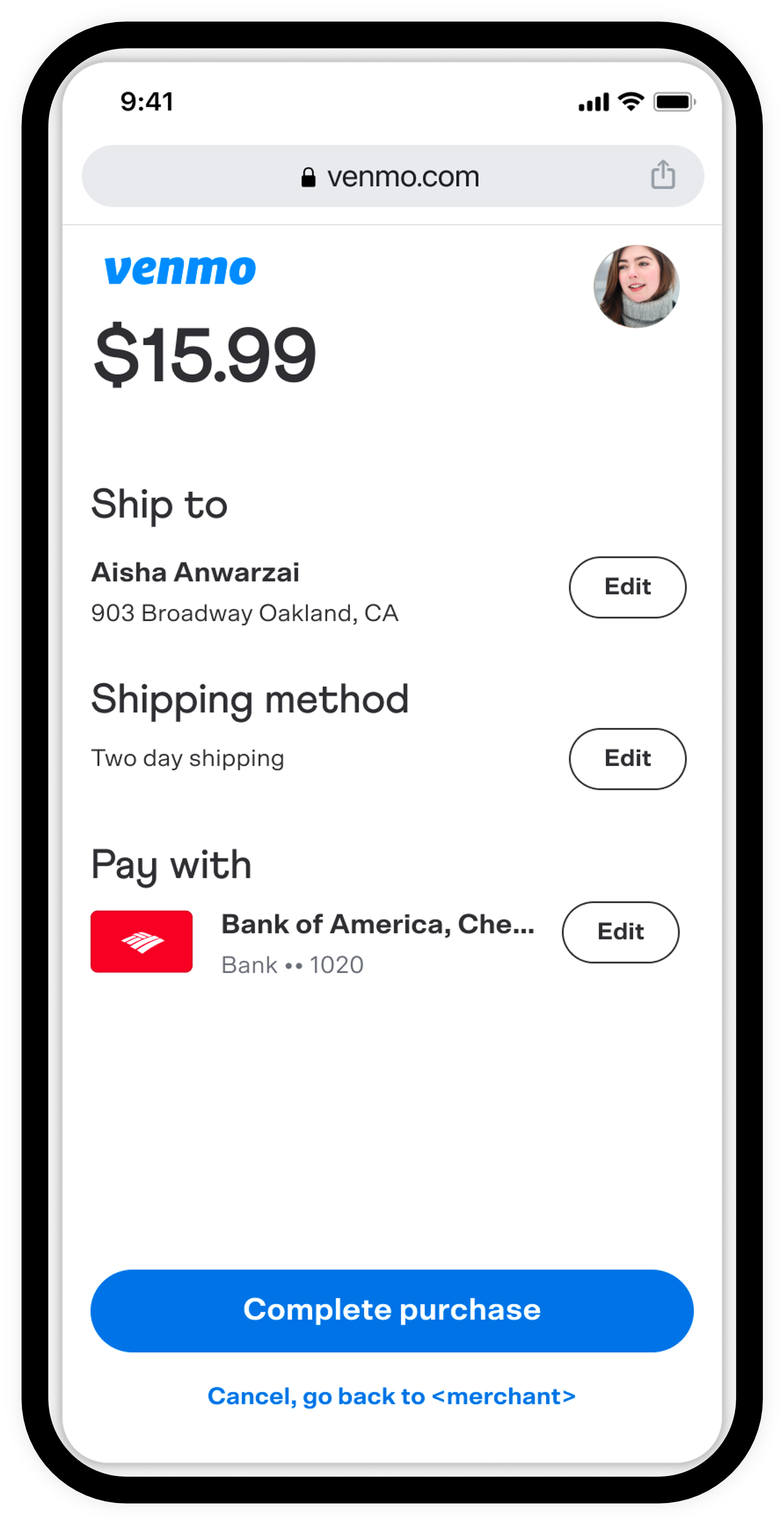
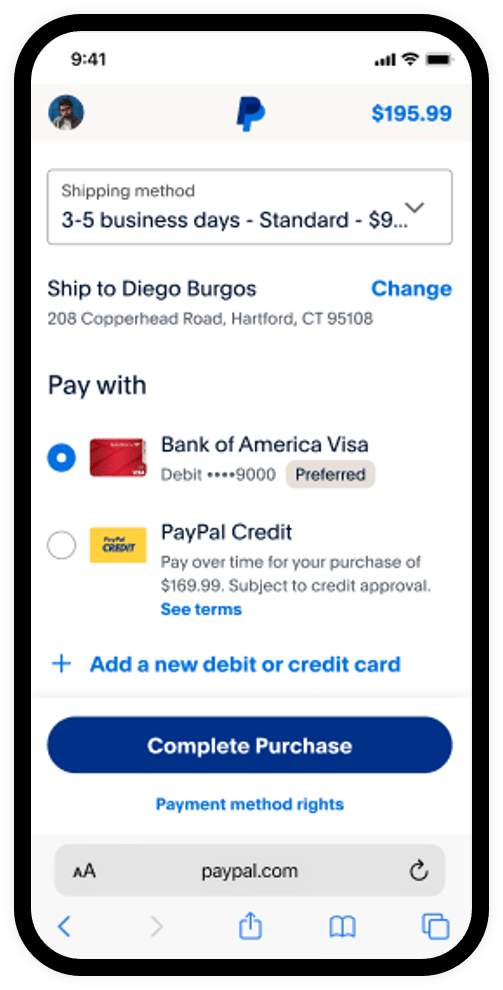 **Example:** Venmo and PayPal shipping callbacks
## Know before you code [#know-before-you-code]
> **Info:** ### PayPal Checkout [#paypal-checkout]
>
> Complete the steps in **Get started** to get your sandbox account login information and access token from the Developer Dashboard.
>
> This feature modifies an existing PayPal Checkout integration and uses the following:
>
> * [JavaScript SDK:](/sdk/js/) Adds PayPal-supported payment methods.
> * [Orders REST API:](/api/orders/v2) Create, update, retrieve, authorize, and capture orders.
>
> [PayPal Checkout](/platforms/checkout/standard/)
>
> [Get started](/platforms/get-started/)
> **Info:** ### Shipping options limit [#shipping-options-limit]
>
> * The maximum number of items you can put in the shipping options array is 10.
> **Info:** ### Explore PayPal APIs with Postman [#explore-paypal-apis-with-postman]
>
> You can use Postman to explore and test PayPal APIs. Learn more in our [Postman guide](/api/rest/postman).
## 1. Shipping options changes [#1-shipping-options-changes]
To offer your buyers the flexibility to choose their preferred delivery method, you can integrate shipping options. This can include in-store pickup, free shipping, and expedited shipping. Once a buyer has submitted their payment, you can verify their selected shipping option and ship accordingly.
### Add shipping options [#add-shipping-options]
To provide shipping options to the buyer, complete the following steps:
1. Use the `createOrder` callback to make a fetch call to your server with information to uniquely identify the items being ordered. For example, you can pass an array of items containing the SKUs and quantities to represent the products the user has placed in their shopping cart on your ecommerce website.
2. In your back-end code, use the item SKUs and quantities to calculate the item total.
3. In your back-end code, define a list of shipping options to present to the buyer.
4. In your back-end code, use the above information to define an order payload and use that to [create an order](/api/orders/v2/orders-create) with the Orders v2 API.
#### Front end (HTML)
```text lineNumbers
```
#### Back end (Node.js)
```text lineNumbers
app.post("/my-server/create-paypal-order", async (req, res) => {
const order = await createOrder();
res.json(order);
});
// use the orders api to create an order
function createOrder() {
// create accessToken using your clientID and clientSecret
// for the full stack example, please see the Standard Integration guide
// https://developer.paypal.com/platforms/checkout/standard/integrate
const accessToken = "ACCESS-TOKEN";
return fetch ("https://api-m.sandbox.paypal.com/v2/checkout/orders", {
method: "POST",
headers: {
'Content-Type': 'application/json',
'Authorization': 'Bearer ${accessToken}',
'PayPal-Partner-Attribution-Id': 'BN-CODE',
},
body: JSON.stringify({
purchase_units: [{
amount: {
value: "15.00",
currency_code: "USD"
},
shipping: {
options: [
{
id: "SHIP_123",
label: "Free Shipping",
type: "SHIPPING",
selected: true,
amount: {
value: "3.00",
currency_code: "USD"
}
},
{
id: "SHIP_456",
label: "Pick up in Store",
type: "PICKUP",
selected: false,
amount: {
value: "0.00",
currency_code: "USD"
}
}
]
}
}]
})
})
.then((response) => response.json());
}
```
### Values passed to shipping options array on the backend [#values-passed-to-shipping-options-array-on-the-backend]
* `id`: A unique identifier for the shipping option.
* `label`: The option presented to the payer in the dropdown menu.
* `type`: An enum, `"SHIPPING"` or `"PICKUP"` to differentiate the type of shipping.
* `selected`: A boolean to determine which option is selected by default.
* `amount`: An object that contains the price of the shipping option.
* `amount.value`: A string denoting the price, formatted as `X.XX`
* `amount.currency_code`: The currency code to use, which reflects the currency code in the `purchase_units.amount` object.
The order amount will automatically be updated based on the options chosen by the buyers, and you can use the `onShippingOptionsChange()` callback to update your own database with the new amount information.
```javascript lineNumbers
paypal.Buttons({
onShippingOptionsChange(data) {
// data.selectedShippingOption contains the selected shipping option
console.log("SELECTED_OPTION", data.selectedShippingOption);
}
});
```
## 2. Shipping address change [#2-shipping-address-change]
When the shipping address changes, it may affect the shipping cost. In such a scenario, pass the shipping callback in the `paypal.Buttons` function.
If you have defined `shipping.address` in your order payload, the shipping callback [`onShippingAddressChange`](/sdk/js/reference/#onshippingaddresschange) will be triggered when a different address is selected.
You can access the selected shipping address in the `data` parameter passed as follows:
```javascript lineNumbers
paypal.Buttons({
onShippingAddressChange(data) {
// data.shippingAddress contains the selected shipping address
console.log("SHIPPING_ADDRESS", data.shippingAddress);
},
});
```
This example shows how to change the total price based on shipping address changes. The client-side code snippet sends `data.shippingAddress` to your server and the server-side code snippet looks up the new `shippingAddress` and changes the amount of the order.
#### Front end (HTML)
```text lineNumbers
```
#### Back end (Node.js)
```text lineNumbers
import express from "express";
const app = express();
app.use(express.static("public"));
// parse post params sent in body in json format
app.use(express.json());
app.patch("/my-server/patch-paypal-order", async (req, res) => {
const {data} = await onShippingAddressChange(req.body);
res.json(data);
});\n
//use the orders API to update an order.
async function onShippingAddressChange(data) {
// create accessToken using your clientID and clientSecret
// for the full stack example, please see the Standard Integration guide
// https://developer.paypal.com/platforms/checkout/standard/integrate
const accessToken = "REPLACE_WITH_YOUR_ACCESS_TOKEN";
/*
To calculate the new cost:
1. Use the buyer's shipping address from the input "data.shippingAddress" to calculate the new shipping cost based on your requirements.
2. Get the existing order amount details using /api/orders/v2/orders-get
3. Retrieve the "breakdown" object's values from the order details "breakdown" provides details such as total item amount, total tax amount, shipping, handling, insurance, and discounts, if any. Sample "breakdown" values: "breakdown": { "item_total": { "currency_code": "USD", "value": "25.20" }, "shipping": { "currency_code": "USD", "value": "10.10" }, "tax_total": { "currency_code": "USD", "value": "1.26" }
4. Replace "breakdown.shipping.value" with the new shipping cost
5. Add up the "breakdown" object's values with the new shipping cost to obtain the new total cost
6. Total amount should equal item_total + tax_total + shipping + handling + insurance - shipping_discount - discount
7. Replace "amount.value" with the new total amount
*/
const orderDetails = (await getOrder("REPLACE_WITH_THE_ORDER_ID")).data;
orderDetails.purchase_units[0].amount.breakdown.shipping.value = "REPLACE_WITH_THE_NEW_SHIPPING_COST";
const totalAmount = "REPLACE_WITH_THE_TOTAL_AMOUNT";
orderDetails.purchase_units[0].amount.value = totalAmount
return fetch (`https://api-m.paypal.com/v2/checkout/orders/${data.orderID}`, {
method: "PATCH",
headers: {
'Content-Type': 'application/json',
'Authorization': `Bearer ${accessToken}`,
'PayPal-Partner-Attribution-Id': 'BN-CODE',
},
body: JSON.stringify([{
op: "replace",
path: "/purchase_units/@reference_id=='default'/amount",
value: orderDetails,
}])
})
.then((response) => response.json());
}
```
## Next steps and customizations [#next-steps-and-customizations]
> **Info:** Test integration
>
> Test in the sandbox environment before going live.
> **Info:** Go live
>
> Move from PayPal's production environment to go live.
> **Info:** JavaScript SDK
>
> Customize your integration with script config parameters.
**Example:** Venmo and PayPal shipping callbacks
## Know before you code [#know-before-you-code]
> **Info:** ### PayPal Checkout [#paypal-checkout]
>
> Complete the steps in **Get started** to get your sandbox account login information and access token from the Developer Dashboard.
>
> This feature modifies an existing PayPal Checkout integration and uses the following:
>
> * [JavaScript SDK:](/sdk/js/) Adds PayPal-supported payment methods.
> * [Orders REST API:](/api/orders/v2) Create, update, retrieve, authorize, and capture orders.
>
> [PayPal Checkout](/platforms/checkout/standard/)
>
> [Get started](/platforms/get-started/)
> **Info:** ### Shipping options limit [#shipping-options-limit]
>
> * The maximum number of items you can put in the shipping options array is 10.
> **Info:** ### Explore PayPal APIs with Postman [#explore-paypal-apis-with-postman]
>
> You can use Postman to explore and test PayPal APIs. Learn more in our [Postman guide](/api/rest/postman).
## 1. Shipping options changes [#1-shipping-options-changes]
To offer your buyers the flexibility to choose their preferred delivery method, you can integrate shipping options. This can include in-store pickup, free shipping, and expedited shipping. Once a buyer has submitted their payment, you can verify their selected shipping option and ship accordingly.
### Add shipping options [#add-shipping-options]
To provide shipping options to the buyer, complete the following steps:
1. Use the `createOrder` callback to make a fetch call to your server with information to uniquely identify the items being ordered. For example, you can pass an array of items containing the SKUs and quantities to represent the products the user has placed in their shopping cart on your ecommerce website.
2. In your back-end code, use the item SKUs and quantities to calculate the item total.
3. In your back-end code, define a list of shipping options to present to the buyer.
4. In your back-end code, use the above information to define an order payload and use that to [create an order](/api/orders/v2/orders-create) with the Orders v2 API.
#### Front end (HTML)
```text lineNumbers
```
#### Back end (Node.js)
```text lineNumbers
app.post("/my-server/create-paypal-order", async (req, res) => {
const order = await createOrder();
res.json(order);
});
// use the orders api to create an order
function createOrder() {
// create accessToken using your clientID and clientSecret
// for the full stack example, please see the Standard Integration guide
// https://developer.paypal.com/platforms/checkout/standard/integrate
const accessToken = "ACCESS-TOKEN";
return fetch ("https://api-m.sandbox.paypal.com/v2/checkout/orders", {
method: "POST",
headers: {
'Content-Type': 'application/json',
'Authorization': 'Bearer ${accessToken}',
'PayPal-Partner-Attribution-Id': 'BN-CODE',
},
body: JSON.stringify({
purchase_units: [{
amount: {
value: "15.00",
currency_code: "USD"
},
shipping: {
options: [
{
id: "SHIP_123",
label: "Free Shipping",
type: "SHIPPING",
selected: true,
amount: {
value: "3.00",
currency_code: "USD"
}
},
{
id: "SHIP_456",
label: "Pick up in Store",
type: "PICKUP",
selected: false,
amount: {
value: "0.00",
currency_code: "USD"
}
}
]
}
}]
})
})
.then((response) => response.json());
}
```
### Values passed to shipping options array on the backend [#values-passed-to-shipping-options-array-on-the-backend]
* `id`: A unique identifier for the shipping option.
* `label`: The option presented to the payer in the dropdown menu.
* `type`: An enum, `"SHIPPING"` or `"PICKUP"` to differentiate the type of shipping.
* `selected`: A boolean to determine which option is selected by default.
* `amount`: An object that contains the price of the shipping option.
* `amount.value`: A string denoting the price, formatted as `X.XX`
* `amount.currency_code`: The currency code to use, which reflects the currency code in the `purchase_units.amount` object.
The order amount will automatically be updated based on the options chosen by the buyers, and you can use the `onShippingOptionsChange()` callback to update your own database with the new amount information.
```javascript lineNumbers
paypal.Buttons({
onShippingOptionsChange(data) {
// data.selectedShippingOption contains the selected shipping option
console.log("SELECTED_OPTION", data.selectedShippingOption);
}
});
```
## 2. Shipping address change [#2-shipping-address-change]
When the shipping address changes, it may affect the shipping cost. In such a scenario, pass the shipping callback in the `paypal.Buttons` function.
If you have defined `shipping.address` in your order payload, the shipping callback [`onShippingAddressChange`](/sdk/js/reference/#onshippingaddresschange) will be triggered when a different address is selected.
You can access the selected shipping address in the `data` parameter passed as follows:
```javascript lineNumbers
paypal.Buttons({
onShippingAddressChange(data) {
// data.shippingAddress contains the selected shipping address
console.log("SHIPPING_ADDRESS", data.shippingAddress);
},
});
```
This example shows how to change the total price based on shipping address changes. The client-side code snippet sends `data.shippingAddress` to your server and the server-side code snippet looks up the new `shippingAddress` and changes the amount of the order.
#### Front end (HTML)
```text lineNumbers
```
#### Back end (Node.js)
```text lineNumbers
import express from "express";
const app = express();
app.use(express.static("public"));
// parse post params sent in body in json format
app.use(express.json());
app.patch("/my-server/patch-paypal-order", async (req, res) => {
const {data} = await onShippingAddressChange(req.body);
res.json(data);
});\n
//use the orders API to update an order.
async function onShippingAddressChange(data) {
// create accessToken using your clientID and clientSecret
// for the full stack example, please see the Standard Integration guide
// https://developer.paypal.com/platforms/checkout/standard/integrate
const accessToken = "REPLACE_WITH_YOUR_ACCESS_TOKEN";
/*
To calculate the new cost:
1. Use the buyer's shipping address from the input "data.shippingAddress" to calculate the new shipping cost based on your requirements.
2. Get the existing order amount details using /api/orders/v2/orders-get
3. Retrieve the "breakdown" object's values from the order details "breakdown" provides details such as total item amount, total tax amount, shipping, handling, insurance, and discounts, if any. Sample "breakdown" values: "breakdown": { "item_total": { "currency_code": "USD", "value": "25.20" }, "shipping": { "currency_code": "USD", "value": "10.10" }, "tax_total": { "currency_code": "USD", "value": "1.26" }
4. Replace "breakdown.shipping.value" with the new shipping cost
5. Add up the "breakdown" object's values with the new shipping cost to obtain the new total cost
6. Total amount should equal item_total + tax_total + shipping + handling + insurance - shipping_discount - discount
7. Replace "amount.value" with the new total amount
*/
const orderDetails = (await getOrder("REPLACE_WITH_THE_ORDER_ID")).data;
orderDetails.purchase_units[0].amount.breakdown.shipping.value = "REPLACE_WITH_THE_NEW_SHIPPING_COST";
const totalAmount = "REPLACE_WITH_THE_TOTAL_AMOUNT";
orderDetails.purchase_units[0].amount.value = totalAmount
return fetch (`https://api-m.paypal.com/v2/checkout/orders/${data.orderID}`, {
method: "PATCH",
headers: {
'Content-Type': 'application/json',
'Authorization': `Bearer ${accessToken}`,
'PayPal-Partner-Attribution-Id': 'BN-CODE',
},
body: JSON.stringify([{
op: "replace",
path: "/purchase_units/@reference_id=='default'/amount",
value: orderDetails,
}])
})
.then((response) => response.json());
}
```
## Next steps and customizations [#next-steps-and-customizations]
> **Info:** Test integration
>
> Test in the sandbox environment before going live.
> **Info:** Go live
>
> Move from PayPal's production environment to go live.
> **Info:** JavaScript SDK
>
> Customize your integration with script config parameters.