# Save cards for purchase later with the JavaScript SDK (/sdk/js/v5/save-without-purchase/cards)
Save credit or debit cards for future charges using the JavaScript SDK so you can charge users later. Ideal for free trials, recurring payments, and managing transactions. Payers can manage their funding sources and transactions.
Save payment methods to charge payers after a set amount of time. For example, you can offer a free trial and charge payers after the trial expires. Payers don't need to be present when charged. No checkout required.
Use the JavaScript SDK to save a payer's card if you aren't [PCI Compliant - SAQ A](https://www.pcisecuritystandards.org/pci_security/completing_self_assessment) but want to save credit or debit cards.
## Availability [#availability]
Supported countries:
* Australia
* Austria
* Belgium
* Bulgaria
* Canada
* China
* Cyprus
* Czech Republic
* Denmark
* Estonia
* Finland
* France
* Germany
* Hong Kong
* Hungary
* Ireland
* Italy
* Japan
* Latvia
* Liechtenstein
* Lithuania
* Luxembourg
* Malta
* Netherlands
* Norway
* Poland
* Portugal
* Romania
* Singapore
* Slovakia
* Slovenia
* Spain
* Sweden
* United Kingdom
* United States
## Know before you code [#know-before-you-code]
* ou are responsible for the front-end user experience. The JavaScript SDK provides back-end support.
* To save payment methods, you must be able to identify payers uniquely. For example, payers create an account and log in to your site.
* Complete the steps in [Get started](/api/rest/) to get the following sandbox account information from the Developer Dashboard:
* Your sandbox account login information
* Your access token
* This client-side integration uses information passed through the `CardFields` component to save a card without a transaction.
* The JavaScript SDK saves the following card types for purchase later:
* American Express
* Discover
* Mastercard
* Visa
* You'll need an existing [advanced credit and debit](/v5/expanded/overview/) integration. PayPal must approve your business account for advanced credit and debit card payments.
## How it works [#how-it-works]
PayPal encrypts payment method information and stores it in a digital vault for that customer.
1. The payer saves their payment method.
2. For a first-time payer, PayPal creates a customer ID. Store this within your system for future use.
3. When the customer returns to your website and is ready to check out, pass their PayPal-generated customer ID to the JavaScript SDK. The customer ID tells the JavaScript SDK to save or reuse a saved payment method.
4. The payer completes a billing agreement.
5. The JavaScript SDK populates the checkout page with each saved payment method. Each payment method appears as a one-click button next to other ways to pay.
The checkout process is now shorter because it uses saved payment information.
## 1. Set up account to save payments [#1-set-up-account-to-save-payments]
Set up your sandbox and live business accounts to save payment methods:
1. Log in to the Developer Dashboard.
2. Under **REST API apps**, select your app name.
3. Under **Sandbox App Settings** > **App Feature Options**, check **Accept payments**.
4. Expand **Advanced options**. Confirm that **Vault** is selected.
## 2. Add SDK to HTML page [#2-add-sdk-to-html-page]
Pass your client ID to the SDK to identify yourself. Replace `CLIENT-ID` with your app's client ID in the following sample:
```text lineNumbers
```
## 3. Create a setup token [#3-create-a-setup-token]
You request a setup token from your server. Pass the setup token from your server to the SDK with the `createVaultSetupToken` callback.
The `createVaultSetupToken` callback:
* Calls the server endpoint you created to generate and retrieve the setup token.
* Makes a request to your server endpoint.
Then, your server uses its access token to create and return the setup token to the client.
Any errors that occur while creating a setup token show up in the `onError` callback provided to the card fields component.
Create a setup token for cards that have:
* No verification
* 3D Secure verification
#### No verification
| Callback | Returns | Description |
| ----------------------- | -------------------- | ------------------------------------------------------------------------------------------------------------------------------------------------------------------------------------------------------------------------- |
| `createVaultSetupToken` | Setup token (string) | Your server must receive this callback. To get a setup token, see [Create a setup token for card](/api/payment-tokens/v3). The SDK then saves the payment method and updates the setup token with payment method details. |
#### 3D Secure verification
| Callback | Returns | Description |
| ----------------------- | -------------------- | -------------------------------------------------------------------------------------------------------------------------------------------------------------------------------------------------------------------------------------------------------------------------------------------------------------------------------- |
| `createVaultSetupToken` | Setup token (string) | Your server must receive this callback. Send either `"SCA_ALWAYS"` or `"SCA_WHEN_REQUIRED"` in `verification_method` with this request's body. To get a setup token, see [Create a setup token for card](/api/payment-tokens/v3). The SDK then saves the payment method and updates the setup token with payment method details. |
## Front-end sample for No verification [#front-end-sample-for-no-verification]
```text lineNumbers
const cardFields = paypal.CardFields({
createVaultSetupToken: () => {
// Call your server API to generate a vaultSetupToken and return it here as a string
const result = await fetch("example.com/create/setup/token")
return result.token
},
onError: (error) => {
// Capture and log errors from the SDK
}
})
```
## Front-end sample for 3D Secure [#front-end-sample-for-3d-secure]
```text lineNumbers
const cardFields = paypal.CardFields({
createVaultSetupToken: () => {
// Call your server API to generate a vaultSetupToken
// Send the SCA_ALWAYS or SCA_WHEN_REQUIRED contingency with the request body
// and return it here as a string
const result = await fetch("example.com/create/setup/token")
return result.token
},
onError: (error) => {
// Capture and log errors from the SDK
}
})
```
## Back-end sample [#back-end-sample]
Make this request from your server.
This setup token is generated with an empty `card` in the `payment_source` object. PayPal hosted fields use this token to securely update the setup token with card details.
```text lineNumbers
curl -v -k -X POST 'https://api-m.sandbox.paypal.com/v3/vault/setup-tokens' \
-H "Content-Type: application/json" \
-H "Authorization: Bearer ACCESS-TOKEN" \
-H "PayPal-Request-Id: REQUEST-ID" \
-d '{
"payment_source": {
"card": {}
}
}'
```
#### Modify the code [#modify-the-code]
1. Change `ACCESS-TOKEN` to your sandbox app's access token.
2. Change `REQUEST-ID` to a set of unique alphanumeric characters such as a time stamp.
3. In the `createVaultSetupToken`, call the endpoint on your server to create a setup token with the [Payment Method Tokens API](/api/payment-tokens/v3). `createVaultSetupToken` returns the setup token as a string.
## 4. Initialize card fields to save data [#4-initialize-card-fields-to-save-data]
After the SDK has a setup token, it renders card fields for the payer to submit card details. The SDK then returns the `vaultSetupToken` to the merchant through the `onApprove` callback.
When you complete this step, `CardFields` are ready to save card details for later use.
### Supported callback [#supported-callback]
#### No verification
| Callback | Returns | Description |
| ----------- | ----------------------------- | ------------------------------------------------------------------------------------------------------------------------ |
| `onApprove` | `{ vaultSetupToken: string }` | You get the updated `vaultSetupToken`when the payment method is saved. Store the `vaultSetupToken` token in your system. |
#### 3D Secure
| Callback | Returns | Description |
| ----------- | ----------------------------------------------------- | ---------------------------------------------------------------------------------------------------------------------------------------------- |
| `onApprove` | `{ vaultSetupToken: string, liabilityShift: string }` | You get the updated `vaultSetupToken` and `liabilityShift` when the payment method is saved. Store the `vaultSetupToken` token in your system. |
### Front-end sample for No verification [#front-end-sample-for-no-verification-1]
```text lineNumbers
const cardFields = paypal.CardFields({
createVaultSetupToken: () => {
// Call your server API to generate a vaultSetupToken
// and return it here as a string
const result = await fetch("example.com/create/setup/token")
return result.token
}
onApprove: ({
vaultSetupToken
}) => {
// Send the vaultSetupToken to your server
// for the server to generate a payment token
return fetch("example.com/create/payment/token", { body: JSON.stringify({ vaultSetupToken }) })
},
...
})
```
### Front-end sample for 3D Secure [#front-end-sample-for-3d-secure-1]
```text lineNumbers
const cardFields = paypal.CardFields({
createVaultSetupToken: () => {
// Call your server API to generate a vaultSetupToken
// and return it here as a string
const result = await fetch("example.com/create/setup/token")
return result.token
}
onApprove: ({ vaultSetupToken }) => {
// Send the vaultSetupToken to your server for later use
},
...
})
```
### Back-end sample [#back-end-sample-1]
Make this request from your server.
```text lineNumbers
curl -v -k -X POST 'https://api-m.sandbox.paypal.com/v3/vault/payment-tokens' \
-H "Content-Type: application/json" \
-H "Authorization: Bearer ACCESS-TOKEN" \
-H "PayPal-Request-Id: REQUEST-ID" \
-d '{
"payment_source": {
"token": {
"id": "VAULT-SETUP-TOKEN",
"type": "SETUP_TOKEN"
}
}
}'
```
#### Modify the code [#modify-the-code-1]
1. Pass the `vaultSetupToken` returned by `onApprove` to your server.
2. Change `ACCESS-TOKEN` to your sandbox app's access token.
3. Change `REQUEST-ID` to a set of unique alphanumeric characters such as a time stamp.
4. Change `VAULT-SETUP-TOKEN` to the value passed from the client.
5. Save the resulting `payment token` returned from the API to use in future transactions.
### Avoid validation errors [#avoid-validation-errors]
`CardFields` can't be configured with both the `createOrder` callback and the `createVaultSetupToken`callback. When saving cards, only pass `createVaultSetupToken`.
```text lineNumbers
// Throws a validation error: can't call both 'createVaultSetupToken' and 'createOrder'
paypal.CardFields({
createVaultSetupToken: () => {...},
createOrder: () => {...}
})
```
## 4. Show error page [#4-show-error-page]
If an error prevents checkout, alert the payer that an error has occurred using the `onError` callback.
> **Info:** This script doesn't handle specific errors. It shows a specified error page for all errors.
```text lineNumbers
paypal.CardFields({
onError(err) {
console.error('Something went wrong:', error)
}
});
```
### Supported callback [#supported-callback-1]
| Callback | Returns | Description |
| ----------------------------------------------------------------------- | ------- | -------------------------------------------------------------------------------- |
| `onError` | `void` | Implement the optional `onError()` function to handle errors and display generic |
| error message or page to the buyers. This error handler is a catch-all. | | |
## 5. Handle 3D Secure Cancel [#5-handle-3d-secure-cancel]
```text lineNumbers
paypal.CardFields({
onCancel() {
console.log("Your order was cancelled due to incomplete verification");
}
});
```
### Supported callback [#supported-callback-2]
| Callback | Returns | Description |
| ---------- | ------- | ----------------------------------------------------------------------------------------------------- |
| `onCancel` | `void` | Called when the customer closes 3D Secure verification modal. This also means the order is cancelled. |
## 6. Show saved payment methods to returning payers [#6-show-saved-payment-methods-to-returning-payers]
When a payer returns to your site, you can show the payer's saved payment methods with the Payment Method Tokens API.
### List all saved payment methods [#list-all-saved-payment-methods]
Make the server-side [list all payment tokens API call](/api/payment-tokens/v3/customer-payment-tokens-get) to retrieve payment methods saved to a payer's PayPal-generated customer ID. Based on this list, you can show all saved payment methods to a payer to select during checkout.
> **Info:** Don't expose payment method token IDs on the client side. To protect your payers, create separate IDs for each token and use your server to correlate them.
### Sample request: List all saved payment methods [#sample-request-list-all-saved-payment-methods]
```text lineNumbers
curl -L -X GET "https://api-m.sandbox.paypal.com/v3/vault/payment-tokens?customer_id=CUSTOMER-ID"\
-H "Content-Type: application/json" \
-H "Accept-Language: en_US" \
-H "Authorization: Bearer ACCESS-TOKEN" \
-H "PayPal-Request-Id: REQUEST-ID"
```
#### Modify the code [#modify-the-code-2]
* Change `CUSTOMER-ID` to a PayPal-generated customer ID.
* Change `ACCESS-TOKEN` to your sandbox app's access token.
* Change `REQUEST-ID` to a set of unique alphanumeric characters such as a time stamp.
### Show saved card to payer [#show-saved-card-to-payer]
Display the saved card to the payer and use the Orders API to make another transaction. Use the vault ID the payer selects as an input to the [Orders API to capture the payment](/api/payment-tokens/v3).
Use [supported CSS properties](/expanded/card-field-styling) to style the card fields. We recommend showing the card brand and last 4 digits.
 ## 7. Integrate back end [#7-integrate-back-end]
The following sample shows a complete back-end integration to save cards for purchase later:
```text lineNumbers
import "dotenv/config";
import express from "express";
const { PORT = 8888 } = process.env;
const app = express();
app.set("view engine", "ejs");
app.use(express.static("public"));
// Create setup token
app.post("/api/vault/token", async (req, res) => {
try {
// Use your access token to securely generate a setup token
// with an empty payment_source
const vaultResponse = await fetch("https://api-m.sandbox.paypal.com/v3/vault/setup-tokens", {
method: "POST",
body: JSON.stringify({ payment_source: { card: {}} }),
headers: {
Authorization: 'Bearer ${ACCESS-TOKEN}',
"PayPal-Request-Id": Date.now()
}
})
// Return the reponse to the client
res.json(vaultResponse);
} catch (err) {
res.status(500).send(err.message);
}
})
// Create payment token from a setup token
app.post("/api/vault/payment-token", async (req, res) => {
try {
const paymentTokenResult = await fetch(
"https://api-m.sandbox.paypal.com/v3/vault/payment-tokens",
{
method: "POST",
body: {
payment_source: {
token: {
id: req.body.vaultSetupToken,
type: "SETUP_TOKEN"
}
}
},
headers: {
Authorization: 'Bearer ${ACCESS-TOKEN}',
"PayPal-Request-Id": Date.now()
}
})
const paymentMethodToken = paymentTokenResult.id
const customerId = paymentTokenResult.customer.id
await save(paymentMethodToken, customerId)
res.json(captureData);
} catch (err) {
res.status(500).send(err.message);
}
})
const save = async function(paymentMethodToken, customerId) {
// Specify where to save the payment method token
}
app.listen(PORT, () => {
console.log('Server listening at http://localhost:${PORT}/');
})
```
## 8. Integrate front end [#8-integrate-front-end]
The following sample shows how a full script to save cards might appear in HTML:
```text lineNumbers
## 7. Integrate back end [#7-integrate-back-end]
The following sample shows a complete back-end integration to save cards for purchase later:
```text lineNumbers
import "dotenv/config";
import express from "express";
const { PORT = 8888 } = process.env;
const app = express();
app.set("view engine", "ejs");
app.use(express.static("public"));
// Create setup token
app.post("/api/vault/token", async (req, res) => {
try {
// Use your access token to securely generate a setup token
// with an empty payment_source
const vaultResponse = await fetch("https://api-m.sandbox.paypal.com/v3/vault/setup-tokens", {
method: "POST",
body: JSON.stringify({ payment_source: { card: {}} }),
headers: {
Authorization: 'Bearer ${ACCESS-TOKEN}',
"PayPal-Request-Id": Date.now()
}
})
// Return the reponse to the client
res.json(vaultResponse);
} catch (err) {
res.status(500).send(err.message);
}
})
// Create payment token from a setup token
app.post("/api/vault/payment-token", async (req, res) => {
try {
const paymentTokenResult = await fetch(
"https://api-m.sandbox.paypal.com/v3/vault/payment-tokens",
{
method: "POST",
body: {
payment_source: {
token: {
id: req.body.vaultSetupToken,
type: "SETUP_TOKEN"
}
}
},
headers: {
Authorization: 'Bearer ${ACCESS-TOKEN}',
"PayPal-Request-Id": Date.now()
}
})
const paymentMethodToken = paymentTokenResult.id
const customerId = paymentTokenResult.customer.id
await save(paymentMethodToken, customerId)
res.json(captureData);
} catch (err) {
res.status(500).send(err.message);
}
})
const save = async function(paymentMethodToken, customerId) {
// Specify where to save the payment method token
}
app.listen(PORT, () => {
console.log('Server listening at http://localhost:${PORT}/');
})
```
## 8. Integrate front end [#8-integrate-front-end]
The following sample shows how a full script to save cards might appear in HTML:
```text lineNumbers
or
```
> **Info:** This setup token is generated with an empty `payment_source`. The `CardFields` script uses this token to securely update the setup token with payment details.
## 9. Test saving cards [#9-test-saving-cards]
Use the following card numbers to test transactions in the sandbox:
**See test card numbers and types**
| Test number | Card type |
| ------------------ | ---------------- |
| `371449635398431` | American Express |
| `376680816376961` | American Express |
| `36259600000004` | Diners Club |
| `6304000000000000` | Maestro |
| `5063516945005047` | Maestro |
| `2223000048400011` | Mastercard |
| `4005519200000004` | Visa |
| `4012000033330026` | Visa |
| `4012000077777777` | Visa |
| `4012888888881881` | Visa |
| `4217651111111119` | Visa |
| `4500600000000061` | Visa |
| `4772129056533503` | Visa |
| `4915805038587737` | Visa |
Test your integration to see if it saves credit and debit cards as expected. Any errors that occur appear in the `onError` callback provided to the `CardFields` component.
1. Render the card fields.
2. Create a save button in your UI.
3. When the save button is selected:
1\. Create a setup token.
2\. Update the setup token with card details.
4. On your server, use a server-side call to swap your setup token for a payment token from the Payment Method Tokens API.
1\. For a first-time payer, save the PayPal-generated `customer.id`.
2\. For a returning payer, use the PayPal-generated `customer.id` to swap the `setup-token` for a `payment-token`.
5. Save the `payment-token` for future use.
6. Show saved payment methods:
1\. Make a server-side call to the [list all payment tokens endpoint](/api/payment-tokens/v3/customer-payment-tokens-get). Include the PayPal-generated `customer.id`.
2\. Style the card fields.
## Optional: Show saved payment methods [#optional-show-saved-payment-methods]
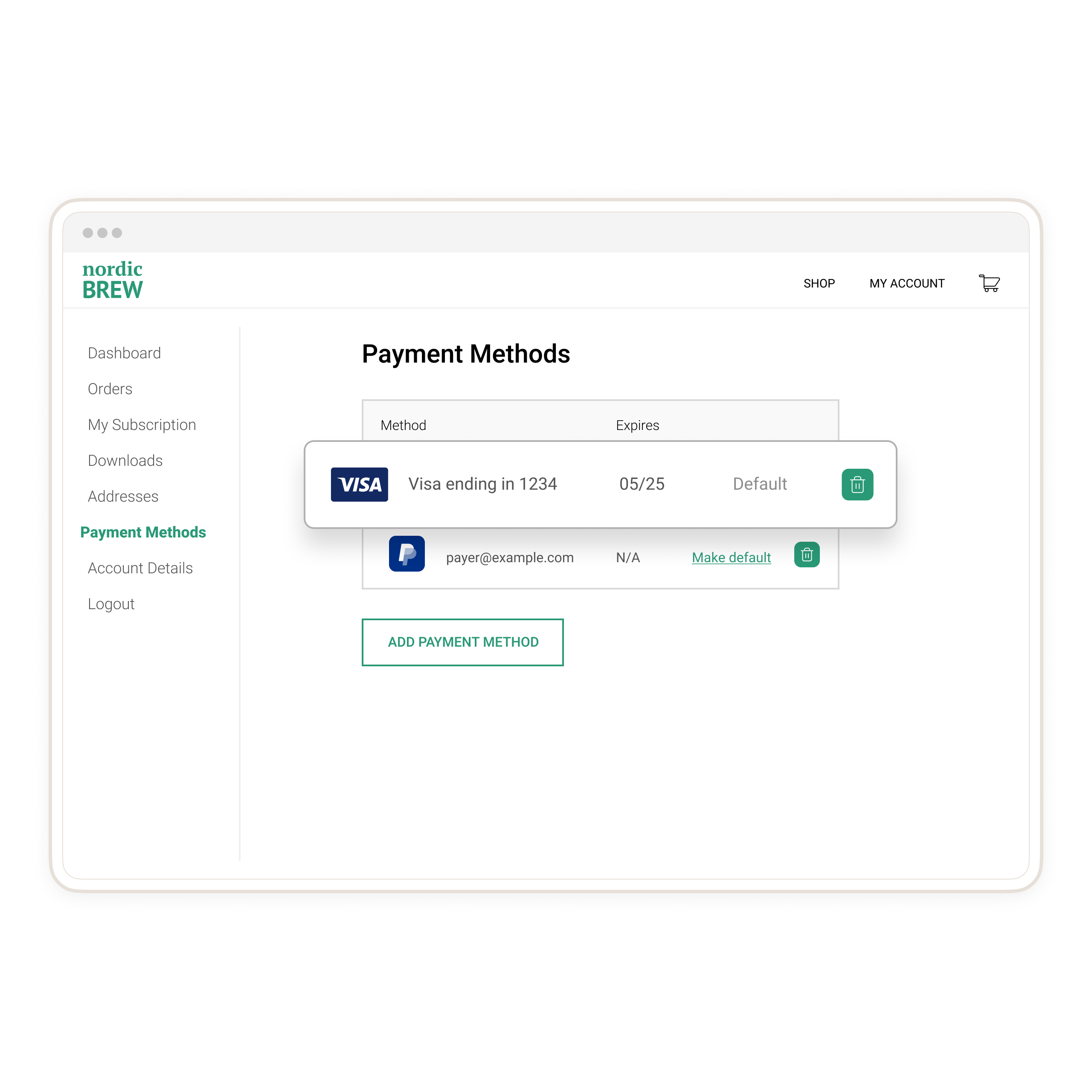
We recommend creating a page on your site where payers can see their saved payment methods as in the following example:
 ## Next step [#next-step]
[Go live](/api/rest/production/) with your integration.
## Next step [#next-step]
[Go live](/api/rest/production/) with your integration.