# Pay with Venmo (/v5/venmo/overview)
Add a Venmo payment button to your Checkout integration. Enhance the checkout experience with streamlined processes and social sharing features.
Add Venmo as a payment button to an existing Checkout integration to allow payers to checkout with Venmo.
When you integrate with Venmo, your payers get:
* A seamless checkout process.
* Choice of any payment method added to the Venmo wallet.
* The ability to split purchases among friends.
* The option to share purchase information on a social feed.
## How it works [#how-it-works]
Your existing PayPal buttons display a Venmo button. When payers select Venmo, they can pay in the Venmo app.
Payers can use Venmo on the same pages they use PayPal, including your product page, cart page, and checkout page.
> **Note:** **Note:** Payers must have the Venmo app installed.
### Mobile workflow [#mobile-workflow]
Payers can switch to the Venmo app to authorize and complete the payment.
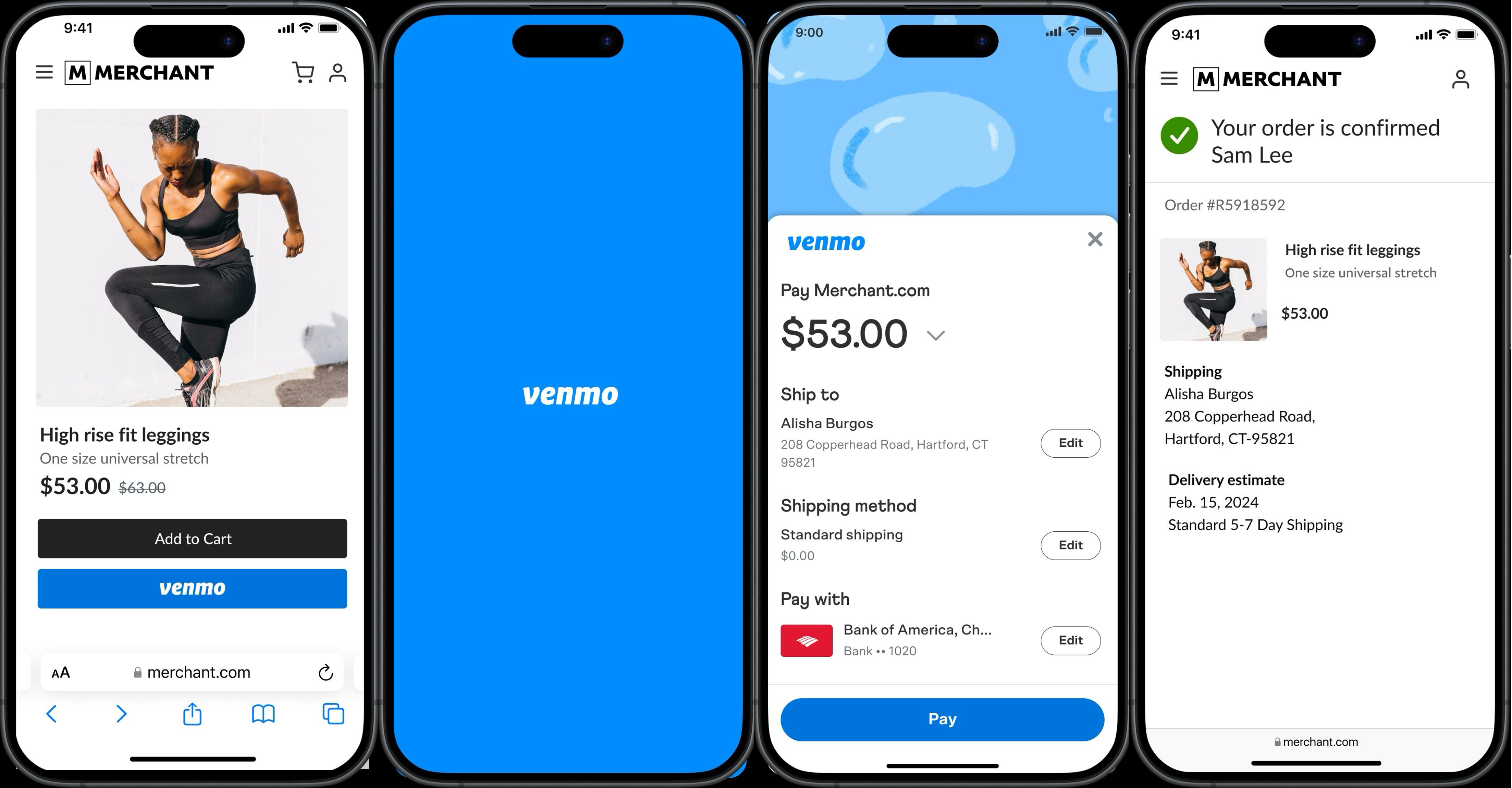 1. The payer taps the Venmo button. Their mobile device switches to the Venmo app to complete payment.
2. The payer taps **Pay**.
3. The payer is routed back to your website.
> **Note:** **Note:** Payers on mobile devices must use Safari on iOS or Chrome on Android.
### Desktop browser checkout flow [#desktop-browser-checkout-flow]
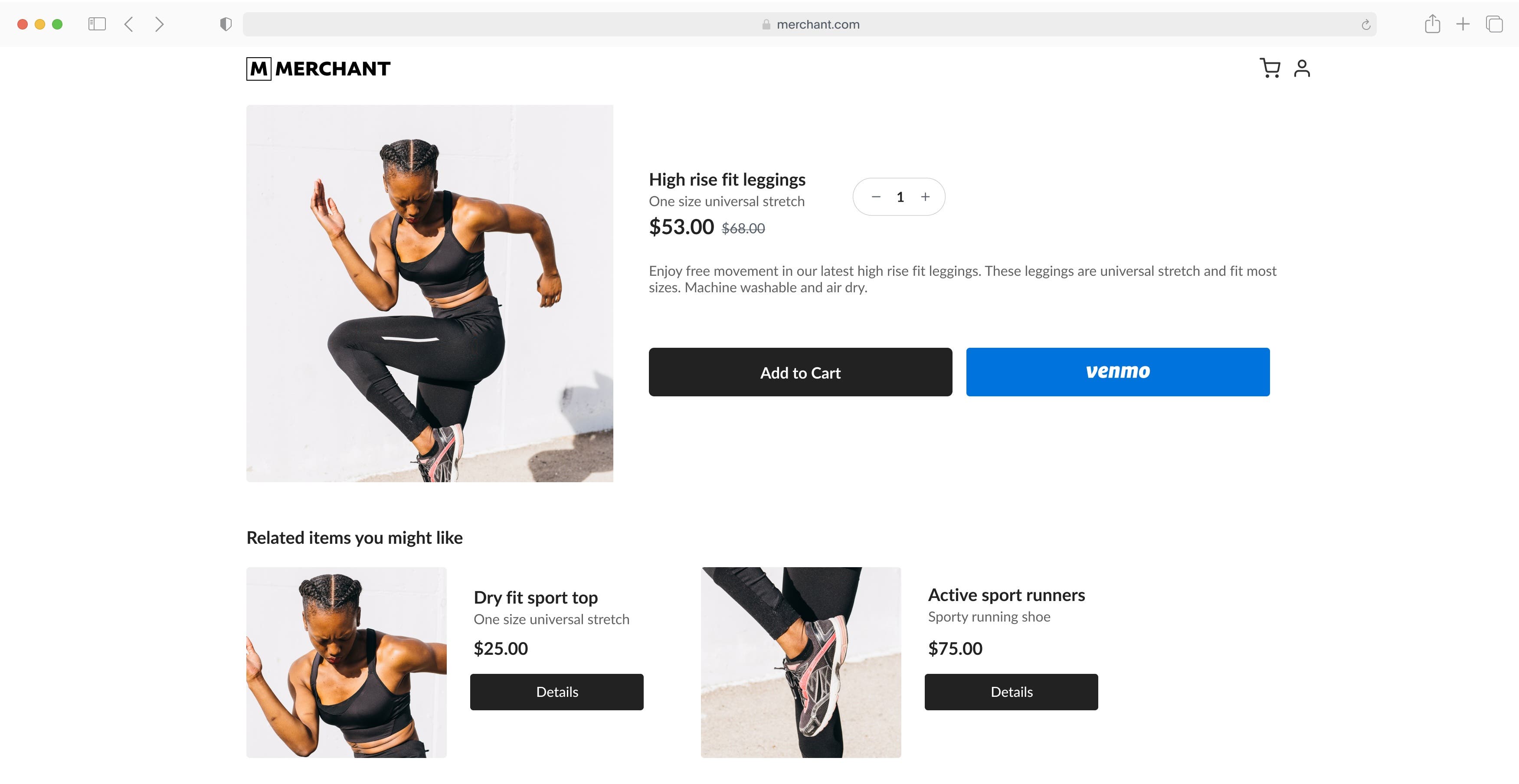
Payers can scan a QR code using their Venmo app to authorize and complete the payment.
1. The payer clicks the Venmo button on the desktop to generate a QR code.
1. The payer taps the Venmo button. Their mobile device switches to the Venmo app to complete payment.
2. The payer taps **Pay**.
3. The payer is routed back to your website.
> **Note:** **Note:** Payers on mobile devices must use Safari on iOS or Chrome on Android.
### Desktop browser checkout flow [#desktop-browser-checkout-flow]
Payers can scan a QR code using their Venmo app to authorize and complete the payment.
1. The payer clicks the Venmo button on the desktop to generate a QR code.
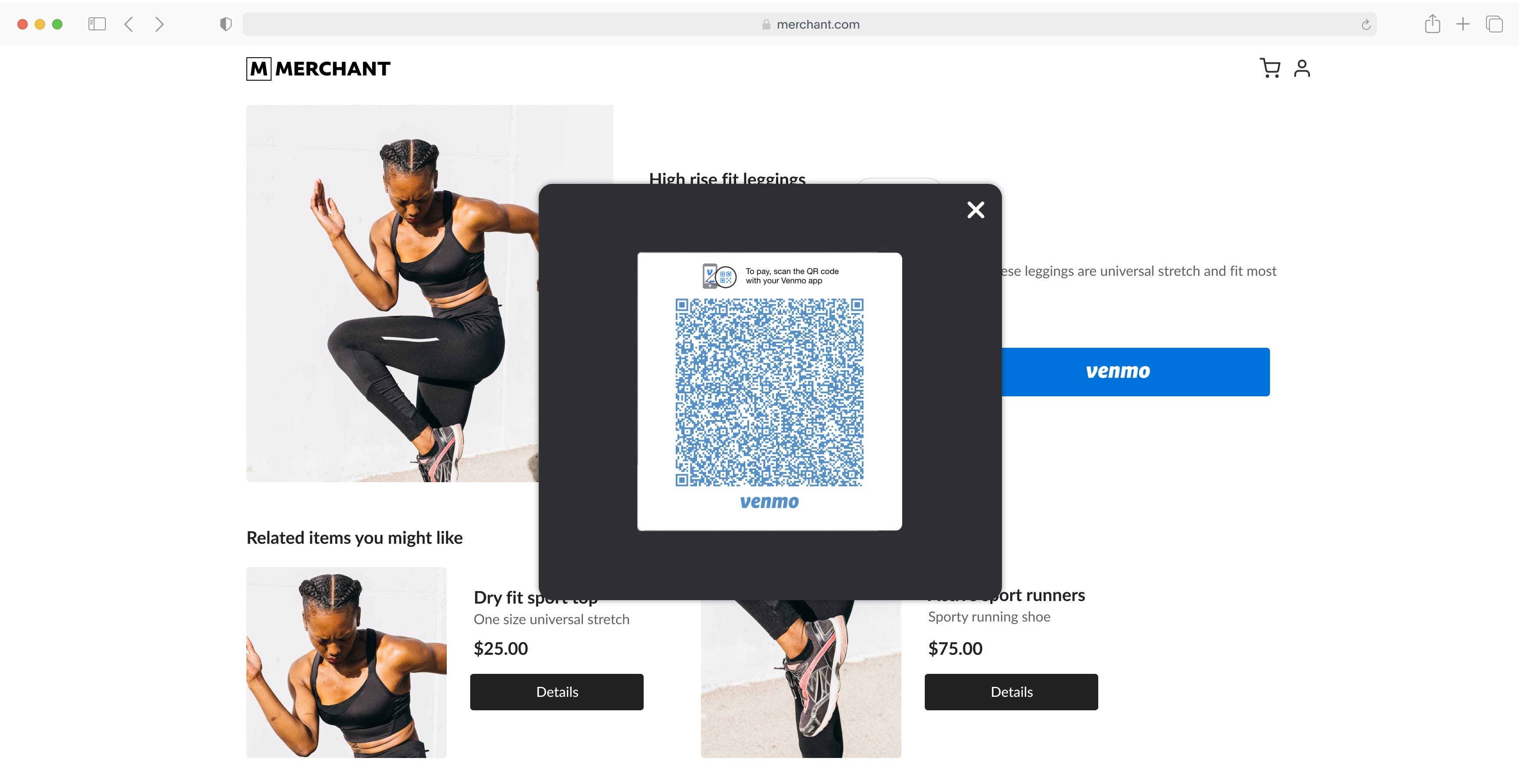 2. The payer scans the QR code from the Venmo app on a mobile device or using the mobile device camera.
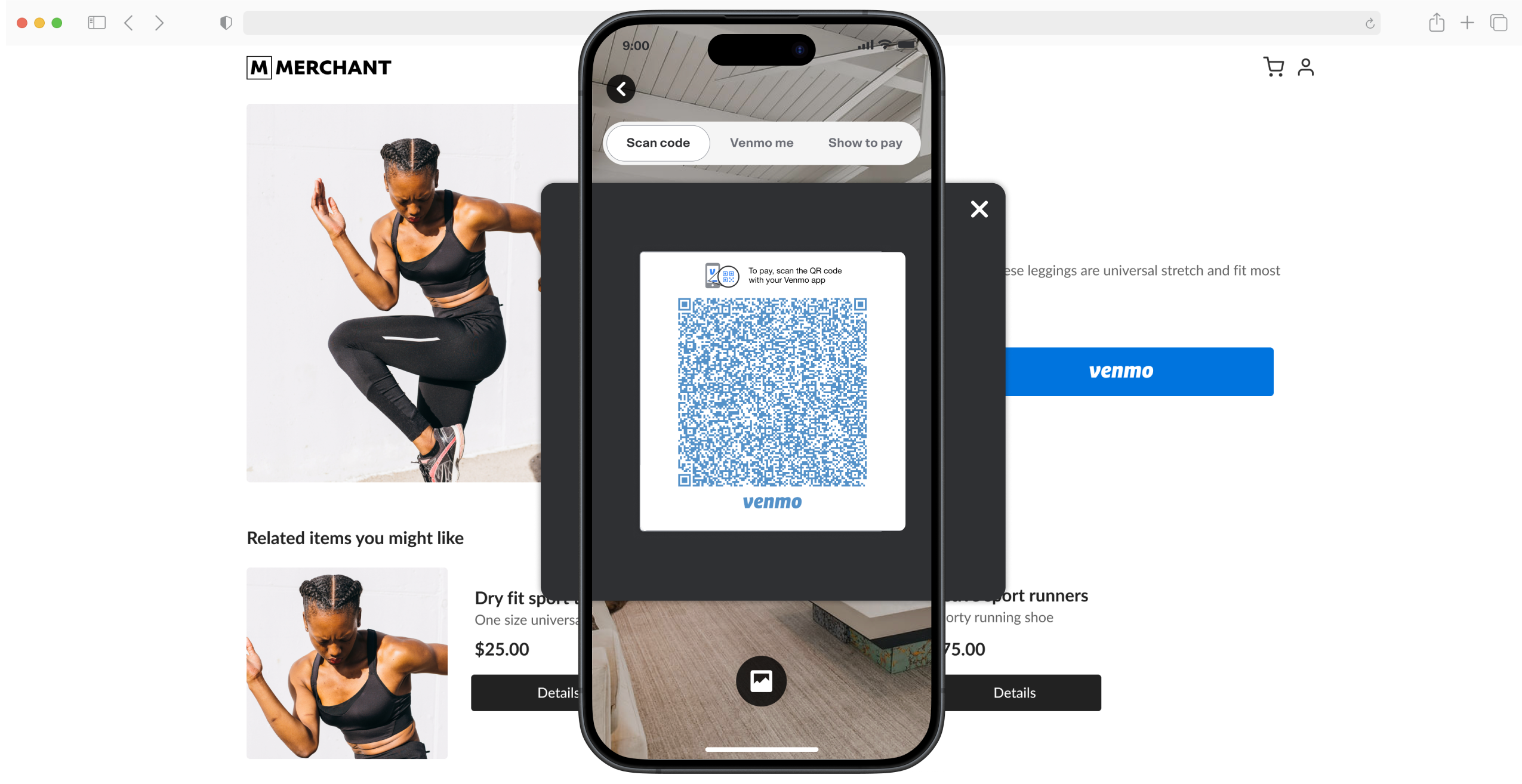 3. The payer completes the payment review on the Venmo app.
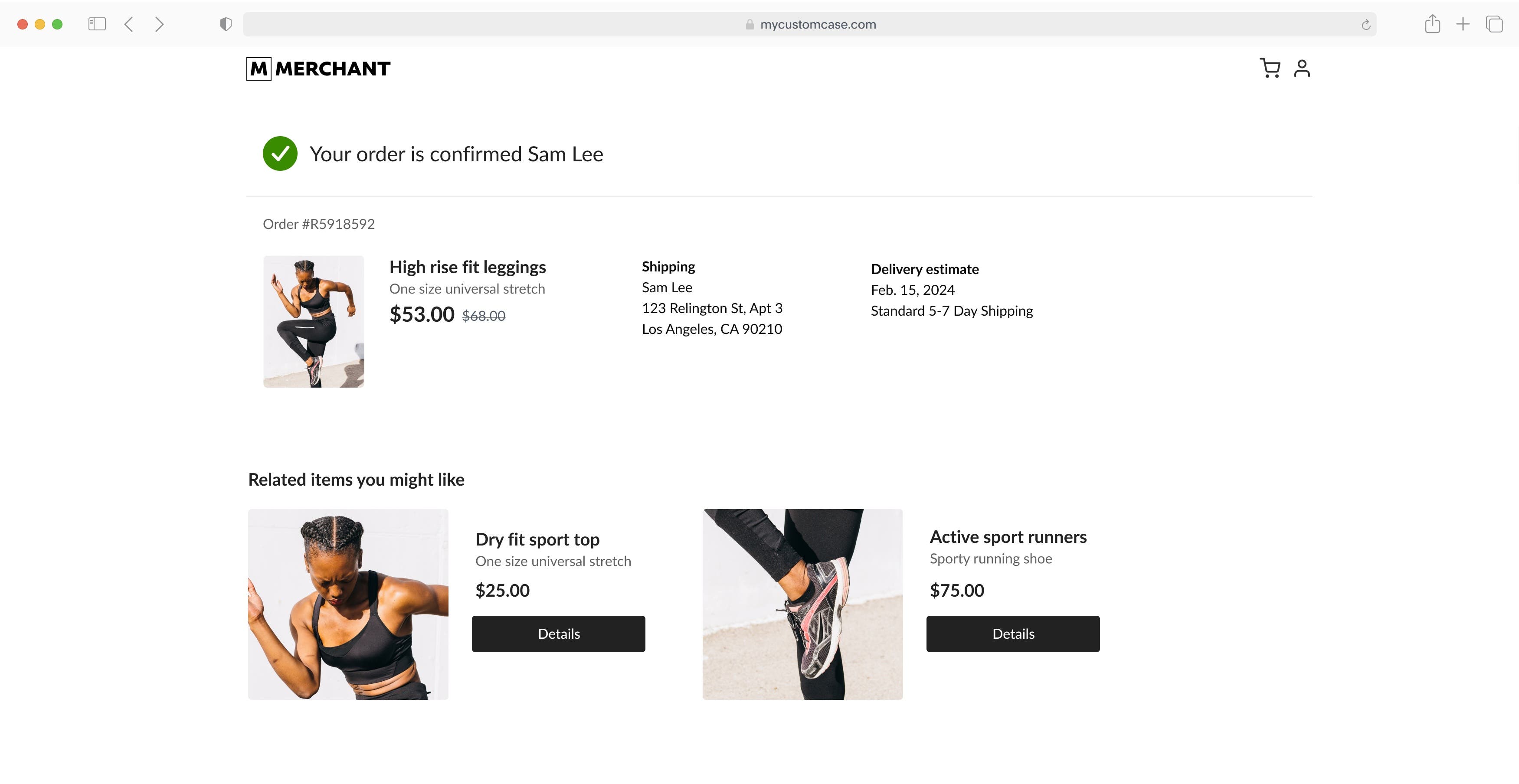
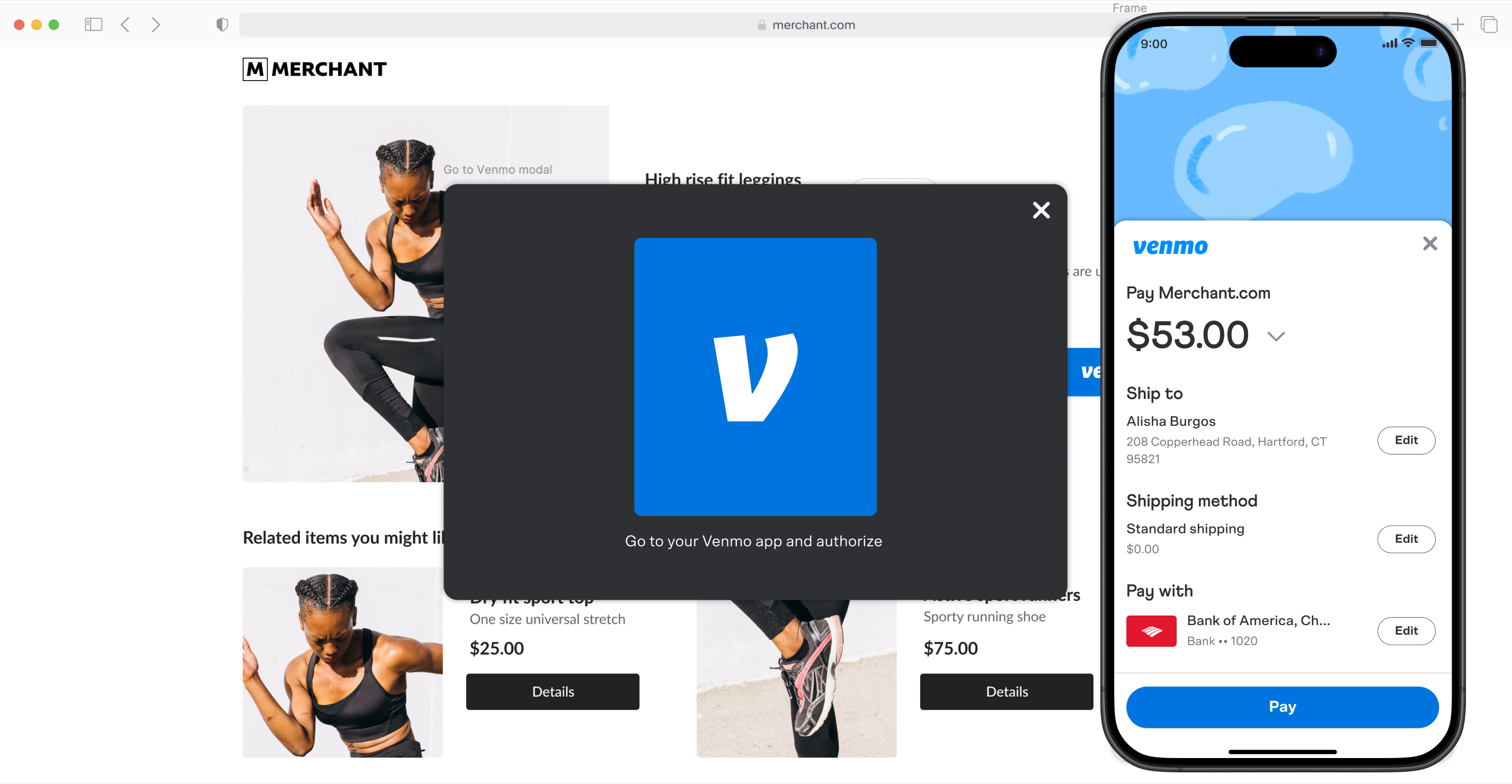 4. The payer is routed back to your website to complete the payment.
 ## Eligibility [#eligibility]
* US-based merchants and US-based consumers only.
* Payment must be in USD.
* Must be integrated using [JavaScript SDK](/sdk/js/reference).
* Buyers on mobile devices must use Safari on iOS or Chrome on Android.
* Buyers on desktop web browsers can use any major web browser.
* Buyers must have the Venmo iOS or Android app installed.
## Supported features [#supported-features]
| Feature | Supported |
| -------------------------------------------------------------- | --------- |
| One-time payments | Yes |
| Authorization and capture | Yes |
| Online purchases | Yes |
| [Save Venmo during purchase](/sdk/js/save-with-purchase/venmo) | Yes |
| [Shipping module](/v5/checkout/add-shipping) | Yes |
| [Multi-seller payments](/platforms/checkout) | No |
| Save Venmo for Purchase later | No |
| Buy online, pay in store | No |
| Contact module | No |
## Integration methods [#integration-methods]
> **Info:** Pay with Venmo
>
> Add the Venmo button to your PayPal Checkout integration.
> **Info:** JavaScript SDK Reference
>
> After you integrate, make sure your buttons render in the layout that you want.
## Eligibility [#eligibility]
* US-based merchants and US-based consumers only.
* Payment must be in USD.
* Must be integrated using [JavaScript SDK](/sdk/js/reference).
* Buyers on mobile devices must use Safari on iOS or Chrome on Android.
* Buyers on desktop web browsers can use any major web browser.
* Buyers must have the Venmo iOS or Android app installed.
## Supported features [#supported-features]
| Feature | Supported |
| -------------------------------------------------------------- | --------- |
| One-time payments | Yes |
| Authorization and capture | Yes |
| Online purchases | Yes |
| [Save Venmo during purchase](/sdk/js/save-with-purchase/venmo) | Yes |
| [Shipping module](/v5/checkout/add-shipping) | Yes |
| [Multi-seller payments](/platforms/checkout) | No |
| Save Venmo for Purchase later | No |
| Buy online, pay in store | No |
| Contact module | No |
## Integration methods [#integration-methods]
> **Info:** Pay with Venmo
>
> Add the Venmo button to your PayPal Checkout integration.
> **Info:** JavaScript SDK Reference
>
> After you integrate, make sure your buttons render in the layout that you want.