On this page
No Headings
Last updated: June 4, 2026
This product is deprecated and should not be used for new integrations. Use Payment Links and Buttons instead. For information about migrating, visit the Upgrade Hub.
This topic provides a workflow diagram and full description of the checkout experience for an Automatic Billing button configured with basic payment options. It also provides links to other topics that can help you configure advanced payment option for this button.
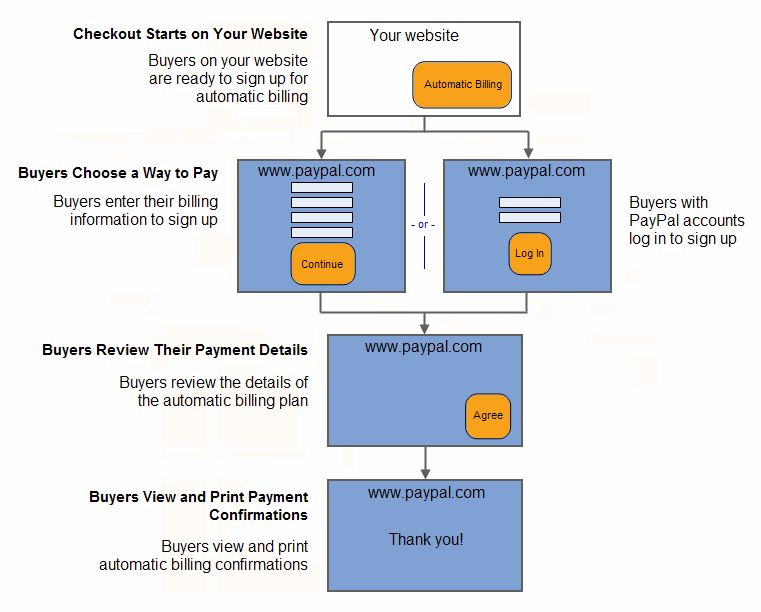
Read a description that includes customer actions on an example retail website for each step of the workflow:
The basic checkout experience with Automatic Billing buttons begins on your website when a buyer is ready to sign up.
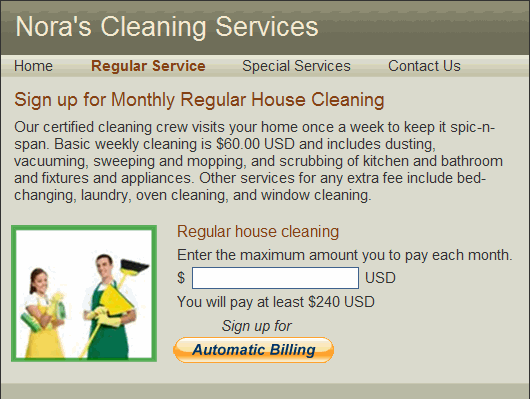
In this example, John begins on Nora's Cleaning Services website. He decides to sign up for regular cleaning service, for which Nora has $240 USD as the monthly minimum. John clicks Automatic Billing to check out.
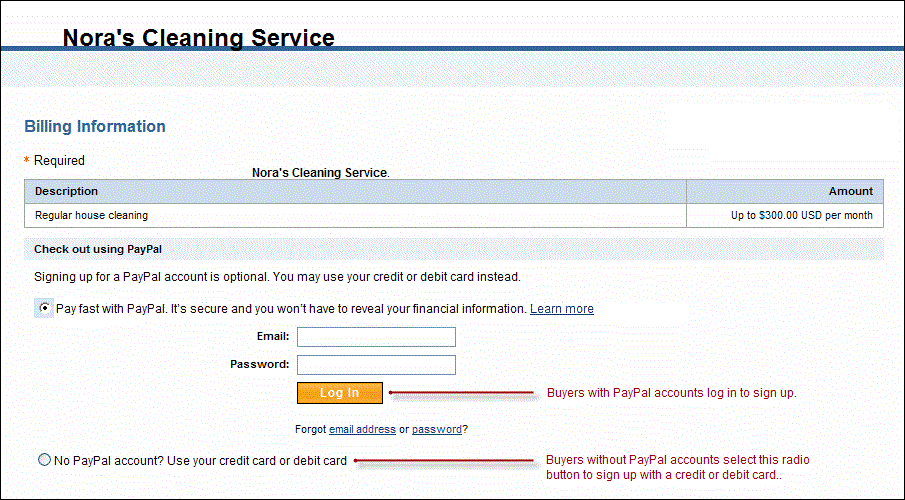
PayPal displays a page that shows a summary of the payment plan and allows buyers to choose pay directly with a credit or debit card, or to log in to their PayPal account and pay using PayPal.
PayPal displays a page that shows a summary of the payment plan and allows buyers to choose pay directly with a credit or debit card, or to log in to their PayPal account and pay using PayPal.
When the buyer selects to pay with PayPal, the system automatically requests the automatic billing plan to be paid using the buyer's default payment method, however, it also provides the ability for the buyer to change the payment method within their PayPal account.
Because this is the automatic billing feature, there are no payments taken out when buyers make the payment choice, they are just signing-up for and accepting an automatic billing agreement. The buyers card or account is charged automatically each month when you requess a payment.

Buyers who already have PayPal accounts click PayPal near the top of the billing information page to sign up. The page displays the PayPal log in. When selecting to pay with PayPal, the system automatically requests the billing plan to be paid using the buyer's default payment method, however, it also provides the ability for the buyer to change the payment method within their PayPal account.
PayPal displays a payment review page to allow buyers to check the details of their automatic billing plan before they complete their agreements.
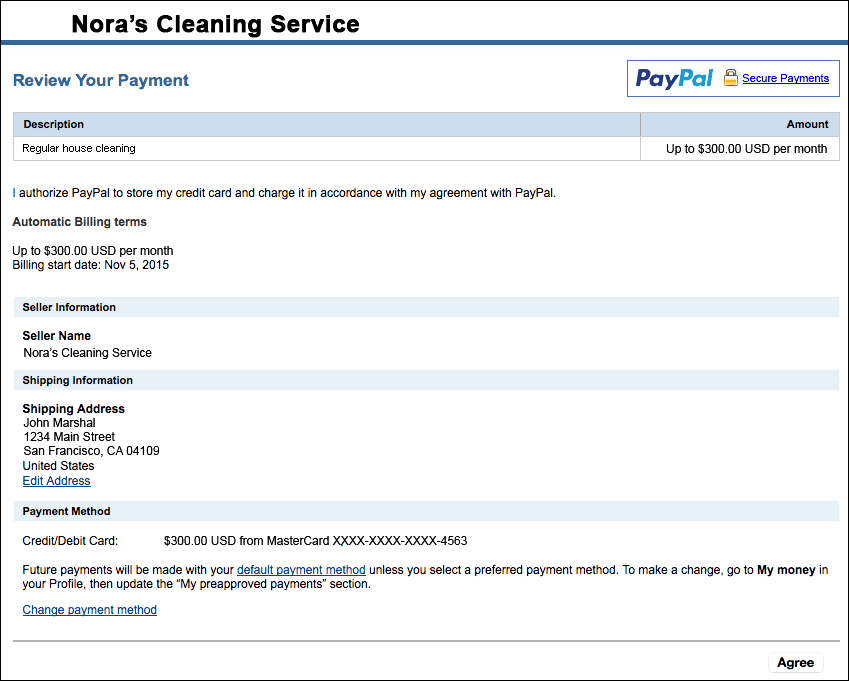
In this case, John reviews the details of his automatic billing plan. Then, he clicks Agree to complete his sign up.
PayPal displays a payment confirmation page to let buyers know that they signed up successfully.
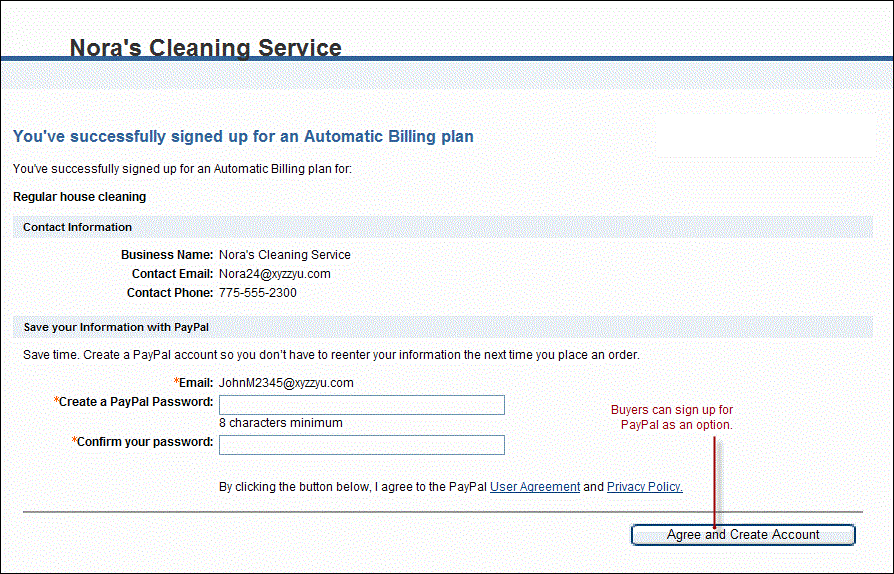
In this case, John prints the confirmation page for his records.
In this case, John prints the confirmation page for his records.
To enhance the buyer's checkout experience, you can add custom options to your payment button. The following topics describe custom button options and other PayPal Payment Standard product features: