On this page
No Headings
Last updated: June 4, 2026
This product is deprecated and should not be used for new integrations. Use Payment Links and Buttons instead. For information about migrating, visit the Upgrade Hub.
These HTML code samples demonstrate various features for a PayPal-hosted Add to Cart button.
Important: This page contains unencrypted button code for illustrative purposes only. To prevent malicious tampering of buttons on your live website, always encrypt your manually created buttons.
This sample shows a basic Add to Cart button with the following features:
An item named "Birthday - Cake and Candle."
An item price of $3.95 USD.
For this example, PayPal calculates tax and shipping based on rates that you set up in your PayPal account. The buyer's PayPal shopping cart opens in a separate browser window or tab.
<form
  target="paypal"
  action="https://www.paypal.com/cgi-bin/webscr"
  method="post"
>
  <!-- Identify your business so that you can collect the payments. -->
  <input type="hidden" name="business" value="[email protected]" />

  <!-- Specify a PayPal Shopping Cart Add to Cart button. -->
  <input type="hidden" name="cmd" value="_cart" />
  <input type="hidden" name="add" value="1" />

  <!-- Specify details about the item that buyers will purchase. -->
  <input type="hidden" name="item_name" value="Birthday - Cake and Candle" />
  <input type="hidden" name="amount" value="3.95" />
  <input type="hidden" name="currency_code" value="USD" />

  <!-- Display the payment button. -->
  <input
    type="image"
    name="submit"
    src="https://www.paypalobjects.com/en_US/i/btn/btn_cart_LG.gif"
    alt="Add to Cart"
  />
  <img
    alt=""
    width="1"
    height="1"
    src="https://www.paypalobjects.com/en_US/i/scr/pixel.gif"
  />
</form>You can add up to ten product options with or without separate prices. You can display options in a drop-down menu or text boxes.
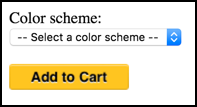
This sample shows a basic Add to Cart button with a drop-down menu of product options without prices.
<form
  target="paypal"
  action="https://www.paypal.com/cgi-bin/webscr"
  method="post"
>
  <!-- Identify your business so that you can collect the payments. -->
  <input type="hidden" name="business" value="[email protected]" />

  <!-- Specify a PayPal Shopping Cart Add to Cart button. -->
  <input type="hidden" name="cmd" value="_cart" />
  <input type="hidden" name="add" value="1" />

  <!-- Specify details about the item that buyers will purchase. -->
  <input type="hidden" name="item_name" value="Birthday - Cake and Candle" />
  <input type="hidden" name="amount" value="3.95" />
  <input type="hidden" name="currency_code" value="USD" />

  <!-- Provide a drop-down menu option field, without prices. -->
  <input type="hidden" name="on0" value="Color" />
  <label for="os0">Color scheme</label>
  <select name="os0" id="os0">
    <option value="Select a color scheme">-- Select a color scheme --</option>
    <option value="Blue">Blue</option>
    <option value="Pink">Pink</option>
    <option value="Yellow">Yellow</option>
  </select>

  <!-- Display the payment button. -->
  <input
    type="image"
    name="submit"
    src="https://www.paypalobjects.com/en_US/i/btn/btn_cart_LG.gif"
    alt="Add to Cart"
  />
  <img
    alt=""
    width="1"
    height="1"
    src="https://www.paypalobjects.com/en_US/i/scr/pixel.gif"
  />
</form>
The Add to Cart button with drop-down options menu:
Paste the code below an image or a text description of the item on your web page.
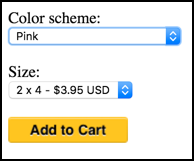
The sample shows a basic Add to Cart button with a drop-down menu of product options with prices. To set up product options with prices, you specify the prices for the drop-down menu that a buyer uses to select an option, and in hidden HTML variables that PayPal uses to charge the buyer.
The sample shows a basic Add to Cart button with a drop-down menu of product options with prices. To set up product options with prices, you specify the prices for the drop-down menu that a buyer uses to select an option, and in hidden HTML variables that PayPal uses to charge the buyer.
currency_code — Sets the currency.
item_index — Identifies which product option drop-down menu has a price.
option_select* and option_amount — Repeats the price for each option.
<form
  target="paypal"
  action="https://www.paypal.com/cgi-bin/webscr"
  method="post"
>
  <!-- Identify your business so that you can collect the payments. -->
  <input type="hidden" name="business" value="[email protected]" />

  <!-- Specify an Add to Cart button. -->
  <input type="hidden" name="cmd" value="_cart" />
  <input type="hidden" name="add" value="1" />

  <!-- Specify details about the item that buyers will purchase. -->
  <input type="hidden" name="item_name" value="Birthday - Cake and Candle" />
  <input type="hidden" name="currency_code" value="USD" />

  <!-- Provide a drop-down menu option field. -->
  <input type="hidden" name="on0" value="Color" />
  <label for="os0">Color scheme</label>
  <select name="os0" id="os0">
    <option value="Select a color scheme">-- Select a color scheme --</option>
    <option value="Blue">Blue</option>
    <option value="Pink">Pink</option>
    <option value="Yellow">Yellow</option>
  </select>

  <!-- Provide a drop-down menu option field with prices. -->
  <input type="hidden" name="on1" value="Size" />
  <label for="os1">Size</label>
  <select name="os1" id="os1">
    <option value="Select a size">-- Select a size --</option>
    <option value="2x4">2 x 4 - $3.95 USD</option>
    <option value="3x5">3 x 5 - $4.95 USD</option>
    <option value="4x6">4 x 6 - $5.95 USD</option>
  </select>

  <!-- Specify the price that PayPal uses for each option. -->
  <input type="hidden" name="option_index" value="1" />
  <input type="hidden" name="option_select0" value="2x4" />
  <input type="hidden" name="option_amount0" value="3.95" />
  <input type="hidden" name="option_select1" value="3x5" />
  <input type="hidden" name="option_amount1" value="4.95" />
  <input type="hidden" name="option_select2" value="4x6" />
  <input type="hidden" name="option_amount2" value="5.95" />

  <!-- Display the payment button. -->
  <input
    type="image"
    name="submit"
    src="https://www.paypalobjects.com/en_US/i/btn/btn_cart_LG.gif"
    alt="Add to Cart"
  />
  <img
    alt=""
    width="1"
    height="1"
    src="https://www.paypalobjects.com/en_US/i/scr/pixel.gif"
  />
</form>
The Add to Cart button with options and prices drop-down menus:
Paste the code below an image or a text description of the item on your web page.
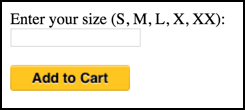
This sample illustrates a basic Add to Cart button with a text box for entering product options.
<form
  target="paypal"
  action="https://www.paypal.com/cgi-bin/webscr"
  method="post"
>
  <!-- Identify your business so that you can collect the payments. -->
  <input type="hidden" name="business" value="[email protected]" />

  <!-- Specify an Add to Cart button. -->
  <input type="hidden" name="cmd" value="_cart" />
  <input type="hidden" name="add" value="1" />

  <!-- Specify details about the item that buyers will purchase. -->
  <input type="hidden" name="item_name" value="Birthday - Cake and Candle" />
  <input type="hidden" name="amount" value="3.95" />
  <input type="hidden" name="currency_code" value="USD" />

  <!-- Provide the buyer with a text box option field. -->
  <input type="hidden" name="on0" value="Size" />
  <label for="os0">Enter your size (S, M, L, X, XX)</label>
  <input type="text" name="os0" id="os0" maxlength="60" />

  <!-- Display the payment button. -->
  <input
    type="image"
    name="submit"
    src="https://www.paypalobjects.com/en_US/i/btn/btn_cart_LG.gif"
    alt="Add to Cart"
  />
  <img
    alt=""
    width="1"
    height="1"
    src="https://www.paypalobjects.com/en_US/i/scr/pixel.gif"
  />
</form>
The Add to Cart button with options text box:
Paste the code below an image or a text description of the item on your web page.
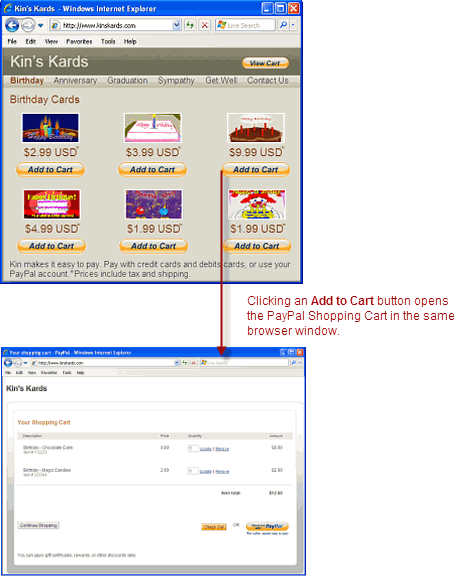
When a buyer clicks the Add to Cart button, the PayPal shopping cart opens in a separate browser window.
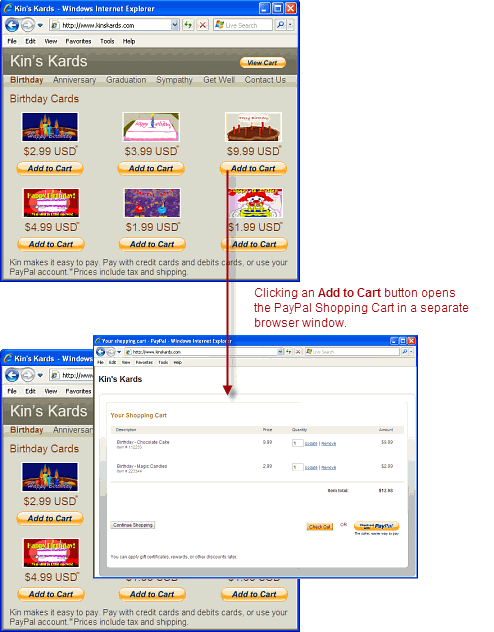
You can use the target attribute in the form element to open the PayPal shopping cart in the same browser window that displays your website.
Values for target attribute that open the PayPal shopping cart:
| Target expression | Where cart opens |
target="paypal" | Separate browser window or browser tab from the merchant website. |
target="_self" | Same browser window or browser tab as the merchant website. |
Values for target attribute that open the PayPal shopping cart:
| Target expression | Where cart opens |
<form
  target="_self"
  action="https://www.paypal.com/cgi-bin/webscr"
  method="post"
>
  <!-- Identify your business so that you can collect the payments. -->
  <input type="hidden" name="business" value="[email protected]" />

  <!-- Specify a PayPal Shopping Cart Add to Cart button. -->
  <input type="hidden" name="cmd" value="_cart" />
  <input type="hidden" name="add" value="1" />

  <!-- Specify details about the item that buyers will purchase. -->
  <input type="hidden" name="item_name" value="Birthday - Cake and Candle" />
  <input type="hidden" name="amount" value="3.95" />
  <input type="hidden" name="currency_code" value="USD" />

  <!-- Display the payment button. -->
  <input
    type="image"
    name="submit"
    src="https://www.paypalobjects.com/en_US/i/btn/btn_cart_LG.gif"
    alt="Add to Cart"
  />
  <img
    alt=""
    width="1"
    height="1"
    src="https://www.paypalobjects.com/en_US/i/scr/pixel.gif"
  />
</form>
See also View Cart: Open the shopping cart in the merchant window.
When a buyer clicks the Add to Cart button, the PayPal shopping cart page opens. The buyer can see the items in the cart and begin check out or click the Continue Shopping button to return to your website and add more items to the cart.
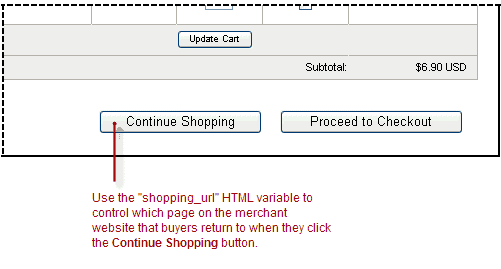
If your website has many product pages, browsers may have difficulty returning buyers to the same product pages that they leave when they click your Add to Cart buttons. Returning buyers to a different page, such as the home page of your website, degrades the shopping experience for buyers who want to add more items to their carts before checking out.
If your website has many product pages, browsers may have difficulty returning buyers to the same product pages that they leave when they click your Add to Cart buttons. Returning buyers to a different page, such as the home page of your website, degrades the shopping experience for buyers who want to add more items to their carts before checking out.shopping_url variable to specify which page PayPal returns buyers to when they click the Continue Shopping button. You can set the value of the shopping_url variable if you know the URL for the web page where the button appears. In the code below, the merchant wants to ensure that buyers who click an Add to Cart button for a birthday card return to the product page for birthday cards when they want to continue shopping.
<form
  target="paypal"
  action="https://www.paypal.com/cgi-bin/webscr"
  method="post"
>
  <!-- Identify your business so that you can collect the payments. -->
  <input type="hidden" name="business" value="[email protected]" />

  <!-- Specify a PayPal Shopping Cart Add to Cart button. -->
  <input type="hidden" name="cmd" value="_cart" />
  <input type="hidden" name="add" value="1" />

  <!-- Specify details about the item that buyers will purchase. -->
  <input
    type="hidden"
    name="item_name"
    value="Birthday Card - Cake and Candle"
  />
  <input type="hidden" name="amount" value="3.95" />
  <input type="hidden" name="currency_code" value="USD" />

  <!-- Continue shopping on the web page for birthday cards -->
  <input
    type="hidden"
    name="shopping_url"
    value="https://example.com/birthday_cards"
  />

  <!-- Display the payment button. -->
  <input
    type="image"
    name="submit"
    src="https://www.paypalobjects.com/en_US/i/btn/btn_cart_LG.gif"
    alt="Add to Cart"
  />
  <img
    alt=""
    width="1"
    height="1"
    src="https://www.paypalobjects.com/en_US/i/scr/pixel.gif"
  />
</form>
With a more advanced coding technique, you can add JavaScript functions to your product pages that get the current URL for the web page from the browser and use it as the value of shopping_url. This technique makes your button code portable when copying a button to multiple pages.
...
<script type="text/javascript">
  <!--
  function getContinueShoppingURL(form) {
    // -- Get the href of the currently displayed webpage --
    form.shopping_url.value = window.location.href;
  }
  //-->
</script>
...

<form
  target="paypal"
  action="https://www.paypal.com/cgi-bin/webscr"
  method="post"
>
  <!-- Identify your business so that you can collect the payments. -->
  <input type="hidden" name="business" value="[email protected]" />

  <!-- Specify a PayPal Shopping Cart Add to Cart button. -->
  <input type="hidden" name="cmd" value="_cart" />
  <input type="hidden" name="add" value="1" />

  <!-- Specify details about the item that buyers will purchase. -->
  <input
    type="hidden"
    name="item_name"
    value="Birthday Card - Cake and Candle"
  />
  <input type="hidden" name="amount" value="3.95" />
  <input type="hidden" name="currency_code" value="USD" />

  <!-- Continue shopping on the current webpage of the merchant site. -->
  <!-- The below value is replaced when buyers click Add to Cart -->
  <input
    type="hidden"
    name="shopping_url"
    value="https://example.com/birthday_cards"
  />

  <!-- Display the payment button. -->
  <input
    type="image"
    name="submit"
    onclick="getContinueShoppingURL(this.form)"
    src="https://www.paypalobjects.com/en_US/i/btn/btn_cart_LG.gif"
    alt="Add to Cart"
  />
  <img
    alt=""
    width="1"
    height="1"
    src="https://www.paypalobjects.com/en_US/i/scr/pixel.gif"
  />
</form>
See also View Cart: Continue shopping on the current merchant webpage.
The sample HTML code in this section demonstrates how to specify discounts:
This sample illustrates a basic Add to Cart button with the following features:
An item named "Birthday - Cake and Candle."
An item price of $3.95 USD.
A $2.00 discount applies to the item.
PayPal calculates tax and shipping based on rates that you set up in your PayPal account. The buyer's PayPal shopping cart opens in a separate browser window or tab.
<form
  target="paypal"
  action="https://www.paypal.com/cgi-bin/webscr"
  method="post"
>
  <!-- Identify your business so that you can collect the payments. -->
  <input type="hidden" name="business" value="[email protected]" />

  <!-- Specify a PayPal shopping cart Add to Cart button. -->
  <input type="hidden" name="cmd" value="_cart" />
  <input type="hidden" name="add" value="1" />

  <!-- Specify details about the item that buyers will purchase. -->
  <input type="hidden" name="item_name" value="Birthday - Cake and Candle" />
  <input type="hidden" name="amount" value="3.95" />
  <input type="hidden" name="currency_code" value="USD" />

  <!-- Specify the discount amount that applies to the item. -->
  <input type="hidden" name="discount_amount" value="2.00" />

  <!-- Display the payment button. -->
  <input
    type="image"
    name="submit"
    src="https://www.paypalobjects.com/en_US/i/btn/btn_cart_LG.gif"
    alt="Add to Cart"
  />
  <img
    alt=""
    width="1"
    height="1"
    src="https://www.paypalobjects.com/en_US/i/scr/pixel.gif"
  />
</form>This sample illustrates a basic Add to Cart button with the following features:
An item named "Birthday - Cake and Candle."
An item price of $3.95 USD.
A $0.15 discount applies on the first item; $0.20 on the next four items.
PayPal calculates tax and shipping based on rates that you set up in your PayPal account. The buyer's PayPal shopping cart opens in a separate browser window or tab.
<form
  target="paypal"
  action="https://www.paypal.com/cgi-bin/webscr"
  method="post"
>
  <!-- Identify your business so that you can collect the payments. -->
  <input type="hidden" name="business" value="[email protected]" />

  <!-- Specify a PayPal shopping cart Add to Cart button. -->
  <input type="hidden" name="cmd" value="_cart" />
  <input type="hidden" name="add" value="1" />

  <!-- Specify details about the item that buyers will purchase. -->
  <input type="hidden" name="item_name" value="Birthday - Cake and Candle" />
  <input type="hidden" name="amount" value="3.95" />
  <input type="hidden" name="currency_code" value="USD" />

  <!-- Specify the discount amounts that apply to the item. -->
  <input type="hidden" name="discount_amount" value="0.15" />
  <input type="hidden" name="discount_amount2" value="0.20" />
  <input type="hidden" name="discount_num" value="4" />

  <!-- Display the payment button. -->
  <input
    type="image"
    name="submit"
    src="https://www.paypalobjects.com/en_US/i/btn/btn_cart_LG.gif"
    alt="Add to Cart"
  />
  <img
    alt=""
    width="1"
    height="1"
    src="https://www.paypalobjects.com/en_US/i/scr/pixel.gif"
  />
</form>This sample HTML code illustrates a basic Add to Cart button that applies a 10% discount. This discount applies only to the first item regardless of the quantity purchased.
<form
  target="paypal"
  action="https://www.paypal.com/cgi-bin/webscr"
  method="post"
>
  <!-- Identify your business so that you can collect the payments. -->
  <input type="hidden" name="business" value="[email protected]" />

  <!-- Specify a PayPal shopping cart Add to Cart button. -->
  <input type="hidden" name="cmd" value="_cart" />
  <input type="hidden" name="add" value="1" />

  <!-- Specify details about the item that buyers will purchase. -->
  <input type="hidden" name="item_name" value="Birthday - Cake and Candle" />
  <input type="hidden" name="amount" value="3.95" />
  <input type="hidden" name="currency_code" value="USD" />

  <!-- Specify the discount amount that applies to the item. -->
  <input type="hidden" name="discount_rate" value="10" />

  <!-- Display the payment button. -->
  <input
    type="image"
    name="submit"
    src="https://www.paypalobjects.com/en_US/i/btn/btn_cart_LG.gif"
    alt="Add to Cart"
  />
  <img
    alt=""
    width="1"
    height="1"
    src="https://www.paypalobjects.com/en_US/i/scr/pixel.gif"
  />
</form>The sample HTML code below illustrates a basic Add to Cart button that charges the normal price for the first item and applies a 10% discount for the next nine items.
<form
  target="paypal"
  action="https://www.paypal.com/cgi-bin/webscr"
  method="post"
>
  <!-- Identify your business so that you can collect the payments. -->
  <input type="hidden" name="business" value="[email protected]" />

  <!-- Specify a PayPal shopping cart Add to Cart button. -->
  <input type="hidden" name="cmd" value="_cart" />
  <input type="hidden" name="add" value="1" />

  <!-- Specify details about the item that buyers will purchase. -->
  <input type="hidden" name="item_name" value="Birthday - Cake and Candle" />
  <input type="hidden" name="amount" value="3.95" />
  <input type="hidden" name="currency_code" value="USD" />

  <!-- Specify the discount amounts that apply to the item. -->
  <input type="hidden" name="discount_rate" value="0" />
  <input type="hidden" name="discount_rate2" value="10" />
  <input type="hidden" name="discount_num" value="9" />

  <!-- Display the payment button. -->
  <input
    type="image"
    name="submit"
    src="https://www.paypalobjects.com/en_US/i/btn/btn_cart_LG.gif"
    alt="Add to Cart"
  />
  <img
    alt=""
    width="1"
    height="1"
    src="https://www.paypalobjects.com/en_US/i/scr/pixel.gif"
  />
</form>The following HTML code uses the discount percentage variables to offer a "Buy one, get one free" discount. To receive the discount, the buyer must purchase two of the same item. The second one is free (100% discount).
The following HTML code uses the discount percentage variables to offer a "Buy one, get one free" discount. To receive the discount, the buyer must purchase two of the same item. The second one is free (100% discount).
<form
  target="paypal"
  action="https://www.paypal.com/cgi-bin/webscr"
  method="post"
>
  <!-- Identify your business so that you can collect the payments. -->
  <input type="hidden" name="business" value="[email protected]" />

  <!-- Specify a PayPal shopping cart Add to Cart button. -->
  <input type="hidden" name="cmd" value="_cart" />
  <input type="hidden" name="add" value="1" />

  <!-- Specify details about the item that buyers will purchase. -->
  <input type="hidden" name="item_name" value="Birthday - Cake and Candle" />
  <input type="hidden" name="amount" value="3.95" />
  <input type="hidden" name="currency_code" value="USD" />

  <!-- Specify the discount amounts that apply to the item. -->
  <input type="hidden" name="discount_rate" value="0" />
  <input type="hidden" name="discount_rate2" value="100" />
  <input type="hidden" name="discount_num" value="1" />

  <!-- Display the payment button. -->
  <input
    type="image"
    name="submit"
    src="https://www.paypalobjects.com/en_US/i/btn/btn_cart_LG.gif"
    alt="Add to Cart"
  />
  <img
    alt=""
    width="1"
    height="1"
    src="https://www.paypalobjects.com/en_US/i/scr/pixel.gif"
  />
</form>The sample HTML code in this section demonstrates various features of View Cart buttons:
Important: This section includes unencrypted button code examples for illustrative purposes only. In a production environment, you must always use encrypted or hosted buttons in your web page to prevent malicious users from tampering with the code.
View Cart buttons contain no payment information, so you do not need to take precautions on securing them.
View Cart buttons contain no payment information, so you do not need to take precautions on securing them.business variable must match a confirmed email address on file with your PayPal account, and it must match the value that you used for the business variables on your Add to Cart buttons.
<form
  target="paypal"
  action="https://www.paypal.com/cgi-bin/webscr"
  method="post"
>
  <!-- Identify your business so that you can collect the payments. -->
  <input type="hidden" name="business" value="[email protected]" />

  <!-- Specify a PayPal shopping cart View Cart button. -->
  <input type="hidden" name="cmd" value="_cart" />
  <input type="hidden" name="display" value="1" />

  <!-- Display the View Cart button. -->
  <input
    type="image"
    name="submit"
    src="https://www.paypalobjects.com/en_US/i/btn/btn_viewcart_LG.gif"
    alt="Add to Cart"
  />
  <img
    alt=""
    width="1"
    height="1"
    src="https://www.paypalobjects.com/en_US/i/scr/pixel.gif"
  />
</form>
The View cart button:

Paste the code on to the web pages where you want buyers view the contents of their PayPal shopping cart and begin the checkout process.
By default, when a buyer clicks a View Cart button, the PayPal shopping cart opens in a separate browser window. You can simplify the shopping experience by opening the PayPal shopping cart in the same browser window.
By default, when a buyer clicks a View Cart button, the PayPal shopping cart opens in a separate browser window. You can simplify the shopping experience by opening the PayPal shopping cart in the same browser window.
<form
  target="_self"
  action="https://www.paypal.com/cgi-bin/webscr"
  method="post"
>
  <!-- Identify your business so that you can collect the payments. -->
  <input type="hidden" name="business" value="[email protected]" />

  <!-- Specify a PayPal shopping cart View Cart button. -->
  <input type="hidden" name="cmd" value="_cart" />
  <input type="hidden" name="display" value="1" />

  <!-- Display the View Cart button. -->
  <input
    type="image"
    name="submit"
    src="https://www.paypalobjects.com/en_US/i/btn/btn_viewcart_LG.gif"
    alt="Add to Cart"
  />
  <img
    alt=""
    width="1"
    height="1"
    src="https://www.paypalobjects.com/en_US/i/scr/pixel.gif"
  />
</form>When buyers click View Cart buttons, the PayPal shopping cart page opens. Buyers can see the items in their carts, and they can begin checking out. In addition, buyers can click the Continue Shopping button to return to your website and add more items to their carts.
If your website has many product pages, browsers may have difficulty returning buyers to the same product pages that they leave when they click your View Cart buttons. Returning buyers to a different page, such as the home page of your website, degrades the shopping experience for buyers who want to add more items to their carts before checking out.
If your website has many product pages, browsers may have difficulty returning buyers to the same product pages that they leave when they click your View Cart buttons. Returning buyers to a different page, such as the home page of your website, degrades the shopping experience for buyers who want to add more items to their carts before checking out.shopping_url variable to allow PayPal to control which page buyers return to when they click the Continue Shopping button.
<form
  target="paypal"
  action="https://www.paypal.com/cgi-bin/webscr"
  method="post"
>
  <!-- Identify your business so that you can collect the payments. -->
  <input type="hidden" name="business" value="[email protected]" />

  <!-- Specify a PayPal shopping cart View Cart button. -->
  <input type="hidden" name="cmd" value="_cart" />
  <input type="hidden" name="display" value="1" />

  <!-- Continue shopping on the current webpage of the merchant site. -->
  <input
    type="hidden"
    name="shopping_url"
    value="https://example.com/birthday_cards"
  />

  <!-- Display the View Cart button. -->
  <input
    type="image"
    name="submit"
    src="https://www.paypalobjects.com/en_US/i/btn/btn_cart_LG.gif"
    alt="Add to Cart"
  />
  <img
    alt=""
    width="1"
    height="1"
    src="https://www.paypalobjects.com/en_US/i/scr/pixel.gif"
  />
</form>
For more information, see Add to Cart: Continue shopping on the current merchant webpage.