On this page
No Headings
Last updated: June 16, 2026
Model Context Protocol (MCP) facilitates the management and transmission of relevant information to models, ensuring their effective operation within specified contexts. Leveraging this technology, PayPal developed an MCP server that enables merchants to interact with their preferred MCP clients using natural language. This functionality allows users to efficiently perform various business tasks with their choice of MCP client.
Examples in this content use Claude as the MCP client, but you can use any MCP client that you prefer, such as Cursor or Cline.
PayPal provides two ways for merchants to set up the MCP server:
One way to use the MCP server is to run it locally. To do that, you must first install Node.js v18 or later. If you haven't already done so, visit the Node.js website to download and install it.
To install the MCP server in a local configuration:
Update the configuration file in your favorite MCP client:
1. Open the MCP client.
2. In the configuration settings for the client, locate the external tools or connectors configuration section, and add the PayPal connector configuration that follows this procedure. In Claude, for example, you add this to ~/Claude/claude_desktop_config.json.
3. In the new entry, replace YOUR_PAYPAL_ACCESS_TOKEN with your actual PayPal access token. Alternatively, you can set the PAYPAL_ACCESS_TOKEN as an environment variable. You also can pass it as an argument using --access-token in args. Set the PAYPAL_ENVIRONMENT to SANDBOX for testing or PRODUCTION for your production environment.
Add the following configuration:
{
  "mcpServers": {
    "paypal": {
      "command": "npx",
      "args": [
        "-y",
        "@paypal/mcp",
        "--tools=all"
      ],
      "env": {
        "PAYPAL_ACCESS_TOKEN": "YOUR_PAYPAL_ACCESS_TOKEN",
        "PAYPAL_ENVIRONMENT": "SANDBOX"
      }
    }
  }
}
Test your integration:
1. Quit and restart the MCP client to apply your changes.
2. Ask the MCP client to perform one of the supported tasks. For example, ask the MCP client to list your PayPal invoices for the last month.
If your test doesn't produce the results you expect, try the ideas here.
PayPal's MCP server offers a variety of helpful tools for performing many jobs. The complete catalog of tools is available in both local and remote MCP server.
The following sections show some examples of how you might use these tools.
The complete catalog of tools is available in local installations.
Remote MCP server currently offers the following 2 tools with more coming soon.
Using your favorite MCP client with the MCP server to create invoices offers several advantages over creating invoices in a more traditional way. For example, a merchant can use natural language with an MCP client to process multiple invoice requests by using a drive-system connector or a file-system connector. With this connection, users can ask the MCP client to perform a PayPal-related task, the MCP clients access their records for the data, and then the client uses that data to send PayPal invoices to multiple customers in bulk.
For example, a user asks the MCP client to create an invoice with PayPal.

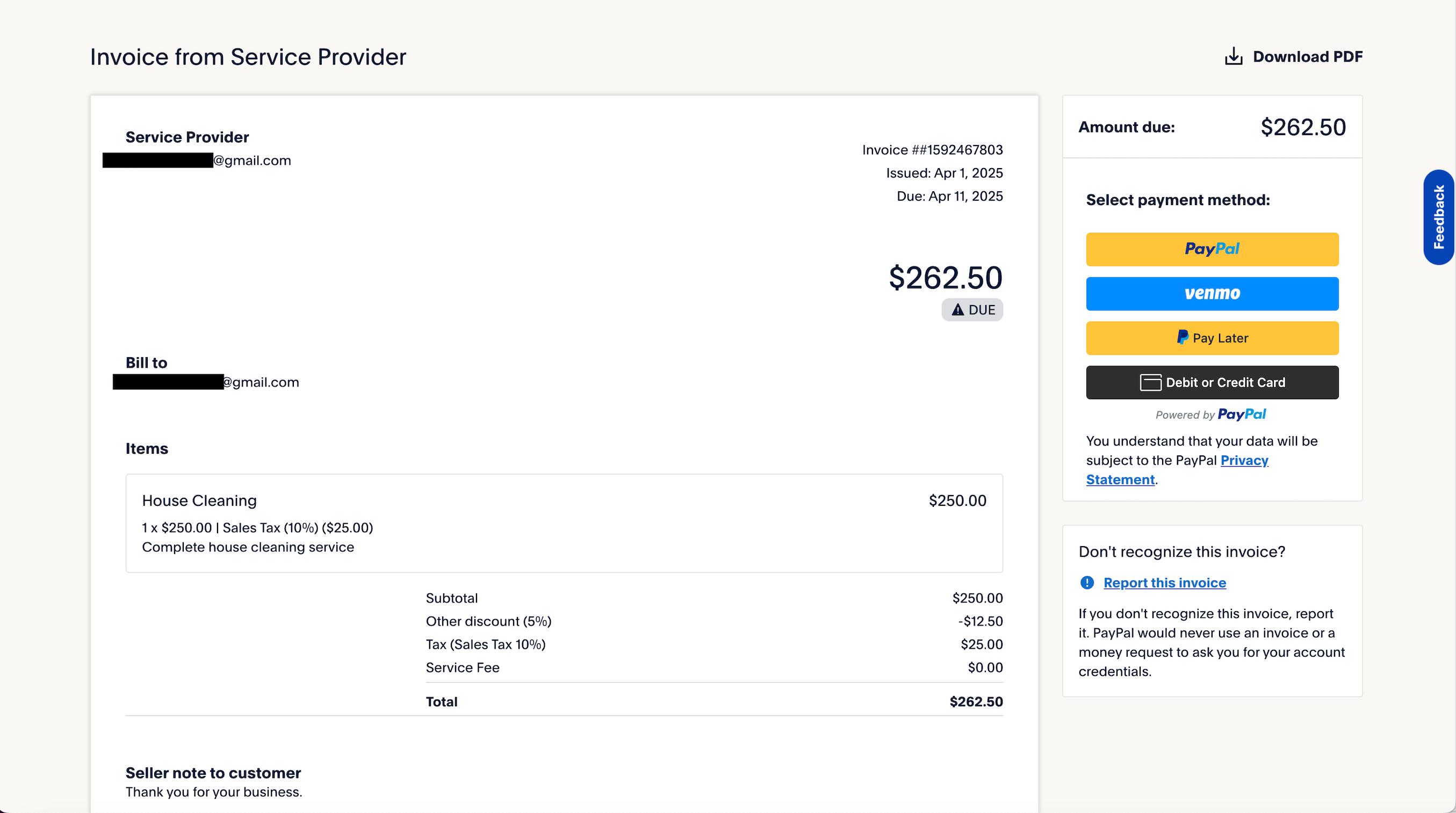
The user supplies the necessary information, as the MCP client indicates. Then, the MCP client accesses the necessary data, creates the invoice using the MCP server, and sends the invoice, as shown in the following illustration.

The following example shows a sample of the invoice the customer receives.
This tool provides an organized listing of invoices that a merchant or service provider issues through PayPal. It enables the merchant or service provider to access and analyze essential data, including:
Using this tool, a user can enhance their financial oversight and streamline their invoicing processes.

This tool provides PayPal transaction data within a specified timeframe, providing a comprehensive view of sales activity.
