On this page
No Headings
Last updated: June 18, 2026
Pay with PayPal's one-time payment flow provides a one-click solution to accelerate your buyer's checkout experience by skipping manual data entry.

End-to-end one-time payments flow
This guide shows best practices for merchants using Pay with PayPal to accept one-time payments for physical and digital goods. Setting up the PayPal button and PayPal review page using these tips can help improve engagement, reduce cart abandonment, and ensure a secure transaction experience.
Developers, designers, and product managers building ecommerce solutions for businesses selling physical goods, including retail, apparel, electronics, and other tangible products.
The PayPal button and PayPal review page help you accept one-time payments. This guide shows how to present the PayPal button and PayPal review page to improve the buyer flow.
Buyers can use PayPal to check out at any point in their shopping journey. Placing payment buttons on the cart, product details page, or another page as a checkout shortcut can reduce steps to pay. For example:
This guide explains how to show the PayPal button upstream and during checkout. Follow these best practices to give customers the fewest steps to pay.
Simplify the payment experience for new customers and reinforce PayPal as a payment option by placing the PayPal button as a checkout shortcut before the buyer manually enters any information, for example, on your cart page where the buyer reviews the items they selected.
Offering the PayPal button upstream simplifies the shopping experience for the buyer and the merchant:
See the Contact module guide for more information.
Per our User Agreement, you are required to follow certain standards when presenting PayPal or Venmo payment methods. You must treat PayPal and Venmo payment methods equally to other payment methods at your points of sale, including logo placement, payment flow, and fees. You need to show the PayPal and Venmo services prominently in the checkout experience, and don't present any other payment methods earlier in the checkout flow.
Place checkout buttons on your cart and product details pages so buyers can start checkout whenever they're ready.
data-page-type through the JavaScript SDK to indicate the type of page where you place the button. The data-page-type parameter helps PayPal optimize button behavior based on page types. See the JavaScript SDK script configuration page for more information.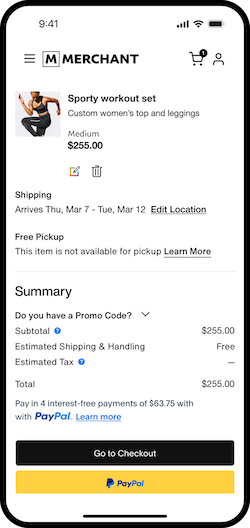
You can place the PayPal button upstream, such as on the product description page, to encourage quick, single-product checkouts.
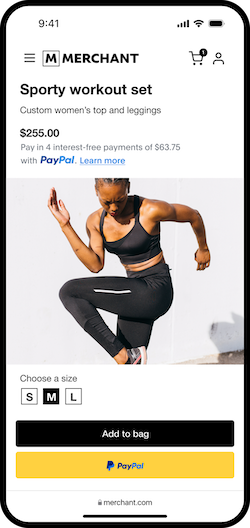
Enable shipping callbacks
When you allow buyers to choose a delivery method during checkout, use the shipping callback to update the cart amount based on the selected shipping option. This callback applies to upstream flows where the buyer has not already selected a shipping method for their order, such as when the user clicks the PayPal button on the merchant cart page.
Note: The callback may not be necessary when shipping fees don't change or aren't applicable.
If you don't integrate shipping options, PayPal can't display your delivery options. The buyer must return to the site to select delivery options before completing the transaction.
See the Shipping module page for more details.
Tip: Use shipping callbacks for physical goods even when one delivery method is available.
If the buyer chooses to proceed manually through merchant checkout, have the user enter their shipping details, select their shipping method, and provide any other required details before presenting the PayPal button.
We recommend the following best practices:
SET_PROVIDED_ADDRESS so the buyer can't change the shipping address during checkout. See the Shipping module page for more information.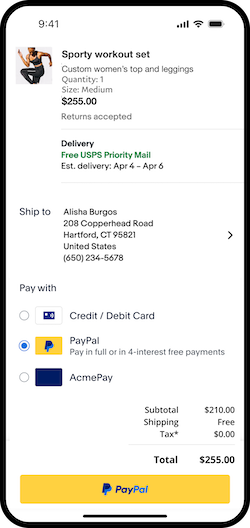
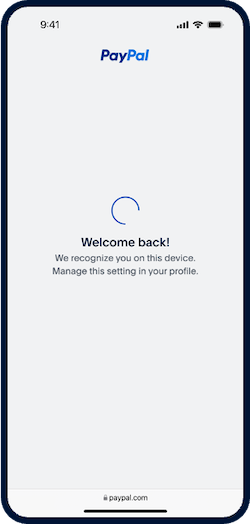
For all transactions:
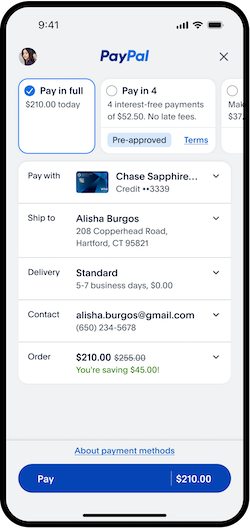
Present shipping details to a buyer during the PayPal flow.
Help buyers add or modify contact information during checkout.
Prefill a buyer's PayPal login page by passing their email address.
Use the JavaScript SDK to configure the data-page-type.
Create an order using the Orders v2 API.
Manage line-item details using the Orders v2 API.