On this page
No Headings
Last updated: July 8, 2026
App Switch helps PayPal customers start a transaction in a browser or app and complete it in the PayPal app, streamlining checkout with strong multi-factor authentication. The buyer can use biometrics or a passkey to log in instead of entering their password.
The buyer experience falls back to the web flow in cases where App Switch isn't available.
App Switch does not work with the following JavaScript SDK features:
actions.restart(): Instead, see how to handle declines after approval to manage INSTRUMENT_DECLINED responses.onShippingChange, onShippingAddressChange, onShippingOptionsChange: Instead, use server-side shipping callbacks.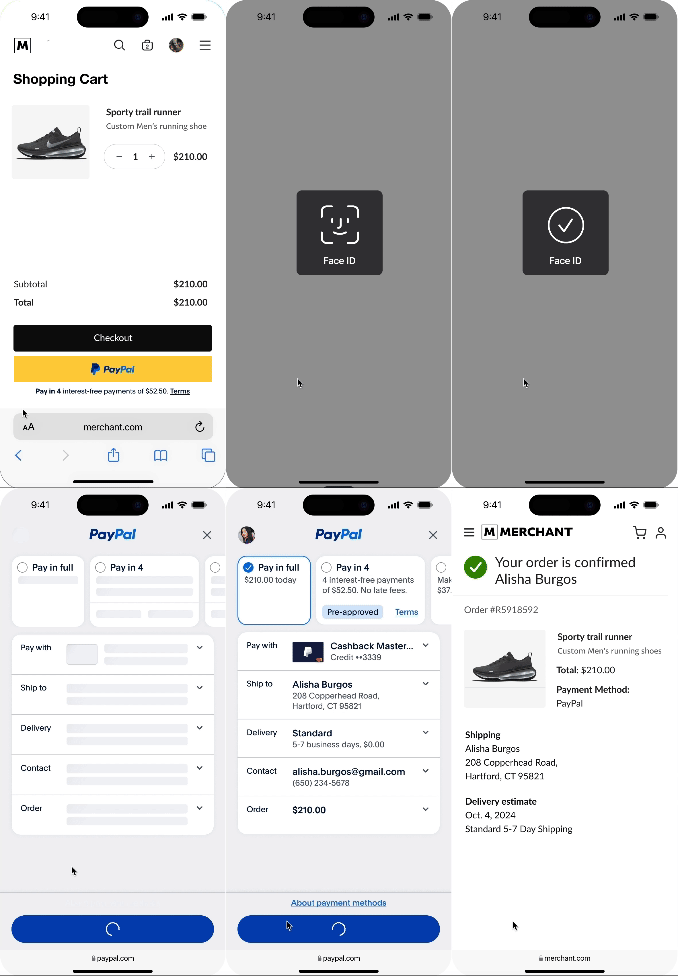
Enable App Switch when you make a Create order API request by including following 2 parameters in the payment_source.paypal.experience_context:
return_url: This URL tells App Switch where to send the buyer after completing checkout on the PayPal app. Set the URL to the page where the buyer selected the PayPal button.cancel_url: This URL tells App Switch where to send the buyer when the buyer cancels or doesn't complete the transaction on the PayPal app. Set the URL to the page where the buyer selected the PayPal button.To ensure the buyer is redirected back to the same browser window and tab, the return_url and cancel_url must:
To ensure buyer session can be fully re-established in your integration, the return_url and cancel_url must:
curl -v -X POST https://api-m.sandbox.paypal.com/v2/checkout/orders \
-H 'Content-Type: application/json' \
-H 'PayPal-Request-Id: YOUR_PAYPAL_REQUEST_ID' \
-H 'Authorization: Bearer YOUR_ACCESS_TOKEN' \
-d '{
  "intent": "CAPTURE",
  "payment_source": {
    "paypal": {
      "email_address": "[email protected]",
        "experience_context": {
          "user_action": "PAY_NOW",
          "return_url": "https://example.com/merchant_app_universal_link",
          "cancel_url": "https://example.com/merchant_app_universal_link"
        }
    }
  },
  "purchase_units": [
      {
        "amount": {
          "currency_code": "USD",
          "value": "64.00"
        }
    }
]
}Update the following 2 payment flow steps to integrate App Switch with a website or app:
resume flow.Note: Running the Javascript JS SDK in an iframe will block App Switch capabilities.
You'll need to make 2 changes to integrate client-side:
buttons.resume() before rendering the button.The PayPal SDK can then handle expected user flows plus edge cases for a buyer returning to a website to complete payment. The SDK uses the onApprove, onCancel and onError callbacks to communicate the result of the app switch.
The client-side Buttons component has an option for App Switch: appSwitchWhenAvailable: true.
Use this flag to control whether you want to use App Switch for eligible transactions. You can dynamically control this flag on the client side rather than the server side. Possible reasons include:
const buttons = paypal.Buttons({
  // Sets up the transaction when a payment button is selected
  appSwitchWhenAvailable: true, // Need an indicator to trigger App Switch
  createOrder: createOrderCallback, // Call API to create order
  onApprove: onApproveCallback,
  onError: function(error) {
    // Do something with the error from the SDK
  },
});The resume flow solves for some edge cases by helping a buyer resume a transaction completed in a different window or browser tab. However, this resume flow can lead to additional issues:
resume flow won't work with client-side action calls. Replace client-side actions.* with server-side calls.onApprove() and onCancel() will continue to work.// If you support App Switch, the buyer may end up in a new tab depending on the browser
// To trigger flow completion, execute the following code after re-instantiating buttons:
if (buttons.hasReturned()) {
buttons.resume();
} else {
buttons.render("#paypal-button-container");
}The onApprove callback triggers after the buyer is approved in the merchant app. At this stage, the merchant initiates a call to capture the payment or save the payment method to the vault. An INSTRUMENT_DECLINED response may occur during this call. Take the following steps to handle this scenario:
Instrument Declined flow so we can disable the failed funding instrument in the retry Checkout flow.Do not use actions.restart() to handle this error in the App Switch flow. Calling it will have no effect.
App Switch supports PayPal customers who have the PayPal app installed to complete their transactions in the PayPal app, streamlining checkout with strong multi-factor authentication. This feature can be tested in both the PayPal production app and sandbox environments. To test App Switch, make sure your integration is:
PayPal's sandbox helps users in and outside the United States test the App Switch consumer experience. Availability in the EU and other countries is coming soon.
Review the following table to see how App Switch works in different environments. Use this information to check if things are working during testing and spot any situations where you might need to set up fallback handling.
| Platform | Browser | Mode | Availability | Notes |
|---|---|---|---|---|
| iOS | Safari | Default browser | ||
| iOS | Safari | Private | ||
| iOS | Safari | Not default | App Switch redirects to the default browser | |
| iOS | Chrome | Default browser | App Switch redirects to a new tab in the same browser | |
| Android | Chrome | Default browser | ||
| Android | Chrome | Incognito | Fallback experience | |
| Android | Chrome | Not default | App Switch redirects in the default browser | |
| Android | Firefox/other | Default | App Switch redirects to a new tab in the same browser |
Without proper checks, you might accidentally capture (collect payment for) the same order multiple times due to:
You can avoid accidentally charging customers twice for the same order by checking the order before capturing. Follow this three-step process:
onApprove callback.GET request to PayPal's Orders v2 API: curl -v -X GET https://api-m.sandbox.paypal.com/v2/checkout/orders/TOKEN-ID.order.status === "COMPLETED", PayPal has already captured the order, so you can stop processing.COMPLETED.This code sample shows the flow from SDK callback, checking the order status, and conditional capturing:
curl -v -X GET https://api-m.sandbox.paypal.com/v2/checkout/orders/TOKEN_ID \
  -H 'Authorization: Bearer ACCESS-TOKEN'

if (order.status==="COMPLETED") {
## Order has already been captured! Don't capture again

return;
}
else {

## if status is not completed (captured), capture the order

curl -v -X POST https://api-m.sandbox.paypal.com/v2/checkout/orders/TOKEN_ID/capture \
  -H 'Content-Type: application/json' \
  -H 'PayPal-Request-Id: REQUEST-ID' \
  -H 'Authorization: Bearer ACCESS-TOKEN' \
  -d '{}'

}
Note the use of the PayPal-Request-Id header in the capture request. This provides additional idempotency protection, ensuring PayPal won't process the same capture request multiple times even if you send it repeatedly.
This approach prevents double charges by:
By implementing this pattern, you will only charge customers once, even if the system triggers their payment callback multiple times.
| Scenario | Expected behavior |
|---|---|
| User starts from a Native Default browser such as Safari on an iOS device or Chrome on an Android device (Happy Path). | The user is switched to the PayPal app, and after completing the checkout flow, the user is switched to the same merchant browser tab they initially used. |
| User starts from a Non-Native default browser such as Chrome on iOS or Firefox on Android. | The user is App switched to the PayPal app, and after completing the checkout flow, the user is switched back to the user's default browser. |
| Post App Switch changes the payment method on the pay sheet and completes the flow. | Completing checkout flow with the successful creation of BA token or payment token. |
| Post Login cancel the operation on the pay sheet screen in the PayPal App. | The user is switched back to the merchant browser upon canceling out of the checkout flow. |
| Add a new card. | When users select Add Card, they will be prompted to log in again. After logging in, the new card form will be displayed. After the new card is added, the user can proceed with checkout. |
If you have the production version of the PayPal app installed, you will get a prompt stating that you already have the app installed. Select Install to replace it with the TestFlight build.
Select the Download App Tester button to ensure you receive notifications when new versions of the sandbox app are available.
After you complete the integration, contact your PayPal support team to enable App Switch for production traffic.