Integrate Przelewy24 using the JavaScript SDK
Last updated: September 14, 2026
CURRENT
JavaScript SDK v5
Copy / Export
Use the JavaScript SDK to render payment fields and buttons, and process payments with the Orders API.
Buyer experience
Note: The payment button is disabled in the buyer experience demo. On button click, the user is redirected to their bank to authorize the transaction.
Know before you code
Note: The integration steps for implementing alternative payment methods are similar. If you've integrated another alternative payment method before, you can likely reuse that code with adjustments for this payment method.
- Request approval to enable Przelewy24 by visiting these sandbox and live links:
- Partners: Be sure to onboard your merchants upfront, before they accept payments. Onboarding after making payments, specifically Progressive Onboarding, isn't supported for alternative payment methods.
- Complete the steps in Get started to get your sandbox account information from the Developer Dashboard:
- Client ID: Authenticates your account with PayPal and identifies an app in your sandbox.
- Client Secret: Authorizes an app in your sandbox. Keep this secret safe and don't share it.
- Business account credentials
- Make sure the preference for receiving payments in your PayPal business account is set to accept and convert them to the default currency. To verify, in your profile select Account Settings > Payment preferences > Block payments and select Update to mark this preference.
- This client-side and server-side integration uses the following:
- Make sure you're subscribed to the following webhook events:
CHECKOUT.ORDER.APPROVED- Listen for this webhook and then capture the payment.CHECKOUT.PAYMENT-APPROVAL.REVERSED- This webhook tells you when an approved order is cancelled and refunded because it wasn't captured within the capture window. Let the payer know about the problem and the reversed order.
- By adding funding sources to your checkout integration, you agree to the PayPal alternative payment methods agreement. This is in addition to the user agreement applicable to the country in which your business is physically located.
To get started
Run in Postman
Use Postman to explore and test PayPal APIs. Learn more in our Postman guide.
Get up and running in GitHub Codespaces
GitHub Codespaces are cloud-based development environments where you can code and test your PayPal integrations. Learn more.
Open in Codespaces1. Add PayPal JavaScript SDK
Add or update the JavaScript SDK script on your web page.
<script src="https://www.paypal.com/sdk/js?client-id=YOUR_CLIENT_ID&components=buttons,payment-fields,marks,funding-eligibility&enable-funding=p24¤cy=EUR"></script>This table lists the parameters you pass to the JavaScript SDK.
| Query param | Default | Description |
|---|---|---|
client-id | none | Your PayPal REST client ID. This identifies your PayPal account and determines where transactions are paid. |
components | buttons | A comma-separated list of components to enable. The buttons, payment-fields, marks, and funding-eligibility components are required for payment fields components. |
enable-funding | none | The enabled payment methods to show in buttons and marks. Note: By default, PayPal JavaScript SDK provides smart logic to display only appropriate marks and buttons for the current buyer. This optional parameter bypasses the buyer country check for desired payment methods. For example: src="https://www.paypal.com/sdk/js?client-id=YOUR_CLIENT_ID&enable-funding=venmo" |
currency | USD | This is the currency for the payment. This value needs to match the currency used when creating the order. |
locale | automatic | The locale renders components. By default PayPal detects the correct locale for the buyer based on their geolocation and browser preferences. It is recommended to pass this parameter with a supported locale if you need the PayPal buttons to render in the same language as the rest of your site. |
intent | capture | The intent for the transaction. This determines whether the funds are captured immediately while the buyer is present on the page. |
commit | true | This indicates that the final amount won't change after the buyer returns to your site from PayPal. |
vault | false | Whether the payment information in the transaction will be saved. Save your customers' payment information for billing agreements, subscriptions, or recurring payments. Marking this parameter false shows all funding sources, including payment methods that can't be saved. |
See additional, optional parameters.
2. Render payment mark
You can use a mark integration for payment fields components to present the payment method options to the buyer as radio buttons.

paypal.Marks({
    fundingSource: paypal.FUNDING.P24
}).render('#p24-mark')
3. Render payment fields
Use payment fields to collect payment information from buyers. Fields dynamically render based on the selected funding source and you can customize the fields to align with your brand.
You can choose from the following checkout flows:
Single page
For Przelewy24, payment fields collect first name, last name, and email.
If there are validation errors in the input fields, they'll show on the click of the button.
paypal.PaymentFields({
  fundingSource: paypal.FUNDING.P24,
  /* style object (optional) */
  style: {
    /* customize field attributes (optional) */
    variables: {},
    /* set custom rules to apply to fields classes (optional) */
    rules: {},
  },
  fields: {
    /* fields prefill info (optional) */
    name: {
      value: "John Doe",
    },
    email: {
      value: "[email protected]",
    },
  }
})
.render("#p24-container");
For style parameters, please reference this style page: Custom style for payment fields
Multi-page
A multi-page checkout flow spreads the checkout steps into two or more pages. This experience is applicable when an order details page needs to be shown to the buyer before an order is placed
Tip: German merchants can leverage the multi-page flow to comply with local regulations.
First page of the checkout flow
This example renders the mark and payment fields, but not the payment button, on your checkout page.
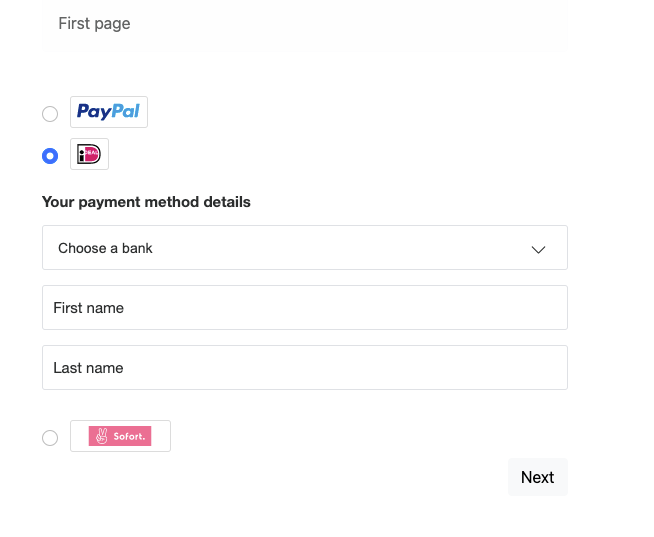
paypal.Marks({
    fundingSource: paypal.FUNDING.P24
}).render('#p24-mark')
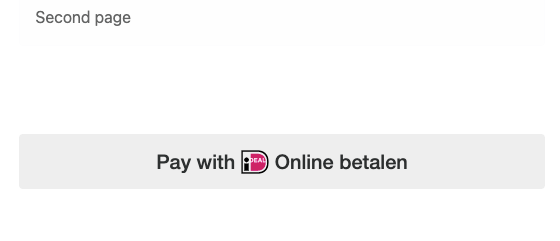
Second page of the checkout flow
Based on the payment method selected on the first page, this example renders only the payment button along with the order details on the page. To complete checkout, the buyer clicks the payment button, authorizes, and confirms payment. You get the code to render the payment button in step 4.
For style parameters, please reference this style page: Custom style for payment fields
4. Render payment button
paypal.Buttons({
  fundingSource: paypal.FUNDING.P24,
  style: {
    label: "pay",
  },
  createOrder() {
    return fetch("/my-server/create-paypal-order", {
      method: "POST",
      headers: {
        "Content-Type": "application/json",
      },
      // use the "body" param to optionally pass additional order information
      // like product skus and quantities
      body: JSON.stringify({
        cart: [
          {
            sku: "YOUR_PRODUCT_STOCK_KEEPING_UNIT",
            quantity: "YOUR_PRODUCT_QUANTITY",
          },
        ],
      }),
    })
    .then((response) => response.json())
    .then((order) => order.id);
  },
  onApprove(data) {
    return fetch("/my-server/capture-paypal-order", {
      method: "POST",
      headers: {
        "Content-Type": "application/json",
      },
      body: JSON.stringify({
        orderID: data.orderID
      })
    })
    .then((response) => response.json())
    .then((orderData) => {
      // Successful capture! For dev/demo purposes:
      console.log('Capture result', orderData, JSON.stringify(orderData, null, 2));
      const transaction = orderData.purchase_units[0].payments.captures[0];
      console.log('Transaction Status:',  transaction.status);
      console.log('Transaction ID:', transaction.id);
      // When ready to go live, remove the alert and show a success message within this page. For example:
      // const element = document.getElementById('paypal-button-container');
      // element.innerHTML = '<h3>Thank you for your payment!</h3>';
      // Or go to another URL:  window.location.href = 'thank_you.html';
    });
  },
  onCancel(data, actions) {
    console.log(`Order Canceled - ID: ${data.orderID}`);
  },
  onError(err) {
    console.error(err);
  }
}).render("#p24-btn");-
createOrderImplement the
createOrderfunction to allow the JavaScript SDK to submit buyer information and set up the transaction on the click of the button.Note: Create Przelewy24 orders in PLN/EUR currency.
Use your server-side Create order call to set up the details of a one-time transaction including the amount, line item detail, and more. If order creation fails, the Orders API can return an error in the console.
After order creation, orders are confirmed with buyer-selected payment source. If the order cannot be processed with the selected payment source, the relevant errors are returned in the console.
onCancelImplement the optionalonCancel()function to show a cancellation page or return to the shopping cart.onErrorImplement the optionalonError()function to handle errors and display generic error message or page to the buyers. This error handler is a catch-all. Errors at this point are not expected to be handled beyond showing a generic error message or page.
5. Capture the transaction
Implement the onApprove function, which is called after the buyer approves the transaction.
Captures the funds from the transaction and shows a message to the buyer to let them know the transaction is successful. The method is called after the buyer approves the transaction on paypal.com.
Because this is a client-side call, PayPal calls the Orders API on your behalf, so you don't need to provide the headers and body.
capture() - Promise returning the order details.
paypal.Buttons({
  fundingSource: paypal.FUNDING.P24,
  createOrder() {
    return fetch("/my-server/create-paypal-order", {
      method: "POST",
      headers: {
        "Content-Type": "application/json",
      },
      // use the "body" param to optionally pass additional order information
      // like product skus and quantities
      body: JSON.stringify({
        cart: [
          {
            sku: "YOUR_PRODUCT_STOCK_KEEPING_UNIT",
            quantity: "YOUR_PRODUCT_QUANTITY",
          },
        ],
      }),
    })
    .then((response) => response.json())
    .then((order) => order.id);
  },
  onApprove(data) {
    return fetch("/my-server/capture-paypal-order", {
      method: "POST",
      headers: {
        "Content-Type": "application/json",
      },
      body: JSON.stringify({
        orderID: data.orderID
      })
    })
    .then((response) => response.json())
    .then((orderData) => {
      // Successful capture! For dev/demo purposes:
      console.log('Capture result', orderData, JSON.stringify(orderData, null, 2));
      const transaction = orderData.purchase_units[0].payments.captures[0];
      console.log('Transaction Status:',  transaction.status);
      console.log('Transaction ID:', transaction.id);
      // When ready to go live, remove the alert and show a success message within this page. For example:
      // const element = document.getElementById('paypal-button-container');
      // element.innerHTML = '<h3>Thank you for your payment!</h3>';
      // Or go to another URL:  window.location.href = 'thank_you.html';
    });
  }
}).render('#p24-button-container');
//This function displays payment buttons on your web page.
For the capture call details and example responses, see Capture payment for order in the Orders API reference.
If order capture fails, the Orders API can return an error in the console.
6. Handle webhook events
A webhook handler is a script you create on your server that completes specific actions on webhooks that hit your listener URL.
- We recommend subscribing to the
CHECKOUT.ORDER.APPROVEDwebhook event in case a customer accidentally closes the browser and exits the checkout process after approving the transaction through their APM but before finalizing the transaction on your site. - We also recommend subscribing to the
CHECKOUT.ORDER.DECLINEDwebhook event to receive notifications of any other failure scenarios. This webhook event passes a failure reason code and error message to indicate what caused the error. - Listen for the
CHECKOUT.PAYMENT-APPROVAL.REVERSEDwebhook as an indication that an approved order wasn't captured within the capture window resulting in a cancellation of the order and a refund the buyer's account. Then notify your buyer of the problem and the reversed order. PAYMENT.CAPTURE.PENDING,PAYMENT.CAPTURE.COMPLETED, andPAYMENT.CAPTURE.DENIEDwebhooks indicate capture status.
See Subscribe to checkout webhooks for more information.
Here are some additional resources as you create webhook handler code:
- Webhook Management API - Manage webhooks, list event notifications, and more.
- Webhook event
- Checkout webhook events - Checkout buyer approval-related webhooks.
- Order webhook events - Other order-related webhooks.
- Show order details endpoint - Determine the status of an order.
Sample integration
See a sample Przelewy24 integration in the PayPal GitHub repository.
Next steps
Test integration
Test the integration in the PayPal sandbox environment.
Go live
Take your application live in the PayPal production environment once testing is successful.