Reference
Reference document for PayPal's JavaScript SDK
Last updated: October 29, 2026
JavaScript SDK v5
CURRENT
Copy / Export
Important: This documentation covers the JavaScript SDK v5 with the
CardFields component. For the legacy HostedFields component, see the
archived reference.
Overview
The PayPal JavaScript SDK dynamically exposes objects and methods based on the components you select. Add components to your <script> by passing them in the src URL using the components query string parameter.
<script src="https://www.paypal.com/sdk/js?client-id=YOUR_CLIENT_ID&components=YOUR_COMPONENTS"></script>The JavaScript SDK supports the following components:
buttons(default)markscard-fieldsfunding-eligibilitymessages
Buttons
The payment buttons component automatically shows all eligible buttons in a single location on your page. See the standard payments integration.
<script src="https://www.paypal.com/sdk/js?client-id=YOUR_CLIENT_ID&components=buttons"></script>paypal.Buttons(options)
- style
- message
- createOrder
- createSubscription
- onApprove
- onCancel
- onError
- onInit/onClick
- onShippingChange
- onShippingAddressChange
- onShippingOptionsChange
style
Customize your buttons using the style option.
paypal
  .Buttons({
    style: {
      layout: "vertical",
      color: "blue",
      shape: "rect",
      label: "paypal",
    },
  })
  .render("#paypal-button-container");
Layout
Set the style.layout option to determine how the buttons show up when multiple buttons are available:
| Value | Description | Layout |
|---|---|---|
vertical | Default. Buttons are stacked vertically with a maximum of 6 buttons. Recommended when:
|  Mobile Mobile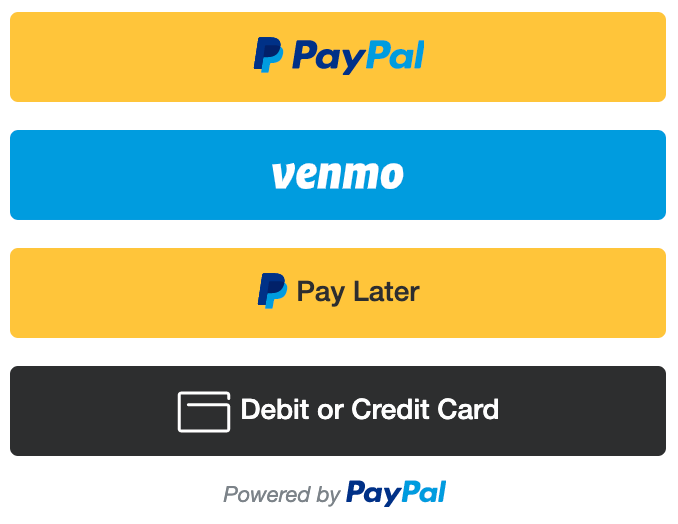 Venmo is available on mobile in US markets only.  Web Web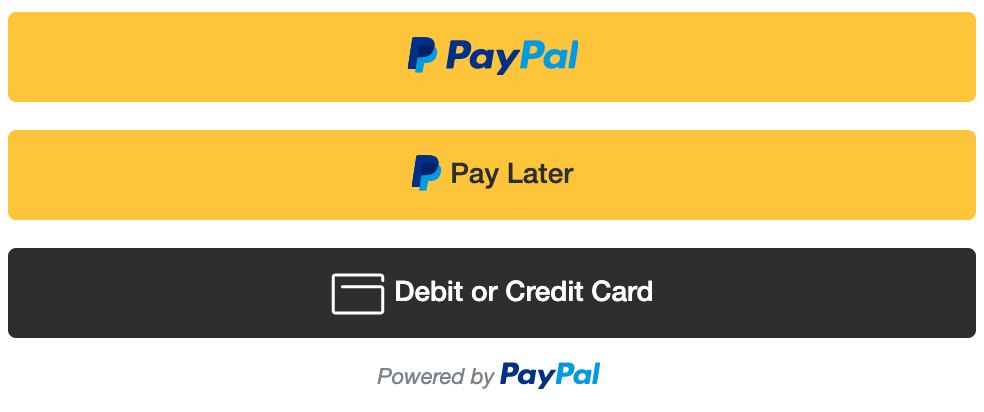 |
horizontal | Buttons are stacked horizontally with a maximum of 2 buttons. Recommended when:
| Mobile Venmo is available on mobile in US markets only. Web |
Which buttons will I see?
The buttons that show up are decided automatically, based on a range of factors, including:
- Buyer country
- Device type
- Funding sources the buyer has opted to see
As a result, each buyer sees a unique combination of buttons. Pay Later offers differ by country and have different buttons. To prevent certain buttons from showing up, see Disable funding in the JavaScript SDK reference.
Color
Set the style.color option to 1 of these values:
| Value | Description | Button |
|---|---|---|
gold | Recommended People around the world know us for the color gold and research confirms it. Extensive testing determined just the right shade and shape that help increase conversion. Use it on your website to leverage PayPal’s recognition and preference. | |
blue | First alternative If gold doesn't work for your site, try the PayPal blue button. Research shows that people know it is our brand color, which provides a halo of trust and security to your experience. | |
silver white black | Second alternatives If gold or blue doesn't work for your site design or aesthetic, try the silver, white, or black buttons. Because these colors are less capable of drawing people’s attention, we recommend these button colors as a second alternative. |
Shape
Set the style.shape option to 1 of these values:
| Value | Description | Button |
|---|---|---|
rect | Recommended The default button shape. | |
pill | Rounds the sides of the button. | |
sharp | Gives the button sharp corners. |
Border radius
style.borderRadius is used to define a custom border radius of the buttons.
To define the border radius of the buttons, set the style.borderRadius option to a number that is greater than or equal to 0.
If style.borderRadius and style.shape are both defined,
style.borderRadius will take priority.
paypal
  .Buttons({
    style: {
      borderRadius: 10,
    },
  })
  .render("#paypal-button-container");
Size
- The button adapts to the size of its container element by default.
- Your button container element needs to be wide enough for your horizontal payment buttons.
Height
To customize the button height, set the style.height option to a value from 25 to 55.
The button has a default maximum height of 55px. Remove this limitation and set the button height to fill its parent container:
- Set
style.disableMaxHeighttotrue. - Select a valid funding source:
fundingSource: 'paypal' | 'venmo' | 'paylater' | 'credit' - Change the
heightvalue at the parent container level.
If style.disableMaxHeight and style.height are both defined on the PayPal
button, an error will be thrown and the button will not render. You must
choose one or the other.
paypal
  .Buttons({
    style: {
      disableMaxHeight: true,
    },
  })
  .render("#paypal-button-container");
Width
The button has a default maximum width of 750px, but you can make the button larger:
- Set
style.disableMaxWidthtotrue. - Change the
max-widthvalue at the container level.
paypal
  .Buttons({
    style: {
      disableMaxWidth: true,
    },
  })
  .render("#paypal-button-container");
Label
Set the style.label option to 1 of these values:
| Value | Description | Button |
|---|---|---|
paypal | Recommended The default option. Shows the PayPal logo. | |
checkout | Shows the Checkout button. | |
buynow | Shows the PayPal Buy Now button and initializes the checkout flow. | |
pay | Shows the Pay With PayPal button and initializes the checkout flow. | |
installment | Shows the PayPal installment button and offers a specified number of payments during a payment installment period. The installment feature is available only in MX and BR.Set
|
Tagline
Set the style.tagline to false to disable the tagline text:
Set the style.layout to horizontal for taglines. If using the message
option it will replace the tagline.
| Value | Description | Button |
|---|---|---|
true | Recommended Show tagline text Default. |   Two easy ways to pay Two easy ways to pay |
false | Disable tagline text. | |
Message
Customize the message with your buttons using the message option.
Messaging is currently supported for US merchants and US customers only. Merchants must be eligible for Pay Later to display Pay Later offers with buttons. Other PayPal value propositions appear, even if a merchant is ineligible for Pay Later.
paypal
  .Buttons({
    message: {
      amount: 100,
      align: "center",
      color: "black",
      position: "top",
    },
  })
  .render("#paypal-button-container");
Amount
Set the message.amount option to show the most relevant offer and price breakdown to your customers.
To define the amount of the message, set the message.amount option to a number that is greater than 0. This value should reflect the current product or cart value that will be used once a checkout session has started.
| Value | Description | Message |
|---|---|---|
undefined | Default. When no amount value is provided a generic message is shown. | |
100 | An example qualifying amount for Pay in 4 with a weekly amount breakdown. | |
2000 | An example qualifying amount for Pay Monthly with a monthly amount breakdown. |
Align
Set the message.align option to align the message content to the buttons.
| Value | Description | Message |
|---|---|---|
center | Default. Aligned in the center between the edges of the buttons. | |
left | Aligned to the left edge of the buttons. | |
right | Aligned to the right edge of the buttons. |
Color
Set the message.color option to change the message color from black or white depending your website background so the message is visible.
| Value | Description | Message |
|---|---|---|
black | Default. Black text with a colored PayPal logo and blue link text. | |
white | White text with a white PayPal logo and white link text. |
Position
Set the message.position option to place the message above or below the buttons.
| Value | Description | Message |
|---|---|---|
top | Position the message above the buttons. | |
bottom | Default. Position the message below the buttons. When the Debit/Credit Card button is present as part of your button stack only top is supported and will be the default value. |
displayOnly
The displayOnly parameter determines the payment methods your customers see. By default, buyers see all eligible payment methods. Options passed to displayOnly are applied in order from left to right.
We have the following options available:
| Value | Description |
|---|---|
vaultable | Display only the payment methods that support save. Your integration, merchant settings, and customer location determine which payment methods can be saved. |
paypal
  .Buttons({
    displayOnly: ["vaultable"],
  })
  .render("#paypal-button-container");
createOrder
The createOrder function sets up the details of the transaction. Pass createOrder as a parameter in paypal.Buttons. When the buyer selects the PayPal button, createOrder launches the PayPal Checkout window. The buyer logs in and approves the transaction on the paypal.com website.
createOrder
<!DOCTYPE html>
<html>
<head>
<meta name="viewport" content="width=device-width, initial-scale=1">
</head>
<body>
<!-- Set up a container element for the button -->
<div id="paypal-button-container"></div>
<script src="https://www.paypal.com/sdk/js?client-id=YOUR_CLIENT_ID¤cy=USD"></script>
<script>
paypal.Buttons({
async createOrder() {
const response = await fetch("/my-server/create-paypal-order", {
method: "POST",
headers: {
"Content-Type": "application/json",
},
body: JSON.stringify({
cart: [{
sku: "YOUR_PRODUCT_STOCK_KEEPING_UNIT",
quantity: "YOUR_PRODUCT_QUANTITY",
}]
})
});
const order = await response.json();
return order.id;
}
}).render('#paypal-button-container');
</script>
</body>
</html>
Server (Node.js):
app.post("/my-server/create-paypal-order", async (req, res) => {
  const order = await createOrder();
  res.json(order);
});

// use the orders api to create an order
function createOrder() {
  // create accessToken using your clientID and clientSecret
  // for the full stack example, please see the Standard Integration guide
  // https://developer.paypal.com/docs/multiparty/checkout/standard/integrate/
  const accessToken = "REPLACE_WITH_YOUR_ACCESS_TOKEN";
  return fetch("https://api-m.sandbox.paypal.com/v2/checkout/orders", {
    method: "POST",
    headers: {
      "Content-Type": "application/json",
      Authorization: `Bearer ${accessToken}`,
    },
    body: JSON.stringify({
      "purchase_units": [
        {
          "amount": {
            "currency_code": "USD",
            "value": "100.00"
          },
          "reference_id": "d9f80740-38f0-11e8-b467-0ed5f89f718b"
        }
      ],
      "intent": "CAPTURE",
      "payment_source": {
        "paypal": {
          "experience_context": {
            "payment_method_preference": "IMMEDIATE_PAYMENT_REQUIRED",
            "payment_method_selected": "PAYPAL",
            "brand_name": "EXAMPLE INC",
            "locale": "en-US",
            "landing_page": "LOGIN",
            "shipping_preference": "GET_FROM_FILE",
            "user_action": "PAY_NOW",
            "return_url": "https://example.com/returnUrl",
            "cancel_url": "https://example.com/cancelUrl"
          }
        }
      }
    })
  })
  .then((response) => response.json());
}
Orders v2 API options
-
intent: The intent to either capture the payment immediately or authorize a payment for an order after order creation. The values are:-
CAPTURE: Default. The merchant intends to capture payment immediately after the customer makes a payment. -
AUTHORIZE: The merchant intends to authorize a payment and place funds on hold after the customer makes a payment. Confirm the successful capture before providing goods or services. Authorized payments can be captured for up to 3 days, and may extend up to 29 days. After the 3-day honor period, the original authorized payment expires and you need to re-authorize the payment. You need to make a separate request to capture payments on demand. This intent isn't supported when you have more than 1purchase_unitwithin your order.
-
-
purchase_units: Required. An array of purchase units. Each purchase unit establishes a contract between a payer and the payee. Each purchase unit represents either a full or partial order that the payer intends to purchase from the payee. See purchase unit request object definition for additional information. -
payment_source: Optionally define thepayment_sourcewhen creating the order. This payment source can bepaypal, a vaulttoken,cardinformation for PCI-compliant merchants, or alternative payment methods such asblikandapple_pay. For more information, see Orders v2 API and payment_source.
createSubscription
Provides a simplified and secure subscription experience. PayPal presents payment types to your buyers automatically, making it easier for them to complete their purchase using methods such as Pay with Venmo, PayPal Credit, and credit card payments without reintegration as they are made available.
Pass vault=true and intent=subscription in the JavaScript SDK to set up a subscription, rather than a one-time transaction.
<script src="https://www.paypal.com/sdk/js?client-id=YOUR_CLIENT_ID&components=buttons&vault=true&intent=subscription"></script>Finally, implement the createSubscription function that's called when the buyer selects the PayPal button.
Actions
-
create: Creates a subscription for your plan and includes the plan ID, subscriber details, shipping, and other details. Theplan_idneeds to belong to theclient-idconfigured on the script.actions.subscription.createoptions: See the create subscription endpoint for supported options defined in the request body. Also see create a payment button for the subscription for more examples.
paypal
  .Buttons({
    createSubscription(data, actions) {
      return actions.subscription.create({
        plan_id: "YOUR_PLAN_ID",
      });
    },

    onApprove(data) {
      alert(
        `You have successfully created subscription ${data.subscriptionID}`,
      );
    },
  })
.render("#paypal-button-container");revise: Updates the subscription which could be inACTIVEorSUSPENDEDstatus. See upgrade or downgrade a subscription to make a revision using the Subscriptions API.
onApprove
Captures the funds from the transaction and shows a message that tells the buyer the payment was successful. The method is called after the buyer approves the transaction on the paypal.com website.
paypal
  .Buttons({
    async createOrder() {
      const response = await fetch("/my-server/create-paypal-order", {
        method: "POST",
        headers: {
          "Content-Type": "application/json",
        },
        body: JSON.stringify({
          cart: [
            {
              sku: "YOUR_PRODUCT_STOCK_KEEPING_UNIT",
              quantity: "YOUR_PRODUCT_QUANTITY",
            },
          ],
        }),
      });

      const data = await response.json();

      return data.id;
    },
    async onApprove(data) {
      // Capture the funds from the transaction.
      const response = await fetch("/my-server/capture-paypal-order", {
        method: "POST",
        body: JSON.stringify({
          orderID: data.orderID,
        }),
      });

      const details = await response.json();

      // Show success message to buyer
      alert(`Transaction completed by ${details.payer.name.given_name}`);
    },
  })
  .render("#paypal-button-container");
For the list of order details you receive from /my-server/capture-paypal-order, see capture payment for order in the Orders API reference.
onCancel
When a buyer cancels a payment, they typically return to the parent page. You can instead use the onCancel function to show a cancellation page or return to the shopping cart.
Data attributes
orderID: The ID of the order.
paypal
  .Buttons({
    onCancel(data) {
      // Show a cancel page, or return to cart
      window.location.assign("/your-cancel-page");
    },
  })
  .render("#paypal-button-container");
onError
If an error prevents buyer checkout, alert the user that an error has occurred with the buttons using the onError callback:
paypal
  .Buttons({
    onError(err) {
      // For example, redirect to a specific error page
      window.location.assign("/your-error-page-here");
    },
  })
  .render("#paypal-button-container");
This error handler is a catch-all. Errors at this point aren't expected to be handled beyond showing a generic error message or page.
onInit/onClick
Called when the button first renders. You can use it for validations on your page if you are unable to do so prior to rendering. For example, enable buttons when form validation passes or disable if it fails.
Data attributes
fundingSource: The funding source of the button that was selected. See the funding sources in the standalone buttons guide.
<!DOCTYPE html>
<html>
    <head>
        <meta name="viewport" content="width=device-width, initial-scale=1.0" />
    </head>
    <body>
        <p id="error" class="hidden">Click the checkbox</p>
        <label><input id="check" type="checkbox" required /> Click here to continue</label>

        <div id="paypal-button-container"></div>

        <script src="https://www.paypal.com/sdk/js?client-id=YOUR_CLIENT_ID&components=buttons"></script>

        <script>
            paypal.Buttons({
                // onInit is called when the button first renders
                onInit(data, actions) {
                    // Disable the buttons
                    actions.disable();

                    // Listen for changes to the checkbox
                    document.querySelector("#check").addEventListener("change", function (event) {
                        // Enable or disable the button when it is checked or unchecked
                        if (event.target.checked) {
                            actions.enable();
                        } else {
                            actions.disable();
                        }
                    });
                },

                // onClick is called when the button is selected
                onClick() {
                    // Show a validation error if the checkbox isn't checked
                    if (!document.querySelector("#check").checked) {
                        document.querySelector("#error").classList.remove("hidden");
                    }
                },
            }).render("#paypal-button-container");
        </script>
    </body>
</html>
For cases when you need asynchronous validation, see asynchronous validation.
paypal.Buttons().isEligible
Commonly used for standalone buttons when you need to check if the funding source is eligible.
// Loop over each funding source / payment method
paypal.getFundingSources().forEach(function (fundingSource) {
  // Initialize the buttons
  const button = paypal.Buttons({
    fundingSource: fundingSource,
  });

  // Check if the button is eligible
  if (button.isEligible()) {
    // Render the standalone button for that funding source
    button.render("#paypal-button-container");
  }
});
paypal.Buttons().render( container )
Renders the buttons in the defined container selector.
paypal.Buttons().render("#paypal-buttons-container");onShippingChange
Deprecated. See onShippingAddressChange and onShippingOptionsChange.
While the buyer is on the PayPal site, you can update their shopping cart to reflect the shipping address they selected on PayPal. You can use the callback to:
- Validate that you support the shipping address.
- Update shipping costs.
- Change the line items in the cart.
- Inform the buyer that you don't support their shipping address.
Availability: The onShippingChange function isn't compatible with
Subscriptions.
Data attributes
data: An object containing the buyer’s shipping address. Consists of the following fields:
orderID(required): An ID that represents an order.paymentID(optional): An ID that represents a payment.paymentToken(required): An ID or token that represents the resource.shipping_address(required): The buyer's selected city, state, country, and postal code.city: Shipping address city.state: Shipping address state or province.country_code: Shipping address country.postal_code: Shipping address ZIP code or postal code.
selected_shipping_option(optional): Shipping option selected by the buyer.label: Custom shipping method label.type: Shipping method type (SHIPPINGorPICKUP).amount: Additional cost for this method.currency_code: ISO currency code, such asUSD.value: String-formatted decimal format, such as1.00.
Actions
actions: An object containing methods to update the contents of the buyer’s cart and interact with PayPal Checkout. Consists of the following methods:
resolve: Indicates to PayPal that you don't need to make any changes to the buyer’s cart.reject: Indicates to PayPal that you won't support the shipping address provided by the buyer.order: Client-side order API method.PATCH: To make the update, pass an array of change operations in the request, as described in the order update API reference. The response returns a promise.
Examples
- This example shows not supporting international transactions:
paypal
  .Buttons({
    onShippingChange(data, actions) {
      if (data.shipping_address.country_code !== "US") {
        return actions.reject();
      }

      return actions.resolve();
    },
  })
.render("#paypal-button-container");- This example shows a more complex situation in which a state has free shipping, but flat-rate shipping is the standard for the rest of the US:
paypal
  .Buttons({
    async onShippingChange(data, actions) {
      // Reject non-US addresses
      if (data.shipping_address.country_code !== "US") {
        return actions.reject();
      }

      // Patch the shipping amount
      const response = await fetch("/my-server/patch-paypal-order", {
        method: "PATCH",
        body: JSON.stringify({
          shippingAddress: data.shipping_address,
        }),
      });
    },
  })
  .render("#paypal-button-container");
onShippingAddressChange
While the buyer is on the PayPal site, you can update their shopping cart to reflect the shipping address they selected on PayPal. You can use the callback to:
- Validate that you support the shipping address.
- Update shipping costs.
- Change the line items in the cart.
- Inform the buyer that you don't support their shipping address.
Availability: The onShippingAddressChange function isn't compatible with
Subscriptions.
Data attributes
data: An object containing the buyer’s shipping address. Consists of the following properties:
errors: Errors to show to the user.ADDRESS_ERROR: "Your order can't be shipped to this address."COUNTRY_ERROR: "Your order can't be shipped to this country."STATE_ERROR: "Your order can't be shipped to this state."ZIP_ERROR: "Your order can't be shipped to this zip."
orderID: An ID that represents an order.paymentID: An ID that represents a payment.paymentToken: An ID or token that represents a resource.shippingAddress: The buyer's selected city, state, country, and postal code.city: Shipping address city.countryCode: Shipping address country.postalCode: Shipping address ZIP code or postal code.state: Shipping address state or province.
Actions
actions: An object containing a method to interact with PayPal Checkout. Consists of the following property:
* `reject`: Indicates to PayPal that you won't support the shipping address provided by the buyer.Examples
- This example shows how to reject international transactions using
actions.reject():
paypal
  .Buttons({
    onShippingAddressChange(data, actions) {
      if (data.shippingAddress.countryCode !== "US") {
        return actions.reject(data.errors.COUNTRY_ERROR);
      }
    },
  })
  .render("#paypal-button-container");
onShippingOptionsChange
This callback is triggered any time the user selects a new shipping option. You can use the callback to:
- Validate that you support the shipping method.
- Update shipping costs.
- Change the line items in the cart.
- Inform the buyer that you don't support their shipping method.
Availability: The onShippingOptionsChange function isn't compatible with
Subscriptions.
Data attributes
data: An object containing the payer’s selected shipping option. Consists of the following properties:
errors: Errors to show to the payer.METHOD_UNAVAILABLE: "The shipping method you selected is unavailable. To continue, choose another way to get your order."STORE_UNAVAILABLE: "Part of your order isn't available at this store."
orderID: An ID that represents an order.paymentID: An ID that represents a payment.paymentToken: An ID or token that represents a resource.selectedShippingOption: Shipping option selected by the payer.id: Custom shipping method ID.label: Custom shipping method label.selected: Set totrueby PayPal when selected by the buyer.type: Shipping method type (SHIPPINGorPICKUP).amount: Additional cost for this method.currencyCode: ISO currency code, such asUSD.value: String-formatted decimal format, such as1.00.
Actions
actions: An object containing a method to interact with PayPal Checkout. Consists of the following property:
* `reject`: Indicates to PayPal that you won't support the shipping method selected by the buyer.Customize shipping options
Add support for multiple shipping options when buyers make changes to their shipping information.
Examples
- This example shows how to disable store pickup using
actions.reject():
paypal
  .Buttons({
    onShippingOptionsChange(data, actions) {
      if (data.selectedShippingOption.type === "PICKUP") {
        return actions.reject(data.errors.STORE_UNAVAILABLE);
      }
    },
  })
  .render("#paypal-button-container");
Marks
Use marks when the PayPal buttons are presented alongside other funding sources on the page and the PayPal buttons are shown when the buyer selects a radio button. See Display other payment methods.
<script src="https://www.paypal.com/sdk/js?client-id=YOUR_CLIENT_ID&components=buttons,marks"></script>paypal.Marks(options)
paypal.Marks().isEligible
<script src="https://www.paypal.com/sdk/js?client-id=YOUR_CLIENT_ID&components=buttons,funding-eligibility,marks"></script>Commonly used for standalone buttons when you need to check if the funding source is eligible.
// Loop over each funding source / payment method
paypal.getFundingSources().forEach(function (fundingSource) {
  // Initialize the marks
  var mark = paypal.Marks({
    fundingSource: fundingSource,
  });

  // Check if the mark is eligible
  if (mark.isEligible()) {
    // Render the standalone mark for that funding source
    mark.render("#paypal-mark-container");
  }
});
paypal.Marks().render( container )
Renders the radio buttons that are passed in container selector.
paypal.Marks().render("#paypal-marks-container");<!-- Render the radio buttons and marks -->
<label>
<input type="radio" name="payment-option" value="paypal" checked>
<div id="paypal-marks-container"></div>
</label>
<label>
<input type="radio" name="payment-option" value="alternate">
</label>
<div id="paypal-buttons-container"></div>
<div id="alternate-button-container">
<button>Pay with a different method</button>
</div>
<script>
// Render the PayPal marks
paypal.Marks().render('#paypal-marks-container');
// Render the PayPal buttons
paypal.Buttons().render('#paypal-buttons-container');
// Listen for changes to the radio buttons
document.querySelectorAll('input[name=payment-option]')
.forEach(function (el) {
el.addEventListener('change', function (event) {
// If PayPal is selected, show the PayPal button
if (event.target.value === 'paypal') {
document.body.querySelector('#alternate-button-container')
.style.display = 'none';
document.body.querySelector('#paypal-buttons-container')
.style.display = 'block';
}
// If alternate funding is selected, show a different button
if (event.target.value === 'alternate') {
document.body.querySelector('#alternate-button-container')
.style.display = 'block';
document.body.querySelector('#paypal-buttons-container')
.style.display = 'none';
}
});
});
// Hide non-PayPal button by default
document.body.querySelector('#alternate-button-container')
.style.display = 'none';
</script>Card fields
Use PayPal-hosted card fields to accept and save credit and debit cards without handling card information. PayPal handles all security and compliance issues associated with processing cards.
Request: Initialize cardFields
Initialize the card fields component by creating an instance of paypal.CardFields:
const cardFields = paypal.CardFields({
  style,
  createOrder,
  onApprove,
});
Options
You can pass the following options when instantiating the card fields component:
| Option | Description | Required |
|---|---|---|
createOrder | The callback to create the order on your server. | Yes |
onApprove | The callback to capture the order on your server. | Yes |
onError | The callback to catch errors during checkout. | Yes |
inputEvents | An object containing callbacks for an input event. | No |
style | A custom style object. | No |
createOrder
Creates an order ID for any case involving a purchase. This callback is called whenever the payer submits card fields.
Request: Create order from server
const createOrder = (data, actions) => {
  return fetch("/api/paypal/order", {
    method: "POST",
  })
    .then((res) => {
      return res.json();
    })
    .then((json) => {
      return json.orderID;
    });
};
Set up your server to call the Create Order API. The button pressed on the client side determines the payment source sent. In the following sample, the payer opted to send their card as a payment source.
Request: Create order with a card as the payment source
curl -v -X POST https://api-m.sandbox.paypal.com/v2/checkout/orders \n -H "Content-Type: application/json" \n -H "Authorization: Bearer ACCESS-TOKEN" \n -d '{
    "intent": "CAPTURE",
    "purchase_units": [
        {
            "amount": {
                "currency_code": "USD",
                "value": "100.00"
            }
        }
    ],
}
Response
Pass the order.id to the JavaScript SDK to update the order with the number, CVV, and expiration date entered.
Javascript
  {
      "id": "5O190127TN364715T",
      "status": "CREATED",
      "intent": "CAPTURE",
      "purchase_units": [
          {
              "reference_id": "d9f80740-38f0-11e8-b467-0ed5f89f718b",
              "amount": {
                  "currency_code": "USD",
                  "value": "100.00"
              }
          }
      ],
      "create_time": "2022-10-03T11:18:49Z",
      "links": [
          {
              "href": "https://api-m.paypal.com/v2/checkout/orders/5O190127TN364715T",
              "rel": "self",
              "method": "GET"
          },
          {
              "href": "https://www.paypal.com/checkoutnow?token=5O190127TN364715T",
              "rel": "approve",
              "method": "GET"
          },
          {
              "href": "https://api-m.paypal.com/v2/checkout/orders/5O190127TN364715T",
              "rel": "update",
              "method": "PATCH"
          },
          {
              "href": "https://api-m.paypal.com/v2/checkout/orders/5O190127TN364715T/capture",
              "rel": "capture",
              "method": "POST"
          }
      ]
  }
onApprove
Signals that a payer approved a purchase by submitting a card or selecting a button.
Request: Capture order from server
Set up your server to call the Capture Order API, then run the following script to capture an order from your server:
const onApprove = (data, actions) => {
  return fetch("/api/paypal/order/capture", {
    method: "POST",
    body: JSON.stringify({
      orderID: data.orderID,
    }),
  })
    .then((res) => {
      return res.json();
    })
    .then((json) => {
      // Show a success page
    });
};
Request
curl -v -X POST https://api-m.sandbox.paypal.com/v2/checkout/orders/<order_id>/capture
 -H "Content-Type: application/json"
 -H "Authorization: Bearer ACCESS-TOKEN"
Response
{
  "id": "some_id",
  "status": "COMPLETED",
  "payment_source": {
    "card": {
      "brand": "VISA",
      "last_digits": "1111",
      "type": "CREDIT"
    }
  },
  "purchase_units": [
    {
      "reference_id": "reference_id",
      "payments": {
        "authorizations": [
          {
            "id": "id",
            "status": "CREATED",
            "amount": {
              "currency_code": "USD",
              "value": "100.00"
            },
            "seller_protection": {
              "status": "ELIGIBLE",
              "dispute_categories": [
                "ITEM_NOT_RECEIVED",
                "UNAUTHORIZED_TRANSACTION"
              ]
            },
            "expiration_time": "2022-10-04T14:37:39Z",
            "links": [
              {
                "href": "https://api-m.paypal.com/v2/payments/authorizations/5O190127TN364715T",
                "rel": "self",
                "method": "GET"
              },
              {
                "href": "https://api-m.paypal.com/v2/payments/authorizations/5O190127TN364715T/capture",
                "rel": "capture",
                "method": "POST"
              },
              {
                "href": "https://api-m.paypal.com/v2/payments/authorizations/5O190127TN364715T/void",
                "rel": "void",
                "method": "POST"
              },
              {
                "href": "https://api-m.paypal.com/v2/checkout/orders/5O190127TN364715T",
                "rel": "up",
                "method": "GET"
              }
            ]
          }
        ]
      }
    }
  ],
  "payer": {
    "name": {
      "given_name": "Firstname",
      "surname": "Lastname"
    },
    "email_address": "payer@example.com",
    "payer_id": "QYR5Z8XDVJNXQ"
  },
  "links": [
    {
      "href": "https://api-m.paypal.com/v2/checkout/orders/5O190127TN364715T",
      "rel": "self",
      "method": "GET"
    }
  ]
}
onError
Handles any errors that occur while the payer submits the form.
const cardFields = paypal.CardFields({
    // ...
    onError: (error) => {
        // Handle the error object
        console.error(error);
    },
    // ...
});
onCancel
For 3D Secure usecases, you can choose what to present to the customer if they close the verification modal. This will also mean the transaction was cancelled.
const cardFields = paypal.CardFields({
    // ...
    onCancel: () => {
        console.log("Your order was cancelled due to incomplete verification");
    },
    // ...
});
Card field properties
The following card field properties are used to capture a payment. Use the render() method to render these instances to the DOM.
| Property | Type | Field created | Required |
|---|---|---|---|
CVVField | Function | Card CVV or CID, a 3 or 4-digit code | Yes |
ExpiryField | Function | Card expiration date | Yes |
NameField | Function | Name for the card | No |
NumberField | Function | Card number | Yes |
Card field options
Customize event callbacks or the style of each field with the following options:
| Property | Type | Description | Required |
|---|---|---|---|
inputEvents | Object inputEvents | An object containing callbacks for when a specified input event occurs for a field. | No |
style | Object style guide | Style a field with supported CSS properties. | No |
placeholder | String | Each card field has a default placeholder text. Pass a placeholder object to customize this text. | No |
Example: Card field properties
const cardNameContainer = document.getElementById("card-name-field-container");
const nameField = cardField.NameField({
  placeholder: "Enter your full name as it appears on your card",
  inputEvents: {
    onChange: (event) => {
      console.log("returns a stateObject", event);
    },
  },
  style: {
    ".invalid": {
      color: "purple",
    },
  },
});

nameField.render(cardNameContainer);
const cardNumberContainer = document.getElementById(
  "card-number-field-container",
);
const numberField = cardField.NumberField(/*options*/);
numberField.render(cardNumberContainer);
const cardExpiryContainer = document.getElementById(
  "card-expiry-field-container",
);
const expiryField = cardField.ExpiryField(/*options*/);
expiryField.render(cardExpiryContainer);
const cardCvvContainer = document.getElementById("card-cvv-field-container");
const cvvField = cardField.CVVField(/*options*/);
cvvField.render(cardCvvContainer);
Style card fields
Change the layout, width, height, and outer styling of the card fields. Modify the elements you supply as containers with your current stylesheets. For example, input: { border: 1px solid #333; }.
Supported CSS properties
The CSS properties listed are the only properties supported in the advanced credit and debit card payments configuration. If you specify an unsupported CSS property, a warning is logged to the browser console.
appearancecolordirectionfontfont-familyfont-sizefont-size-adjustfont-stretchfont-stylefont-variantfont-variant-alternatesfont-variant-capsfont-variant-east-asianfont-variant-ligaturesfont-variant-numericfont-weightletter-spacingline-heightopacityoutlinepaddingpadding-bottompadding-leftpadding-rightpadding-toptext-shadowtransition-moz-appearance-moz-osx-font-smoothing-moz-tap-highlight-color-moz-transition-webkit-appearance-webkit-osx-font-smoothing-webkit-tap-highlight-color-webkit-transition
Style parent fields
Pass a style object to the parent cardField component to apply the object to every field.
const cardStyle = {
  input: {
    "font-size": "16px",
    "font-family": "courier, monospace",
    "font-weight": "lighter",
    color: "#ccc",
  },
  ".invalid": {
    color: "purple",
  },
};
const cardField = paypal.CardFields({
  style: cardStyle,
});
Style individual fields
Pass a style object to an individual card field to apply the object to that field only. This overrides any object passed through a parent component.
const nameFieldStyle = {
    'input': {
        'color': 'blue'
    }
    '.invalid': {
        'color': 'purple'
    },
};
const nameField = cardField.NameField({
    style: nameFieldStyle
}).render('#card-name-field-container');
inputEvents
You can pass an inputEvents object into a parent cardField component or each card field individually.
Pass an inputEvents object to the parent cardField component to apply the object to every field.
Pass an inputEvents object to an individual card field to apply the object to that field only. This overrides any object passed through a parent component.
Supported input event callbacks
You can pass the following callbacks to the inputEvents object:
| Event Name | Description |
|---|---|
onChange | Called when the input in any field changes. |
onFocus | Called when any field gets focus. |
onBlur | Called when any field loses focus. |
onInputSubmitRequest | Called when a payer submits the field. |
Example: inputEvents into parent component
Pass the inputEvents object into the parent CardFields component.
const cardField = paypal.CardFields({
    inputEvents: {
        onChange: (data) => {
            // Do something when an input changes
        },
        onFocus: (data) => {
            // Do something when a field gets focus
        },
        onBlur: (data) => {
            // Do something when a field loses focus
        },
        onInputSubmitRequest: (data) => {
            if (data.isFormValid) {
                // Submit the card form for the payer
            } else {
                // Inform payer that some fields aren't valid
            }
        },
    }
})
Example: inputEvents into individual component
Pass the inputEvents object into each individual field component:
const cardField = paypal.CardFields(/* options */)
const nameField = cardField.NameField({
       inputEvents: {
        onChange: (data) => {
            // Do something when the input of only the name field changes
        },
        onFocus: (data) => {
            // Do something when only the name field gets focus
        },
        onBlur: (data) => {
            // Do something when only name field loses focus
        },
        onInputSubmitRequest: (data) => {
            if (data.isFormValid) {
                // Submit the card form for the payer
            } else {
                // Inform payer that some fields aren't valid
            }
        },
    }
});
sample-state-object
Each of the event callbacks returns a state object similar to the following example:
data: {
    cards: [{code: {name: 'CVV', size: 3}, niceType: "Visa", type: "visa"}]
    emittedBy: "number", // Not returned for getState()
    isFormValid: false,
    errors: ["INVALID_CVV"]
    fields: {
        cardCvvField: {
            isFocused: false,
            isEmpty: true,
            isValid: false,
            isPotentiallyValid: true,
        },
        cardNumberField: {
            isFocused: true,
            isEmpty: false,
            isValid: false,
            isPotentiallyValid: true,
        },
        cardNameField: {
            isFocused: false,
            isEmpty: true,
            isValid: false,
            isPotentiallyValid: true,
        },
        cardExpiryField: {
            isFocused: false,
            isEmpty: true,
            isValid: false,
            isPotentiallyValid: true,
        },
    },
}
Validate individual fields
Validate individual fields when an input event occurs:
const cardFields = paypal.CardFields({
  /* options */
});
let cardContainer = document.getElementById("card-number-field-container");
const cardNumberField = cardFields.NumberField({
  // Add valid or invalid class when the validation changes on the field
  inputEvents: {
    onChange: (data) => {
      cardContainer.className = data.fields.cardNumberField.isValid
        ? "valid"
        : "invalid";
    },
  },
});
Validate entire card form
Validate an entire card form when an input event occurs:
const formContainer = document.getElementById("form-container");
const cardFields = paypal.CardFields({
  inputEvents: {
    onChange: (data) => {
      formContainer.className = data.isFormValid ? "valid" : "invalid";
    },
  },
});
Methods on parent card fields
The following methods are supported on parent card fields:
getState()isEligible()submit()
getState() -> {promise | void}
Returns a promise that resolves into a stateObject. Includes the state of all fields, possible card types, and an array of errors.
Example
const cardField = paypal.CardFields(/* options */);
// ...
// Render the card fields
// ...
cardFields.getState().then((data) => {
  // Submit only if the current
  // state of the form is valid
  if (data.isFormValid) {
    cardFields
      .submit()
      .then(() => {
        //Submit success
      })
      .catch((error) => {
        //Submit error
      });
  }
});
isEligible() -> {Boolean}
Checks if a cardField instance can render based on configuration and business rules.
Example
const cardField = paypal.CardFields(/* options */);
if (cardFields.isEligible()) {
  cardFields.NumberField().render("#card-number-field-container");
  cardFields.CVVField().render("#card-cvv-field-container");
  // ...
}
submit() -> {promise | void}
Submits payment information.
// Add click listener to merchant-supplied submit button
// and call the submit function on the CardField component
multiCardFieldButton.addEventListener("click", () => {
  cardField
    .submit()
    .then(() => {
      console.log("Card Fields submit");
    })
    .catch((err) => {
      console.log("There was an error with card fields: ", err);
    });
});
Methods on individual card fields
The following methods are supported on individual card fields:
addClass()clear()focus()removeAttribute()removeClass()render()setAttribute()setMessage()close()
| Method | Description |
|---|---|
addClass() -> {promise | void} | Adds a class to a field. Use this method to update field styles when events occur elsewhere during checkout. |
clear() -> {void} | Clears the value of the field. |
focus() -> {void} | Focuses the field. |
removeAttribute() -> {promise | void} | Removes an attribute from a field where called You can remove the following attributes with removeAttribute:- aria-invalid - aria-required - disabled - placeholder |
removeClass() -> {promise | void} | Pass the class name as a string in removeClass to remove a class from a field. Use this method to update field styles when events occur elsewhere in the checkout flow. |
render() -> {promise | void} | Renders the individual card fields to the DOM for checkout. Pass the HTML element reference or CSS selector string for the input field. |
setAttribute() -> {promise | void} | Sets the supported attributes and values of a field. Pass in attributes and values as strings. |
setMessage() -> {void} | Sets a message on a field for screen readers. Pass the message as a string in setMessage. |
const cardField = paypal.CardFields(/* options */);
const numberField = cardField.NumberField(/* options */);
numberField.addClass("purple");
numberField.render(cardNumberContainer);
Type definitions
cardSecurityCode
Information about the security code for a card.
| Property | Type | Description |
|---|---|---|
name | String | The name of a security code for a card. Valid values are CVV, CID, and CVC. |
size | Number | The expected length of the security code, typically 3 or 4 digits. |
cardType
Information about the card type sent in the cards array as a part of the stateObject.
| Property | Type | Description |
|---|---|---|
type | String | The code-readable card type. Valid values are:
|
code | Object cardSecurityCode | Contains data about the card brand's security code requirements. For example, on a Visa card, the CVV is 3 digits. On an American Express card, the CID is 4 digits. |
niceType | String | The human-readable card type. Valid values are:
|
cardFieldData
Field data for card payments is sent for each card field in the stateObject.
| Property | Type | Description |
|---|---|---|
isFocused | Boolean | Shows whether the input field is currently focused. |
isEmpty | Boolean | Shows whether the user has entered a value in the input. |
isPotentiallyValid | Boolean | Shows whether the current input can be valid. For example, if a payer enters 41 for the card number, the input can become valid. However, if the payer enters 4x, the input can't become valid. |
isValid | Boolean | Shows whether the input is valid and can be submitted. |
stateObject
| Property | Type | Description |
|---|---|---|
cards | Array of cardType | Returns an array of potential cards. If the card type has been determined, the array contains only 1 card. |
emittedBy | String | The name of the field associated with an event. emittedBy isn't included if returned by getState. Valid values are "name","number", "cvv", and "expiry". |
errors | Array | Array of card fields that are currently not valid. Potential values are "INELIGIBLE_CARD_VENDOR","INVALID_NAME", "INVALID_NUMBER", "INVALID_EXPIRY" or "INVALID_CVV". |
isFormValid | Boolean | Shows whether the form is valid. |
fields | Object | Contains data about the field in the context of the event. Valid values are "cardNameField", "cardCvvField", "cardNumberField" and "cardExpiryField". Each of these keys contain an object of type cardFieldData. |
Full example
The following sample shows how a full hosted card fields script might show up in HTML:
<html>
  <head>
    <meta charset="UTF-8" />
    <title>Checkout Page</title>
  </head>
  <body>
    <div id="checkout-form">
      <div id="card-name-field-container"></div>
      <div id="card-number-field-container"></div>
      <div id="card-expiry-field-container"></div>
      <div id="card-cvv-field-container"></div>
      <button id="multi-card-field-button" type="button">
        Pay now with Card Fields
      </button>
    </div>
  </body>
  <script src="https://www.paypal.com/sdk/js?client-id=<your-client-id>&components=card-fields"></script>
  <script>
    // Custom styles object (optional)
    const styleObject = {
      input: {
        "font-size": "16 px",
        "font-family": "monospace",
        "font-weight": "lighter",
        color: "blue",
      },
      ".invalid": {
        color: "purple",
      },
      ":hover": {
        color: "orange",
      },
      ".purple": {
        color: "purple",
      },
    };
    // Create the card fields component and define callbacks
    const cardField = paypal.CardFields({
      style: styleObject,
      createOrder: function (data, actions) {
        return fetch("/api/paypal/order/create/", {
          method: "post",
        })
          .then((res) => {
            return res.json();
          })
          .then((orderData) => {
            return orderData.id;
          });
      },
      onApprove: function (data, actions) {
        const { orderID } = data;
        return fetch("/api/paypal/orders/${orderID}/capture/", {
          method: "post",
        })
          .then((res) => {
            return res.json();
          })
          .then((orderData) => {
            // Redirect to success page
          });
      },
      inputEvents: {
        onChange: function (data) {
          // Handle a change event in any of the fields
        },
        onFocus: function (data) {
          // Handle a focus event in any of the fields
        },
        onBlur: function (data) {
          // Handle a blur event in any of the fields
        },
        onInputSubmitRequest: function (data) {
          // Handle an attempt to submit the entire card form
          // while focusing any of the fields
        },
      },
    });
    // Define the container for each field and the submit button
    const cardNameContainer = document.getElementById(
      "card-name-field-container",
    ); // Optional field
    const cardNumberContainer = document.getElementById(
      "card-number-field-container",
    );
    const cardCvvContainer = document.getElementById(
      "card-cvv-field-container",
    );
    const cardExpiryContainer = document.getElementById(
      "card-expiry-field-container",
    );
    const multiCardFieldButton = document.getElementById(
      "multi-card-field-button",
    );
    // Render each field after checking for eligibility
    if (cardField.isEligible()) {
      const nameField = cardField.NameField();
      nameField.render(cardNameContainer);
      const numberField = cardField.NumberField();
      numberField.render(cardNumberContainer);
      const cvvField = cardField.CVVField();
      cvvField.render(cardCvvContainer);
      const expiryField = cardField.ExpiryField();
      expiryField.render(cardExpiryContainer);
      // Add click listener to the submit button and call the submit function on the CardField component
      multiCardFieldButton.addEventListener("click", () => {
        cardField
          .submit()
          .then(() => {
            // Handle a successful payment
          })
          .catch((err) => {
            // Handle an unsuccessful payment
          });
      });
    }
  </script>
</html>
Funding eligibility
The payment buttons automatically render all eligible buttons in a single location on your page by default.
If your use case permits, you can render individual, standalone buttons for each supported payment method. For example, render the PayPal, Venmo, PayPal Credit, and alternative payment method buttons on different parts of the checkout page, alongside different radio buttons, or on entirely different pages.
Even with standalone buttons, your integrations take advantage of the eligibility logic the PayPal JavaScript SDK provides, meaning only the appropriate buttons for the current buyer automatically show up.
Paypal.rememberFunding( fundingSources )
When the customer chooses to save a funding source, that source is stored and available to use for future payments.
paypal.getFundingSources
Loop over funding sources and payment methods.
paypal.isFundingEligible( fundingSource )
Check for funding eligibility from current funding sources.
<script src="https://www.paypal.com/sdk/js?client-id=YOUR_CLIENT_ID&components=funding-eligibility"></script>Funding
This table includes the available funding sources. The payment buttons automatically render all eligible buttons in a single location on your page by default. If you need to override this, you can specify the buttons you want to show by following the Standalone payment buttons guide.
| Funding source | Payment button |
|---|---|
paypal.FUNDING.PAYPAL | PayPal |
paypal.FUNDING.CARD | Credit or debit cards |
paypal.FUNDING.CREDIT | PayPal Credit |
paypal.FUNDING.VENMO | Venmo |
paypal.FUNDING.PAYLATER | Pay Later/Pay in 4 |
paypal.FUNDING.SEPA | SEPA-Lastschrift |
paypal.FUNDING.BANCONTACT | Bancontact |
paypal.FUNDING.EPS | eps |
paypal.FUNDING.GIROPAY | giropay (Legacy) * |
paypal.FUNDING.IDEAL | iDEAL |
paypal.FUNDING.MERCADOPAGO | Mercado Pago |
paypal.FUNDING.MYBANK | MyBank |
paypal.FUNDING.P24 | Przelewy24 |
paypal.FUNDING.SOFORT | SOFORT (Legacy) * |
Important: giropay was sunset on June 30, 2024. PayPal will not support giropay payments starting July 1, 2024. Offer your users PayPal wallet and other alternative payment methods. Learn more.
Important: Sofort was sunset on April 18, 2024. PayPal will not support Sofort payments starting April 19, 2024. Offer your users PayPal wallet and other alternative payment methods. Learn more.
Messages
Use when you want to show Pay Later messages on your site. Because Pay Later offers differ by country, certain options for the messages component render differently depending on the buyer's location. For complete details, as well as country-specific examples, see Pay Later Reference.