Enable Pay Later messaging on Gene Commerce for Magento (Braintree)
Last updated: October 14, 2026
Copy / Export
PayPal offers short-term, interest-free payments that buyers can use to buy now and pay later. You get paid up-front.
Pay Later messaging includes Pay in 3, which UK buyers can use to pay for purchases of £20 to £3,000 in three, interest-free payments. It also includes Pay in 30 Days, which UK buyers can use to pay the full amount in 30 days with no interest or fees, for purchases of £1 to £900.
Know before you begin
- Before you begin, learn more about Pay Later products.
- The Gene Commerce for Magento plugin can only be used with Braintree. Before you enable Pay Later messaging, download the plugin from the Magento Marketplace.
- Pay Later messaging is enabled for new merchants. If you're an existing merchant, enable the messaging.
- UK-based consumers are eligible for Pay Later products across most of our integrations. As a merchant, you're eligible to promote these Pay Later products if you are a UK-based PayPal merchant with a UK-legal business entity, a UK-facing website, transacting in GBP, and a one-time payment integration. At this time, promoting Pay Later products is not available on PayPal vaulted payments or billing agreement integrations.
- Pay Later products also follow the PayPal Acceptable Use Policy, which governs the usage of PayPal and prohibits the use of PayPal and Pay Later products for certain types of transactions, such as real money gaming and firearms.
- Please note that while messaging can be displayed on your website to help promote Pay Later products to your customers, no additional content, wording, marketing, or other material should be created by you to encourage use of this product. PayPal reserves the right to take action in accordance with the User Agreement.
- Creating your own Pay in 3 or Pay in 30 Days content or using the JS SDK outside of the terms of the User Agreement may result in you communicating an unauthorized financial promotion, which can involve criminal sanctions under S21 Financial Services and Markets Act 2000.
How it works
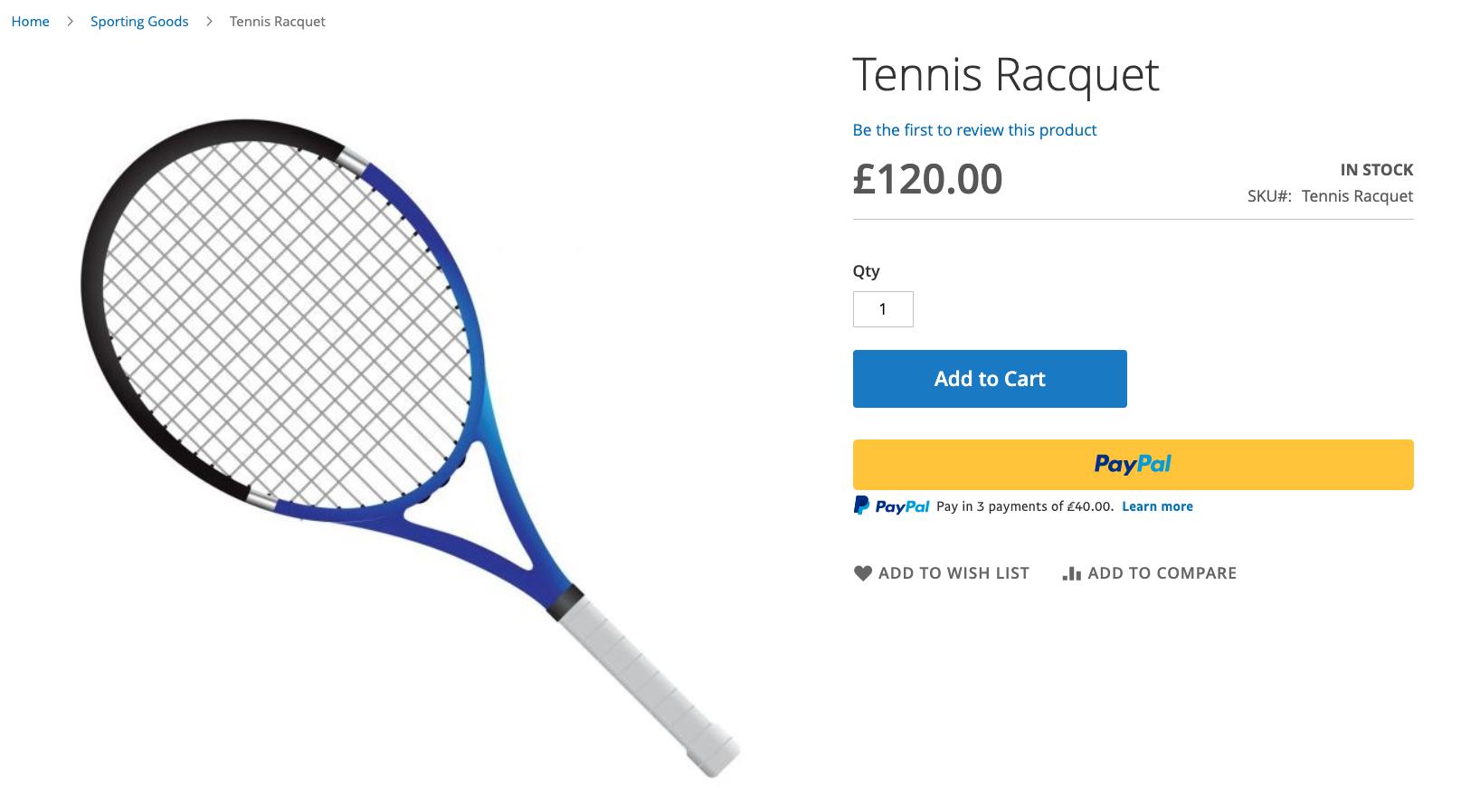
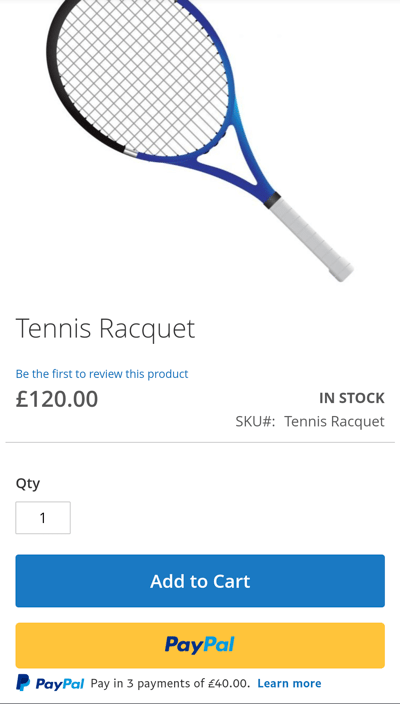
These are sample pages that have Pay Later messaging enabled for webpages and mobile devices.
Pay Later messaging on a webpage
Pay Later messaging on a mobile device
Enable the messaging and button
To enable the Pay Later messaging and button, complete the following:
Note: Make sure you have the Gene Commerce plugin activated.
Access the settings
-
Login to the Magento admin portal.
-
Go to Stores > Configuration.
-
Go to Sales > Payment Methods.
-
Select Configure next to Braintree Payments.
Configure the plugin
-
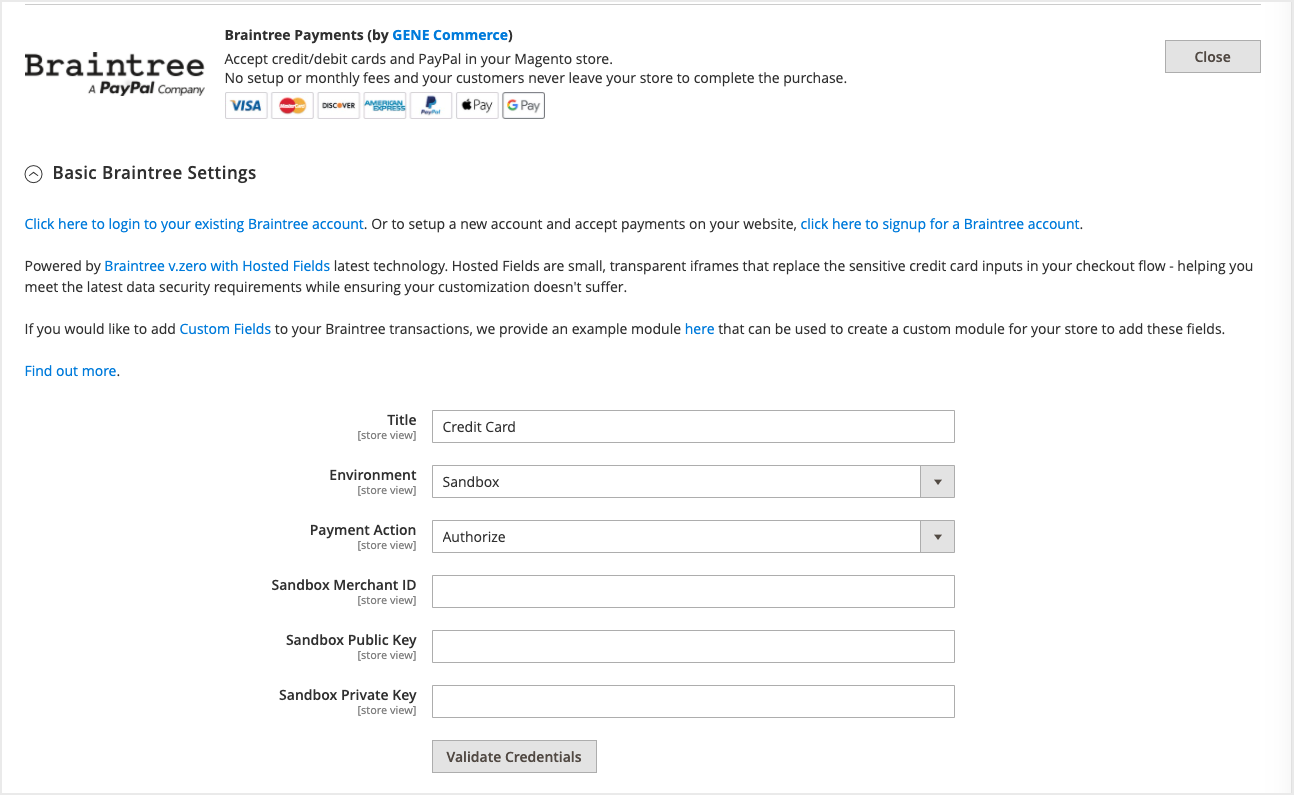
Title: When buyers enter their payment information (credit/debit card), the title is how the payment method listed is featured.
-
Environment: To test your plugin and settings, select Sandbox. To go live, select Production.
-
Payment Action: Choose between Authorize (authorize payment only, then delayed capture) or Intent Sale (immediate capture).
-
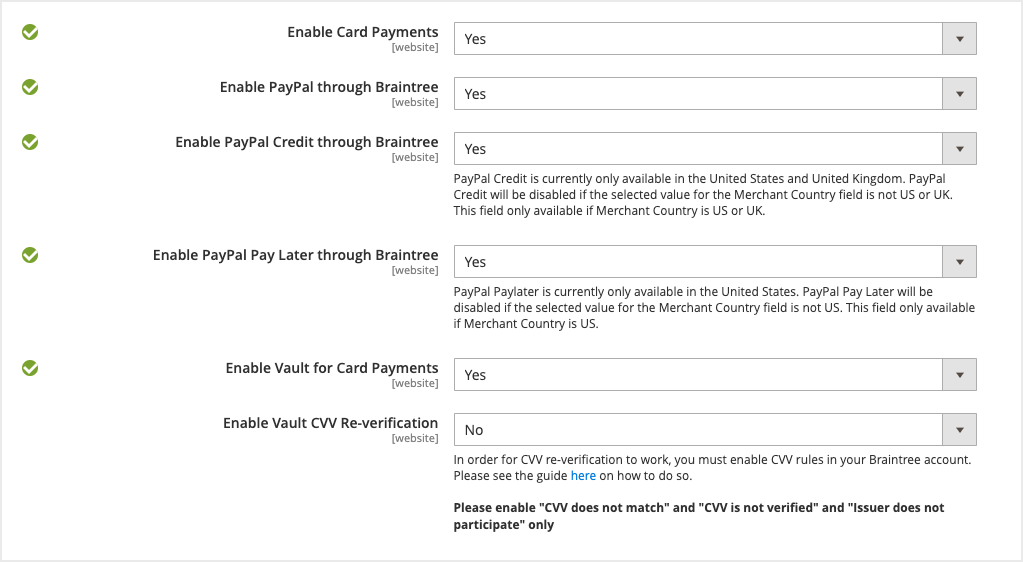
Enable Card Payments: Set to Yes to accept credit card payments through Braintree.
-
Enable PayPal through Braintree: Set to Yes to accept PayPal payments (including Pay Later) through Braintree.
-
Enable PayPal Credit through Braintree: Set to Yes to show the blue PayPal Credit button where eligible.
-
Enable PayPal Pay Later through Braintree: Set to Yes to accept Pay Later messaging in the UK.
-
Enable Vault for Card Payments: Set to Yes to vault credit card payment methods through Braintree.
-
Enable Vault CVV Re-verification: When using a vaulted method, require usage of CVV.
Note: Do you have your Braintree Credentials? Learn how to access your Merchant ID, public key, and private key.
Advanced Braintree settings
If you need to configure a Merchant Account ID, add that to Merchant Account ID.
Configure PayPal buttons
Go to PayPal through Braintree and change the Customise button to Yes. Customisable options include:
-
Shape and color
-
Location: Mini-cart and cart, checkout, or product page
Pay Later messaging
When Pay Later is set to Yes, messaging is enabled by default. It appears on the product pages, mini-cart and cart, and checkout pages.
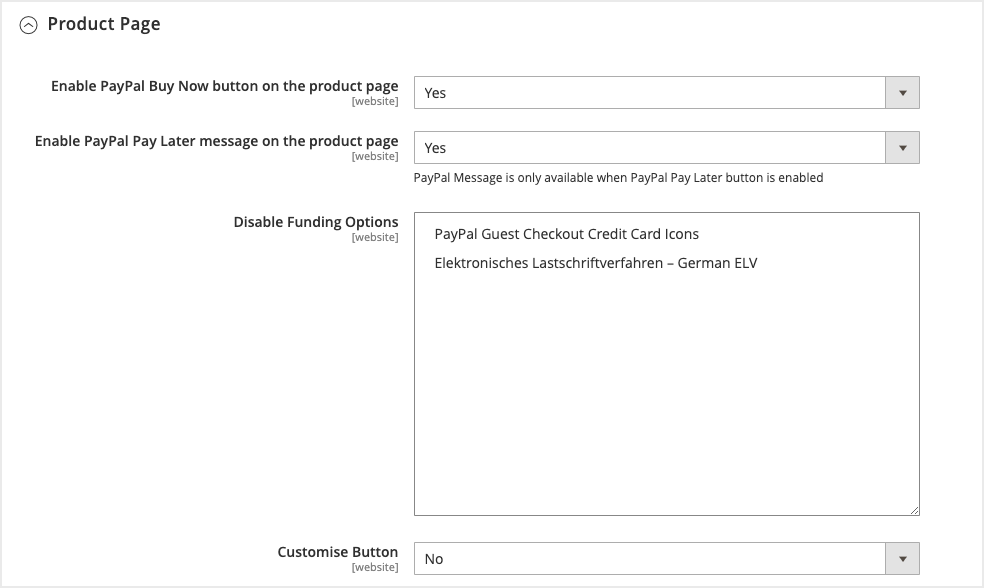
Messaging can be toggled on and off. To adjust this, go to PayPal through Braintree > Product Page / Mini-Cart & Cart / Checkout Page > Enable PayPal Pay Later message on product page.
See also
See the Magento documentation to learn about eligibility and technical specifications for Pay Later products through Braintree Payments.