If you accept cookies, we’ll use them to improve and customize your experience and enable our partners to show you personalized PayPal ads when you visit other sites. Manage cookies and learn more
Enable Pay Later messaging on Commerce Vision (Braintree)
Last updated: July 6, 2026
PayPal Pay Later (Pay in 4) is a short-term installment product that provides eligible PayPal customers the option to split purchases into 4 interest-free payments. Transactions must be between $1 - $1,999.99.
PayPal Pay in 4 is automatically available for eligible merchants with a PayPal payment integration.
Include Pay Later messaging on your Commerce Vision website if using PayPal through the pre-integrated Braintree gateway.
If your site uses Braintree Payments, you can inform your customers by adding PayPal Pay in 4 messaging throughout your website.
Before you begin, learn more about Pay Later offers.
To promote Pay in 4, you must be a PayPal merchant with an Australian-facing website.
Reference Transaction or Recurring Payment integrations are not eligible, as well as certain merchant categories (such as gambling or foreign exchange).
Please note that while this option provides messaging that can be displayed on your website to help promote this feature to your customers, no additional content, wording, marketing, or other materials should be created by you to encourage use of this product.
Pay in 4 messaging is only available for Commerce Vision version 4.31+ sites using the Braintree Payments gateway.
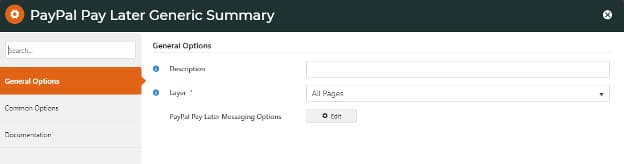
Generic – This version can be inserted into any page. Just add the PayPal Pay Later Generic Summary Widget to a page and enable it.
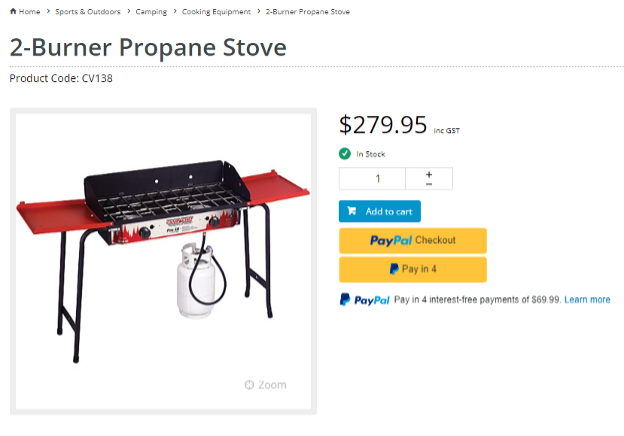
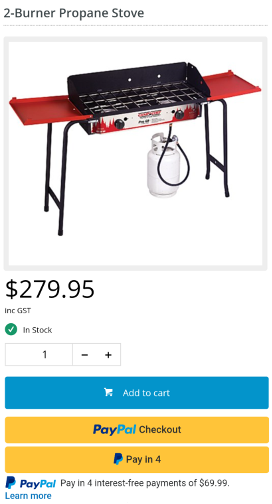
With installment amount – This version displays on the Product Detail and Cart pages, and the Cart Summary popup window. The messaging tells your customer the installment amount for the product being viewed or the cart total. It displays by default when Braintree PayPal and PayPal Express are both enabled.
The messaging for each page can be separately disabled. Just toggle off 'Pay Later message' on the Braintree tab in the controlling widget:
Customize the messaging style by selecting options for:
Layout (text or banner)
Background color
Logo type
Logo position
Text color, size and alignment.
Open the widget that controls the messaging.
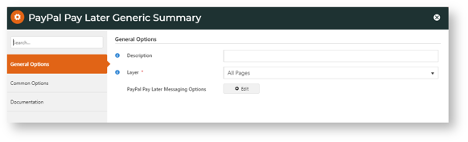
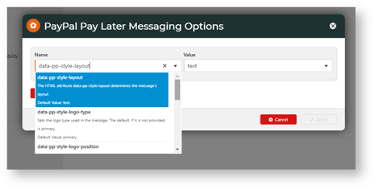
Click Edit next to PayPal Pay Later Messaging Options.
Note: To access PayPal Pay Later Messaging Options in widgets other than the PayPal Pay Later Generic Summary Widget, select the Braintree tab.
In the Name dropdown, select the option you want to change.
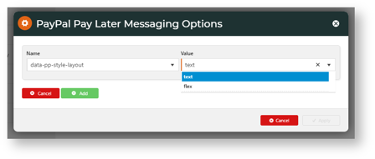
In Value, select the value for the option.
Select Add.
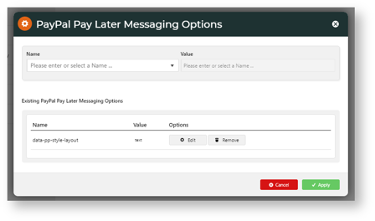
Repeat steps 2-4 for each option you want to set.
To save changes, select Apply.
Note: Not all docs require both Enable the messaging and Customize the messaging layout sections. If your platform has messaging automatically enabled, mention that and then add steps to customize the layout. If messaging is not automatically enabled, then call out steps to enable it and if applicable, add the second section to customize the messaging layout. If other information is needed, such as accessing settings, configuring plugins, advanced settings, button-specific information, etc., you can add ### subheads under the relevant ## section.