On this page
No Headings
Last updated: August 5, 2026
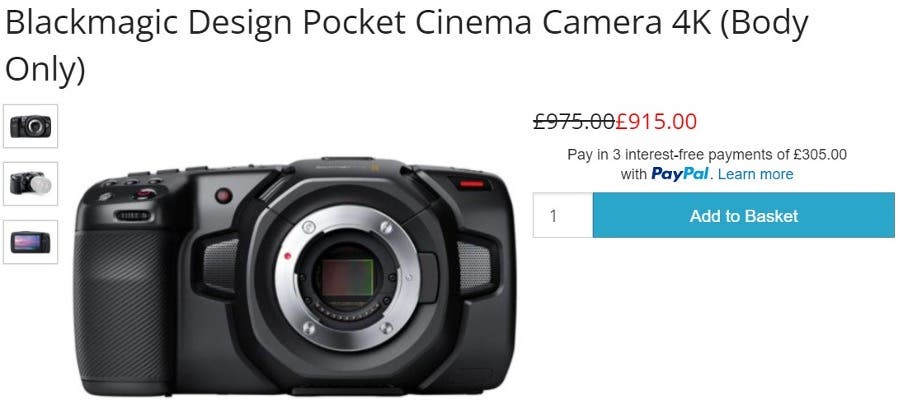
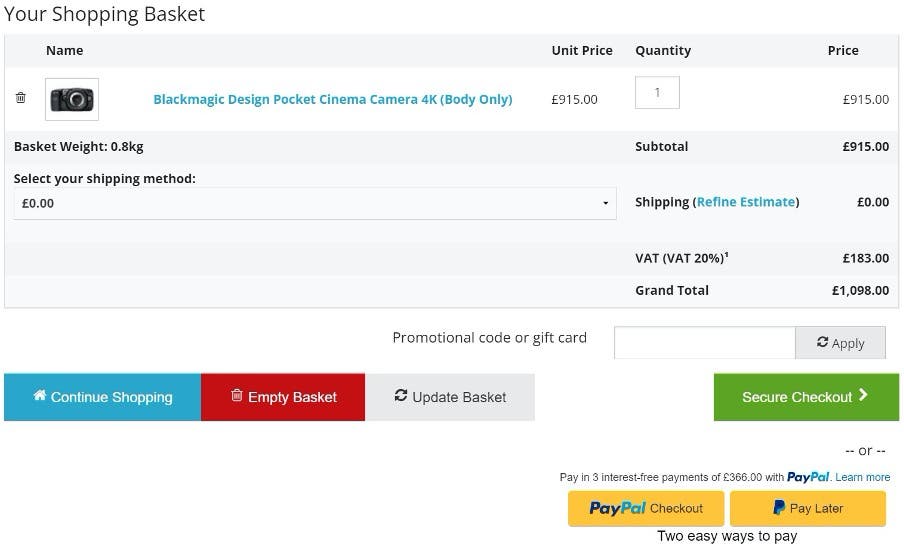
Promote PayPal Pay Later products using messaging on your CubeCart store.
PayPal offers short-term, interest-free payments that buyers can use to buy now and pay later. You get paid up-front.
Pay Later messaging includes Pay in 3, which UK buyers can use to pay for purchases of £20.00 to £3,000 in three, interest-free payments. It also includes Pay in 30 Days, which UK buyers can use to pay the full amount in 30 days with no interest or fees, for purchases of £1 to £900.
Note: PayPal Commerce requires CubeCart version 6. Please ensure the PayPal plugin is at least 1.5 for Pay Later products and messaging.
Find your PayPal Commerce plugin version on the CubeCart extensions page.
Select the lightning bolt symbol next to your version and copy the Auto Install/Upgrade Token.
Log in to your CubeCart v6 store admin panel.
Go to Manage Extensions to enter your token.
If you are a merchant already using the PayPal Commerce Platform you may not have Pay Later options or messaging if you are not on the latest version of the extension. We recommend upgrading to the latest version following the steps below. Once at the latest version the Pay Later button and messaging will be active by default.
Visit https://www.cubecart.com/extensions/plugins/paypal-commerce
Click the thunderbolt icon next to the latest version.
Copy the Auto Install/Upgrade Token to your clipboard.
Login to the admin side of your store and navigate to Manage Extensions.
Paste your token into the text field at the top of the page and click Go.
The extension will update automatically and page will reload.
On the list of installed extensions click on PayPal Commerce Platform to verify your settings.
Upgrading to the PayPal Commerce Platform from older integrations such as PayPal Standard is straightforward.
Find your PayPal Commerce extension version on the CubeCart extensions page.
Select the lightning bolt symbol next to your version and copy the Auto Install/Upgrade Token.
Log in to your CubeCart v6 store admin panel.
Go to Manage Extensions to enter your token.
From the list of installed extensions select PayPal Commerce Platform.
Click the PayPal branded Connect button and follow the instructions.
Once complete your older integrations will be automatically disabled and Pay Later is enabled by default.
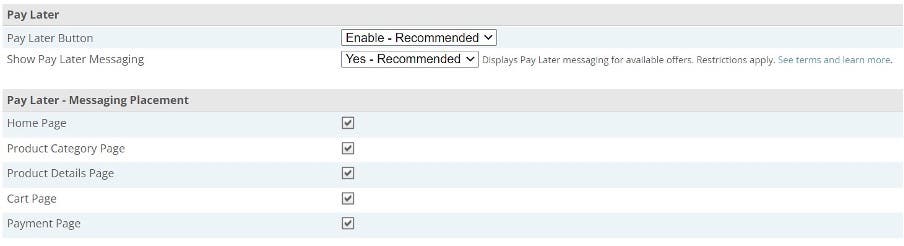
From the PayPal Commerce configuration page in the admin control panel of your store you can:
Enable or disable the Pay Later button.
Specify where you do and don't want messaging to display.
Configure the messaging style.
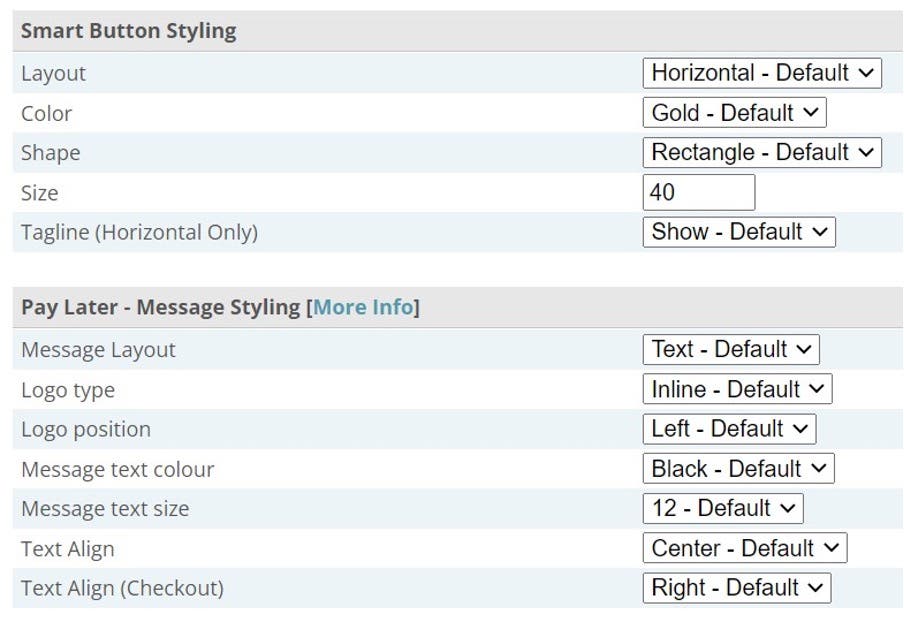
To customize the look and feel of the button and text please expand the Advanced Settings section.
Pay Later messaging is assigned to the page by specifying the DOM element it attaches on to. This is defined by the config.foundation.json file. To customize this please rename the file to config.custom.json or replace custom with the folder name of the skin in use. The DOM elements can be edited from within the JSON object.
Please ensure the PayPal extension is at least 1.5 for the best Pay Later products and messaging experience. If not please upgrade following the instructions in the previous section titled Enable PayPal Commerce Platform.
If in Live Mode, select Disconnect your PayPal account.
Open the modules/plugins/paypal_commerce/env.inc.php file. Change const ENV_SANDBOX = false to const ENV_SANDBOX = true.
Connect your PayPal sandbox account.
To switch back to live, repeat the first 3 steps and revert to true. Reconnect to your live account.