On this page
No Headings
Last updated: June 4, 2026
With App Switch, payers start a transaction by selecting PayPal as a payment method on the merchant app or on the merchant mobile website. They then switch to the PayPal app to approve the payment and return to the merchant to finish the transaction. App Switch streamlines the checkout process by allowing a payer to log in through app Long Lived Session (LLS), biometrics, and multi-factor authentication from the PayPal app to complete the purchase.
When App Switch isn't available, payers continue as is with their current checkout experience in the merchant app or mobile web.
This is a standalone API integration. The merchant manages the payer's interaction between their app or website and the PayPal app. The transaction flow depends on where the payer starts the transaction and how the merchant completes it after PayPal redirects the payer back from the PayPal app.
This App Switch integration is currently only supported for US merchants and buyers.
PAY_NOW flows and doesn't support "Continue" flows.Payers can initiate App Switch in a couple of ways:
When the payer takes an action in the PayPal app, PayPal returns the payer to the merchant in one of the following ways:
When the payer selects the PayPal button on your merchant's checkout page:
Avoid opting in for App Switch in the following situations:
Integrate App Switch into a native app or mobile website:
The payer starts the transaction in the merchant's native app and switches to the PayPal app to complete the payment. After completing the transaction, PayPal redirects the payer back to the merchant app.

app_switch_context, the payer starts in the native merchant app, switches to the PayPal app to complete the transaction, and is automatically redirected back to the merchant app.app_switch_context but the app switch to the PayPal app fails, the payer switches to their default browser, where the PayPal pay sheet loads. After completing the transaction, the payer returns to the merchant app.app_switch_context or PayPal sets app_switch_eligibility to false, the payer completes the transaction using the current checkout experience without switching to the PayPal app.For traffic from your merchant's native app, complete several checks before your merchant passes the app_switch_context parameter to PayPal.
Passing app_switch_context means your merchant is opting in to App Switch behavior.
app_switch_context parameter. In the following code, the app checks whether supported links are enabled for the Android app. This determines whether to opt in or out of App Switch behavior:// Kotlin
fun hasEnabledSupportedLinks(context: Context): Boolean {
val intent = Intent(Intent.ACTION_VIEW, app_link_return_uri).apply {
addCategory(Intent.CATEGORY_BROWSABLE)
}
val resolvedActivity = context.packageManager.resolveActivity(intent, PackageManager.MATCH_DEFAULT_ONLY)
return if (resolvedActivity?.activityInfo?.packageName == context.packageName) {
// Open Supported Links for my native app enabled
// i.e. can return to this app via AppLinks invoked by PayPal
// opt-in to app switch
true
} else {
// Open Supported Links for my native app disabled
// i.e. cannot return to this app via AppLinks invoked by PayPal
// opt-out from app switch
false
}
}Ensure the payer has the PayPal app installed on their mobile device. Enabling App Switch without this check prevents the switch to the PayPal app.Instead, the PayPal checkout experience opens in a browser, not within the merchant app. We recommend passing the app_switch_context parameter only if the PayPal app is installed.
Register the URL scheme in the Info.plist file. The following sample code checks if the PayPal app is installed on an iOS device. The following sample code checks if the PayPal app is installed on an iOS or Android device.
// Swift
public func isPayPalAppInstalled() -> Bool {
    guard let payPalURL = URL(string: "paypal-app-switch-checkout://") else {
      return false
    }
    return canOpenURL(payPalURL)
  }
Register the packageName in the AndroidManifest file. The following sample checks if the PayPal app is installed on the device.
// Kotlin
<manifest xmlns:android="http://schemas.android.com/apk/res/android">

    <queries>
        <package android:name="com.paypal.android.p2pmobile" />
    </queries>

...
</manifest>After completing the native app prerequisite checks and opting in to App Switch, create an order using the PayPal API.
Include the following parameters in the Create Order API request: payment_source.paypal and payment_source.paypal.experience_context
| Parameter | Description | Priority |
payment_source.paypal.email_address |
| Optional |
payment_source.paypal.experience_context.user_action |
| Mandatory |
PayPal expects the merchant to pass payment_source.paypal.experience_context.return_url and payment_source.paypal.experience_context.cancel_url:
return_url is the URL that tells PayPal where to send the payer after completing checkout on the PayPal app. Set the URL to the page where the payer selects the PayPal button. (Mandatory)cancel_url is the URL that tells PayPal where to send the payer when the payer cancels or doesn't complete the transaction on the PayPal app. Set the URL to the page where the payer should be redirected when they cancel the transaction. (Mandatory)| Use | Mandatory requirements |
| Merchant native apps |
|
PayPal considers passing payment_source.paypal.experience_context.app_switch_context as the merchant opting in to App Switch.
Native app parameters
If a payer starts from the merchant native app, use payment_source.paypal.experience_context.app_switch_context.native_app.
| Field | Requirement | Prority |
os_type |
| Mandatory |
os_version |
| Optional |
app_url |
| Mandatory |
The following code sample shows how to derive the payer's os_type and os_version needed to include in the Create Order API request.
function parseMobileOS(userAgent) {
  const os = {
    name: "Unknown",
    version: "Unknown"
  };

  const osPatterns = [
    // iOS
    { regex: /iPhone|iPad|iPod.*OS (\d+[_\.]\d+)/, name: "iOS", versionIndex: 1 },

    // Android
    { regex: /Android (\d+\.\d+)/, name: "Android", versionIndex: 1 },

    // Windows Phone (older devices)
    { regex: /Windows Phone (\d+\.\d+)/, name: "Windows Phone", versionIndex: 1 },

    // Windows 10 Mobile
    { regex: /Windows NT 10.0.*Mobile/, name: "Windows 10 Mobile", version: "10" },

    // Other mobile OS
    { regex: /Linux.*(Ubuntu)/, name: "Ubuntu", version: "Unknown" },
    { regex: /Linux/, name: "Linux", version: "Unknown" }
  ];

  for (const pattern of osPatterns) {
    const match = userAgent.match(pattern.regex);
    if (match) {
      os.name = pattern.name;
      if (pattern.version) {
        os.version = pattern.version;
      } else if (pattern.versionIndex && match[pattern.versionIndex]) {
        os.version = match[pattern.versionIndex].replace("_", ".");
      }
      break;  // Once we match, no need to check further
    }
  }

  return os;
}

// Example usage:
const userAgent = navigator.userAgent;  // Automatically gets the user's device info
const os = parseMobileOS(userAgent);
console.log(`OS: ${os.name}, Version: ${os.version}`);
The following sample code shows a create order request with App Switch opt-in for a merchant native app.
curl -v -X POST https://api-m.sandbox.paypal.com/v2/checkout/orders \
-H 'Content-Type: application/json' \
-H 'PayPal-Request-Id: 7b92603e-77ed-4896-8e78-5dea2050476a' \
-H 'Authorization: Bearer 6V7rbVwmlM1gFZKW_8QtzWXqpcwQ6T5vhEGYNJDAAdn3paCgRpdeMdVYmWzgbKSsECednupJ3Zx5Xd-g' \
-d '{
    "intent": "CAPTURE",
    "payment_source": {
        "paypal": {
            "email_address": "customer@example.com",
            "experience_context": {
                "user_action": "PAY_NOW",
                "return_url": "app://xo/234?clientStatus=success",
                "cancel_url": "app://xo/234?clientStatus=cancel",
                "app_switch_context": {
                  "native_app":{
                      "os_type": "IOS",
                      "os_version": "17.3.1",
                      "app_url": "https://example.com/merchant_app_universal_link"
                  }
              }
            }
        }
    },
    "purchase_units": [
        {
            "amount": {
                "currency_code": "USD",
                "value": "64.00"
            }
        }
    ]
}'In the Create Order response, the app_switch_eligibility flag is set to true. This flag indicates that the information in the Create Order request is correct, and that PayPal has found the payer eligible. Your merchant should attempt to App Switch.
app_switch_eligibility = true does not guarantee that the payer will switch to the PayPal app. It only indicates that PayPal requests your merchant to attempt App Switch for the payer.
{
    "id": "11D37583KV396803L",
    "intent": "CAPTURE",
    "status": "PAYER_ACTION_REQUIRED",
    "payment_source": {
        "paypal": {
            "email_address": "customer@example.com",
            "app_switch_eligibility": true
        }
    },
    "purchase_units": [
        {
            "reference_id": "default",
            "amount": {
                "currency_code": "USD",
                "value": "64.00"
            },
            "payee": {
                "email_address": "test@business.example.com",
                "merchant_id": "CME27DCHYSLEL"
            }
        }
    ],
    "payer": {
        "email_address": "customer@example.com"
    },
    "links": [
        {
            "href": "https://api.sandbox.paypal.com/v2/checkout/orders/11D37583KV396803L",
            "rel": "self",
            "method": "GET"
        },
        {
            "href": "https://www.paypal.com/app-switch-checkout?token=11D37583KV396803L",
            "rel": "payer-action",
            "method": "GET"
        }
    ]
}In the GET order response, PayPal passes the app_switch_eligibility flag.
If the payer cancels the transaction in the PayPal app before approval, the GET order response includes a cancellation status, indicated by experience_status = CANCELED. Use this information to control the cancel flow and determine what to display when the payer cancels PayPal checkout before approval.
The experience_status flag indicates the current state of the PayPal checkout. It does not replace the order status, but helps identify if the payer canceled the checkout process at any point.
PayPal returns this information in the GET /v2/checkout/orders/:order_id API response after payer cancellation.
The following code sample shows a canceled transaction.
"payment_source": {
        "paypal": {
            "email_address": "customer@example.com",
            "app_switch_eligibility": true,
            "experience_status":  "CANCELED"
        }
}If the merchant opts in to App Switch and passes the app_switch_context, and the PayPal app is installed with app_switch_eligibility = true, the merchant should attempt to switch to the PayPal app.
The following code sample shows how to make the switch.
// Swift
UIApplication.shared.open(url, options: [:], completionHandler: nil)
If the OS cannot open the PayPal app or the app is not installed, the URL can open in a browser. The following sample code shows how to handle this scenario.
// Kotlin
fun launchUrl(context: Context, url: Uri, launchAsNewTask: Boolean) {
    try {
        val customTabsIntent: CustomTabsIntent = CustomTabsIntent.Builder().build()
        if (launchAsNewTask) {
            customTabsIntent.intent.addFlags(Intent.FLAG_ACTIVITY_NEW_TASK)
        }
        customTabsIntent.launchUrl(context, url)
    } catch (e: ActivityNotFoundException) {
        if (hasEnabledSupportedLinks(context)) {
            val intent = Intent(Intent.ACTION_VIEW).apply {
                    data = url
                }
            startActivity(intent)
        } else {
            // Cannot switch to PayPal app, cannot open fallback into custom tabs, cannot return from browser
            // Gracefully handle error
        }
    }
}
See the following sample code to handle the return to the merchant app.
override fun onNewIntent(intent: Intent) {
    super.onNewIntent(intent)

}
Add a Custom Tabs dependency to your build.gradle file if needed.
// kotlin
dependencies {
...
  implementation("androidx.browser:browser:1.8.0")
...
}
If the merchant opts in to App Switch, passes the app_switch_context, and PayPal returns app_switch_eligibility = false, the merchant can open checkout in the native app so the payer can complete the transaction. Handle this the same way as the existing non-App Switch integration.
If the payer manually navigates back to the merchant app without taking action in the PayPal app, or if they leave the PayPal app, the merchant should be prepared to handle these situations appropriately.
The following code samples show how to open the checkout experience in the merchant's native app.
// Swift
DispatchQueue.main.async {
	let callbackURLScheme = //your app scheme
    let webAuthSession = ASWebAuthenticationSession(url: url, callbackURLScheme: callbackURLScheme) { [weak self] callbackURL, error in
        DispatchQueue.main.async {
            if let callbackURL  {
              // handle return
            } else if let error {
              // error returned, can be cancel or an error
            }
        }
    }
    session.presentationContextProvider = self
    session.start()
}When a payer uses a mobile browser to access the merchant's website and switches to the PayPal app to complete the transaction, the app redirects them to the merchant's site or requires them to return manually.
Create an order using the PayPal API after completing the native app prerequisites.
Include the following parameters in the Create Order API request: payment_source.paypal and payment_source.paypal.experience_context
| Parameter | Description | Priority |
payment_source.paypal.email_address |
| Optional |
payment_source.paypal.experience_context.user_action |
| Mandatory |
PayPal expects the merchant to pass payment_source.paypal.experience_context.return_url and payment_source.paypal.experience_context.cancel_url:
return_url is the URL that tells PayPal where to send the payer after completing checkout on the PayPal app. Set the URL to the page where the payer selects the PayPal button. (Mandatory)cancel_url is the URL that tells PayPal where to send the payer when the payer cancels or doesn't complete the transaction on the PayPal app. Set the URL to the page where the payer should be redirected when they cancel the transaction. (Mandatory)| Use | Mandatory requirements |
| Merchant mobile website |
|
PayPal considers passing payment_source.paypal.experience_context.app_switch_context as the merchant opting in to App Switch.
Mobile web parameters
If a payer starts from the merchant mobile webite, use payment_source.paypal.experience_context.app_switch_context.mobile_web.
| Field | Requirement | Prority |
buyer_user_agent |
| Mandatory |
return_flow | The return_flow field defines how payers return to the merchant's website after approving a transaction in the PayPal app. For transactions that start on the merchant's website in a mobile browser, the return experience to the merchant's site depends on the merchant's preferences and technical setup.Accepted Values:
| Mandatory |
See the following create order request with App Switch opt-in for a merchant mobile website.
curl -v -X POST https://api-m.sandbox.paypal.com/v2/checkout/orders \
-H 'Content-Type: application/json' \
-H 'PayPal-Request-Id: 7b92603e-77ed-4896-8e78-5dea2050476a' \
-H 'Authorization: Bearer 6V7rbVwmlM1gFZKW_8QtzWXqpcwQ6T5vhEGYNJDAAdn3paCgRpdeMdVYmWzgbKSsECednupJ3Zx5Xd-g' \
-d '{
    "intent": "CAPTURE",
    "payment_source": {
        "paypal": {
            "email_address": "customer@example.com",
            "experience_context": {
                "user_action": "PAY_NOW",
                "return_url": "https://example.com/checkout",
                "cancel_url": "https://example.com/checkout",
                "app_switch_context": {
                    "mobile_web":{
                     "return_flow": "AUTO" or "MANUAL",
                     "buyer_user_agent": "Mozilla/5.0 (iPhone; CPU iPhone OS 16_4_1 like Mac OS X) AppleWebKit/605.1.15 (KHTML, like Gecko) Version/16.4 Mobile/15E148 Safari/604.1"
                   }
                }
            }
        }
    },
    "purchase_units": [
        {
            "amount": {
                "currency_code": "USD",
                "value": "64.00"
            }
        }
    ]
}'In the Create Order response, the app_switch_eligibility flag is set to true. This flag indicates that the information in the Create Order request is correct, and that PayPal has found the payer eligible and is attempting to use App Switch.
app_switch_eligibility = true does not guarantee that the payer will successfully switch to the PayPal app. It only indicates that PayPal is attempting App Switch for the payer. PayPal returns the payer_id in the response when a payer approves a transaction.
{
    "id": "11D37583KV396803L",
    "intent": "CAPTURE",
    "status": "PAYER_ACTION_REQUIRED",
    "payment_source": {
        "paypal": {
            "email_address": "customer@example.com",
            "app_switch_eligibility": true
        }
    },
    "purchase_units": [
        {
            "reference_id": "default",
            "amount": {
                "currency_code": "USD",
                "value": "64.00"
            },
            "payee": {
                "email_address": "test@business.example.com",
                "merchant_id": "CME27DCHYSLEL"
            }
        }
    ],
    "payer": {
        "email_address": "customer@example.com"
    },
    "links": [
        {
            "href": "https://api.sandbox.paypal.com/v2/checkout/orders/11D37583KV396803L",
            "rel": "self",
            "method": "GET"
        },
        {
            "href": "https://www.sandbox.paypal.com/checkoutnow?token=11D37583KV396803L",
            "rel": "payer-action",
            "method": "GET"
        }
    ]
}In the GET order response, PayPal passes the app_switch_eligibility flag.
If the payer cancels the transaction in the PayPal app before approval, the GET order response includes a cancellation status, indicated by experience_status = CANCELED. Use this information to control the cancel flow and determine what to display when the payer cancels PayPal checkout before approval. This is relevant when return_flow is set to MANUAL.
The experience_status flag indicates the current state of the PayPal checkout. It does not replace the order status, but helps identify if the payer canceled the checkout process at any point.
PayPal returns this information in the GET /v2/checkout/orders/:order_id API response after payer cancellation.
The following code sample shows a canceled transaction.
"payment_source": {
        "paypal": {
            "email_address": "customer@example.com",
            "app_switch_eligibility": true,
            "experience_status":  "CANCELED"
        }
}The payer's App Switch experience may vary based on the device OS, the default browser, the merchant's preferred return flow, and where the merchant website is hosted.
There are technical constraints related to the OS:
Review the following table to see how App Switch works in different settings. Use this information to verify the integration during testing and identify situations that require handling a fallback.
| Platform | Browser | Mode | Availability | Notes |
|---|---|---|---|---|
| iOS | Safari | Default browser | ||
| iOS | Safari | Private | ||
| iOS | Safari | Not default | App Switch redirects to the default browser | |
| iOS | Chrome | Default browser | App Switch redirects to a new tab in the same browser | |
| Android | Chrome | Default browser | ||
| Android | Chrome | Incognito | Fallback experience | |
| Android | Chrome | Not default | App Switch redirects in the default browser | |
| Android | Firefox or other | Default | App Switch redirects to a new tab in the same browser |
When the return_flow value is set to AUTO and the payer completes or cancels the transaction in the PayPal app, PayPal automatically redirects the payer back to the merchant website using the return_url or cancel_url.
To handle the payer's return and account for these scenarios, the merchant needs to implement the following:
App Switch from a native default browser
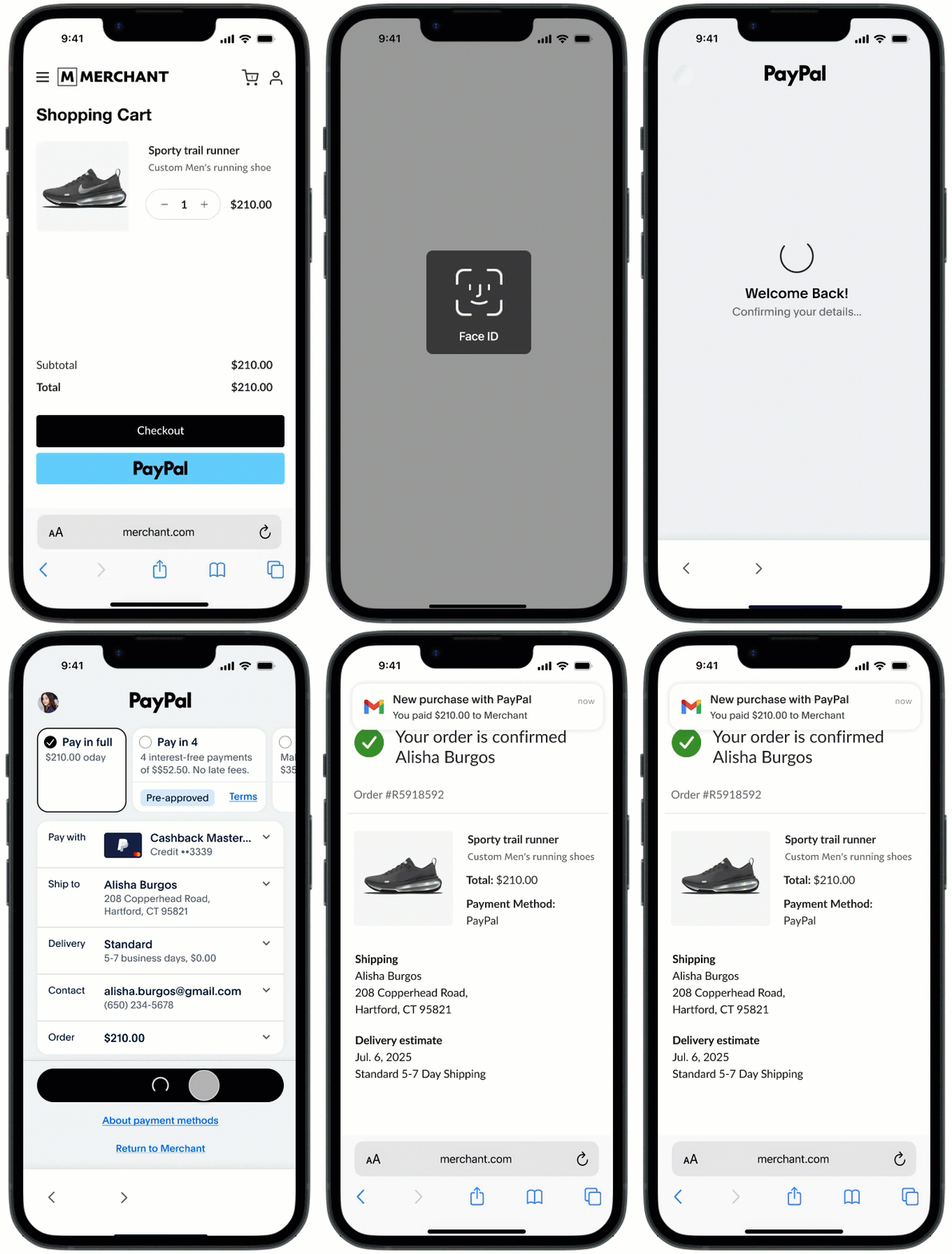
visibilitychange event listener to handle scenarios where the payer abandons the checkout.The following sample client-side code handles this request.
document.addEventListener('hashchange', (e) => {
	const params = parseHashParams(window.location.hash);
	if(params.approved) {
		// Buyer is returning from app switch with an approved order
		// Verify the order approval, complete payment
		// & redirect to confirmation page to complete flow
	} else if (params.canceled) {
		// Buyer canceled PayPal app switch
	}
})
App Switch from a non-default browser
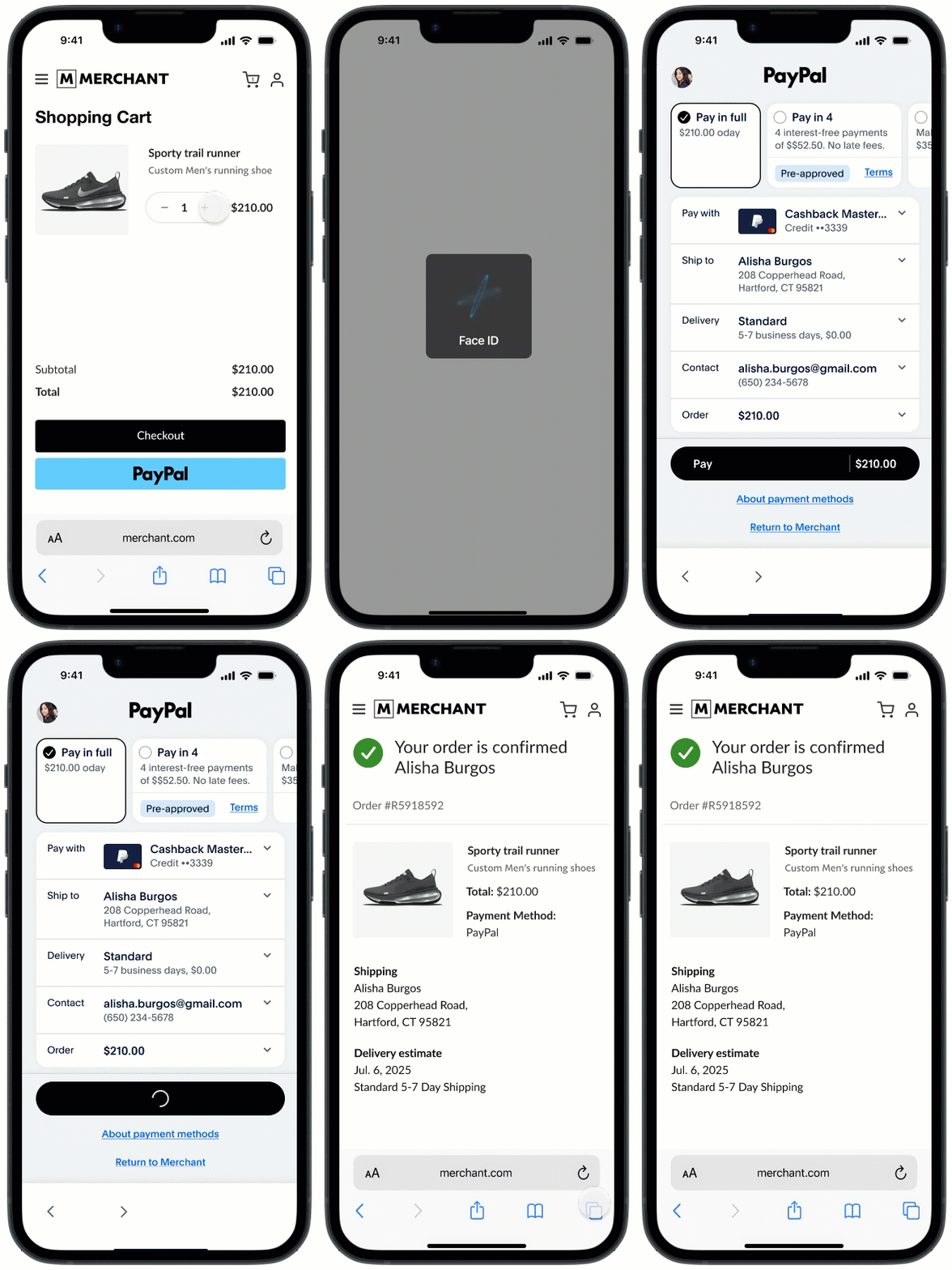
When a payer starts checkout on the merchant website in a browser, such as Safari on iOS, but has Chrome set as the default browser, PayPal redirects the payer back to the merchant's website in Chrome after they complete or cancel the transaction.
Use the visibilitychange event listener to handle cases when the payer abandons checkout.
In this scenario, the payer starts checkout in a non-default browser, completes an action in the PayPal app, and returns to the default browser. Because browsers do not share cookies, use the token that PayPal returns to look up the order, or include the original cart ID in the checkout URL to keep the session and complete the payment.
The PayPal app sends order approval or cancellation details as URL parameters during the redirect. Client-side code can read these parameters, but server-side routes cannot. When a transaction is approved, PayPal also returns payer_id as a URL parameter during the redirect.
The following code handles the redirects and processes approval data from the URL parameters on the client side.
const onLoadHash = () => {
	const hashParams = parseHashParams(window.location.hash);

	if (hashParams.approved) {
		// Buyer is returning from app switch
		// Complete payment & redirect to confirmation page
	} else if (hashParams.canceled) {
		// Buyer has canceled app switch and returned
	} else {
		// No hash params, display standard checkout page
	}
}
onLoadHash()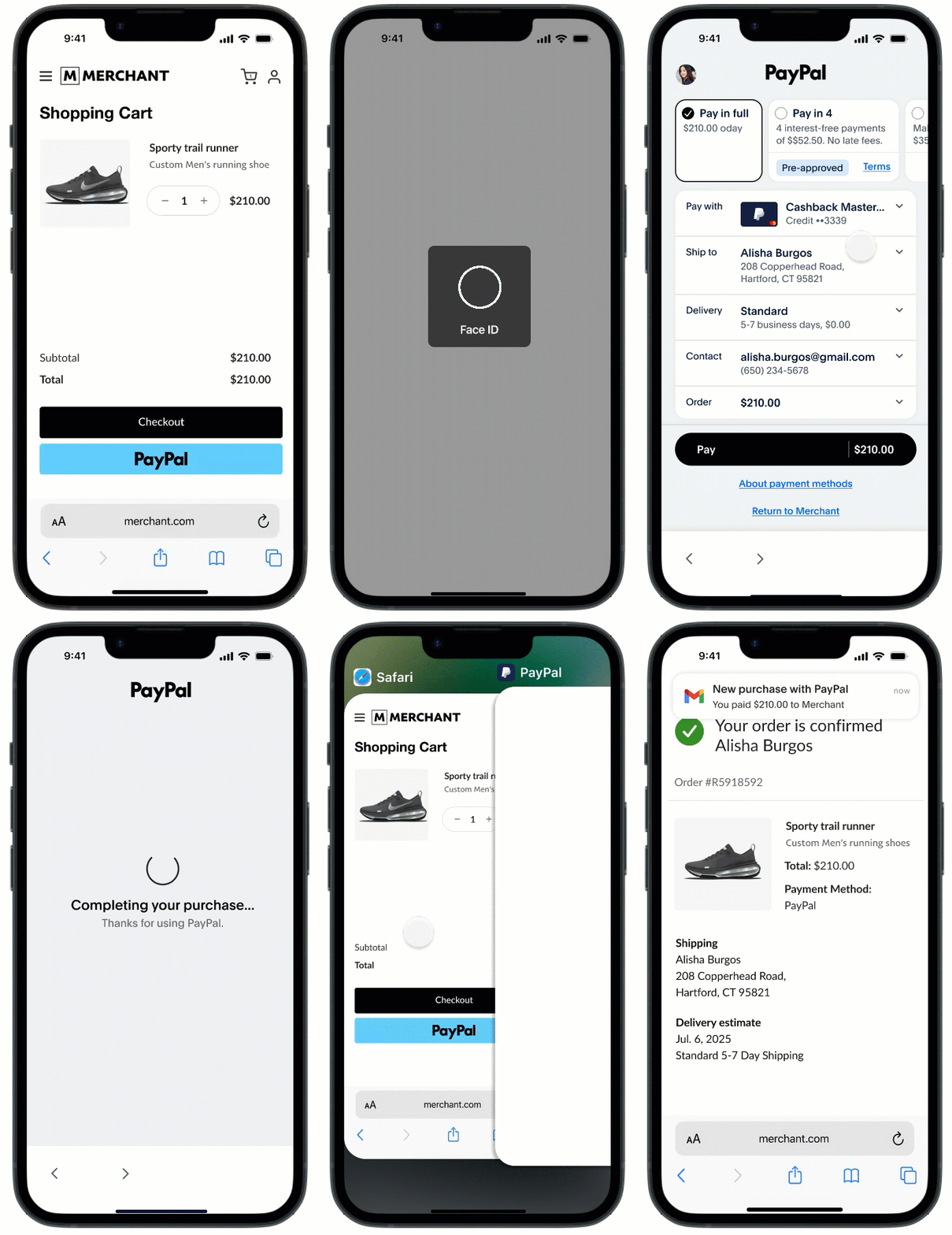
When the return_flow value is set to MANUAL and the payer completes or cancels the transaction in the PayPal app, the app prompts the payer to manually return to the merchant website.
Use the visibilitychange event listener to detect when the payer returns to the merchant website.
For additional visibility into payer actions in the PayPal app, check the experience_status in the GET order response.
Once the transaction is approved, PayPal removes experience_status from the GET order response.
visibilitychange event listener also handles scenarios where the payer abandons checkout and the return_flow value is AUTO.The following sample code shows how to handle the visibilitychange event listener.
document.addEventListener('visibilitychange', (e) => {
	// call your server API to make a request to PayPal to get the order status and buyer cancellation status (if applicable)

	//If #change event was triggered then cancel this event (to avoid multiple payment/order calls from both the listeners)
    const hashParams = parseHashParams(window.location.hash);
	if (hashParams.approved || hashParams.cancelled) {
		//Wil be handled by hashChange. Exit
		return;
	}

	const orderResponse = getOrderResponse(orderId);
	const orderStatus = orderResponse.status;
	const cancelledActivity = orderResponse?.payment_source?.paypal?.experience_status;

	//Order Approved
	if (orderStatus === 'approved') {
		// Capture payment & redirect to confirmation page
	}

	//Buyer cancels transaction
	else if (orderStatus !== 'approved' && cancelledActivity == 'cancelled') {
		// Buyer app switched to paypal but closed checkout before approving the transaction.
		// Display Cart page again or take the appropriate "cancel" action
	}

	else {
		// Display a modal to complete payment on the PayPal App
	}
});Your merchant can test this feature in both the PayPal production app and sandbox environments. To test App Switch, make sure your merchant's integration meets these requirements:
This solution is available for your merchant's development team internationally.
| Flow | Scenario | Expected behavior |
| Native app | The user starts from the merchant's native app. | The user switches to the PayPal app and, after completing the checkout flow, is automatically redirected back to the merchant app. |
| Mobile web | The user starts from the native default browser, such as Safari on iOS or Chrome on Android. The user has the PayPal app installed. The merchant sets return_flow to AUTO. | The user switches to the PayPal app and, after completing the checkout flow, is automatically redirected back to the merchant website in the same browser tab. |
| Mobile web | The user starts from a non-native default browser, such as Chrome on iOS or Firefox on Android. The user has the PayPal app installed. The merchant sets return_flow to AUTO. | The user switches to the PayPal app and, after completing the checkout flow, is automatically redirected back to the merchant website in the default browser. |
| Mobile web | The merchant sets return_flow to MANUAL. The user has the PayPal app installed. | The user switches to the PayPal app and, after completing the checkout flow, the app prompts the payer to manually navigate back to the merchant website. |
| Mobile web | The user does not have the PayPal app installed, but the merchant has opted in for App Switch. | The user does not switch to the PayPal app and completes checkout using the existing non-App Switch API integration. |
| Native app and mobile web | After App Switch, the user changes the payment method on the pay sheet and completes the flow. | The user completes checkout with the new payment method they selected. |
| Native app and mobile web | After logging in, the user cancels the operation on the pay sheet screen in the PayPal app | The user is switched back to the merchant browser or merchant app after canceling the checkout flow. |
| Native app and mobile web | The user adds a new card. | When the user selects Add Card, they are prompted to log in again. After logging in, the new card form appears. Once the new card is added, the user can proceed with checkout. |
If you have the production version of the PayPal app installed, you will get a prompt stating that you already have the app installed. Select Install to replace it with the TestFlight build.
Select the Download App Tester button to ensure you receive notifications when new versions of the sandbox app are available.
After you complete the integration, contact your PayPal support team to enable App Switch for production traffic.