Pay with Apple Pay integration
Last updated: Feb 27th, 8:40am
Important: : You must be an approved partner to use this integration.
Know before you code
- If you are a new merchant, sign up for a PayPal business account.
- Complete Get started to set up your PayPal account, client ID, and sandbox emails for testing.
- Complete a standard PayPal checkout integration.
1. Add Apple Pay button
Render the Apple Pay button on your website by adding the PayPal JavaScript SDK code to your product and checkout pages.
Determine where the SDK should render the Apple Pay button. You can control the presentment of the button using configuration attributes.
Note: See the best practices section to learn how toneffectively present Apple Pay throughout your site.
1<!-- Set up a container element for the button -->2 <div id="paypal-button-container">3 </div>4 <!-- Include the PayPal JavaScript SDK. Replace `YOUR_CLIENT_ID` with your client ID.-->5 <!-- Note that `merchant-id` is added as a query parameter -->6 <script src="https://www.paypal.com/sdk/js?client-id=YOUR_CLIENT_ID&merchant-id=YOUR_MERCHANTS_ID"></script>7 <script>8 // Render the Apple Pay button into #paypal-button-container9 paypal.Buttons().render('#paypal-button-container')10 </script>
2. Implement onShippingAddressChange handler
The onShippingAddressChange callback extends your Checkout integration. While the buyer is on the PayPal site, you can update the contents of their shopping cart to reflect the shipping address they chose on PayPal. This step is required for Apple Pay Integration.
You can also use the callback to:
- Validate that you support the shipping address.
- Update shipping costs.
- Change the line items in the cart.
- Inform the buyer that you do not support their shipping address.
To integrate the callback, pass the
onShippingAddressChange function to your
paypal.Buttons component. For example:
1paypal.Buttons({2 onShippingAddressChange(data, actions) {3 // ...4 }5}).render('#paypal-button-container');
PayPal calls your onShippingAddressChange function when the buyer
changes the:
- payment method
- shipping address
- billing address
PayPal provides the following parameters to your
onShippingAddressChange function for Apple Pay:
-
data: An object containing the buyer’s shipping address. Consists of the following properties:-
errors: Errors to display to the user.-
ADDRESS_ERROR: "Your order can't be shipped to this address." -
COUNTRY_ERROR: "Your order can't be shipped to this country." -
STATE_ERROR: "Your order can't be shipped to this state." -
ZIP_ERROR: "Your order can't be shipped to this zip."
-
orderID: An ID that represents an order.paymentID: An ID that represents a payment.-
paymentToken: An ID/token that represents a resource. -
shippingAddress: The buyer's selected city, state, country, and postal code.city: Shipping address city.countryCode: Shipping address country.-
postalCode: Shipping address ZIP code or postal code. state: Shipping address state or province.
-
-
actions: An object containing a method to interact with PayPal Checkout. Consists of the following property:-
reject: Indicates to PayPal that you will not support the shipping address provided by the buyer.
-
Examples
-
This example shows not supporting international transactions using
actions.reject():
1paypal.Buttons({2 onShippingAddressChange(data, actions) {3 if (data.shippingAddress.countryCode !== 'US') {4 return actions.reject(data.errors.COUNTRY_ERROR);5 }6 }7}).render('#paypal-button-container');
3. Implement onShippingOptionsChange handler
The onShippingOptionsChange callback extends your Checkout integration. While the buyer is on the PayPal site, you can update the contents of their shopping cart to reflect the shipping option they chose on PayPal. This step is required for Apple Pay Integration.
You can also use the callback to:
- Validate that you support the shipping method.
- Update shipping costs.
- Change the line items in the cart.
- Inform the buyer that you do not support their shipping method.
To integrate the callback, pass the
onShippingOptionsChange function to your
paypal.Buttons component. For example:
1paypal.Buttons({2 onShippingOptionsChange(data, actions) {3 // ...4 }5}).render('#paypal-button-container');
PayPal calls your onShippingOptionsChange function when the buyer
changes the shipping method.
PayPal provides the following parameters to your
onShippingOptionsChange function for Apple Pay:
-
data: An object containing the buyer’s selected shipping option. Consists of the following properties:-
errors: Errors to display to the user.-
METHOD_UNAVAILABLE: "The shipping method you chose is unavailable. To continue, choose another way to get your order." -
STORE_UNAVAILABLE: "Part of your order isn't available at this store."
-
orderID: An ID that represents an order.paymentID: An ID that represents a payment.-
paymentToken: An ID/token that represents a resource. -
selectedShippingOption: Shipping option selected by the buyer.id: Custom shipping method ID.label: Custom shipping method label.-
selected: Set totrueby PayPal when selected by the buyer. -
type: Shipping method type (SHIPPINGorPICKUP). -
amount: Additional cost for this method.-
currencyCode: ISO currency code (for example,USD). -
value: String-formatted decimal format (for example,1.00).
-
-
-
actions: An object containing a method to interact with PayPal Checkout. Consists of the following property:-
reject: Indicates to PayPal that you will not support the shipping method selected by the buyer.
-
Examples
-
This example shows not supporting store pickup using
actions.reject():
1paypal.Buttons({2 onShippingOptionsChange(data, actions) {3 if (data.selectedShippingOption.type === 'PICKUP') {4 return actions.reject(data.errors.STORE_UNAVAILABLE);5 }6 }7}).render('#paypal-button-container');
Step result
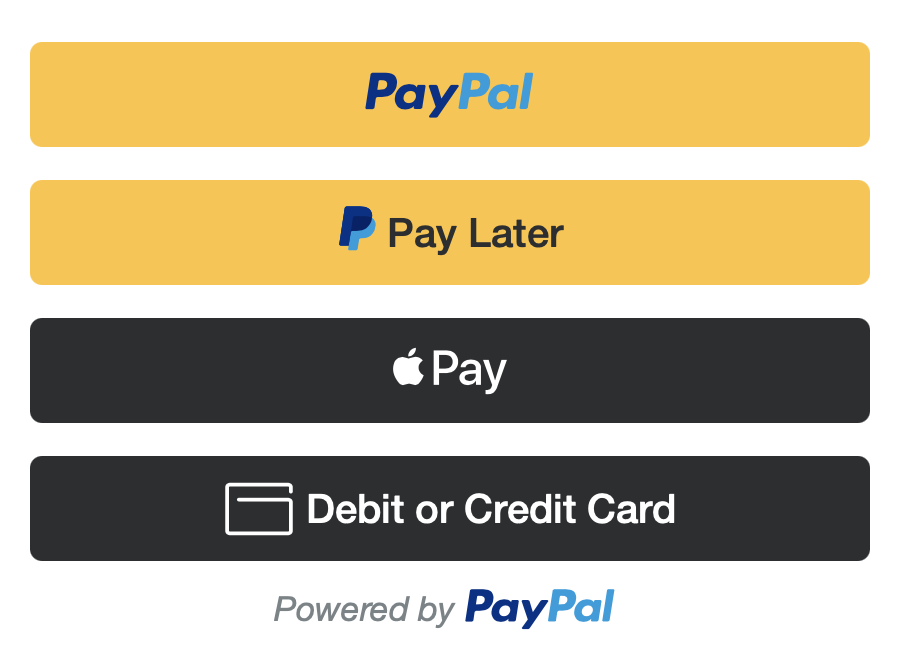
Test your integration
Ensure your integration with Apple Pay is configured properly for Sandbox and Live environments.
Sandbox
Use your personal sandbox login information during the checkout flow to
complete a Apple Pay transaction and then log into the sandbox site,
sandbox.paypal.com, to see the money move out of your account.
- Open your test page with iOS Safari or Desktop Safari.
- Tap the Apple Pay button to open a popup with the Apple Pay paysheet.
- Proceed with the Apple Pay checkout transaction.
- If you have an additional confirmation page on your merchant website, continue to confirm the payment.
- Log in to your merchant account and confirm the money you used to pay moved into that account.
Live
Pay with Apple Pay is a mobile and desktop experience. You can test your page on an iOS device or the Safari browser on your desktop or laptop.
Use your personal production login information during the checkout flow to
complete a Apple Pay transaction and then log into the production site,
paypal.com, to see the money move out of your account.
When making a live test purchase, consider:
- The business account receiving money can’t also make the purchase.
- If you create a personal account with the same information as the business account, those accounts might experience restrictions.
- Open your test page with iOS Safari or Desktop Safari.
- Tap the Apple Pay button to open a popup with the Apple Pay paysheet.
- Proceed with the Apple Pay checkout transaction.
- If you have an additional confirmation page on your merchant website, continue to confirm the payment.
- Log in to your merchant account and confirm the money you used to pay moved into that account.
Troubleshoot your integration
Validate that there are no browser console warnings or errors. The JavaScript SDK configuration attributes have distinct validation checks for input formatting and values to ensure validity.
If the validation fails, the web browser's developer console displays warning messages that inform you which property is invalid and what you need to do to address the issue. In general, the library attempts to revert to the safe default values if there are missing or invalid inputs.
Best practices
Always request Apple Pay
The Apple Pay button will not be visible if you haven't completed the onboarding process for Apple Pay and have registered your domain. There is no option to override this.
Allow for Apple Pay placement
If you have an existing vertical button stack, an additional Apple Pay button renders in that stack. Ensure you are allowing enough room on your page for the additional Apple Pay button.