On this page
No Headings
Last updated: June 4, 2026
This product is deprecated and should not be used for new integrations. Use Payment Links and Buttons instead. For information about migrating, visit the Upgrade Hub.
Note: You must have a PayPal Business account to create and use Automatic Billing buttons. In addition, you must be approved for PayPal Payments Standard Enhanced Recurring Payments. For more information, contact your PayPal representative.
Learn how to create an Automatic Billing button by using the Create a PayPal payment button page.
| 1. | Required | Open the Make a PayPal Button page. |
| 2. | Required | Enter payment details. |
| 3. | Required | Enter billing information. |
| 4. | Optional | Customize button text and appearance. |
| 5. | Optional | Associate transactions with your PayPal account. |
With Automatic Billing buttons, buyers agree to pay you automatically when you bill them. When they sign up for automatic billing on your website, the buyers select a maximum limit that they will allow you to charge them.
Important: PayPal does not collect payments from buyers until you initiate a monthly bill. When you know the amount you want to bill a customer each month, you must initiate a billing request. After you enter your customer's billing amount, PayPal collects the payment automatically. PayPal allows you to bill a customer only once in any monthly billing cycle. For more information on initiating a monthly bill, see Automatic Billing: initiate a monthly bill.
To allow a customer to set the maximum payment amount:
Regular house cleaning Prior to checkout, buyers enter monthly maximums in a text box above the button.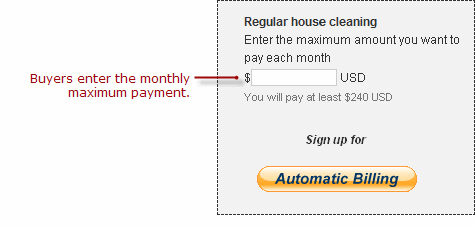
To set the minimum and maximum payment amounts:
Regular house cleaning
You can change the appearance and text of the default PayPal button or you can enter a URL to use your own button image.
You can change the appearance and text of the default PayPal button or you can enter a URL to use your own button image.
https://.By default, transactions from your payment button are associated with your PayPal merchant ID. To associate transactions to an email address instead, click Use my primary email address. If your Profile contains multiple email addresses, click the address to use as the primary email address for this button.
By default, transactions from your payment button are associated with your PayPal merchant ID. To associate transactions to an email address instead, click
Tip: PayPal recommends using the default option so that your email address will not be exposed within the button code.
Choose one of these steps: