Low-code buy button
Accept PayPal payments with no backend. Generate a Buy Button in your PayPal dashboard and paste it straight into your site.
Last updated: September 11, 2026
Estimated time: 5 minutes
Low-code
JavaScript SDK v5
Copy / Export
The Buy Button is PayPal's low-code checkout experience. Set up your product and price in the PayPal dashboard, paste the generated embed code onto your page, and let customers pay on a secure PayPal-hosted checkout page. No backend, no SDK, no API required.
The Buy Button supports PayPal, Pay Later, Venmo, Apple Pay, and major debit and credit cards. It's available in more than 200 countries and regions, supports multiple languages, and accepts more than 23 currencies.
Prerequisites
You need a PayPal Business account. The Buy Button feature isn't available on personal accounts.
If you have a personal account, you can upgrade to Business for free from your PayPal account settings. There's no need to create a new account.
Create your buy button
Complete these steps to build your button in the PayPal dashboard, then copy the generated code onto your page.
Step 1: Sign in
Log into your PayPal Business account.
Step 2: Start the button creator
Choose one of these entry points:
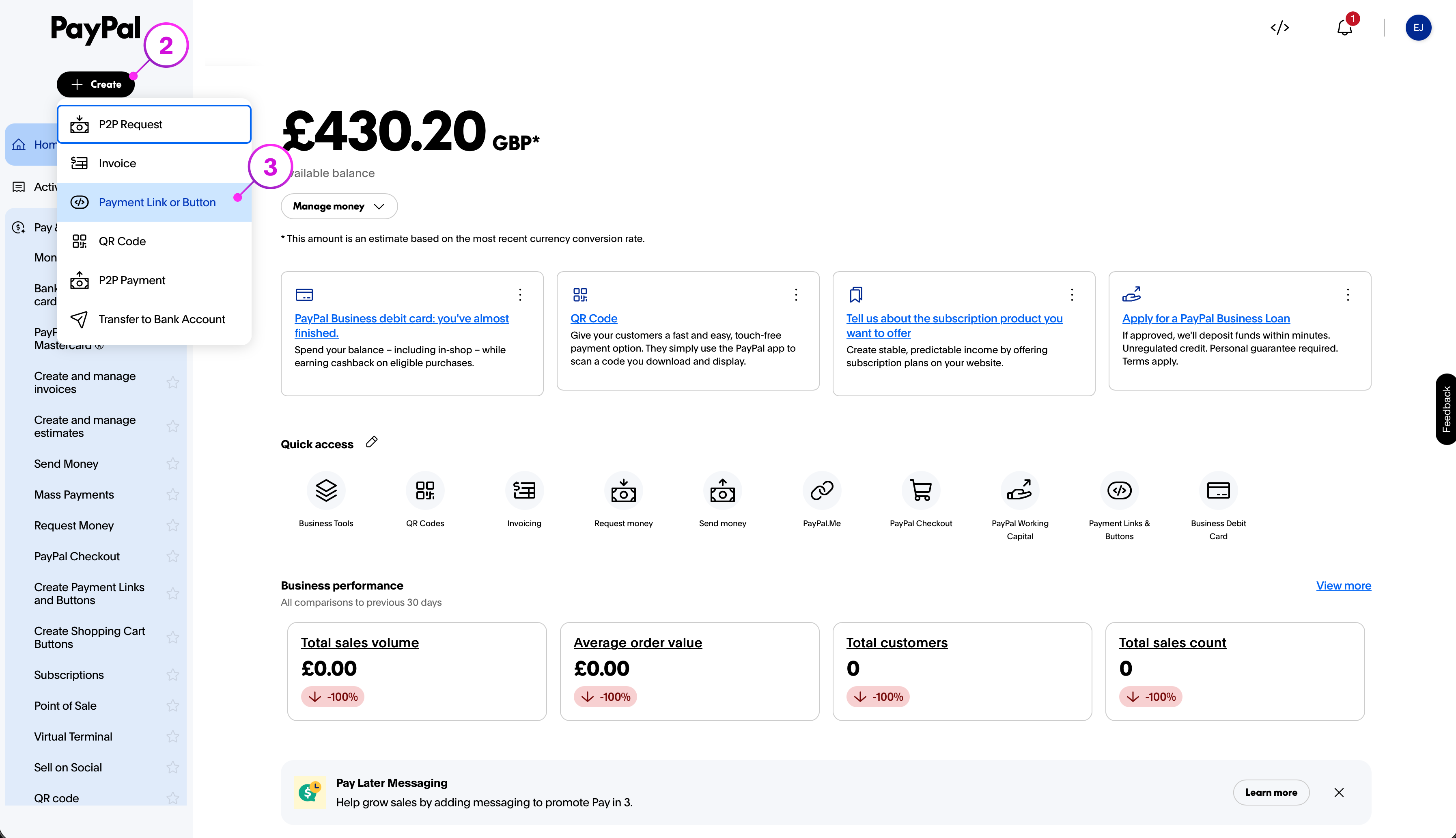
From + Create, select Payment Link or Button.
Step 3: Select payment buttons
Open the Build Your Payment Links and Buttons page and select Payment buttons.
Step 4: Enter the product details
- Name: the product your customer is buying
- Description (Optional): a brief product summary
- Price: enter the amount and currency
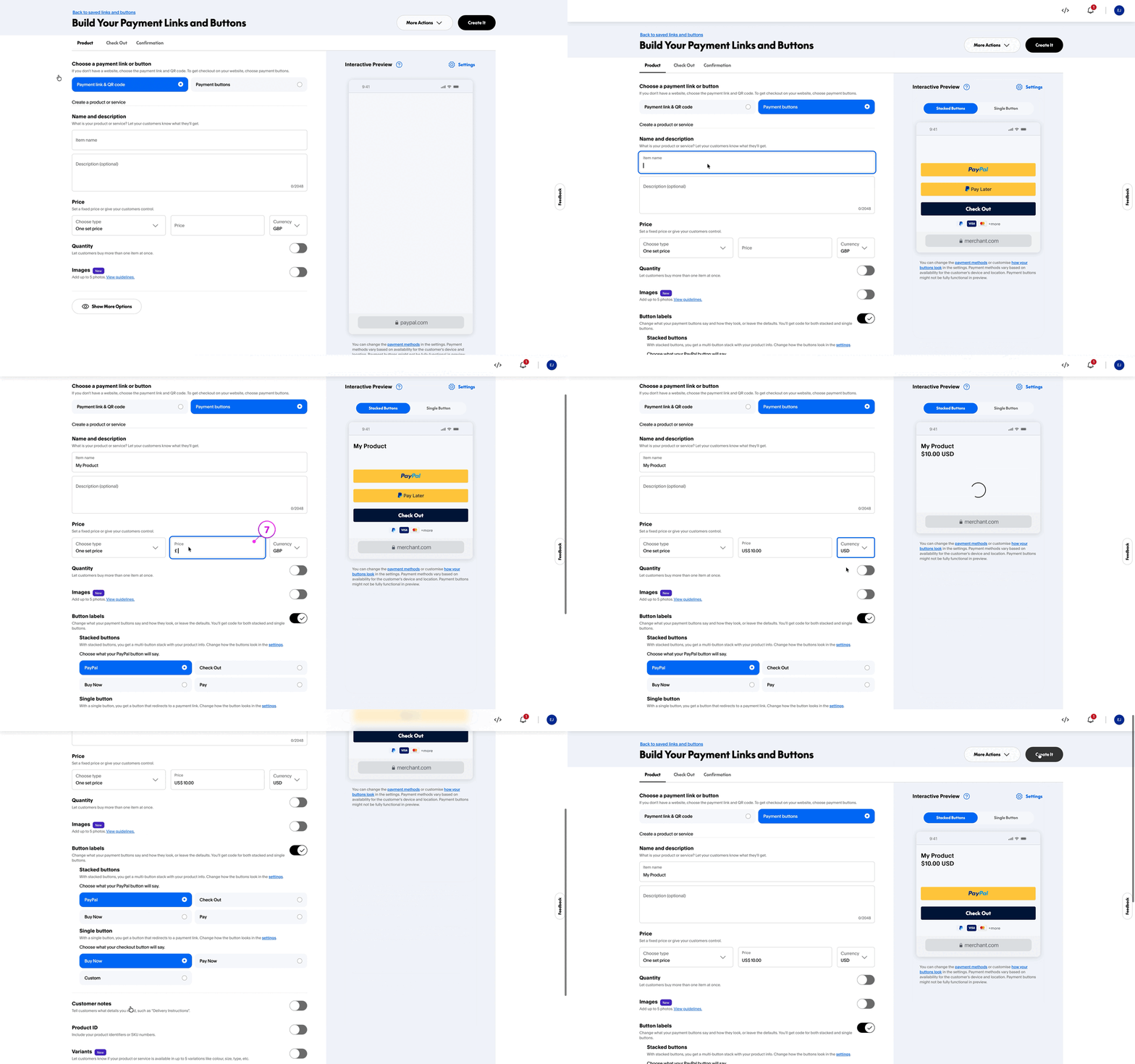
Step 5: Create the button
Select Build it. Before saving, you can customize the button style and colors, and choose whether checkout opens in-context or in a new window.
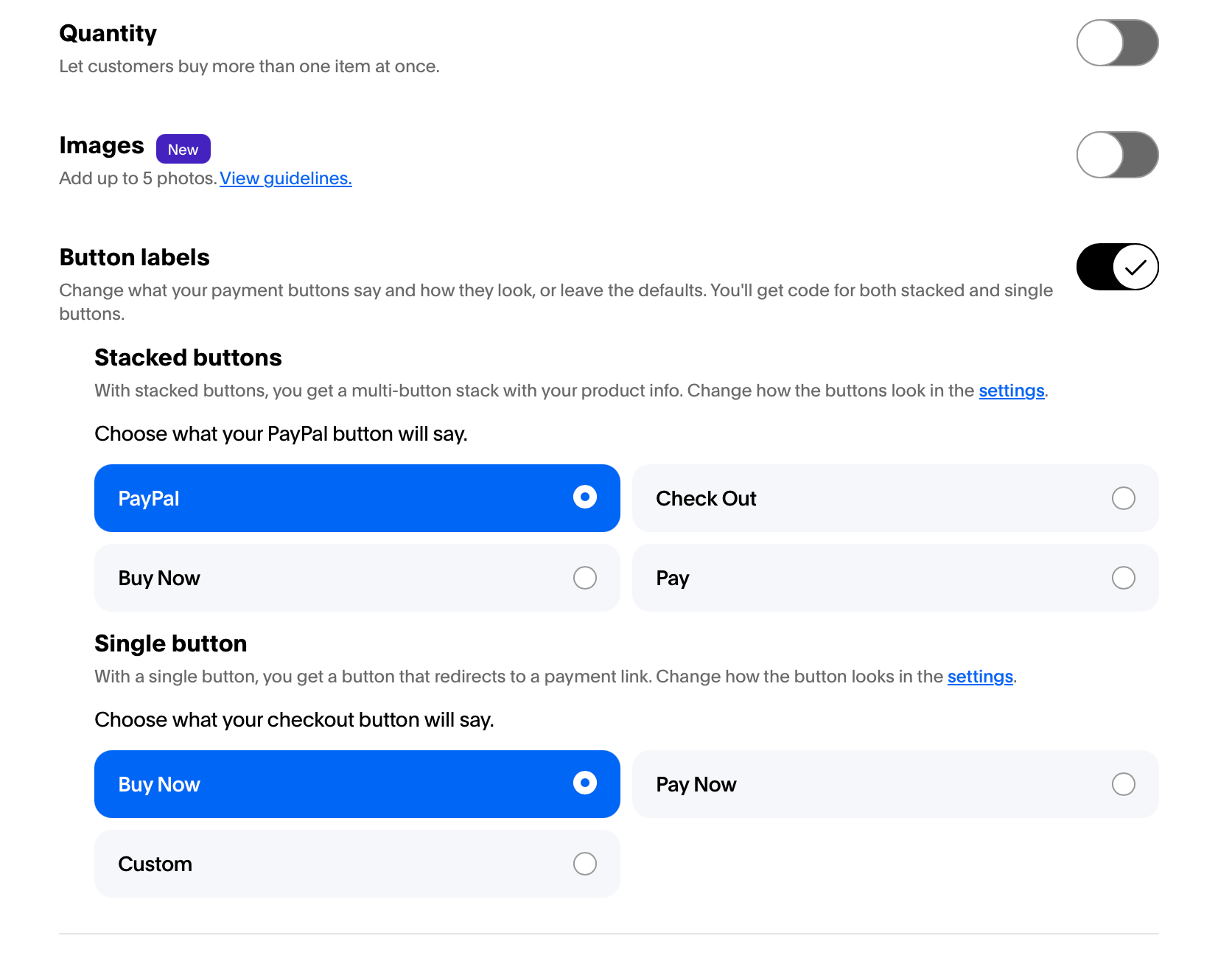
Step 6: Customize your button (optional)
Use the dashboard tabs to update the button text, style, colors, and checkout flow without writing CSS.
Step 7: Embed the button
PayPal provides two embed formats. Choose the one that works best for your site.
This option loads the PayPal, Pay Later, Venmo, and card buttons from a hosted script. It is the recommended integration and requires two snippets.
Part 1. Paste into <head> once per page:
<!-- index.html (in <head>) -->
<script src="https://www.paypal.com/sdk/js?client-id=YOUR_CLIENT_ID&components=hosted-buttons¤cy=USD"></script>Do not modify the query parameters. They are generated for your button and account, and changing them will break the integration.
Part 2. Paste into <body>, near the product:
<!-- index.html (in <body>) -->
<div id="paypal-container-BUTTON_ID"></div>
<script>
  paypal
    .HostedButtons({
      hostedButtonId: "BUTTON_ID",
    })
    .render("#paypal-container-BUTTON_ID");
</script>
Replace BUTTON_ID with the ID from your PayPal dashboard. To display multiple products on one page, repeat Part 2 with each product's unique ID.
If you cannot add code to
<head>, place Part 1 at the top of <body>, above Part 2. Both snippets must be on the same page for the button to render.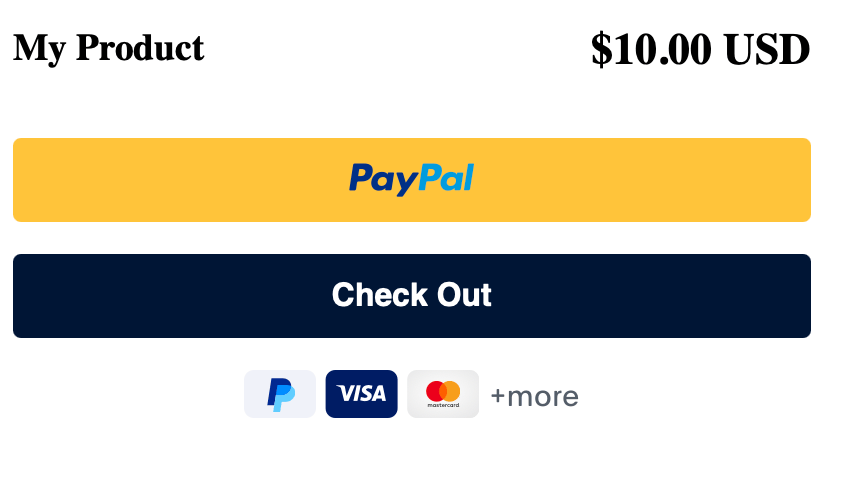
For more information, see the PayPal Payment Links and Buttons help article.
Add multiple buttons to one page
You can add multiple buttons to a single page, one per product. Use the following guidelines:
- Each button must use a unique
hostedButtonId. Reusing the same ID will cause only the first button to render. - All buttons on one page must use the same currency. Mixing currencies causes buttons after the first to fail silently.
Find each button's ID in your PayPal dashboard under the button details.
Mixed currencies on a single page fail silently. No error is shown, and only the first button will render. Keep every button on the page in the same currency.