On this page
No Headings
Last updated: July 27, 2026
Save payment methods to charge payers after a set amount of time. For example, you can offer a free trial and charge payers after the trial expires. Payers don't need to be present when charged. No checkout required.
To save PayPal Wallets, payers need to log in to your site, make a purchase, and remain on your site when transactions take place.
Customers with a PayPal Wallet can:
Businesses save payment methods if they want customers to:
PayPal encrypts payment method information and stores it in a digital vault for that customer.
The checkout process is now shorter because it uses saved payment information.
Set up your sandbox and live business accounts to save payment methods:
To go live, you'll need to be vetted to save PayPal Wallets. You can start the vetting process from the Developer Dashboard.
Tip: When prompted for data such as a phone number for a sandbox business request, enter any number that fits the required format. Since this is a sandbox request, the data doesn't have to be real.
The PayPal OAuth 2.0 API has a response_type parameter. Set the response_type to id_token to retrieve a unique ID token for a payer.
A payer wants to save a payment method for the first time. Modify the POST request to generate id_token for the payer.
A payer wants to use a saved payment method.
Use the saved PayPal-generated customer ID in the POST body parameter target_customer_id. The target_customer_id is a unique ID for a customer generated when the payment_source is saved to the vault. The target_customer_id is available when capturing the order or retrieving saved payment information.
Note: Use the customer identifier generated by PayPal, not the identifier that you use to identify the customer in your system.
curl -s -X POST https://api-m.sandbox.paypal.com/v1/oauth2/token \
 -u CLIENT-ID:CLIENT-SECRET \
 -H 'Content-Type: application/x-www-form-urlencoded' \
 -H 'PayPal-Partner-Attribution-Id: BN-CODE' \
 -H 'PayPal-Auth-Assertion: AUTH-ASSERTION-JWT' \
 -d 'grant_type=client_credentials' \
-d 'response_type=id_token'Copy the code sample and modify it as follows:
CLIENT-ID to your client ID.CLIENT-SECRET to your client secret.CUSTOMER-ID to the PayPal-generated customer ID.BN-CODE to your PayPal Attribution ID to receive revenue attribution. To find your BN code, see Code and Credential Reference.AUTH-ASSERTION-JWT to your PayPal-Auth-Assertion token.A successful request returns fields including an access_token, id_token, and the number of seconds the access_token token is valid.
The id_token:
Tip: Each buyer session is unique. Set up your server to generate a new client token each time payment fields render on your page.
Pass the id_token into the JavaScript SDK through the data-user-id-token.
<script src="https://www.paypal.com/sdk/js?client-id=CLIENT-ID&merchant-id=MERCHANT-ID" data-user-id-token="ID-TOKEN"></script>Copy the code sample and modify it as follows:
CLIENT-ID to your client ID.MERCHANT-ID to your merchant ID.ID-TOKEN to the id_token from the previous step.Include client-side callbacks to:
<div id="DIV-ID"></div>
<script>
    window.paypal.Buttons({
        createVaultSetupToken: async () => {},
        onApprove: async ({ vaultSetupToken }) => {},
        onError: (error) => {}
    }).render("YOUR-DIV-ID");
</script>Copy the code sample and modify it as follows:
DIV-ID with a div id of your choice.YOUR-DIV-ID with the div id you created.You request a setup token from your server. Pass the setup token from your server to the SDK with the createVaultSetupToken callback.
The createVaultSetupToken callback:
Then, your server uses its access token to create and return the setup token to the client.
Any errors that occur while creating a setup token show up in the onError callback provided to the card fields component.
| Callback | Returns | Description |
|---|---|---|
createVaultSetupToken | Setup token (string) | The merchant's server must receive this callback. Create a setup token for cards from the merchant server. The SDK then saves the payment method and updates the setup token with payment method details. |
window.paypal.Buttons({
  createVaultSetupToken: async () => {
    // The merchant calls their server API to generate a setup token
    // and return it here as a string
    const result = await fetch("example.com/create/setup/token", {
      method: "POST"
    })
    return result.token
  }
})Set up your server to call the Payment Method Tokens API. The button that the payer selects determines the payment_source sent in the following sample.
This SDK uses the Payment Method Tokens API to save payment methods in the background. Use the following request to add attributes needed to save a PayPal Wallet:
Note: The return_url and cancel_url values are required, but can have filler values such as in the following sample.
curl -v -k -X POST https://api-m.sandbox.paypal.com/v3/vault/setup-tokens \
  -H 'Content-Type: application/json' \
  -H 'Authorization: Bearer ACCESS-TOKEN' \
  -H 'PayPal-Partner-Attribution-Id: BN-CODE' \
  -H 'PayPal-Auth-Assertion: AUTH-ASSERTION-JWT' \
  -H 'PayPal-Request-Id: REQUEST-ID' \
  -d '{
          "payment_source": {
              "paypal": {
                  "usage_type": "PLATFORM",
                  "experience_context": {
                    "return_url": "https://example.com/returnUrl",
                    "cancel_url": "https://example.com/cancelUrl"
                  }
              }
          }
}'ACCESS-TOKEN to your sandbox app's access token.BN-CODE to your PayPal Attribution ID to receive revenue attribution. To find your BN code, see Code and Credential Reference.AUTH-ASSERTION-JWT to your PayPal-Auth-Assertion token.REQUEST-ID to a set of unique alphanumeric characters such as a time stamp.createVaultSetupToken, call the endpoint on your server to create a setup token with the Payment Method Tokens API. createVaultSetupToken returns the setup token as a string.Return the id to your client to call for the payer approval flow if the payment_source needs payer approval.
Note: The setup token is generated with an empty paypal object in the payment_source. The Buttons script uses this token to securely update the setup token with payment details.
If payer approval is required, the client SDK calls the payer approval flow. The approval flow takes the payer through PayPal Checkout.
You can store a Merchant Customer ID aligned with your system to simplify the mapping of customer information within your system and PayPal when creating a payment token. This is an optional field that will return the value shared in the response.
Use an approved setup token to save the payer's payment method to the vault. Then, copy the sample request code to generate a payment token:
| Callback | Returns | Description |
|---|---|---|
onApprove | { vaultSetupToken: string } | The merchant gets the updated vaultSetupToken when the payment method is saved. The merchant must store the vaultSetupToken token in their system. |
Modify the following request to match your server endpoint and payload:
window.paypal.Buttons({
    onApprove: ({ vaultSetupToken }) => {
    // Send the vaultSetupToken to the merchant server
    // for the merchant server to generate a payment token
        return fetch("example.com/create/payment/token", { body: JSON.stringify({ vaultSetupToken }) })
    },
})curl -v -k -X POST https://api-m.sandbox.paypal.com/v3/vault/payment-tokens \
-H 'Content-Type: application/json' \
-H 'Authorization: Bearer ACCESS-TOKEN' \
-H 'PayPal-Partner-Attribution-Id: BN-CODE' \
-H 'PayPal-Auth-Assertion: AUTH-ASSERTION-JWT' \
-H 'PayPal-Request-Id: REQUEST-ID' \
-d '{
"payment_source": {
"token": {
"id": "4G4976650J0948357",
"type": "SETUP_TOKEN"
}
}
}'Copy the code sample and modify it as follows:
ACCESS-TOKEN to your sandbox access token.BN-CODE to your PayPal Attribution ID to receive revenue attribution. To find your BN code, see Code and Credential Reference.AUTH-ASSERTION-JWT to your PayPal-Auth-Assertion token.REQUEST-ID to a unique alphanumeric set of characters such as a time stamp.SETUP_TOKEN.A successful request results in the following:
200 or 201. Returns 200 for an idempotent request.| Rel | Method | Description |
|---|---|---|
delete | DELETE | Make a DELETE request to delete the payment token. |
self | GET | Make a GET request to this link to retrieve data about the saved payment method. |
The following sample shows a complete back-end integration to save PayPal for purchase later:
import "dotenv/config";
import express from "express";
const { PORT = 8888 } = process.env;
const app = express();
app.set("view engine", "ejs");
app.use(express.static("public"));
// Create setup token
app.post("/create/setup/token", async (req, res) => {
  try {
     // Use your access token to securely generate a setup token
     // with an empty payment_source
    const vaultResponse = await fetch("https://api-m.sandbox.paypal.com/v3/vault/setup-tokens", {
        method: "POST",
        body: JSON.stringify({ payment_source: { paypal: { usage_type: "MERCHANT" } } }),
        headers: {
            "Authorization": "Bearer ${ACCESS-TOKEN}",
            "PayPal-Request-Id": Date.now(),
            "PayPal-Partner-Attribution-Id": "BN-CODE",
            "PayPal-Auth-Assertion": "AUTH-ASSERTION-JWT"
        }
    })
    // Return the reponse to the client
    res.json(vaultResponse);
  } catch (err) {
    res.status(500).send(err.message);
  }
})
// Create payment token from a setup token
app.post("/create/payment/token/:setupToken", async (req, res) => {
  const { setupToken } = req.params;
  try {
    const paymentTokenResult = await fetch(
        "https://api-m.sandbox.paypal.com/v3/vault/payment-tokens",
        {
          method: "POST",
          body: {
              payment_source: {
                  token: {
                      id: setupToken,
                      type: "SETUP_TOKEN"
                  }
              }
          },
          headers: {
            "Authorization": "Bearer ${ACCESS-TOKEN}",
            "PayPal-Request-Id": Date.now(),
            "PayPal-Partner-Attribution-Id": "BN-CODE",
            "PayPal-Auth-Assertion": "AUTH-ASSERTION-JWT"
          }
        })
    const paymentMethodToken = paymentTokenResult.id
    const customerId = paymentTokenResult.customer.id
    await save(paymentMethodToken, customerId)
    res.json(captureData);
  } catch (err) {
    res.status(500).send(err.message);
  }
})
const save = async function(paymentMethodToken, customerId) {
    // Specify where to save the payment method token
}
app.listen(PORT, () => {
  console.log('Server listening at http://localhost:${PORT}/');
})The following sample shows how a full script to save PayPal might appear in HTML:
<div id="paypal-buttons-container"></div>
<script src="https://www.paypal.com/sdk/js?client-id=CLIENT-ID&merchant-id=MERCHANT-ID" data-user-id-token="ID-TOKEN"></script>
<script>
    window.paypal.Buttons({
        createVaultSetupToken: async () => {
                // The merchant calls their server API to generate a setup token
                // and return it here as a string
                const result = await fetch("example.com/create/setup/token", {
                  method: "POST",
                })
                return result.token
        },
        onApprove: async ({ vaultSetupToken }) => {
            return fetch("example.com/create/payment/token", { body: JSON.stringify({ vaultSetupToken }) })
        },
        onError: (error) => {
            console.log("An error occurred: ", error)
        }
    }).render("#paypal-buttons-container");
</script>Render a PayPal Button with callbacks defined.
Select the button and complete the pop-up flow to approve saving the PayPal Wallet.
On your server, save the vaultSetupToken and the PayPal-generated customer.id. Associate these tokens with the designated payer.
Make a call on your server to swap your setup token for a payment token from the Payment Method Tokens API.
Save or use an existing customer.id depending on whether the payer is a first-time payer or returning payer:
1. For a first-time payer, save the PayPal-generated customer.id. The customer.id identifies the payer and their saved payment methods.
2. For a returning payer, use the PayPal-generated customer.id to swap the setup-token for a payment-token.
Save the payment-token for future use.
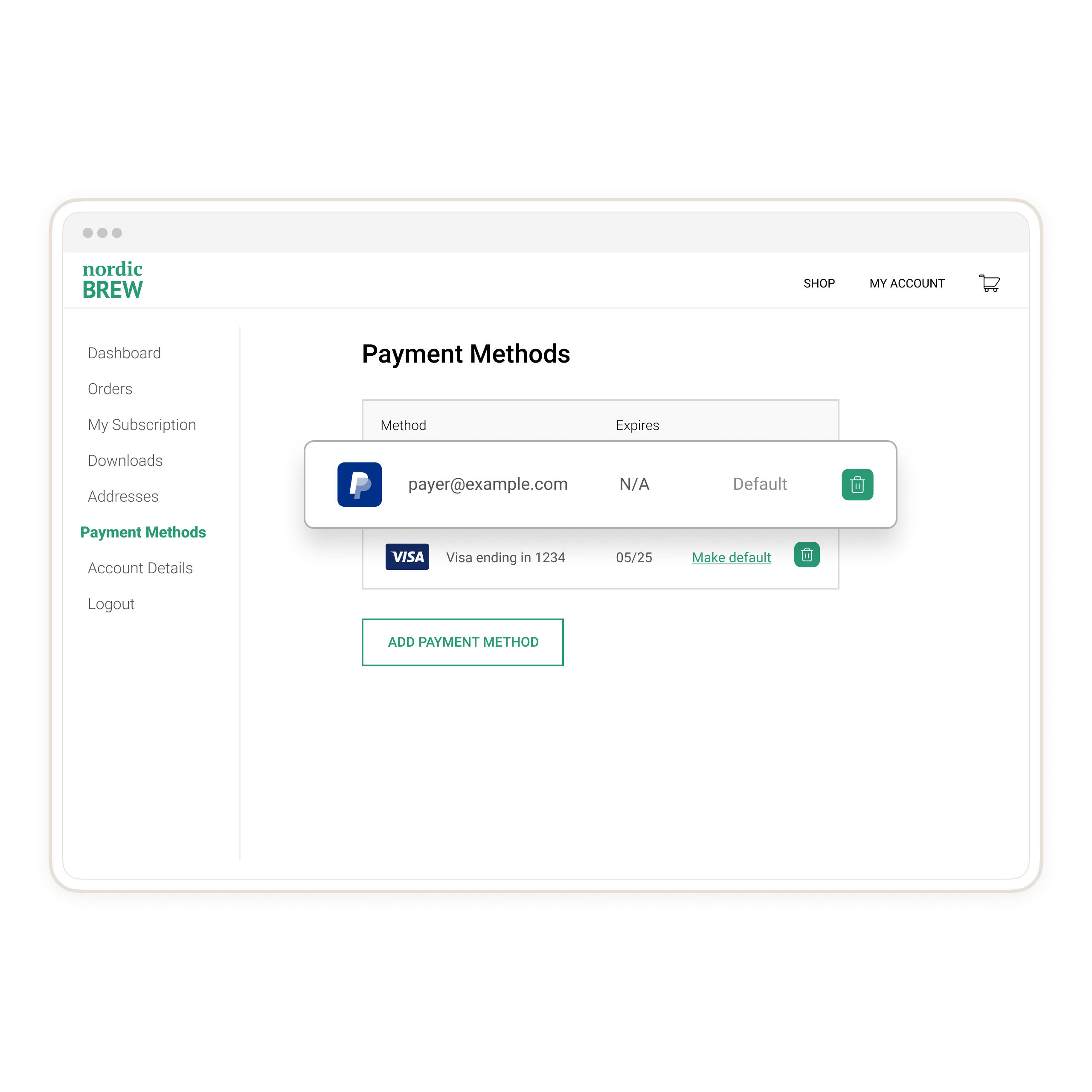
We recommend creating a page on your site where payers can see their saved payment methods as in the following example:
Move from PayPal's production environment to go live.