PayPal Payments Advanced Redirect Pages Configuration
Last updated: Aug 15th, 8:09am
Full page redirected layouts redirect the customer away from your site, returning the customer once they complete payment.
- Use the UI to configure your hosted pages
- Use the API to configure your hosted pages
- A note on mobile devices
Use the UI to configure your hosted pages
To use the PayPal Manager UI the UI to configure your hosted pages, log into PayPal Manager and configure the required basic setup and optional customization settings.
Setup
The setup section includes selecting the billing and shipping information fields, the payment confirmation page settings, the confirmation email details, security options, and other settings.
- Navigate to the Setup page within Hosted Checkout Pages.
- Toggle between Live and Test to set configuration settings for each environment.
- Choose to show the PayPal logo or not.
- Determine the cancel URL and the text of the link the buyer clicks on to cancel the payment on your website. The cancel URL is the page to which PayPal redirects the buyer's browser if the buyer does not approve the payment.
- Select the billing and shipping information fields the buyer will be required to complete during checkout.
- Choose to display a PayPal hosted payment confirmation page. You can also specify the PayPal hosted confirmation page header and footer text and the URL and text for the return link. Additionally, you can choose to enable the silent post feature.
- Opt to send email receipts to the buyer for each successful transaction.
- Click Save Changes.
For complete details on these settings, click the Help button on the Setup page. For more information on the Silent Post feature, see Silent Posts.
Customize
The customization section allows you to modify the layout and appearance of your iframe. Depending on your layout choice, you can customize the header, page background, payment method section, and the order summary column.
Note: These choices are not reflected in the mobile version.
- Navigate to the Customize page within Hosted Checkout Pages.
- Your previous choice of Layout A or Layout B determines how much of the page you can customize. You cannot change your choice from A to B or B to A, but you can choose to switch to Layout C. If so, you'll need to follow the instructions for configuring an embedded iframe.
- Click the pencil icon in the top right corner of the section you want to modify.
- In the pop-up that appears, choose an option and click OK when done.
- Preview your changes by clicking Preview.
- If you are satisfied with your changes, click Save and Publish. If not, click Cancel to discard all the changes you've made in this session or Undo Changes to discard all changes you've made since the last save.
Note: You must make all modifications within the same session otherwise all changes will be lost and you will have to redo your changes. If the session times out, the design of the layout will remain at the version that was last published.
Use the API to configure your hosted pages
For the API call to either sandbox (the testing environment) or live (production), pass the following configuration at a minimum. The notation of your template choice, A or B, will automatically redirect users to mobile-optimized pages.
Note: Passing these parameters will override your checkout settings in PayPal Manager.
Setup
| Variable | Description |
|---|---|
CANCELURL | The URL that customers go to if they canceled their transaction. Maximum length: 512 characters. |
CSCREQUIRED | Determines if the card security code is required. Values: TRUE or FALSE. |
CSCEDIT | Determines if the card security code is editable. Values: TRUE or FALSE. |
DISABLERECEIPT | Determines if the payment confirmation/order receipt page is a PayPal hosted page. Values: TRUE or FALSE. |
EMAILCUSTOMER | Send the buyer an email confirmation or not. Default value is FALSE. |
ERRORURL | The URL that customers are directed to if an error occurs. Maximum length: 512 characters. |
PARMLIST | Used in conjunction with the secure token and takes a string of name-value pairs (NVPs) as its value. The Gateway parses out these NVPs and uses them to run the transaction. This variable is especially useful for merchants that already use this parameter with the Payflow SDK and want to use an existing NVP string. |
RETURNURL | The URL that customers are directed to after a transaction completes successfully. Maximum length: 512 characters. |
SECURETOKEN | The token given from the secure token request. Value: Your token. |
SECURETOKENID | The secure token ID from the secure token request. Value: Your token ID. |
SILENTPOSTURL | The URL to which the Gateway sends Silent Post. Maximum length: 512 characters. For more information on the Silent Post feature, see Silent Posts. |
SUBTOTAL | Amount passed to the Gateway. It is displayed in the order summary section. This amount is only for display purposes and is not passed to the transaction servers. |
TEMPLATE | Denotes the template to use for the hosted solution. Value: templateA or template-B. |
VERBOSITY | Additional values returned from the transaction response to the merchant in the Silent Post. By default, there is no verbosity set which means the standard set of values that Silent Post currently uses is returned. Passing in a verbosity will return in the extra values that returned in the transaction response. Value: HIGH. |
VERIFY | Runs a $0 authorization transaction using the credit card information the buyer enters. If the $0 authorization is verified, then the transaction is immediately run for the amount and transaction type you pass. Values: TRUE or FALSE. |
URLMETHOD | The technical method used to deliver the CANCELURL. The default is GET and cannot be changed without affecting the installed base, but this value will likely be changed to POST by most carts. Values: POST or GET. |
Customize
You can also pass the following optional color and design customizations via API for web solutions. These customizations will not apply to the mobile version. Hex codes used below are for example only.
| Item | Description | Parameter |
|---|---|---|
| Section Border | Sets the color of the order around the embedded template. | pageCollapseBGColor=FFAA11 |
| Sub-header Text | Sets the color of the words "Pay with PayPal" and "Pay with credit or debit card". | pageCollapseTextColor=22FFFF |
| Button color | Sets the color of the text on the PayNow/Submit button. | pageButtonTextColor=BB66FF |
| Text Color | The color of the text for "card number", "expiration date", etc. | labelTextColor=22FFFF |
A note on mobile devices
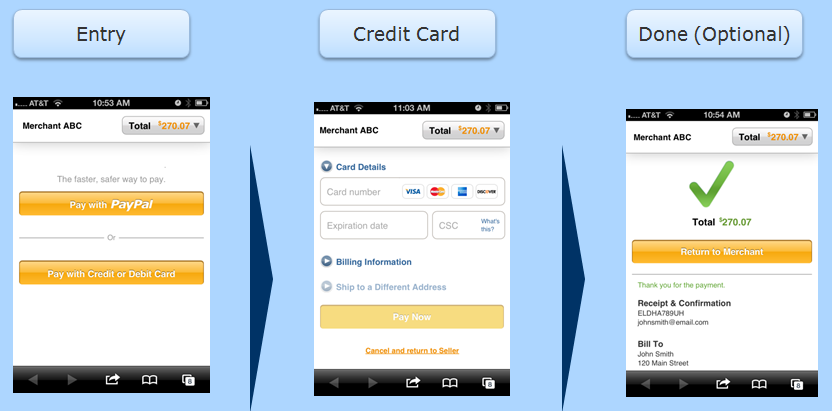
Layout options A and B automatically redirect mobile users to a mobile optimized flow. The images below show what the mobile checkout experience looks like.
Mobile page flow for a PayPal payment

Mobile page flow for a credit card payment
Next
Test your instance of PayPal Payments Advanced