
Testing and Go Live
You can test your PayPal integration in the Braintree sandbox environment in 2 ways:
- Mocked PayPal testing (default)
- Behaves similarly to production but does not allow for end-to-end testing
- Uses Braintree sandbox test values to simulate PayPal responses in your Braintree sandbox
- Allows you to confirm that your client- and server-side configurations are correct and that you are receiving appropriate responses for your requests
- Does not return data to your PayPal sandbox account
- Does not work with the PayPal Checkout component of the JavaScript v3 SDK
- Linked PayPal testing
- Requires additional setup
- Directly connects your Braintree sandbox account to your PayPal sandbox account
- Returns data to both sandbox accounts
- Allows you to test the full functionality of your PayPal integration (e.g. transaction reporting, email receipts)
Do not use your PayPal business account as the PayPal customer account when paying for test transactions in the linked PayPal flow or in production. Doing so will result in declines.
Mocked PayPal testing
Use your Braintree sandbox API credentials and the test values on our Testing page to ensure your client and server integrations with Braintree are working as expected.
Any testing you do in the mocked PayPal flow will only be reflected in your Braintree sandbox – no data will be sent to your PayPal sandbox. If you'd like to do complete end-to-end testing, see linked PayPal testing.
Linked PayPal testing
If you don't already have a PayPal sandbox test account for testing your Braintree integration, create a new one by following these steps:
-
Create a PayPal business sandbox account:
- Log into the PayPal Developer Dashboard
- Navigate to Sandbox > Accounts
- Select the account type as Business
- Select the same Country as your Braintree sandbox account
- Select Create Account
-
Go to the
Create New App page
- Create an app to get sandbox API credentials
- Select the same sandbox developer account as the test account created in step 1
-
Note the following Sandbox API Credentials for the new app you created:
- Email address associated with this app
- Client ID
- Secret
After successful link of your PayPal account with your Braintree account, some fake nonces
(e.g. fake-paypal-one-time-nonce) may stop working.
Once you have those PayPal sandbox API credentials, enter them in your Braintree sandbox:
- Log into your Braintree sandbox Control Panel
- Navigate to Settings > Account Settings > Payment Methods > PayPal
- Select Link Sandbox
- Enter the Email address, Client ID, and Client Secret for your PayPal sandbox test account
- Select Link PayPal Sandbox
Testing App Switch
App Switch allows PayPal customers who have the PayPal app installed to complete their transaction in the PayPal app, streamlining checkout with strong multi-factor authentication. This feature can be tested in both the PayPal production app and sandbox environments. To test App Switch, make sure your integration is:
- App Switch eligible.
- You have completed the PayPal App Switch integration.
Testing your integration using PayPal's sandbox
PayPal's sandbox application allows PayPal users, both inside and outside the United States, test the App Switch consumer experience. Since App Switch redirects buyers to the PayPal mobile app, you need the PayPal sandbox app installed on a test device.
Install the PayPal sandbox app
For optimal experience, delete all existing PayPal apps before installing the sandbox build. The sandbox app may override the existing production app.
iOS:
- Open the Firebase App Distribution link to join the tester program.
- Enter your email address to receive an invite.
-
Open the invite email on your device and tap Get Started.
If you have already accepted the invite, go directly to the Firebase App Distribution page and skip to step 5. - Tap Download against the latest build in the list.
- Trust the enterprise developer certificate: Go to Settings → General → VPN & Device Management, find the PayPal certificate, and tap Trust.
- Tap Install to download the app.
- Tap Open to launch the app.
Android:
- Open the Firebase App Distribution link to join the tester program.
- Enter your email address to receive an invite.
- Open the invite email on your device and tap Get Started.
- Accept the tester invitation and consent to Firebase testing.
- Tap Download against the latest build (version 8.102.0 or higher).
- Open the downloaded build and tap Install.
- Tap Open to launch the app.
App switch compatibility
Review the following table to see how App Switch works in different environments. Use this information to check if things are working during testing and spot any situations where you might need to set up fallback handling.
| Platform | Browser | Mode | Availability | Notes |
|---|---|---|---|---|
| iOS | Safari | Default browser | ||
| iOS | Safari | Private | ||
| iOS | Safari | Not default | App Switch redirects to the default browser | |
| iOS | Chrome | Default browser | App Switch redirects to a new tab in the same browser | |
| Android | Chrome | Default browser | ||
| Android | Chrome | Incognito | Fallback experience | |
| Android | Chrome | Not default | App Switch redirects in the default browser | |
| Android | Firefox/other | Default | App Switch redirects to a new tab in the same browser |
Best Practices
- Non-default browser behavior
If the buyer initiates checkout from a non-default browser, the return from App Switch may open in the buyer's default browser. Use the return URL to restore buyer session and repaint the checkout page to avoid errors. - Not eligible for iframe integrations
App Switch is not supported in iframes. If your checkout page is embedded in an iframe, do not integrate App Switch.
Use cases that can be tested:
| Scenario | Expected Behavior |
|---|---|
| User starts from a Native Default browser such as Safari on an iOS device or Chrome on an Android device (Happy Path). | The user is switched to the PayPal app and, upon successfully completing the checkout flow, is switched back to the same merchant browser tab they started from. |
| User starts from a Non-Native default browser such as Chrome on iOS or Firefox on Android. | The user is App switched to the PayPal app and, upon successfully completing the checkout flow, is switched back to the user’s default browser. |
| Post App Switch changes the payment method on the pay sheet and completes the flow. | Completing checkout flow with the successful creation of BA token/payment token. |
| Post Login cancel the operation on the pay sheet screen in the PayPal App. | The user is switched back to the merchant browser upon canceling out of the checkout flow. |
| Add a new card. | When the user clicks 'Add Card,' they will be prompted to log in again. After logging in, the new card form will be displayed. After the new card is added, the user can proceed with checkout. |
Preconditions:
To go through the App Switch experience, enable the following login methods in the PayPal sandbox app:
- Long-lived session or remember me flow
- Face ID or Biometric
To enable these, open the PayPal app → tap the Avatar icon → Login and security → toggle on Face ID/fingerprint and Extend your login session.
Use cases that cannot be tested:
- System errors
- App launch failure
- Activity feed updates
- Non-App Switch flow screens
Testing PayPal Disputes in the Braintree Sandbox
| Requirement | Status / Notes |
|---|---|
| Braintree Sandbox account | Active and verified |
| PayPal Sandbox (Business + Personal) | Accounts created and operational |
| Linked PayPal & Braintree accounts | Verified via BT Gateway → Account Settings → PayPal |
| At least one transaction exists | Verified via PayPal buyer history |
| Familiarity with Disputes lifecycle | PayPal Disputes Docs |
Step 1: Dispute Creation
- Log in to PayPal Personal Sandbox
- Locate completed transaction
- Initiate dispute → Report a Problem
- Choose reason (e.g. Item Not Received)
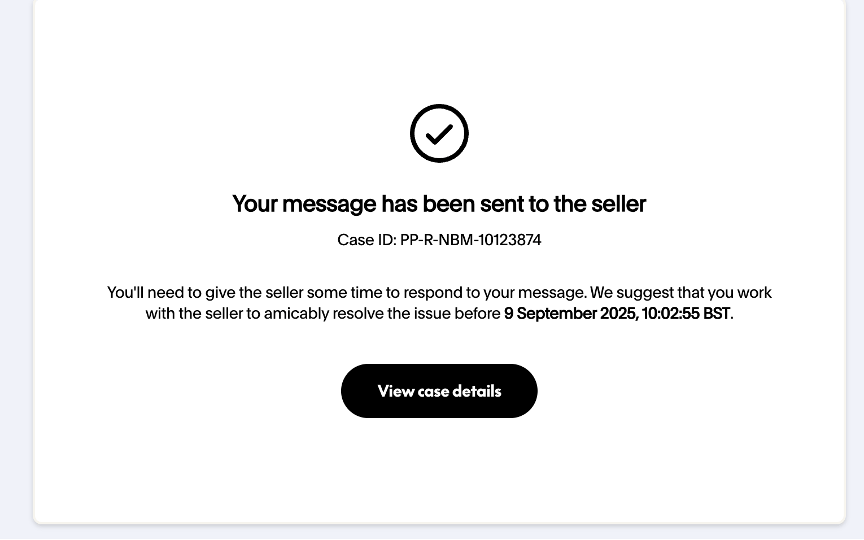
- Submit dispute and record Case ID, such as PP-R-NBM-10123874
Expected Result: Dispute is created, confirmation and Case ID received
The following dispute types were verified and confirmed to appear and behave consistently in Braintree:
- I haven’t received the item or service
- I received an item or service that was different or not as described
- I wasn’t satisfied with the seller’s offer
- The seller’s website or product listing is incorrect or doesn’t exist anymore
Other dispute categories (e.g., billing or subscription issues and unauthorized activity) are managed solely within PayPal and do not create Braintree dispute records, as they are not linked to merchant transactions.
No behavioral differences were observed across dispute types — all cases followed the same flow, response handling, and synchronization pattern between PayPal Sandbox and the Braintree Sandbox dashboard.
Step 2: Reflection in Braintree
- Wait 5–10 minutes for sync
- Navigate to Disputes in Braintree Control Panel
- Confirm case is listed under Open
- Verify PayPal Case ID matches Braintree Transaction ID
Expected Result: Dispute visible in dashboard, IDs align

Step 3: Response Handling
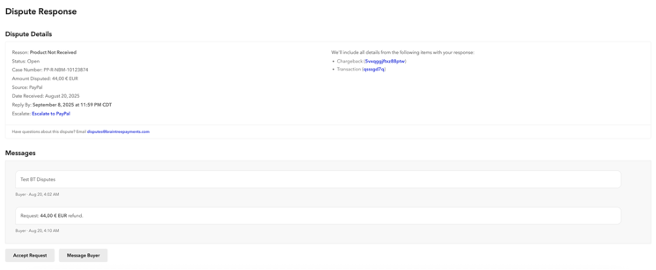
- Open dispute in Braintree
-
Validate available actions:
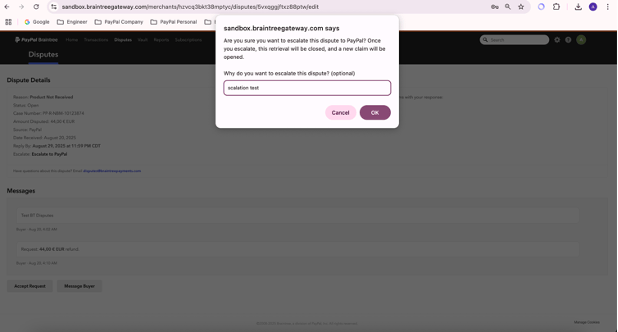
- Escalate to PayPal
- Respond to buyer
- Accept the dispute
Simulate escalation scenario
Expected Result: Dispute status updates; escalation reflected
Step 4: Escalation / Chargeback Handling
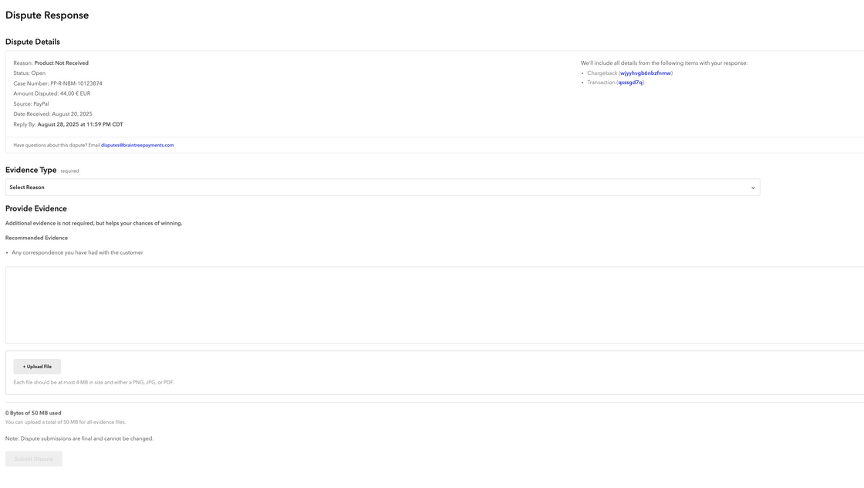
- Open dispute → Chargeback detail page
-
Validate response options:
- Proof of Fulfillment
- Proof of Refund
- Other
- Upload mock evidence (PDF receipt, tracking ID)
- Confirm system updates buyer
Expected Result: Evidence accepted, dispute updated
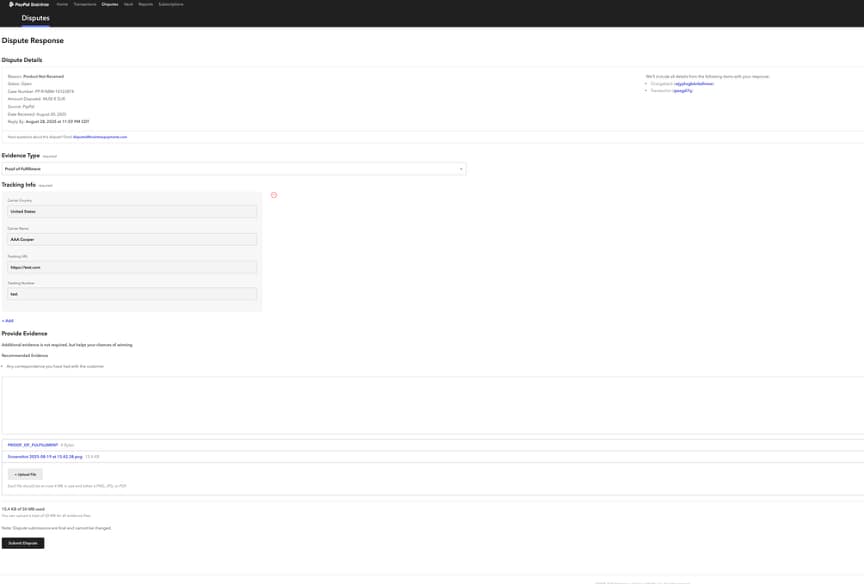
Observations
- Disputes appear in Braintree within ~5 minutes of creation.
- Case Number format follows PayPal convention: PP-R-XXX-########.
- Buyer sandbox account updates may take up to 24h to reflect.
- Dispute reports allow precise mapping of Braintree and PayPal identifiers.
-
In Braintree’s dispute reporting (CSV export or API), the following columns are key for
linking PayPal and Braintree dispute records:
- Dispute ID – Unique Braintree dispute identifier
- Case Number – Mirrors the PayPal Case ID, such as PP-R-NBM-10123874
- Transaction ID – Corresponds to the Braintree transaction involved in the dispute
- PayPal Payer Email – Matches the buyer’s PayPal account email used in the original transaction
This field combination allows one-to-one reconciliation between Braintree disputes and their PayPal counterparts.
During QA validation, all sandbox disputes displayed consistent Case Number values across the Braintree dashboard, CSV report, and API responses — no mismatches were detected.
The mapping also supports downstream reconciliation for merchant reporting, since both the Case Number and Transaction ID are included in the export schema.
-
In Braintree’s dispute reporting (CSV export or API), the following columns are key for
linking PayPal and Braintree dispute records:
Dispute response interface accepts both documents and typed responses.
Reference – Key Fields in Braintree Dispute Reporting
| Field | Source | Description/Use |
| Dispute ID | Braintree | Internal Braintree identifier for the dispute |
| Case Number | PayPal | PayPal Case ID mirrored in Braintree |
| Transaction ID | Braintree | Transaction reference linked to the dispute |
| PayPal Payer Email | PayPal | Buyer email linked to the PayPal account |
| Amount Disputed / Amount Won | Braintree | Used to track financial outcomes of the dispute |
| Status / Reason | Both | Displays current dispute state and reason category |
| Received Date / Last Updated | Braintree | Useful for timing and synchronization checks |
| Protection Level | Braintree | Indicates eligibility for PayPal Seller Protection |
Go Live
Your sandbox account is not linked to your production account in any way. Nothing created in the sandbox will transfer to production. This includes processing options and recurring billing settings. Your login information, merchant ID, and API keys will also be different.
After you complete the integration, contact your PayPal support team to enable App Switch for production traffic.
Create an API user
Production API credentials, including your API keys, must be entered into your server-side code to connect API calls to the Braintree gateway. While each user in your gateway has their own unique set of API keys, only one set can be included in your integration.
We do not recommend including an individual user's API credentials. If you ever need to delete or suspend that user, this could break your connection to Braintree and result in failed transactions.
Get production credentials
Log into your production account as the API user to obtain your API credentials. You'll need the:
- Production merchant ID
- Production public key
- Production private key
Keep in mind that public and private keys are both environment- and user-specific.
Update production account settings
Make sure your production account settings mirror the ones in your tested sandbox configuration. Be sure to recreate any recurring billing plans or settings if you plan to use recurring billing in production.
Update live server configuration
In your server code, update your configuration to production values:
- Ruby
gateway = Braintree::Gateway.new(
  :environment => :production,
  :merchant_id => "use_your_merchant_id",
  :public_key => "use_your_public_key",
  :private_key => "use_your_private_key",
)- C#
var gateway = new BraintreeGateway
{
    Environment = Braintree.Environment.PRODUCTION,
    MerchantId = "YOUR_PRODUCTION_MERCHANT_ID",
    PublicKey = "YOUR_PRODUCTION_PUBLIC_KEY",
    PrivateKey = "YOUR_PRODUCTION_PRIVATE_KEY"
};- Python
gateway = braintree.BraintreeGateway(
    braintree.Configuration(
        braintree.Environment.Production,
        merchant_id="use_your_merchant_id",
        public_key="use_your_public_key",
        private_key="use_your_private_key"
    )
)- PHP
$gateway = new Braintree\Gateway([
    'environment' => 'production',
    'merchantId' => 'use_your_merchant_id',
    'publicKey' => 'use_your_public_key',
    'privateKey' => 'use_your_private_key'
]);- Node
const gateway = new braintree.BraintreeGateway({
  environment: braintree.Environment.Production,
  merchantId: "YOUR_PRODUCTION_MERCHANT_ID",
  publicKey: "YOUR_PRODUCTION_PUBLIC_KEY",
  privateKey: "YOUR_PRODUCTION_PRIVATE_KEY"
});- Java
BraintreeGateway gateway = new BraintreeGateway(
  Environment.PRODUCTION,
  "YOUR_PRODUCTION_MERCHANT_ID",
  "YOUR_PRODUCTION_PUBLIC_KEY",
  "YOUR_PRODUCTION_PRIVATE_KEY"
);
Once you have updated these values and configured your preferred processing settings, the live production environment will function similarly to the sandbox environment you've been using for development. Learn more about the differences between production and the sandbox.
On the client side, no configuration updates are needed when you make the switch to production – your client obtains its client token from your server, which is all the configuration it needs.
Test transactions in production
You need to use real payment methods in the production environment. Test values from the sandbox testing page will not work. This means that every test transaction that you allow to settle in your production account will debit funds from the associated payment method and fees will be assessed. Be sure to test with reasonable amounts and only run a limited number of transactions.