Customize the Pay Later messaging layout on Braintree for WooCommerce
Last updated: Sept 23rd, 4:54pm
Promote PayPal Pay Later offers using messaging and buttons on your Braintree for WooCommerce store.
PayPal offers short-term, interest-free payments and other special financing options that buyers can use to buy now and pay later. You get paid up-front, and there are no additional costs.
Pay Later messaging includes Pay in 4, which Australian buyers can use to pay for purchases of $30 to $2,000 in four, interest-free payments.
Know before you begin
- Before you begin, learn more about Pay Later offers.
- Pay Later messaging is enabled for new merchants. If you're an existing merchant, enable the messaging.
- You are eligible to promote PayPal Pay in 4 if you are a PayPal merchant with an Australian-facing website and after making a one-time payment integration. Reference Transaction or Recurring Payment integrations are not eligible, as well as certain merchant categories (such as gambling or foreign exchange).
- Please note that while this option provides messaging that can be displayed on your website to help promote this feature to your customers, no additional content, wording, marketing, or other materials should be created by you to encourage use of this product.
How it works
These are sample pages that have Pay Later messaging enabled for webpages and mobile devices.
Pay Later messaging on a webpage
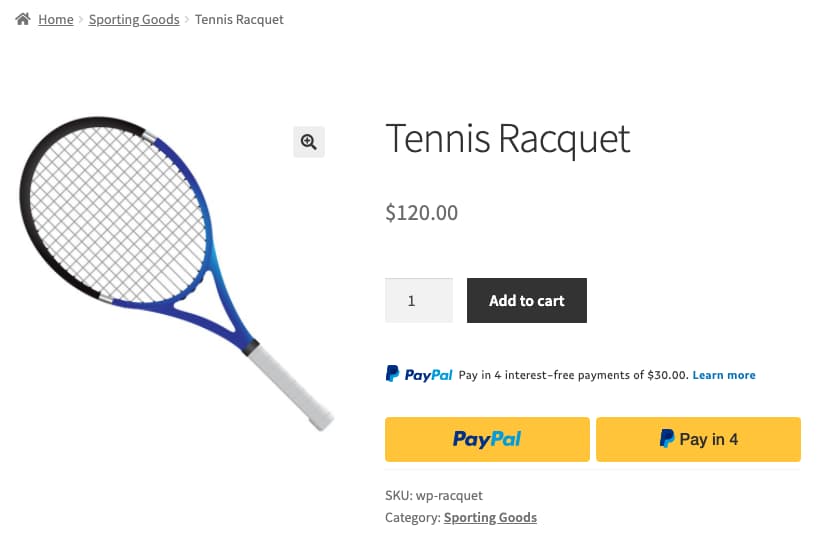
WooCommerce PayPal Payments
Before you can install Pay in 4 in Braintree for WooCommerce, ensure you have a minimum module version of 2.5.0.
Enable Pay Later
- Log in to your WordPress admin panel.
- Navigate to WooCommerce > Settings > Payments.
- Select the Braintree PayPal Gateway link.
- Select the Enable checkbox.
- Scroll down to the PayPal Pay Later (Formerly Credit) section.
- Select the Enable checkbox.
- In the Sections text box, add the pages where you would like Pay Later to appear.
- To enable Pay Later messaging, select the pages where you would like Pay Later messaging to appear.
Enable Pay Later for Individual Products
- Navigate to the Edit Product page.
- Select the Braintree Settings tab.
- Next to Braintree Gateway, select the Options link.
- In the Options modal, select the Enable checkbox for Pay Later.
- To enable Pay Later messaging, select the Enable Pay Later Msg checkbox.
Credit Card settings
Refer to this page for Credit Card settings.
PayPal Settings
Refer to this page for PayPal settings.
See also
See the WooCommerce documentation page for Braintree for WooCommerce to learn more about WooCommerce PayPal Payments.