Recurring payments dashboard
Last updated: August 17, 2026
DEPRECATED
Copy / Export
This product is deprecated and should not be used for new integrations. Use Payment Links and Buttons instead. For information about migrating, visit the Upgrade Hub.
Use the Recurring payments dashboard to manage payments for:
- Subscription payments
- Automatic billing payments
These sections provide an overview of the dashboard and detailed steps on how to manage recurring payments:
Open the recurring payments dashboard
-
Log in to your PayPal Business or Premier account at www.paypal.com.
-
Click Tools > All Tools at the top of the page, and then select Recurring Payments from the Tools page.
The Recurring payments dashboard opens.
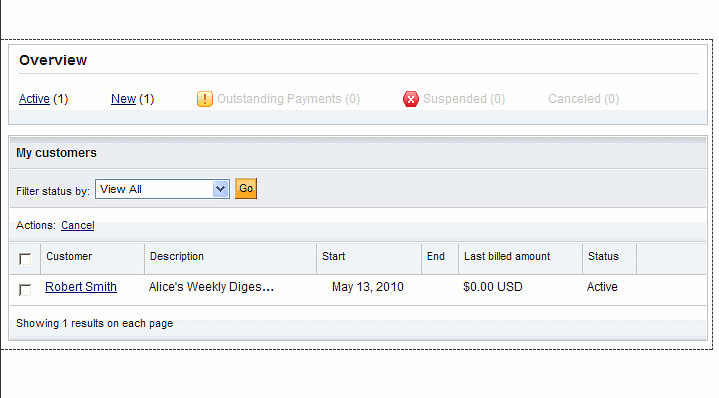
The Recurring payments dashboard is broken down into the following two sections:
-
Overview
This section provides shortcut links that allow you to quickly change the dashboard list based on the status value displayed in the link. Additionally, each shortcut link also displays the number of plans that exist with that status value.
-
My customers
This section displays the list of recurring payment plans. By default the list displays all billing plans. Use the Filter status by drop-down menu to only show plans with one of the following status values:
- Active
- Suspended
- Completed
- Cancelled
- Pending Cancellation
- Outstanding payments
- New
- Billed
- To be billed
These are the most common status values for any of the recurring payment plan types, and are the only status values that the list can be filtered by. Note that there are several other status values. To see the complete list of statu values with descriptions of each, click View more status types at the bottom of the recurring payments dashboard page. To return to the default view, select View All.
Cancel payment plans
From the list of payment plans in the My customers section, select one or more of the checkboxes on the left side of the list, and click Cancel that appears above the list.
From the list of payment plans in the Manage recurring plans section, select one or more of the checkboxes on the left side of the list, and click
View recurring plan details
Within the My customer list, click on the linked name in the Customer column.
Within the
- Automatic billing
- Subscription
Manage recurring plans
Manage your recurring payment plans from the plan's details page.
Subscription details page
Displays the customer's details, the current status of the automatic billing plan, and the customer's shipping address.
Displays the customer's details, the current status of the automatic billing plan, and the customer's shipping address.
- Modify the subscription details.
- Cancel the subscription.
- Suspend the subscription.
- Reactivate a suspended subscription.
- View the subscription's history.
For detailed steps, see Manage subscriptions.
Automatic billing details page
Displays the customer's details, the current status of the automatic billing plan, and the customer's shipping address.
Displays the customer's details, the current status of the automatic billing plan, and the customer's shipping address.
-
Cancel the automatic billing plan.
-
Click Bill Now to collect a payment from the customer for the current month.
The Bill Now link is only available when the plan's status is To be billed. This status appears when a payment for the current month has not been collected. Once a payment is collected for the current month, the statu changes to Billed. For detailed steps, see Initiate a monthly bill.
Additional information
- View transaction activity
- Button types— for information about Subscribe and Automatic Billing payment buttons.