
3D Secure Rules Manager
Use 3D Secure Rules Manager to control when and how 3D Secure applies to your transactions, directly from the Braintree Control Panel, without changing your integration.
Introducing 3D Secure Rules Manager
To further enhance 3DS2, Braintree offers 3D Secure Rules Manager, a built-in offering that supports deep customization of when and how to apply 3D Secure. With 3D Secure Rules Manager, merchants can create business-specific rules for when and how 3D Secure applies directly from the Braintree Control Panel.
3D Secure Rules Manager gives merchants the flexibility to customize when they want to skip or apply 3D Secure and apply business-specific rules. Merchants can use 3D Secure Rules Manager to:
- Take advantage of chargeback liability shift, especially in markets like the UK and Ireland where frictionless 3D Secure is more broadly supported by issuers.
- Apply Strong Customer Authentication (SCA) exemptions as much as possible, such as in markets like France or Denmark with lower issuer coverage.
- Enable 3D Secure globally, including markets outside the European Economic Area (EEA), for certain transactions such as high-value items.
- Apply 3D Secure based on issuing country, device channel, Bank Identification Number (BIN) range, and so on.
3D Secure Rules Manager does not require any developer work to set up after you integrate with Braintree 3DS2.
Learn more about how 3D Secure Rules Manager works.
Value to merchants and consumers
3DS2 provides a more frictionless checkout compared to 3DS1. By using device and browser data to make authentication decisions behind the scenes, 3DS2 helps protect customers and merchants without interrupting the checkout flow, and can help reduce cart abandonment.
3D Secure Rules Manager can help merchants optimize 3D Secure for their specific business needs. For example, merchants who sell affordable products at a high volume might want to maximize the amount of frictionless transactions, while a merchant with higher ticket items might prefer to maximize liability shift and present 3D Secure challenges as often as possible. With this capability, merchants can customize their 3DS2 behavior without any additional development work.
3DS2 provides merchants and their customers with the following:
- Shift chargeback liability for eligible transactions: using 3D Secure provides merchants with a chargeback liability shift, meaning that issuers may be responsible for any fraudulent transactions that do occur.
- Simplify Strong Customer Authentication requirements: 3DS2 meets the EU's Payment Services Directive 2 (PSD2) and SCA requirements, helping merchants stay in compliance.
- Help boost authorization rates: issuers may approve more transactions when using 3D Secure, helping drive approval rates.
- Reduce cart abandonment: 3DS2 works behind the scenes and reduces friction, keeping customers at checkout and potentially reducing the chance for cart abandonment.
- Streamline mobile checkout: 3DS2 offers native SDKs for iOS and Android, helping merchants create an uninterrupted mobile checkout.
Additionally, 3D Secure Rules Manager can enhance the value added to merchants, including:
- Customize 3D Secure: with 3D Secure Rules Manager, merchants can customize how 3D Secure or exemptions apply through rules based on their individual needs, geography or region, card type, average selling price ranges, BIN ranges, and more.
- Create and modify 3D Secure rules: merchants can create, modify, or remove rules through the Braintree Control Panel, removing the need to code rules in the back end and leading to a more optimized checkout for customers.
- Take advantage of exemptions: 3D Secure Rules Manager helps merchants take a nuanced approach to 3D Secure, offering their customers a more seamless checkout while maintaining a compliant approach.
Prerequisites
Before you create rulesets or rules, integrate your checkout with Braintree 3DS2. 3D Secure Rules Manager builds on that integration and requires no additional development work to set up.
How 3D Secure Rules Manager works
3D Secure Rules Manager is automatically enabled for all merchants in both sandbox and production.
Merchants create rulesets with multiple rules, then assign priority to each rule. A ruleset can be
associated with one or more merchant accounts, and each merchant account can be associated with only
one ruleset. Braintree evaluates the ruleset associated with a merchant account automatically each
time verifyCard() is called.
Navigating to 3D Secure Rules Manager
- Log into the Control Panel.
- Select the gear icon in the top right corner.
- Select Fraud Management from the drop-down menu.
- Next to 3D Secure Rules, select Options.
Rulesets
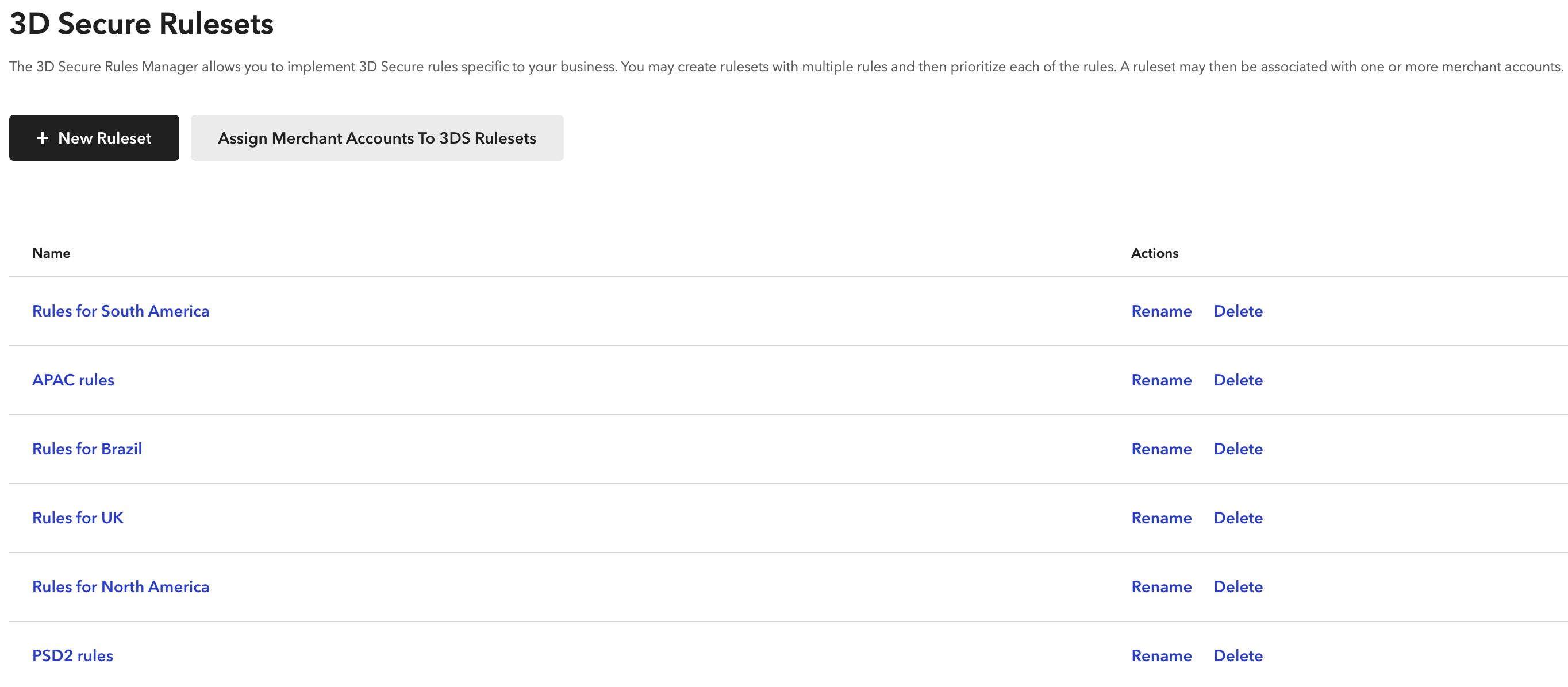
3D Secure rulesets are a set of rules that you can apply to merchant accounts. We recommend creating rulesets based on geographical region. This isn't the only way to group rules within a ruleset, and you can adjust the grouping to align with your specific requirements. Rulesets help you stay organized as you build out your 3D Secure rules, and each ruleset can have multiple rules assigned.
Creating rulesets
- Log into the Control Panel.
- Select the gear icon in the top right corner.
- Select Fraud Management from the drop-down menu.
- Next to 3D Secure Rules, select Options.
- Select New Ruleset.
- Enter a name for the ruleset.
- Select Save.
Rules
3D Secure rules are the instructions you apply to define how 3D Secure applies to specific transaction scenarios related to country, transaction amount, and more.
Creating rules
- Log into the Control Panel.
- Select the gear icon in the top right corner.
- Select Fraud Management from the drop-down menu.
- Next to 3D Secure Rules, select Options.
- Select the name of the ruleset you want to add the rule to.
- Select New Rule.
- Enter your criteria in the fields.
- Select Save.
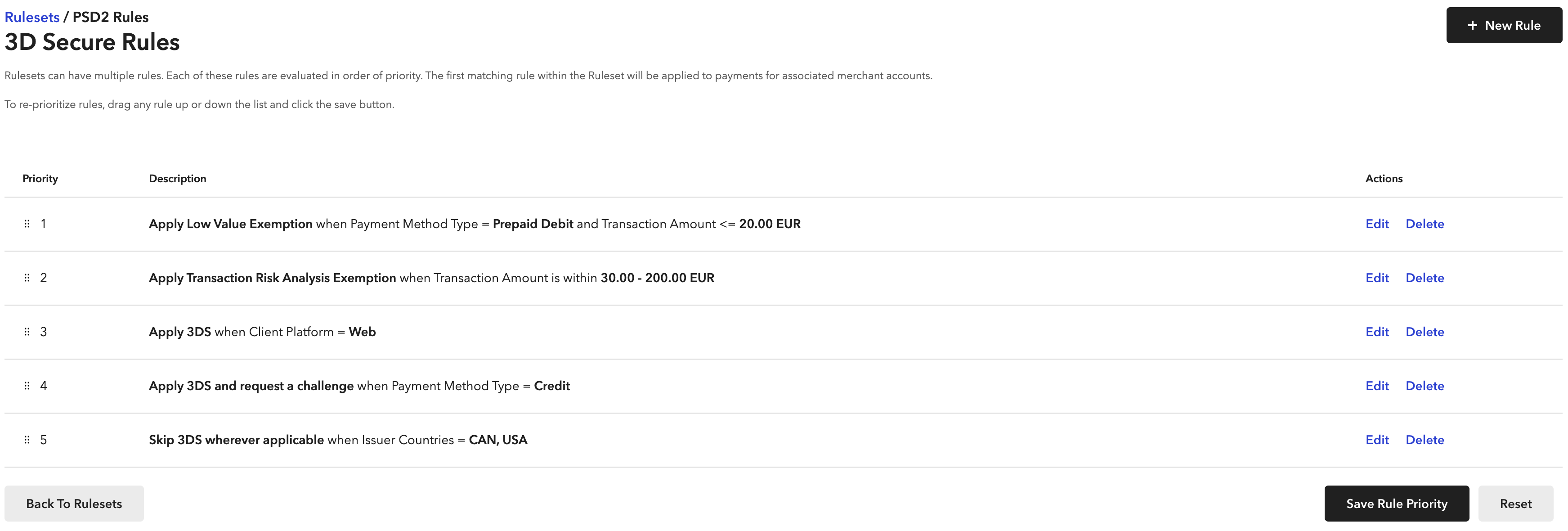
If multiple rules match a given transaction, Braintree applies the higher priority rule and ignores the other rules. We recommend that you consistently monitor and adjust your rules based on transaction activity, performance, and industry trends.
If the request includes challenge_requested or requested_exemption_type
parameters during verifyCard(), those parameters override any matched rule.
Prioritizing rules
- Log into the Control Panel.
- Select the gear icon in the top right corner.
- Select Fraud Management from the drop-down menu.
- Next to 3D Secure Rules, select Options.
- Select the name of the ruleset you want to adjust.
- Drag any rule up or down the list.
- Select Save Rule Priority.
Rule criteria
You can define the following rule criteria for each 3D Secure rule:
- Action
- Card BIN range
- Client platform
- Issuer countries
- Payment method type
- Rule name
- Transaction amount
Available actions
- Apply 3D Secure: trigger 3D Secure authentication, even when exemptions are possible. This can trigger both friction and frictionless challenges.
- Apply 3D Secure and request a challenge: trigger 3D Secure authentication and request a challenge. Requesting a challenge does not guarantee that the customer gets one, because the issuing bank controls the decision to present a challenge.
- Apply Low Value exemption: request to bypass 3D Secure for low-value transactions, those below 30 EUR or GBP. Merchants don't get a liability shift if the exemption is granted.
- Apply Transaction Risk Analysis exemption: request to bypass 3D Secure with a Transaction Risk Analysis (TRA) exemption. Merchants don't get a liability shift if the exemption is granted. Merchants need to qualify for TRA. Contact Braintree for more details.
- Skip 3D Secure wherever applicable: don't apply 3D Secure authentication for
transactions outside the PSD2 region. In a regulated market, this setting has no effect and 3D
Secure still applies. When Braintree skips 3D Secure, the merchant doesn't get the benefits of
3D Secure, such as liability shift. If 3D Secure is skipped,
verifyCard()returns theskipped_due_to_rulestatus, and you can proceed with the sale as normal. If a merchant wants to apply 3D Secure only when a rule matches, end the ruleset with a rule set to Skip 3D Secure wherever applicable. - Apply Data Only 3D Secure: share data with the issuer through EMV 3DS during the transaction process. This influences approval outcomes without adding friction for the cardholder. Merchants don't get a liability shift with this action.
Conditions
- Amount, range or greater or less than: apply rules based on the transaction amount, either within a range or greater than or less than a specified value.
- Card BIN range: apply rules based on the Bank Identification Number (BIN) range of the card.
- Card country of issuance: apply rules according to the cardholder's country of issuance. You can select multiple issuing countries for each rule.
- Client platform: apply rules based on whether requests come from iOS, Android, or web.
- Payment method type: apply rules to specific payment method types, for example credit card, debit card, prepaid debit, and prepaid credit.
Custom fields
3D Secure Rules Manager provides several fields you can use to build conditional filters. You may also have a specific set of fields for your business that you want to use to optimize 3D Secure in certain scenarios. Using custom fields, you can add those fields to the tool and use them to build filter conditions.
With 3D Secure Rules Manager, you can set 3D Secure rules on your predefined custom fields within
the Braintree Control Panel. When the fields you pass in the verifyCard() call match the
custom fields defined in 3D Secure Rules Manager, Braintree triggers the rules.
Define a custom field
- Log into the Control Panel.
- Select the gear icon in the top right corner.
- Select Processing from the drop-down menu.
- Next to Custom Fields, select Options.
- Select Add.
- Enter the API name of the new custom field, for example
guest_checkout. - Enter the Display name of the new custom field, for example
Guest Checkout. - Select Pass Thru.
- Select Add Custom Field.
For more information on defining custom fields, see custom fields documentation.
Create a rule using custom fields
- Log into the Control Panel.
- Select the gear icon in the top right corner.
- Select Fraud Management from the drop-down menu.
- Next to 3D Secure Rules, select Options.
- Select the name of the ruleset you want to add the rule to.
- Select New Rule.
- Scroll down to the Custom Fields section.
- Select Add Custom Field.
- Select the defined custom field from the Field section, for example
guest_checkout. - Enter a Value to trigger a rule, for example
true. - Enter your remaining criteria in the fields.
- Select Save.
Trigger a rule with custom fields using the API
Add custom fields to the verifyCard() call:
- JavaScript
const verifyCardParams = {
  customFields: {
    custom_key1: "custom_value1",
    custom_key2: "custom_value2",
    custom_key3: "custom_value3",
  },
};
For example, suppose you attempted a first transaction with a TRA exemption but received a 2099 decline from the issuing bank, and you're retrying the same transaction with 3D Secure. In this case, you can pass something like:
- JavaScript
const verifyCardParams = {
  customFields: {
    retry_transaction: "true",
  },
};
After you add this to your verifyCard() call, create a rule in 3D Secure Rules Manager
through the Control Panel that applies 3D Secure when the custom field retry_transaction
is set to true. Merchants have also used this tool for other use cases, such as when
attempting to vault a card.
As another example, a travel company might use this feature to trigger 3D Secure as a holiday package's start date approaches, because it becomes harder to recover from fraudulent activity closer to departure. In that case, you would pass something like:
- JavaScript
const verifyCardParams = {
  customFields: {
    package_starts_within_5_days: "true",
  },
};
You can also chain multiple custom fields within the same rule for added flexibility and customization.
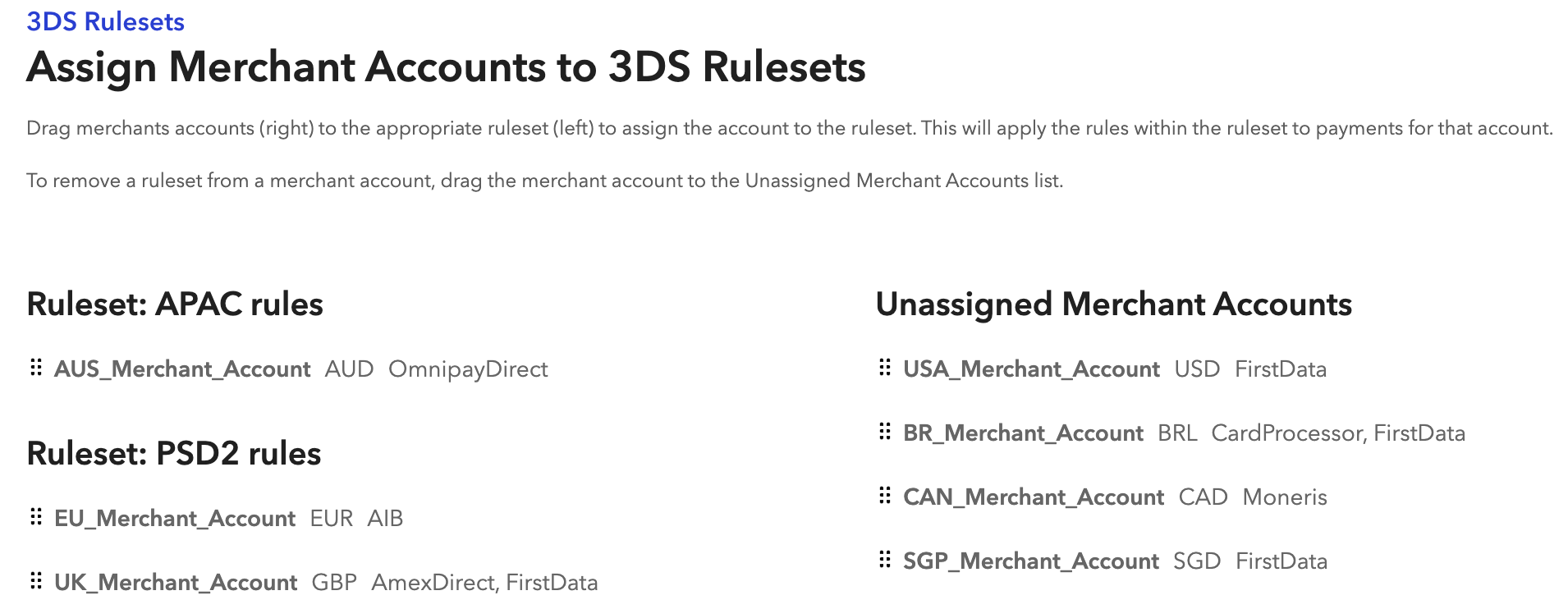
Assigning merchant accounts to rulesets
- Log into the Control Panel.
- Select the gear icon in the top right corner.
- Select Fraud Management from the drop-down menu.
- Next to 3D Secure Rules, select Options.
- Select Assign Merchant Accounts to 3DS Rulesets.
- Drag merchant accounts on the right to the appropriate ruleset on the left to assign the account to the ruleset.
Example 3D Secure rulesets for business objectives
Example 1: Improve conversion rate
Business objective: to capture more revenue and reduce cart abandonment, you want to generate higher conversion. This may help you get higher conversion at the cost of liability shift, because an SCA exemption doesn't give you liability shift.
Example rules:
- Request Low Value on all transactions below 30 EUR.
- Request TRA for all transactions between 30 and 250 EUR.
- Skip 3D Secure wherever applicable.
Expected outcome: higher revenue with less 3D Secure friction.
Example 2: Optimize conversion and liability shift
Business objective: to balance high approval rates and chargebacks, you want to optimize conversion and liability shift.
Example rules:
- Request Low Value on all transactions below 30 EUR.
- Apply 3D Secure in the UK and Ireland for transactions between 30 and 250 EUR.
- Request TRA in all markets for transactions between 30 and 250 EUR.
- Apply 3D Secure on transactions above 250 EUR.
Expected outcome: higher revenue by optimizing frictionless 3D Secure and optimized chargeback protection.
Example 3: Maximize liability shift
Business objective: your primary goal is to protect your business from chargebacks, so you want to maximize liability shift.
Example rules:
- Request Low Value on all transactions below 30 EUR.
- Apply 3D Secure on transactions above 30 EUR.
Expected outcome: liability shift on all transactions over 30 EUR and decreased chargeback liability.
Maintaining your rules
As the industry evolves, you may want to modify your rules to achieve your goals related to 3D Secure. We recommend that you monitor your rules and adjust them accordingly.