
Overview
Upgrade immediately to:
- iOS: SDK version 6.17.0+
- Android: SDK version 4.45.0+ or version 5.0.0+
Customers on affected app versions will see SSL/TLS connection failures when processing payments.
App Switch enables buyers with the PayPal app installed to start checkout or save a payment method in a merchant app or website and seamlessly complete the flow in the PayPal app. This provides a low-friction authentication experience using native PayPal app login methods such as Face ID, biometrics, or passkeys.
When App Switch is enabled, the Braintree iOS SDK attempts to switch to the PayPal app after
tokenize is called, provided the PayPal app is installed and the buyer meets
eligibility requirements. If App Switch is unavailable, the SDK automatically falls back to the
PayPal web experience using
ASWebAuthenticationSession.
This guide applies to merchants using the Braintree iOS SDK. App Switch is eligible for the following checkout options, all with the Pay Now consumer experience:
One-time Checkout and Save Payment Method with Purchase also support PayPal Pay Later — set
offerPayLater: true on the request to prioritize installment options on the PayPal
screen.
- App Switch is not supported for the One-time “Continue” flow.
- App Switch is currently supported only for US merchants.
Understand the buyer flow
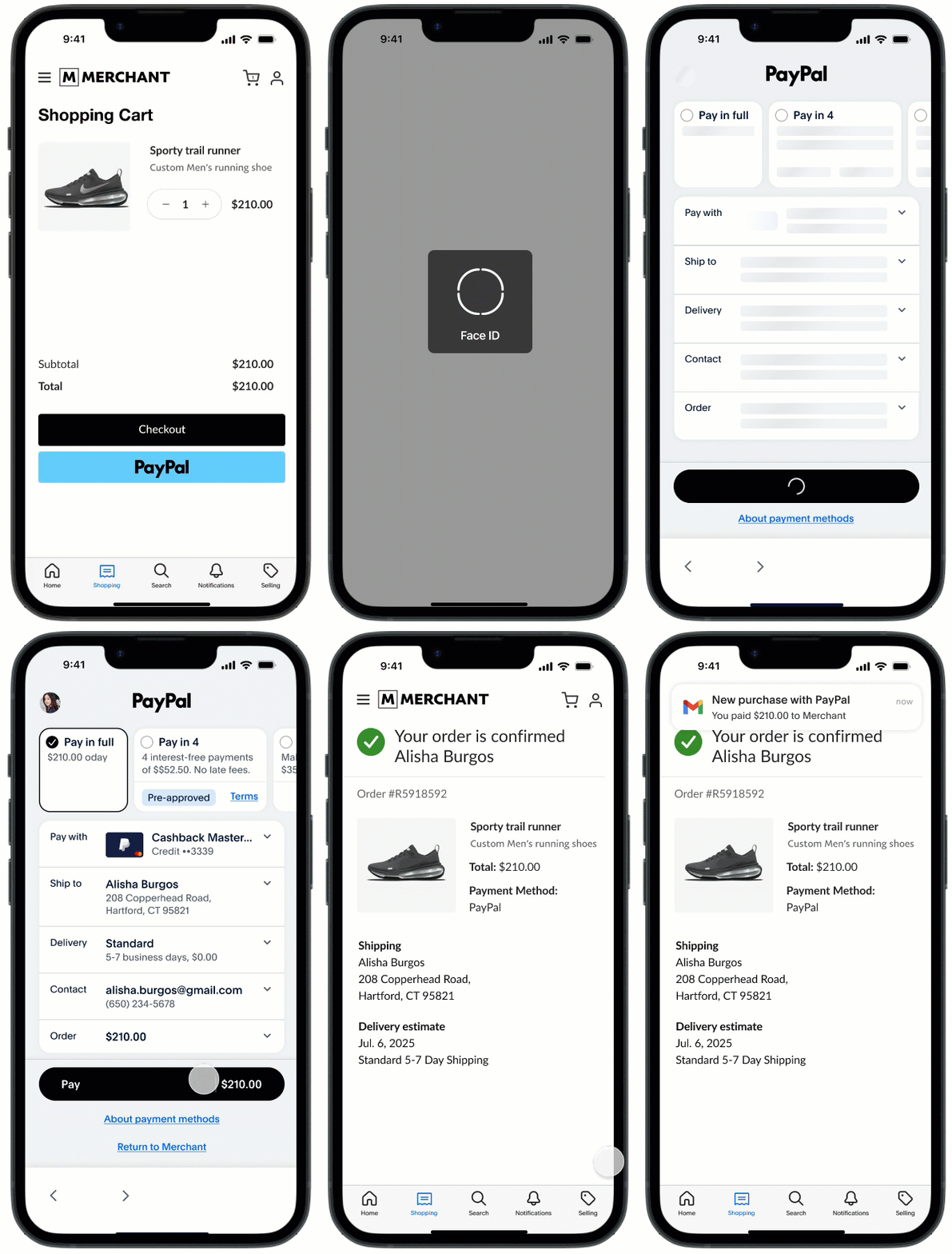
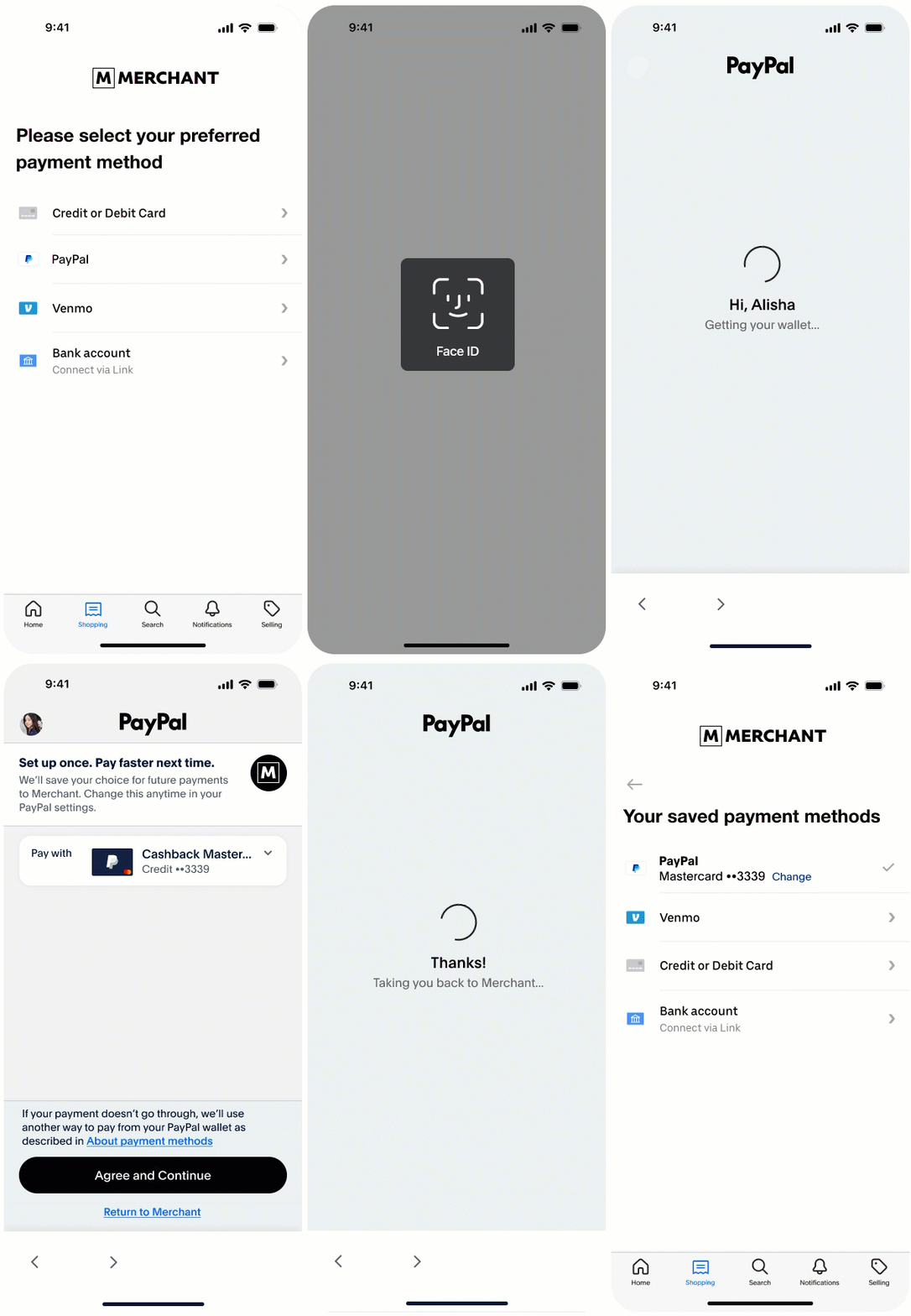
The following steps describe the buyer experience when App Switch is available and used during checkout or when saving a payment method.
- The buyer initiates PayPal checkout or saves a payment method from the merchant’s native mobile app.
- If the PayPal app is installed and the buyer is eligible, the SDK switches context from the merchant app to the PayPal app.
- The buyer is authenticated in the PayPal app using low-friction login methods such as Face ID, biometrics, passkeys, or an existing PayPal app session.
- The buyer reviews the transaction or save-payment details and approves the action in the PayPal app.
- The buyer is redirected back to the merchant app.
- The merchant app completes the transaction or successfully saves PayPal as a payment method.
One-time payments with Pay Now
Save Payment Method without Purchase
Before you begin
- Get the SDK.
The PayPal App Switch is part of theBraintreePayPalmodule in the Braintree SDK. This module can be integrated into your app through all currently supported package managers. - Register for universal links.
- Register universal link in Control Panel.
- Set universal link in SDK.
Use the followingBTPayPalClientinitializer to set your Universal Link:let payPalClient = BTPayPalClient( authorization: <#CLIENT_AUTHORIZATION#>, // required universalLink: URL(string: "https://my-universal-link.com/braintree-payments")! // required ) Configure Custom URI Scheme Link (available on SDK version 6.41+)
Define a custom URL Scheme to be used as a fallback. When the user is being directed to the merchant app using universal link, sometimes it might fail to launch the app and opens the link on the browser. If a fallback URL Scheme is defined, PayPal app can use this URL scheme to open the merchant app.Format requirements for
fallbackURLSchemeThe value you pass must be a bare URL scheme - not a full URL. Specifically, it must:
- Contain only alphanumeric characters, hyphens (
-), and periods (.) - Not include
:// - Not include a path, query string, or fragment (e.g. no
/,?, or#) - Be registered as a URL type in your app's
Info.plist
Valid examples:
"com.merchant.app.payments""merchantapp"
Invalid examples:
"com.merchant.app.payments://"- contains://"com.merchant_app"- underscore is not allowed"com.merchant.app.payments/callback"- contains a path
Include fallback URL Scheme in the BTPayPalClient constructor as shown below:
let payPalClient = BTPayPalClient( authorization: <#CLIENT_AUTHORIZATION#>, // required universalLink: URL(string: "https://my-universal-link.com/braintree-payments")!, // required fallbackURLScheme: "merchant" )- Contain only alphanumeric characters, hyphens (
- Handle App context switching.
Integrate App Switch
This section outlines the required iOS configuration and SDK usage needed to enable PayPal App Switch when tokenizing PayPal checkout or save-payment requests using the Braintree iOS SDK.
-
To allow your app to detect and switch to the PayPal app, add the PayPal URL scheme to the
LSApplicationQueriesSchemesallowlist in your app’sInfo.plist:- Swift
<key>LSApplicationQueriesSchemes</key> <array> <string>paypal-app-switch-checkout</string> <!-- iOS v6 --> <string>paypal</string> <!-- iOS v7 --> </array> -
When creating a PayPal request, set
enablePayPalAppSwitchto true. App Switch is triggered during tokenization if the PayPal app is installed and the buyer meets eligibility requirements. Include the buyer’s email address and phone number when available to personalize buyer’s experience and improve authentication and approval success rates. Use the request withBTPayPalClient.tokenize(_:completion:)
For One-time flow
- Swift
let request = BTPayPalCheckoutRequest(
    userAction: .payNow, // Required for App Switch
    enablePayPalAppSwitch: true,
    userAuthenticationEmail: "[email protected]",
    userPhoneNumber: BTPayPalPhoneNumber(
        countryCode: "1",
        nationalNumber: "2223334444"
    )
)
For Saved Payments flow
- Swift
let request = BTPayPalVaultRequest(
    enablePayPalAppSwitch: true, // to enable App Switch
    userAuthenticationEmail: "[email protected]",
    userPhoneNumber: BTPayPalPhoneNumber(
        countryCode: "1",
        nationalNumber: "2223334444"
    )
)Code Sample
Each sample uses the Pay Now consumer experience (userAction: .payNow). For
One-time Checkout and Save Payment Method with Purchase, the request includes
offerPayLater with an inline comment showing how to prioritize PayPal Pay Later
installment options on the PayPal screen.
One-time Payments
- Swift
import BraintreePayPal
import BraintreeUIComponents

// One-time Checkout — Pay Now.
// userAction: .payNow presents the "Pay Now" experience: the buyer commits to the
// payment in the PayPal app, and you present the final order status when they return.
PayPalButton(
    authorization: clientToken,
    universalLink: URL(string: "https://your-app.example.com/braintree-payments")!,
    request: BTPayPalCheckoutRequest(
        amount: "59.00",
        enablePayPalAppSwitch: true,
        userAuthenticationEmail: "[email protected]",  // Strongly recommended — improves App Switch eligibility
        intent: .sale,
        userAction: .payNow,
        offerPayLater: false  // Set to true to prioritize PayPal Pay Later installment options on the PayPal screen
    )
) { nonce, error in
    guard let nonce else { return }
    // Send nonce.nonce to your server to create the transaction.
    createTransaction(nonce: nonce.nonce, amount: "59.00")
}
Saved Payments
- Swift
import UIKit
import BraintreePayPal

class VaultedPaymentViewController: UIViewController {
    var payPalClient: BTPayPalClient!

    override func viewDidLoad() {
        super.viewDidLoad()
        payPalClient = BTPayPalClient(
            authorization: <#CLIENT_AUTHORIZATION#>,
            universalLink: URL(string: "https://my-universal-link.com/braintree-payments")!,
            fallbackURLScheme: "merchant"
        )
    }

    private func payPalButtonTapped() {
        let request = BTPayPalVaultRequest(
          enablePayPalAppSwitch: true,
          userAuthenticationEmail: "[email protected]",
          userPhoneNumber: BTPayPalPhoneNumber(
              countryCode: "1",
              nationalNumber: "2223334444"
          )
        )

        payPalClient.tokenize(request) { payPalNonce, error in
          if let payPalNonce {
            // send payPalNonce.nonce to server
          } else {
            // handle error
          }
        }
    }
}
Save Payment Method with Purchase
The Save Payment Method with Purchase flow charges the buyer and saves their PayPal account as a payment method for future use — in a single checkout step. The buyer approves both the payment and the save consent together in the PayPal app.
- Swift
import BraintreePayPal
import BraintreeUIComponents

// Save Payment Method with Purchase — the buyer pays and saves their PayPal account in one step.
// requestBillingAgreement: true — buyer consents to save their PayPal account for future use.
// userAction: .payNow — the buyer commits to the payment in the PayPal app (no review step on your side).
PayPalButton(
    authorization: clientToken,
    universalLink: URL(string: "https://your-app.example.com/braintree-payments")!,
    request: BTPayPalCheckoutRequest(
        amount: "64.00",
        enablePayPalAppSwitch: true,
        userAuthenticationEmail: "[email protected]",  // Strongly recommended — improves App Switch eligibility
        intent: .sale,
        userAction: .payNow,
        offerPayLater: false,           // Set to true to prioritize PayPal Pay Later installment options on the PayPal screen
        requestBillingAgreement: true   // Buyer consents to save their PayPal account
    )
) { nonce, error in
    guard let nonce else { return }
    // Send nonce.nonce to your server.
    // Server-side: gateway.transaction.sale with storeInVaultOnSuccess: true
    // Returns the transaction ID and a reusable payment method token for future charges.
    createTransactionAndSave(nonce: nonce.nonce, amount: "64.00")
}
On your server, call gateway.transaction.sale with
storeInVaultOnSuccess: true. The response includes both the transaction ID and a
reusable payment method token for future charges.
Best practices
These best practices are important to ensure optimal user experience and improved conversion.
Show a loading indicator after the PayPal button click
When the user taps the PayPal button:
- Immediately disable the PayPal button to prevent duplicate submissions.
- Show a loading indicator while the network request is in progress.
This prevents accidental double-taps and clearly communicates that the checkout flow is in progress.
Provide the buyer email and phone number
Although optional, providing the buyer’s email address and phone number whenever available is strongly recommended. Passing this information helps PayPal to:
- Personalize the buyer experience.
- Improve risk assessment.
- Optimize approval rates.
This often results in higher overall conversion.
Phone number formatting requirements
When passing a phone number, ensure it is sanitized into its canonical format:
- countryCode must contain numeric digits only (do not include a + prefix).
- nationalNumber must include digits only.
- Remove spaces, hyphens, parentheses, and other formatting characters.
- Do not include the country code in the national number.
- Do not include leading zeros unless they are part of the actual national number.
Example:
userPhoneNumber: BTPayPalPhoneNumber(
          countryCode: "1",
          nationalNumber: "2223334444"
    )
Handling return to your app
When the buyer returns to your app (either automatically or manually):
- Remove the loading indicator immediately when your app returns to the foreground.
- Allow the buyer to continue from where they left off, especially if they exited the PayPal app without approving or canceling the transaction (for example, by backgrounding the PayPal app).
When the SDK callback returns a nonce (indicating the buyer approved the transaction):
- Disable the PayPal button again.
- Display a loading indicator or overlay while finalizing the saved payment method or transaction.
- Continue processing until completion.
You may optionally implement a timeout (for example, 10 seconds) for the loading indicator in case processing takes longer than expected.
This ensures UI consistency and prevents unintended user interactions during payment finalization.
Redirection to mobile browser
In some cases, after approving the transaction in the PayPal app, the OS may redirect the buyer to your website in the default mobile browser instead of returning to your app, even when return and cancel URLs are configured.
This typically occurs when:
- The universal link configuration on the device does not match the registered domain, or
- The app cannot properly claim the universal link.
Recommended mitigations:
- Ensure universal links are correctly configured and associated with the domain.
-
(Optional but recommended) Implement fallback logic on your website to:
- Detect redirected buyers.
- Retrieve or confirm the final token or payment status.
- Guide the buyer back to the correct in-app flow when possible.
Testing and Go Live
For detailed testing procedures and production deployment guidance, see the Testing and Go Live section.