- This integration requires a PayPal Developer account.
- This procedure modifies an existing standard payments or advanced credit and debit card payments integration.
- Your payments integration must have a server-side capture call or a server-side authorization and capture call.
- To save payment methods, you must be able to uniquely identify payers. For example, payers create an account and log in to your site.
- Complete the steps in Get started to get the following sandbox account information from the Developer Dashboard:
- Your sandbox account login information
- Your access token
Save PayPal with the JavaScript SDK
Current
Last updated: May 5th, 10:57pm
After customers save their PayPal Wallet, they can select it for faster checkout. Customers won't have to enter payment details for future transactions.
To vault PayPal Wallets, payers need to log in to your site, make a purchase, and remain on your site when transactions take place.
Customers with a PayPal Wallet can:
- Review PayPal transactions and transaction history
- Review, add, or remove funding sources
- Review and cancel recurring payments
- Hold a balance in their PayPal account
- Use PayPal to send and receive money
- Withdraw money to a linked bank account
- Use PayPal to transact with merchants
Important: Don’t save PayPal as a payment method during purchase. For more information about securely saving payment methods and optimizing the buyer experience, see our Best practices guide.
Know before you code
How it works
PayPal encrypts payment method information and stores it in a digital vault for that customer.
- The payer saves their payment method.
- For a first-time payer, PayPal creates a customer ID. Store this within your system for future use.
- When the customer returns to your website and is ready to check out, pass their PayPal-generated customer ID to the JavaScript SDK. The customer ID tells the JavaScript SDK to save or reuse a saved payment method.
- The payer completes a billing agreement.
- The JavaScript SDK populates the checkout page with each saved payment method. Each payment method appears as a one-click button next to other ways to pay.
The checkout process is now shorter because it uses saved payment information.
Return payer experience
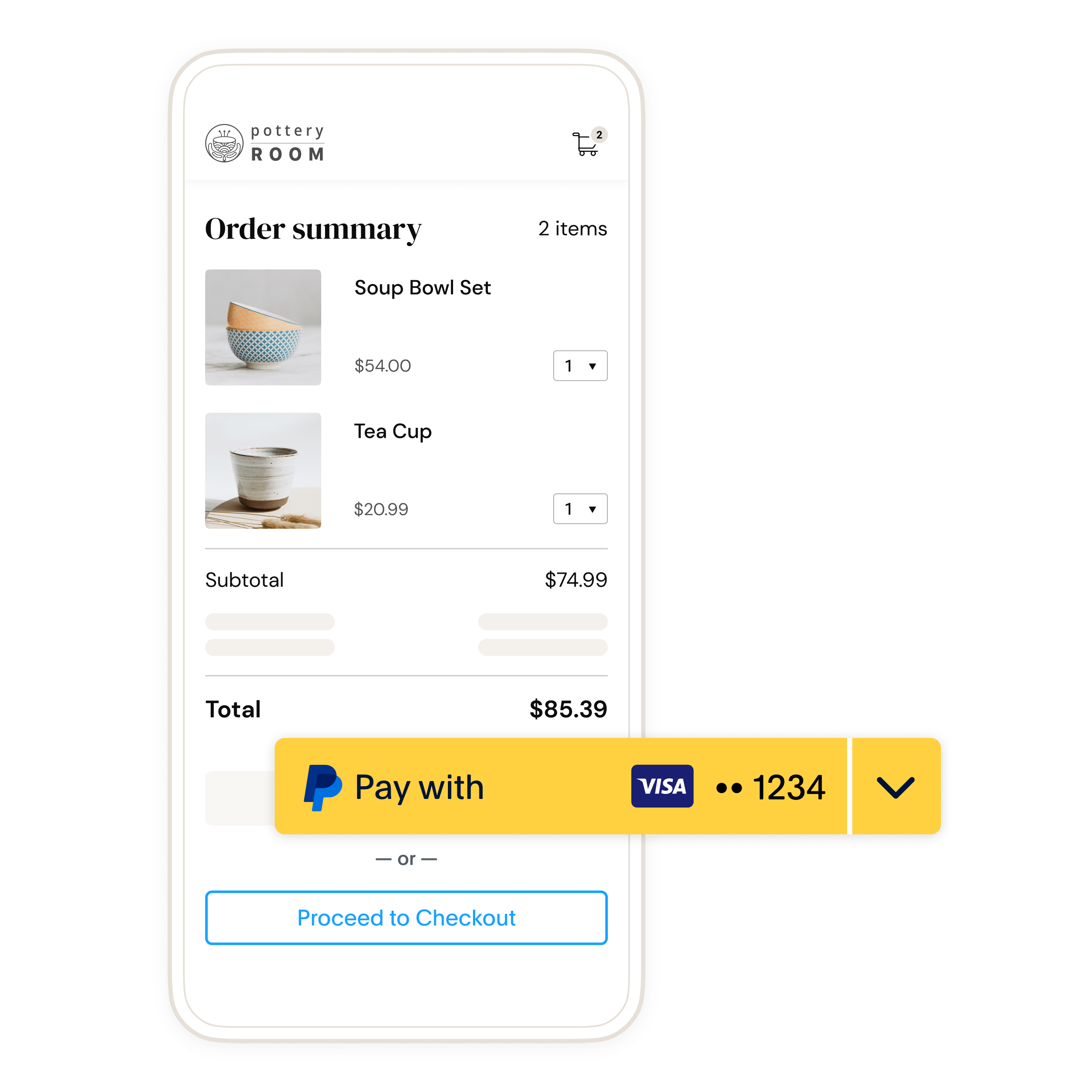
The following is an example of what a payer sees after they save their PayPal Wallet on your site. Returning payers can select their saved payment method at checkout to pay faster.
The payer uses a credit card in their PayPal Wallet in the following example:
Use cases
Businesses save payment methods if they want customers to:
- Check out without re-entering a payment method
- Pay after use, for example, ride-sharing and food delivery
1
Get vetted to save PayPal Wallets
To go live, you'll need to be vetted for PayPal Wallet. You can start the vetting process from the Merchant Servicing Dashboard.
- Only your sandbox business account is enabled for vaulting payment methods.
- Your developer account remains unaffected.You'll complete production onboarding when you're ready to go live.
2
Generate user ID token for payer
The OAuth 2.0 API to retrieve an access_token has an additional parameter, response_type, that can be set to id_token. Include the id_token and access_token in the response.
First-time payer
A payer wants to save a payment method for the first time. Modify the POST request to generate id_token for the payer.
Returning payer
A payer wants to use a saved payment method.
Use the saved PayPal-generated customer ID in the POST body parameter target_customer_id. The target_customer_id is a unique ID for a customer generated when the payment_source is saved to the vault. The target_customer_id is available when capturing the order or retrieving saved payment information.
Note: Use the customer identifier generated by PayPal, not the identifier that you use to identify the customer in your system.
Sample server-side user ID token request
- First-time payer - Platform
- First-time payer - Merchant
- Returning payer - Platform
- Returning payer - Merchant
1curl -s -X POST https://api-m.sandbox.paypal.com/v1/oauth2/token \2 -u CLIENT_ID:CLIENT_SECRET \3 -H "Content-Type: application/x-www-form-urlencoded" \4 -d "grant_type=client_credentials" \5 -d "response_type=id_token"
Modify the code
Copy the code sample and modify it as follows:
- Change
CLIENT-IDto your client ID. - Change
CLIENT-SECRETto your client secret. - Change the customer ID to the PayPal-generated customer ID for a returning payer.
- Change
PAYPAL-AUTH-ASSERTIONto your PayPal-Auth-Assertion token.
A successful request returns fields including an access_token, id_token, and the number of seconds the access_token token is valid.
The id_token:
- Uniquely identifies each payer.
- Expires in a few minutes because it's meant to be used during checkout. Generate new tokens if the current tokens expire.
Tip: Each buyer session is unique. Set up your server to generate a new client token each time payment fields render on your page.
Sample response
- First-time payer - Merchant
- Returning payer - Merchant
1{2 "access_token" : "A21AAJ--LVQmYlaxd_TDFOqVs4C3Xa7kPfa0Es7O35_9TEWaWRCMw7-NBJuBWqXZhb3eOolNnMtxwhoMP3NqHOJm1rvPDehfQ",3 "app_id" : "APP-80W284485P519543T",4 "expires_in" : 32400,5 "id_token" : "eyJraWQiOiJjMmVjMmZiYjIzMGU0ZDkzOTNhMGFmZjEzZTY4MjFjMSIsInR5cCI6IkpXVCIsImFsZyI6IkVTMjU2In0.eyJpc3MiOiJodHRwczovL2FwaS5zYW5kYm94LnBheXBhbC5jb20iLCJzdWIiOiJQQ0haQ1RMMjVSNllXIiwiYWNyIjpbImNsaWVudCJdLCJzY29wZSI6WyJCcmFpbnRyZWU6VmF1bHQiXSwib3B0aW9ucyI6eyJjdXN0b21lcl9pZCI6IjIxMzM3NTk5MiJ9LCJheiI6ImdjcC5zbGMiLCJleHRlcm5hbF9pZCI6WyJQYXlQYWw6UENIWkNUTDI1UjZZVyIsIkJyYWludHJlZTo2ZDNtY3pqN2h3cHE4Y2cyIl0sImV4cCI6MTY2NDIzOTA1MCwiaWF0IjoxNjY0MjM4MTUwLCJqdGkiOiJVMkFBSVNTRkozbVlJUE8wdGYwTF93NFVmTHpfeGFCNHhYRndkTnRibTNXOVhtQ2xoU2NuWGZtMmRxbjU5QjY2akRVbzNhd1Y0ODlsbFpZOVBuV2RFTVN4ZlpZVDZKTS1mUi1rdEotcV9pdkZKMHlCWXdpdU1HaldPR2psZWktUSJ9.PSDUMcZxsEEUlKNqKHgFhrmAcKeCeJMIMhzMrVV5PpTftlB_Xmgzwl1Fir0H0OYSjmopcVPNfXyXl55jxaqJdQ",6 "nonce" : "2022-09-27T00:22:30ZxsLQJVSYoAx7jqj1JJgr3onjVSPVL5juzZbId-Z-bwQ",7 "scope" : "https://uri.paypal.com/services/invoicing https://uri.paypal.com/services/vault/payment-tokens/read https://uri.paypal.com/services/disputes/read-buyer https://uri.paypal.com/services/payments/realtimepayment https://uri.paypal.com/services/disputes/update-seller https://uri.paypal.com/services/paypalhere openid https://uri.paypal.com/services/payments/payment/authcapture https://uri.paypal.com/services/disputes/read-seller Braintree:Vault https://uri.paypal.com/services/payments/refund https://uri.paypal.com/services/identity/activities https://api-m.sandbox.paypal.com/v1/vault/credit-card https://api-m.sandbox.paypal.com/v1/payments/.* https://uri.paypal.com/services/reporting/search/read https://uri.paypal.com/payments/payouts https://uri.paypal.com/services/vault/payment-tokens/readwrite https://api-m.sandbox.paypal.com/v1/vault/credit-card/.* https://uri.paypal.com/services/shipping/trackers/readwrite https://uri.paypal.com/services/subscriptions https://uri.paypal.com/services/applications/webhooks https://api-m.sandbox.paypal.com/v1/payments/refund https://api-m.sandbox.paypal.com/v1/payments/sale/.*/refund",8 "token_type" : "Bearer"9 }
3
Pass user ID token to JavaScript SDK
Pass the id_token from your server into the JavaScript SDK using the data-user-id-token.
1<script src="https://www.paypal.com/sdk/js?client-id=YOUR_CLIENT_ID" data-user-id-token="YOUR-ID-TOKEN"></script>
If you are processing PayPal transactions on behalf of another merchant, include the merchant_id parameter as described in the JavaScript SDK script configuration.
- Set up container element
- Include JavaScript SDK
- Render PayPal buttons
1<!-- Set up a container element for the button -->2<div id="paypal-button-container"></div>
5
Create order
Include client-side callbacks to:
- Manage interactions with APIs
- Manage payer approval flows
- Handle any events that lead to cancellation or error during payer approval
- Client-side code snippet
- Server-side sample request - Platform
- Server-side sample request - Merchant
- Server-side sample response - Platform
- Server-side sample response - Merchant
1<script>2 paypal.Buttons({3 // Call your server to set up the transaction4 createOrder: function(data, actions) {5 return fetch('/yourserver.com/createOrder', {6 method: 'post',7 body: JSON.stringify({8 source: data.paymentSource, // PayPal, Venmo, and so on9 }),10 }).then(function(res) {11 return res.json();12 }).then(function(orderData) {13 return orderData.id;14 });15 },16 // Authorize or capture the transaction after payer approves17 onApprove: (data, actions) => {18 return fetch('/yourserver.com/order/' + data.orderID + '/capture/', {19 method: 'post'20 });21 },22 onCancel(data, actions) {23 console.log(`Order Canceled - ID: ${data.orderID}`);24 },25 onError(err) {26 console.error(err);27 }28 }).render('#paypal-button-container');29</script>
Server-side code snippet
Set up your server to call the Create Order API. The button that the payer selects determines payment_source sent in the sample.
This SDK uses the Orders v2 API to save payment methods in the background. Use the server-side sample request to add attributes needed to save a PayPal Wallet.
Request
In the sample request, payment_source.paypal.attributes.vault.store_in_vault with the value ON_SUCCESS means the PayPal button is saved with a successful authorization or capture.
Pass payment_source.paypal.experience_context and include return_url and cancel_url to redirect the payer after they approve or cancel the order.
To allow a payer to save payment tokens for both PayPal and Venmo, pass permit_multiple_payment_tokens value as true in payment_source.paypal.attributes.vault.
To save payments at the platform level, set usage_type to PLATFORM under the vault attribute.
To save payments at the merchant level:
- The Orders API call must contain the PayPal-Auth-Assertion field.
- Set
usage_typetoMERCHANTunder thevaultattribute.
For returning payers, also pass shipping_preference.
Platform Response
Return the id to your client to call the payer approval flow if payment_source needs payer approval.
Note: The request to save the PayPal button is made when the order is created through payment_source.attributes.vault.store_in_vault. Vault details are available only after an order is authorized or captured.
6
Payer approval
If payer approval is required, the client SDK calls the payer approval flow. The approval flow takes the payer through PayPal Checkout.
Save approved payment source
If the payment has been authorized or captured, the payer does not need to be present to save a payment_source. To keep checkout times as short as possible, the Orders API responds as soon as payment is captured.
If the attributes.vault.status returned after payment is APPROVED, you won't have a vault.id yet. An example of the attributes object from this scenario is in the following sample:
1"attributes": {2 "vault": {3 "status": "APPROVED",4 "links": [5 {6 "href": "https://api-m.sandbox.paypal.com/v2/checkout/orders/5O190127TN364715T",7 "rel": "up",8 "method": "GET"9 }10 ]11 }12 }
The Payment Method Tokens API still saves the payment source even after the Orders API returns its response and sends a webhook after the payment source is saved.
In order to retrieve a vault_id when an APPROVED status is returned, you'll need to subscribe to the VAULT.PAYMENT-TOKEN.CREATED webhook.
The Payment Method Tokens API sends a webhook after the payment source is saved. An example of the VAULT.PAYMENT-TOKEN.CREATED webhook payload is shown in the following sample:
1{2 "id": "WH-72S4353495632143A-68K769747M133873M",3 "event_version": "1.0",4 "create_time": "2022-08-27T01:25:57.462Z",5 "resource_type": "payment_token",6 "resource_version": "3.0",7 "event_type": "VAULT.PAYMENT-TOKEN.CREATED",8 "summary": "A payment token has been created.",9 "resource": {10 "time_created": "2022-08-26T18:25:57.449PDT",11 "links": [12 {13 "href": "https://api-m.sandbox.paypal.com/v3/vault/payment-tokens/7vrxmrw",14 "rel": "self",15 "method": "GET",16 "encType": "application/json"17 },18 {19 "href": "https://api-m.sandbox.paypal.com/v3/vault/payment-tokens/7vrxmrw",20 "rel": "delete",21 "method": "DELETE",22 "encType": "application/json"23 }24 ],25 "id": "3nqvjt3n",26 "payment_source": {27 "paypal": {28 "permit_multiple_payment_tokens": false,29 "usage_type": "MERCHANT",30 "customer_type": "CONSUMER",31 "email_address": "buyer@example.com",32 "payer_id": "VTR4JYK7STE7J"33 }34 },35 "customer": {36 "id": "208743798"37 }38 },39 "links": [40 {41 "href": "https://api-m.sandbox.paypal.com/v1/notifications/webhooks-events/WH-72S4353495632143A-68K769747M133873M",42 "rel": "self",43 "method": "GET"44 },45 {46 "href": "https://api-m.sandbox.paypal.com/v1/notifications/webhooks-events/WH-72S4353495632143A-68K769747M133873M/resend",47 "rel": "resend",48 "method": "POST"49 }50 ]51}
In the previous example, the resource.id field is the vault ID. The resource.customer.id is the PayPal-generated customer ID.
8
Test your integration
Run the following tests in the PayPal sandbox to ensure you can save PayPal Wallets.
- Save payment method
- On your checkout page, click the PayPal button.
- Log in to the payer account and approve the payment and billing agreement.
- Capture the transaction.Store the PayPal-generated customer ID in your system.
- Log in to sandbox with your merchant account and verify the transaction.
- Refresh the page that contains the PayPal button. Ensure the JavaScript SDK is initialized with the PayPal-generated customer ID.
- Ensure the PayPal button displays the payer's preferred payment method.
- Ensure that the payment method you just saved is visible with the other buttons.
- Select the PayPal button again to test the return payer flow.
Next steps
- Test and go live with this integration.
- Change the credentials and API URLs from
api-m.sandbox.paypal.comtoapi-m.paypal.comwhen going live with your integration. - You can create orders without the
payment_source.paypal.attributes.vaultfor subsequent or recurring transactions. - You can get a payment token, list all payment tokens, delete a payment token, and more with the Payment Method Tokens API.