
Reconciliation
General reconciliation
For general reconciliation, you'll want to compare the information in the Funding Totals section of your AIB Merchant Statement to the deposits you see in your bank account. Here you'll find details of all bank transfers completed within the billing period, along with the text that will appear on your bank statements for each disbursement.
Transaction-level reconciliation
To reconcile at the transaction level, compare the information in the AIB Transaction Fee Report to both your AIB Statement and the deposits you see in your bank account.
Step one: Download the AIB Transaction Fee Report
Only users with the Create, Run, and Download Reports role permission can access the AIB Transaction Fee Report in the Control Panel. To find this report:
- Log into the Control Panel
- Click on Reports in the navigation bar
- Next to AIB Transaction Fee Report, click the Run Report button
-
Specify the Merchant Account you want to run the report for
- If you process in multiple currencies and have more than one merchant account, all merchant accounts will be included in the report by default
- If you want to view the transaction fee report for specific merchant accounts, replace the All tag in the Merchant Account ID field with the merchant account IDs you'd like to view
- Select the desired Date Range*
- Click the Run Report button
* The AIB Transaction Fee Report is based on transaction settlement dates. It typically takes one business day after settlement for the transaction to be deposited in your bank account. To account for this difference, we suggest specifying a wider date range when running the AIB Transaction Fee Report to ensure that it includes all of the transactions in the disbursement you are reconciling.
Step two: Calculate your net settlement amounts
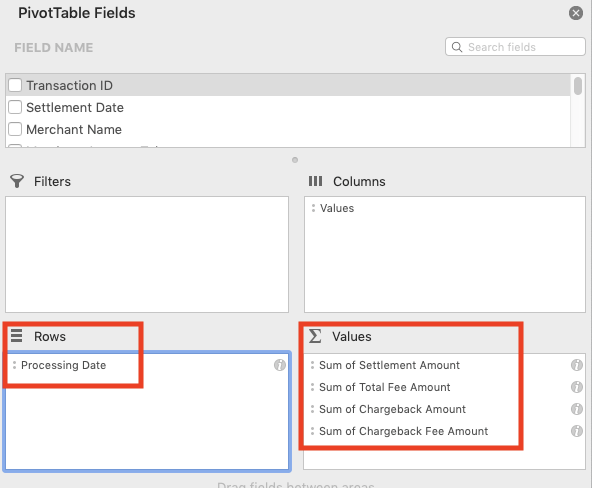
Once you have downloaded and opened the report within Excel, you can generate a PivotTable of your transaction fee data, organized by processing date. Within the PivotTable Fields panel, apply the following fields:
- Add Processing Date to the Rows field
- Add Settlement Amount, Total Fee Amount, Chargeback Amount, and Chargeback Fee Amount to the Values field
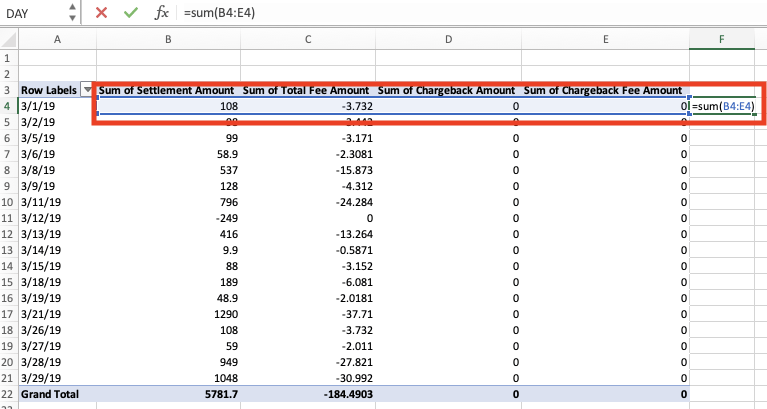
You can then apply the Sum formula to each one of the rows in your PivotTable to calculate your net settlement amount for each processing date (i.e. Settlement Amount minus all fees and chargebacks):
Step three: Download the AIB Merchant Statement
AIB Merchant Statements are available in the Control Panel. To access your statements:
- Log into the Control Panel
- Click on Reports in the navigation bar
- Click the Statements tab
- Next to AIB Merchant Statements, click the View Statement button
- Select the AIB Merchant Statement for the desired month
Step four: Reconcile
Once you have downloaded the AIB Merchant Statement and created your AIB Transaction Fee Report PivotTable, you can begin to reconcile. Match the dates in the Processing Date column of the PivotTable to those in the Funding Totals section of your AIB Merchant Statement. The net settlement amount in your PivotTable should match the funding total listed for that date in the statement. If it does not, here are some reconciliation techniques to try:
- Round the Total Fee Amount up to 2 decimal places; AIB calculates the Total Fee Amount with up to 5 decimal places, which can cause minor discrepancies
- Add some amounts from the next or previous date in the Transaction Fee Report; the exact processing dates may not match due to negative balances or time zone differences.
Understand the AIB Transaction Fee Report
The AIB Transaction Fee Report is full of helpful information. Here are the columns that merchants most frequently have questions about when reconciling:
- Settlement Amount: The transaction amount before any fees are deducted
- Interchange Amount: The total monetary value of the various interchange fees, both static and percentages, that were assessed for the transaction
- Total Fee Amount: The total fees assessed on the transaction, including the Interchange Amount and all Braintree fees; does not include chargeback fees
The Interchange Amount column helps us calculate fees, but it should not be used by merchants for reconciliation. Regardless of your pricing model, you should only use the Total Fee Amount column to reconcile your transactions.