Statements
Statements are made available in the Control Panel by the 9th business day of each month. To access your statements:
- Log into the Control Panel
- Click on Reports in the navigation bar
- Click the Statements tab
If you are unable to access the Merchant Statements page, you'll want to make sure that your user's role has the View Statements role permission enabled.
Processing Details
This area shows a breakdown of the processing within the statement billing period. This detail is at a batch level and includes a summary of all the transactions processed in each batch.
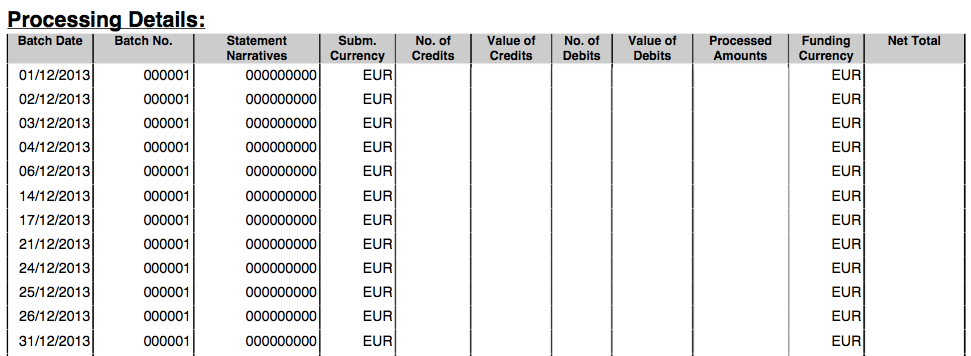
- Batch Date: This date corresponds to the Settlement Batch Summary report in the gateway
- Batch No. & Statement Narratives: These values are generated by AIB and are not relevant to your Braintree account
- Subm. Currency: Presentment currency for the batch
- No. of Credits: Number of sales processed in the batch
- Value of Credits: Sales volume for the batch
- No. of Debits: Number of refunds processed in the batch
- Value of Debits: Refund volume for the batch
- Processed Amounts: The net amount (sales minus refunds) processed in the presentment currency
- Funding Currency: Currency in which deposits are made to your bank account
- Net Total: The net amount (sales minus refunds) processed in the settlement currency
Fees and Charges
Merchant Service Charges
The Merchant Service Charges (MSC) portion of the Fees and Charges section will display your ad valorem (MSC Rate %) and per transaction fee (Fixed MSC Rate). If you have an IC+ pricing agreement, you’ll also see your interchange fees in this section.
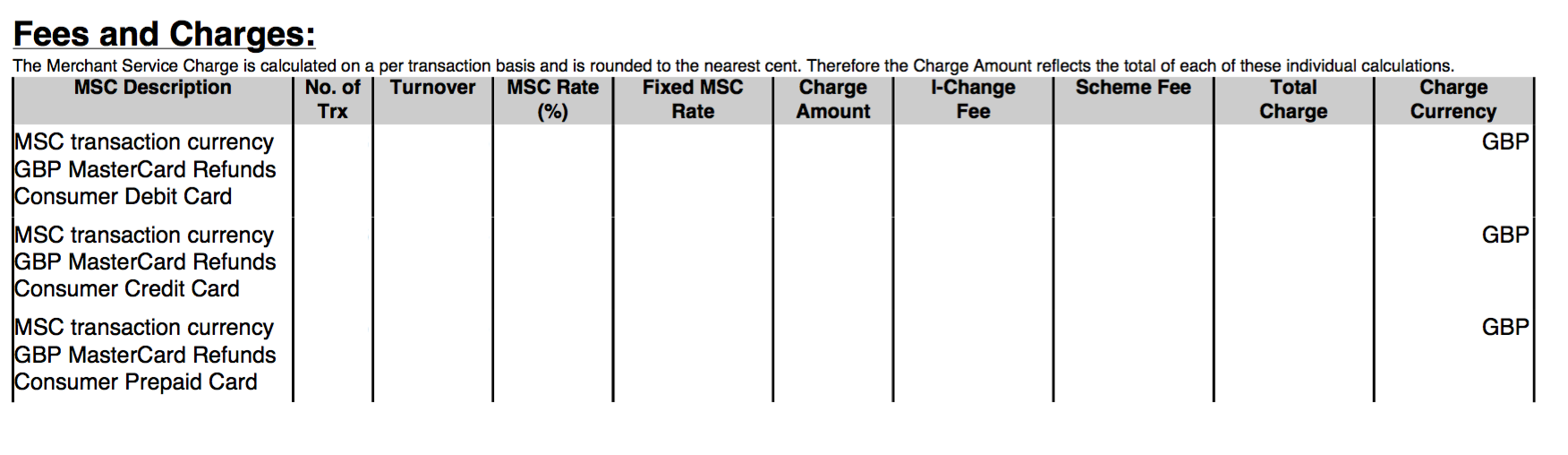
- MSC Description: Specifies the card type, region, and currency
- No. of Trx: Number of transactions which incurred fees
- Turnover: Total sales amount that incurred fees
- MSC Rate (%): Your ad valorem
- Fixed MSC Rate: Your per transaction fee
- Charge Amount: The total calculated fees from the MSC Rate (%) and Fixed MSC Rate columns
- I-Change Fee: Your interchange fees*
- Scheme Fee: Your scheme fees*
- Total Charge: The total interchange, scheme, and MSC fees that were applied to the transactions
- Charge Currency: The currency in which fees were incurred
*These columns will remain empty if these fees do not apply to your pricing model.
Fee charges
This portion of the Fees and Charges section is located below the MSC section and includes any additional non-processing fees, like chargeback fees. You will not see this section if you do not have any applicable fees.

- Fee Description: Specifies the particular fee
- No. of Fees Charged: The total number of items that incurred the fee
- Fee Amount: The rate or amount of the fee
- Fee Total: The total amount of fees incurred
- VAT(%): This column will be blank; we do not calculate VAT
- VAT Amount: This column will be blank; we do not calculate VAT
- Total Amount: The total calculated fees from the Fee Amount, VAT %, and VAT Amount columns
- Fee Currency: The currency in which fees were incurred
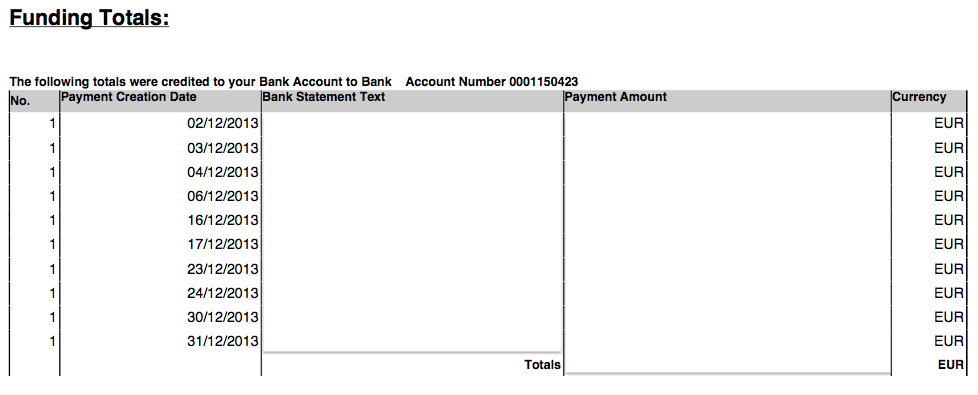
Funding Totals
This area of the statement gives the details of all bank transfers completed within the billing period. It also displays the text that will appear on your bank statement for that disbursement.