
Merchant Connect Flow

User experience
When the merchant clicks the button, they will be redirected to a Braintree-hosted page that's
cobranded with PayPal powered by Braintree and the logo you provided in your
OAuth configuration. They will
then be prompted to log into an existing Braintree account, using either
their PayPal credentials
or their Braintree credentials.
After clicking one of the login buttons, by default, they will also
have the option of entering a new email and password to sign up for a new Braintree account. If you
are not interested in allowing merchants to do this through your platform, you can choose to enable
only the login flow.
Login flow
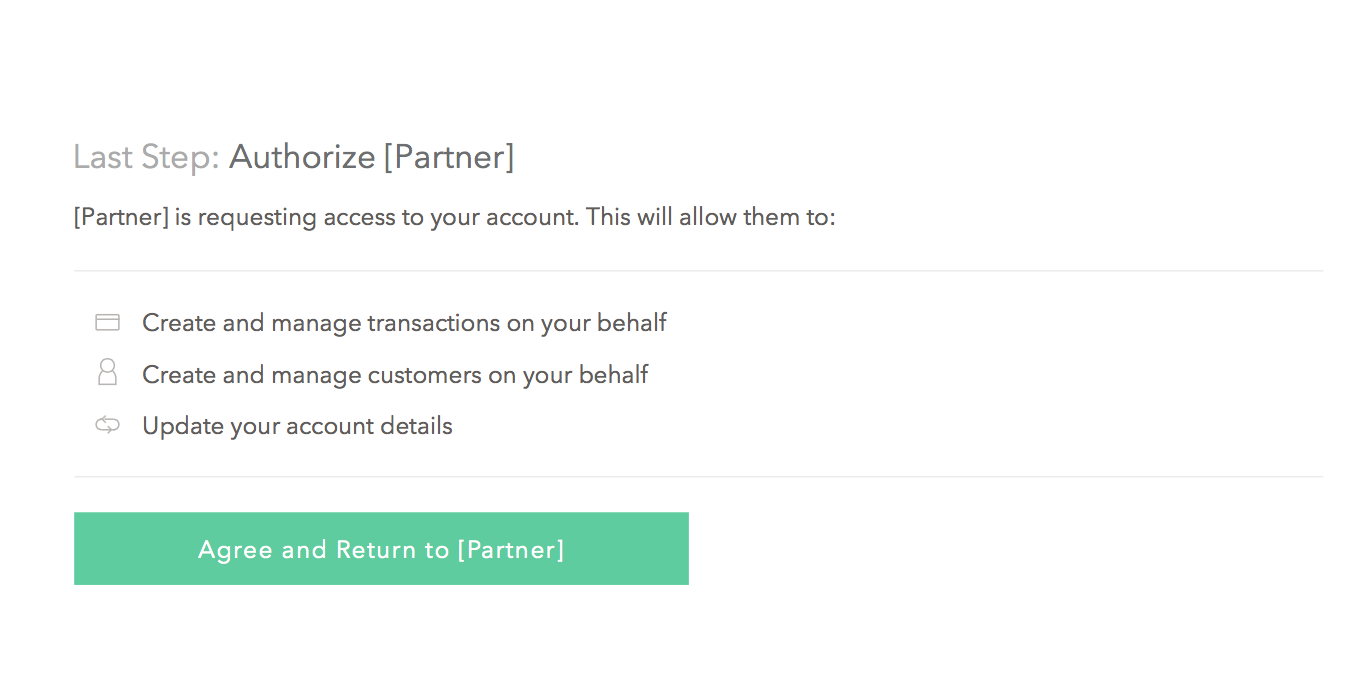
If the merchant logs into an existing Braintree account, they will be immediately presented with the
Authorize step. This is where they will grant you the specific permissions you define in your OAuth
scope so you can interact with their Braintree account on their behalf. This example shows an
Authorize page giving full read_write permissions.
 Clicking the Agree and Return button redirects the merchant back to a URI you allowlisted as part of
the OAuth configuration.
Clicking the Agree and Return button redirects the merchant back to a URI you allowlisted as part of
the OAuth configuration.
Signup flow
If the merchant does not already have a Braintree account, they will be asked to provide personal
and business information before getting to the Authorize step. The form fields can be pre-populated
if you already know some of the information; see the
full list of fields in the reference.
The Connect flow has a built in “Finish Later” capability, allowing the merchant to stop and
restart from where they left off at a later time. In this case the merchant is redirected back to a
URI you define.