Test the integration in the PayPal sandbox environment.
Integrate crypto payments using Orders API
DocsCurrent
Last updated: Jan 29th, 8:33pm
Onboard crypto payments
- You can enable Pay with crypto using one of the following methods:
- Enable Pay with crypto from your PayPal dashboard: If you have an eligible PayPal business account, you can enable Pay with crypto directly from your dashboard:
- Log in to your PayPal business account.
- Go to Account Settings > Products & Services > Payment Methods.
- Find Pay with crypto and select Get Started.
- Follow the on-screen prompts to complete onboarding and activate cryptocurrency payments on your accounts.
- Once enabled, go to Payment Options to manage your cryptocurrency settings or continue integration.
- Request approval to enable Pay with crypto: If you don't see Pay with crypto in your dashboard, request approval by visiting the links below:
- Sandbox: http://www.sandbox.paypal.com/bizsignup/add-product?product=CRYPTO_PYMTS
- Live: http://www.paypal.com/bizsignup/add-product?product=CRYPTO_PYMTS
- Cryptocurrency payments are activated after PayPal verifies eligibility and completes a compliance review. Ensure your account is configured to accept and convert payments to USD, as all cryptocurrency payments are converted and settled in USD.
- Subscribe to the following webhook events to track payment status:
-
PAYMENT.CAPTURE.COMPLETED- Successful crypto payment. -
PAYMENT.CAPTURE.DENIED- Failed capture.
-
End-to-end workflow
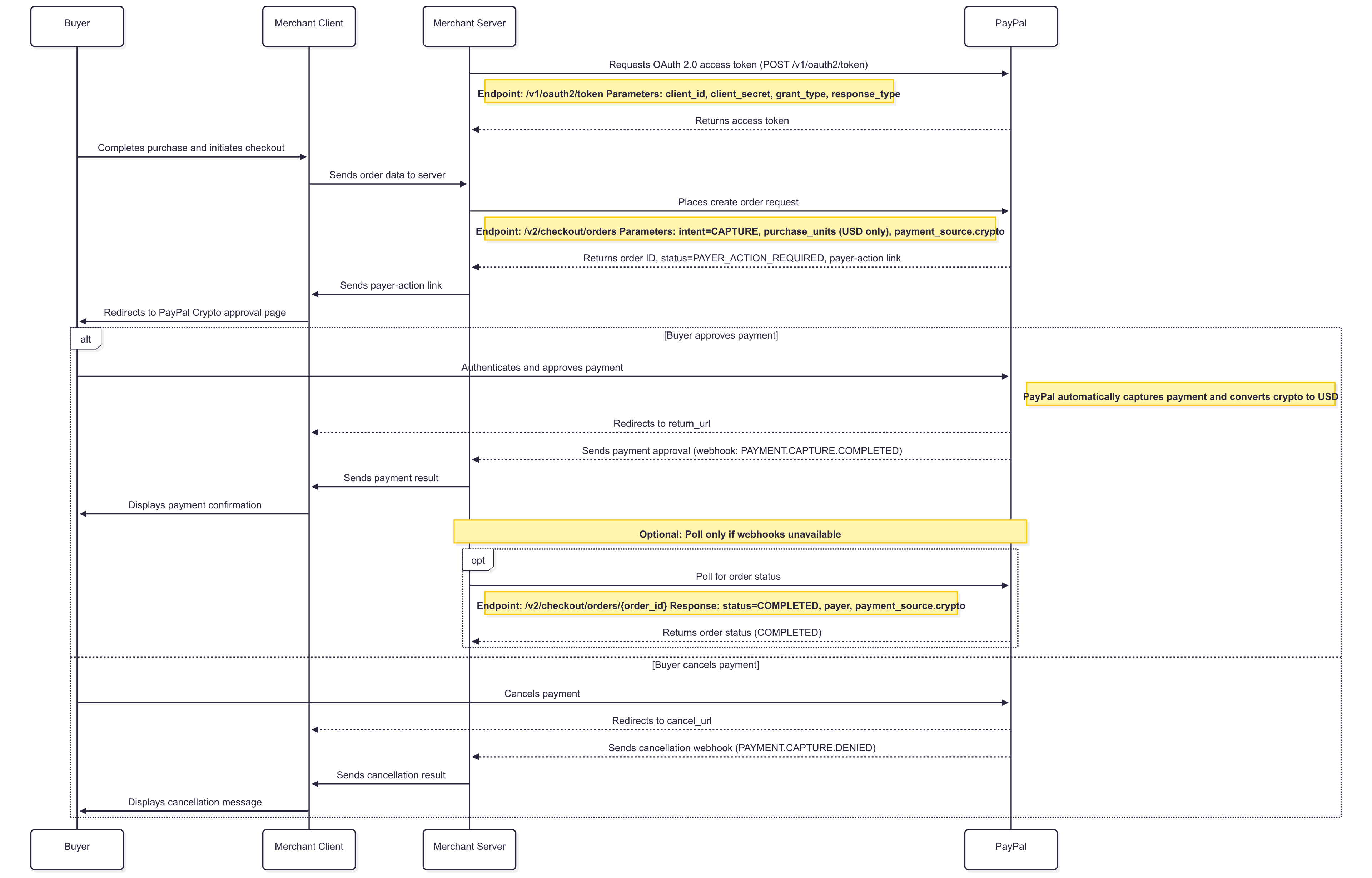
1
Present Pay with crypto
Offer Pay with crypto alongside PayPal and other supported payment methods on your checkout page. When the buyer selects Pay with crypto, create an order using the Orders API and redirect the buyer to PayPal to approve the payment.
2
Create an order
Use a valid access token and make a POST call to the /v2/checkout/orders endpoint. Use a unique PayPal-Request-Id header to prevent duplicate order creation when retrying requests.
Include the following parameters:
| Parameter | Action |
|---|---|
processing_instructionRequired, string |
Set to ORDER_COMPLETE_ON_PAYMENT_APPROVAL. This value is required for Pay with crypto. |
intentRequired, string |
Set to CAPTURE.Pay with crypto supports immediate capture only. |
purchase_unitsRequired, array |
Include the order amount and currency code. The currency code must be USD. |
purchase_units.amountRequired, object |
Amount of the order and the currency code. Note: USD is the only currency code supported for Pay with crypto.
|
payment_sourceRequired, object |
Include a crypto object to specify Pay with crypto as the payment method.
|
payment_source.crypto.country_codeRequired, string |
Set to US.
|
payment_source.crypto.nameRequired, object |
Name of the buyer. |
payment_source.crypto.name.given_nameRequired, string |
Provide the buyer’s first name. |
payment_source.crypto.name.surnameRequired, string |
Provide the buyer’s last name. |
payment_source.crypto.experience_context.localestring |
Set to en-US.
|
payment_source.crypto.experience_context.return_urlRequired, string |
Provide the URL to redirect the buyer after payment approval. |
payment_source.crypto.experience_context.cancel_urlRequired, string |
Provide the URL to redirect the buyer if the payment is canceled or an error occurs. Note: The cancel_url is also used if an error occurs during the crypto payment experience, not just for buyer cancellations. Ensure your cancel URL can handle both scenarios. |
For information on all parameters, see the Orders API reference.
Sample request and response
- Sample request
- Sample response
1curl -X POST https://api-m.sandbox.paypal.com/v2/checkout/orders \2 -H 'Content-Type: application/json' \3 -H 'Authorization: Bearer <ACCESS-TOKEN>' \4 -d '{5 "processing_instruction": "ORDER_COMPLETE_ON_PAYMENT_APPROVAL",6 "intent": "CAPTURE",7 "purchase_units": [8 {9 "reference_id": "d9f80740-38f0-11e8-b467-0ed5f89f718b",10 "description": "Description of PU1",11 "soft_descriptor": "SOFT-1001",12 "amount": {13 "currency_code": "USD",14 "value": "100.00",15 "breakdown": {16 "item_total": {17 "currency_code": "USD",18 "value": "100.00"19 },20 "shipping": {21 "currency_code": "USD",22 "value": "0"23 },24 "handling": {25 "currency_code": "USD",26 "value": "0"27 },28 "tax_total": {29 "currency_code": "USD",30 "value": "0"31 },32 "shipping_discount": {33 "currency_code": "USD",34 "value": "0"35 }36 }37 },38 "items": [39 {40 "name": "Item A",41 "category": "PHYSICAL_GOODS",42 "description": "Item A",43 "sku": "259483234816",44 "unit_amount": {45 "currency_code": "USD",46 "value": "100"47 },48 "tax": {49 "currency_code": "USD",50 "value": "0"51 },52 "quantity": "1"53 }54 ],55 "shipping": {56 "name": {57 "full_name": "John Doe"58 },59 "address": {60 "address_line_1": "2211 N First Street",61 "address_line_2": "Building 17",62 "admin_area_2": "San Jose",63 "admin_area_1": "CA",64 "postal_code": "95131",65 "country_code": "US"66 }67 }68 }69 ],70 "payment_source": {71 "crypto": {72 "country_code": "US",73 "name": {74 "given_name": "John",75 "surname": "Doe"76 },77 "experience_context": {78 "locale": "en-US",79 "return_url": "https://example.com/return",80 "cancel_url": "https://example.com/cancel"81 }82 }83 }84 }'
A successful request returns 200 OK response. The response includes the following parameters:
| Parameter | Description | Further action |
|---|---|---|
id |
Unique order ID. | Store the order ID to track the transaction. |
status |
Current status of the order. | When the status is PAYER_ACTION_REQUIRED, redirect the buyer for payment approval. |
links |
HATEOAS links for available order actions. | Use the payer-action link to redirect the buyer to PayPal to approve the payment. |
3
Redirect buyer for payment approval
- After you create the order, extract the
payer-actionlink from thelinksarray in the Create order response. - When the buyer selects Pay with crypto, redirect the buyer to the
payer-actionURL. This opens the PayPal-hosted crypto approval experience.- If the buyer approves the payment:
- PayPal automatically captures the payment.
- The buyer is redirected to your
return_url. - The
PAYMENT.CAPTURE.COMPLETEDwebhook is triggered.
- If the buyer cancels or an error occurs:
- The buyer is redirected to your
cancel_url. - The
PAYMENT.CAPTURE.DENIEDwebhook is triggered for failed payments.
- The buyer is redirected to your
- If the buyer approves the payment:
4
Track payment status
After creating the order, you can track the payment status in two ways:
- Use webhooks
- Optional: Poll for updates
Note: Use webhooks for real-time updates, and poll the order status only if you cannot receive webhooks.
Use webhooks
To track the payment status using webhooks, follow these steps:
-
Subscribe to webhook events in your PayPal developer dashboard or through the Webhooks API. For example:
PAYMENT.CAPTURE.COMPLETED– Successful payment capturePAYMENT.CAPTURE.DENIED– Failed payment capture
- Define a webhook handler in your server-side application to:
- Listen for incoming webhook events.
- Confirm receipt of the event to PayPal.
- Verify the source of the event notification.
- Complete further actions based on event data.
Note: If needed, use the List event notifications API to retrieve all webhook events or the Show event notification details API to get specific event details.
The following example shows a webhook payload for a completed crypto payment:
1{2 "id": "WH-2B342482FC0449155-12X09416XP387753C",3 "event_version": "1.0",4 "zts": 1481046241,5 "create_time": "2022-04-08T10:37:05Z",6 "resource_type": "capture",7 "resource_version": "2.0",8 "event_type": "PAYMENT.CAPTURE.COMPLETED",9 "summary": "Payment completed for USD 1.00 USD",10 "resource": {11 "amount": {12 "value": "1.00",13 "currency_code": "USD"14 },15 "create_time": "2022-04-08T10:37:05Z",16 "update_time": "2022-04-08T10:37:05Z",17 "final_capture": true,18 "seller_receivable_breakdown": {19 "paypal_fee": {20 "value": "0.20",21 "currency_code": "USD"22 },23 "gross_amount": {24 "value": "1.00",25 "currency_code": "USD"26 },27 "net_amount": {28 "value": "0.80",29 "currency_code": "USD"30 }31 },32 "links": [33 {34 "method": "GET",35 "rel": "self",36 "href": "https://api-m.sandbox.paypal.com/v2/payments/captures/8SS60826HT082593F"37 },38 {39 "method": "POST",40 "rel": "refund",41 "href": "https://api-m.sandbox.paypal.com/v2/payments/captures/8SS60826HT082593F/refund"42 },43 {44 "method": "GET",45 "rel": "up",46 "href": "https://api-m.sandbox.paypal.com/v2/checkout/orders/5KP92830L1747245S"47 }48 ],49 "id": "8SS60826HT082593F",50 "status": "COMPLETED"51 },52 "links": [53 {54 "href": "https://api-m.sandbox.paypal.com/v1/notifications/webhooks-events/WH-2B342482FC0449155-12X09416XP387753C",55 "rel": "self",56 "method": "GET"57 },58 {59 "href": "https://api-m.sandbox.paypal.com/v1/notifications/webhooks-events/WH-2B342482FC0449155-12X09416XP387753C/resend",60 "rel": "resend",61 "method": "POST"62 }63 ]64}
This webhook provides real-time notifications to track and respond to crypto payment status changes.
Extract the order ID from the "rel": "up" link in the webhook payload's resource.links array to correlate the capture to your original order.
Poll for updates (optional)
Note: Be aware of PayPal's API rate limits when polling for order status. For best practices and details, see the Rate limiting guideline.
Use a valid access token and make a GET call to the /v2/checkout/orders/{id} endpoint. Include the following path parameter:
| Parameter | Action |
|---|---|
id |
Unique order ID returned in the Create order response. |
A successful call returns a 200 OK response. The response includes the following parameters:
| Parameter | Description | Further action |
|---|---|---|
id |
Unique order ID. | Use this value to correlate the response with your original order. |
status |
Current status of the order. | When the status is COMPLETED, the payment capture is successful. |
purchase_units |
List of purchase units for the order, including amount and currency. | Use as needed to reference order details. |
payer |
Information about the buyer, including name and payer ID. | Optional. Use for display or record-keeping if needed. |
For information on all response parameters, see Show order details.
5
Notify buyer of payment success
After a successful cryptocurrency (crypto) payment, notify the buyer of the completed transaction. You can do this by sending a confirmation email or displaying a success message to the buyer.
Manage refunds
Issue a full refund
Use a valid access token and make a POST call to the /v2/payments/captures/{capture_id}/refund with an empty request body.
| Parameter | Action |
|---|---|
capture_id |
Unique identifier for the payment capture. This value is available in purchase_units[].payments.captures[].id from the completed order response. |
A successful call returns a 201 Created response with the refund details. For information on all response parameters, see the Refunds API reference.
1curl -v -X POST https://api-m.sandbox.paypal.com/v2/payments/captures/{capture_id}/refund \2 -H "Content-Type: application/json" \3 -H "Authorization: Bearer ACCESS-TOKEN" \4 -H "PayPal-Request-Id: YOUR-PAYPAL-REQUEST-ID" \5 -H "PayPal-Auth-Assertion: PAYPAL-AUTH-ASSERTION" \6 -H "PayPal-Partner-Attribution-Id: BN-CODE" \7 -d '{}'
Issue a partial refund
Use a valid access token and make a POST call to the /v2/payments/captures/{capture_id}/refund endpoint. Include the refund amount in the request body to issue a partial refund. You can issue multiple partial refunds for a single capture, as long as the total refunded amount does not exceed the original captured amount.
For information on all request and response parameters, see the Refunds API reference.
1curl -v -X POST https://api-m.sandbox.paypal.com/v2/payments/captures/{capture_id}/refund \2 -H "Content-Type: application/json" \3 -H "Authorization: Bearer ACCESS-TOKEN" \4 -H "PayPal-Request-Id: YOUR-PAYPAL-REQUEST-ID" \5 -H "PayPal-Auth-Assertion: PAYPAL-AUTH-ASSERTION" \6 -H "PayPal-Partner-Attribution-Id: BN-CODE" \7 -d '{8 "amount": {9 "value": "10.99",10 "currency_code": "USD"11 }12 }'
Handle errors
When a crypto payment fails, PayPal sends webhook notifications to inform your system of the failure.
Webhook events to subscribe to:
PAYMENT.CAPTURE.DENIED: Payment capture failed after buyer approvalCHECKOUT.ORDER.DECLINED: Order declined during payment processing
Sample webhook payloads
- Sample PAYMENT.CAPTURE.DENIED
- Sample CHECKOUT.ORDER.DECLINED
1{2 "id": "WH-2B342482FC0449155-12X09416XP387753C",3 "event_version": "1.0",4 "create_time": "2022-04-08T10:37:05Z",5 "resource_type": "capture",6 "resource_version": "2.0",7 "event_type": "PAYMENT.CAPTURE.DENIED",8 "summary": "Payment denied for USD 1.00 USD",9 "resource": {10 "amount": {11 "value": "1.00",12 "currency_code": "USD"13 },14 "supplementary_data": {15 "related_ids": {16 "order_id": "5KP92830L1747245S"17 }18 },19 "create_time": "2022-04-08T10:37:05Z",20 "update_time": "2022-04-08T10:37:05Z",21 "final_capture": true,22 "seller_receivable_breakdown": {23 "paypal_fee": {24 "value": "0.20",25 "currency_code": "USD"26 },27 "gross_amount": {28 "value": "1.00",29 "currency_code": "USD"30 },31 "net_amount": {32 "value": "0.80",33 "currency_code": "USD"34 }35 },36 "links": [37 {38 "method": "GET",39 "rel": "self",40 "href": "https://api-m.sandbox.paypal.com/v2/payments/captures/8SS60826HT082593F"41 },42 {43 "method": "POST",44 "rel": "refund",45 "href": "https://api-m.sandbox.paypal.com/v2/payments/captures/8SS60826HT082593F/refund"46 },47 {48 "method": "GET",49 "rel": "up",50 "href": "https://api-m.sandbox.paypal.com/v2/checkout/orders/5KP92830L1747245S"51 }52 ],53 "id": "8SS60826HT082593F",54 "status": "DECLINED"55 },56 "links": [57 {58 "href": "https://api-m.sandbox.paypal.com/v1/notifications/webhooks-events/WH-2B342482FC0449155-12X09416XP387753C",59 "rel": "self",60 "method": "GET"61 },62 {63 "href": "https://api-m.sandbox.paypal.com/v1/notifications/webhooks-events/WH-2B342482FC0449155-12X09416XP387753C/resend",64 "rel": "resend",65 "method": "POST"66 }67 ]68}
If a payment fails:
- PayPal automatically redirects buyers to your
cancel_url. When buyers are redirected to your cancel URL due to payment failures, PayPal appends error codes as query parameters. For more information on error codes, see Error codes reference. - PayPal sends webhook notifications with failure details.
- Review the
purchase_units[].most_recent_errorsparameter in the webhook payload to identify the failure reason. - Handle the error on your cancel page by displaying a relevant message or offering next steps.