Integrate Messaging Configurator
Last updated: Mar 16th, 6:12pm
The Pay Later Messaging Configurator is a drop-in JavaScript module that you can add to your admin panel. Merchants can access the admin panel and use the Messaging Configurator to set up, customize, and preview Pay Later messaging. Based on the merchant’s configuration, you can display the Pay Later messages to buyers.
Important: Provision the Messaging Configurator only for merchants belonging to PayPal Global Pay Later countries such as:
- Australia (AU)
- France (FR)
- Germany (DE)
- Italy (IT)
- Spain (ES)
- United Kingdom (GB)
- United States (US)
Prerequisites
Ensure that your admin panel meets the following minimum-width requirements of the Messaging Configurator:
- Messaging Configurator: 1200 px
- Messaging Configurator Preview Section: 830 px
Note: The minimum-width requirements for Pay Later messages to be successfully displayed on the website are as follows:
- For text messages: 300 px
- For banner messages: 830 px
Load merchant-configurator.js
The JavaScript bundle merchant-configurator.js, required for rendering and using the Messaging Configurator, is hosted in the PayPal Content Delivery Network (CDN). Go to the HTML file that defines the admin-panel page and in the <head> or <body> section, use the following sample code to load merchant-configurator.js.
1<script src="https://www.paypalobjects.com/merchant-library/merchant-configurator.js" defer>2</script>
Render the Messaging Configurator
- Go to the HTML file that corresponds to the admin-panel page where the Messaging Configurator is to be rendered. In the
<body>section use the following code to define a container for the Messaging Configurator:
1<div id="messaging-configurator"></div>
2. In the <body> section, under a <script> tag, include the Messaging() method as shown in the following syntax and sample to initiate and render the Messaging Configurator.
- Syntax
- Sample
1window.merchantConfigurators?.Messaging({2 config: {<Pass saved configuration for return merchants. Pass empty object for merchants using Messaging Configurator for the first time. Pass empty object for merchants whose configuration is not saved>},3 locale: '<Enter preferred language to render Messaging Configurator>',4 merchantIdentifier: '<Enter merchant’s client ID – for first-party partners; merchant’s payer ID – for third-party partners>',5 partnerClientId: '<Enter partner’s client ID>',6 partnerName: '<Enter partner’s name>',7 bnCode: '<Enter build-notation code that identifies a PayPal partner>',8 onSave: <Enter callback-function name; callback-function can save the merchant configuration, inject configured messages into selected placements on the merchant website>,9 placements: [<Enter the locations you want to offer to merchants for displaying dynamic pay-later messages, as an array of strings>]10});
Note: For information on how to retrieve merchant client or payer ID, partner client ID, and BN code, see Credential reference.
Messaging method input parameter
Messaging() accepts an object as the input parameter and renders the Messaging configurator based on the values of the object properties. The object properties are as follows.
| Input parameter | Description |
|---|---|
config |
For new merchants or for merchants whose messaging configuration is not saved: When rendering the Messaging Configurator for new merchants, pass an empty object - {} - as the config property’s value.For return merchants: After merchants configure their dynamic Pay Later messaging using the admin panel, they publish their configuration. This triggers the onSave event and the configuration being saved is passed to the callback function corresponding to the event. When rendering the Messaging Configurator for return merchants, their saved configuration can be displayed as the default configuration. To do this, pass the saved configuration as the config value when you initiate the Messaging Configurator. The config property’s structure depends on the merchant’s initial configuration.For information on the config structure, see config object properties. |
locale (string, required) |
Preferred language for rendering the Messaging Configurator. |
merchantIdentifier (string, required) |
First-party partners: Merchant’s client ID.
Third-party partners: Merchant’s payer ID. For information on how to retrieve the merchant client or payer ID, see Credential reference. |
partnerClientId (string, required) |
Partner client ID.
For information on how to retrieve the partner client ID, see Credential reference. |
partnerName (string, required) |
Partner name. |
bnCode (string, required) |
Build-notation code used to uniquely identify the entity placing an API call as a PayPal partner and enable tracking all transactions that originate from the PayPal partner. |
onSave (function, required) |
Callback function that is called when the merchant selects Publish in the admin panel triggering the onSave event. The merchant’s messaging configuration is passed as an object to the callback function. The function can save the configuration and inject appropriate messages into the merchant’s website, based on the specified configuration.
|
placements (array of strings, required) |
List of locations that the partner displays in the Messaging Configurator. By passing a subset of the possible locations in placements[], partners regulate the locations where merchants display Pay Later messages.
Possible values:
Important: All eligible merchants can display Pay Later messages in the product description page, the view cart items page, and the checkout page. So, the minimum configuration for placements[] is placements['checkout', 'product', 'cart']. Partners can additionally allow a merchant to place Pay Later messages in the other possible locations
|
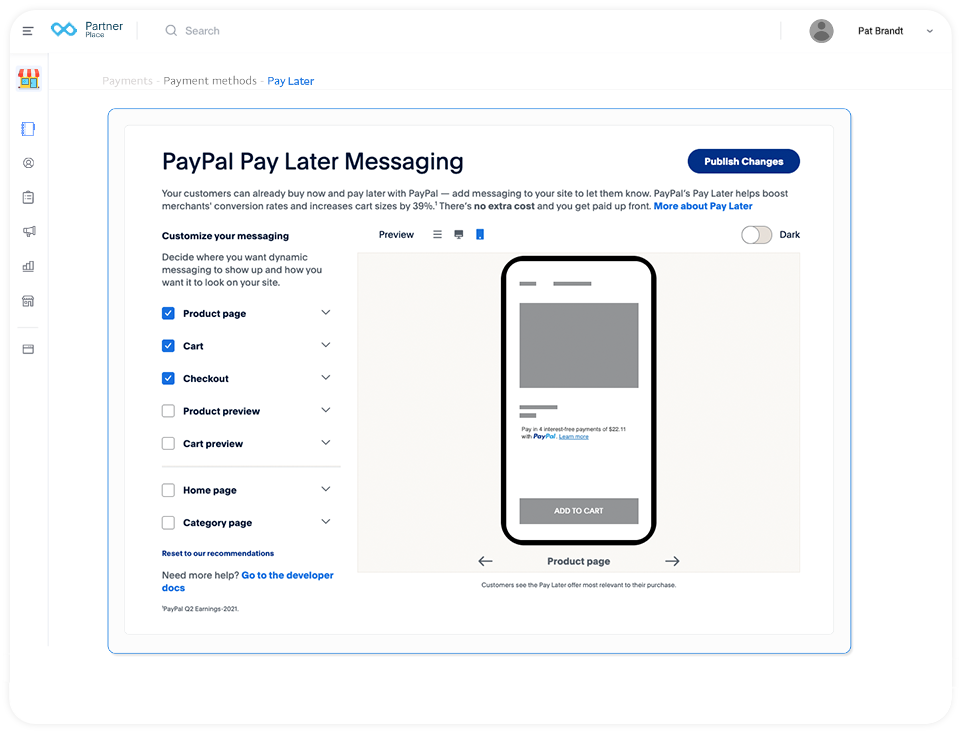
The following image shows the Messaging Configurator rendered when a partner passes all possible placement locations to the Messaging() method.
[Optional] Customize the Messaging Configurator
You can override the default styling of the Messaging Configurator to adhere to a style compatible with the admin panel. To do this,
- Go the HTML file that corresponds to the admin-panel page where the Messaging Configurator is to be rendered.
- Before the code that renders the Messaging Configurator, include the script to load the CSS with the override class names. Alternatively, before the code that renders the Messaging Configurator, position the following
<style>tag containing the override class names.
1<style>.buttonOverride {2 margin: 10px;3}45.headerOverride {6 color: blue;7}89</style>
3. Pass the styleOverrides property as part of the input parameter to the Messaging() method.
1Messaging({2 styleOverrides: {3 button: 'buttonOverride',4 header: 'headerOverride'5 },6 bnCode: 'CreditMerchantTesting',7 merchantIdentifier: 'SAMPLE_identifier1234',8 partnerClientId: 'PARTNER_SAMPLE_iden3456',9 partnerName: 'PartnerABC',10 onSave: MessagingConfigHandler,11 placements: ['homepage', 'cart_preview', 'category', 'checkout', 'product', 'cart', 'product_preview']12});
Notes:
- You can override only the Header, Subheader, and Button styling.
- When implementing style overrides, ensure that the Merchant Configurator is similar to the examples in the Validate the integration.
- If you require further customizations, contact PayPal.
Define the onSave callback function
After the merchant configures the Pay Later messages in the Messaging Configurator and selects Publish, the onSave event is triggered. The merchant’s messaging configuration is passed as a config object to the callback function. You can program the callback function to,
- Save the merchant’s configuration.
- Pass the saved object as the
Messaging().configproperty value. This renders the Messaging Configurator with the merchant’s saved configuration as the default configuration, when the merchant returns to the admin panel.
In the HTML file that corresponds to the admin-panel page, under the <script> tag where the Messaging() method is included, use the following sample and define the callback function (for example, MessagingConfigHandler) corresponding to the onSave event.
1<script>2const MessagingConfigHandler = (data) => {3 console.log('Messaging Config', data);4};5Messaging({6 bnCode: 'CreditMerchantTesting',7 merchantIdentifier: 'SAMPLE_identifier1234',8 partnerClientId: 'PARTNER_SAMPLE_iden3456',9 partnerName: 'PartnerABC',10 onSave: MessagingConfigHandler,11 placements: ['homepage', 'cart_preview', 'category', 'checkout', 'product', 'cart', 'product_preview']12});13</script>
Callback function input parameter
The callback function accepts the config object as the input parameter (data).
config object properties
The object properties depend on the merchant’s configuration. Using the Messaging Configurator, a merchant can configure text and banner messages. The merchant can configure text messages for the following placements:
- product
- cart
- checkout
- product_preview
- cart_preview
The merchant can configure banner messages for the following placements:
- homepage
- category
Example 1: Sample config object when the merchant configures text messages for product, cart, and checkout placements.
1{2 "product": {3 "layout": "text",4 "logo-type": "inline",5 "placement": "product",6 "status": "enabled",7 "text-color": "black",8 "text-size": "12"9 },10 "cart": {11 "layout": "text",12 "logo-type": "inline",13 "placement": "cart",14 "status": "enabled",15 "text-color": "black",16 "text-size": "12"17 },18 "checkout": {19 "layout": "text",20 "logo-type": "inline",21 "placement": "checkout",22 "status": "enabled",23 "text-color": "black",24 "text-size": "12"25 },26 "product_preview": {27 "layout": "text",28 "logo-type": "inline",29 "placement": "product_preview",30 "status": "disabled",31 "text-color": "black",32 "text-size": "12"33 },34 "cart_preview": {35 "layout": "text",36 "logo-type": "inline",37 "placement": "cart_preview",38 "status": "disabled",39 "text-color": "black",40 "text-size": "12"41 },42 "homepage": {43 "layout": "flex",44 "placement": "homepage",45 "status": "disabled",46 "color": "black",47 "ratio": "8x1"48 },49 "category_page": {50 "layout": "flex",51 "placement": "category_page”,52 "status": "disabled",53 "color": "black",54 "ratio": "8x1"55 }56}
Example 2: Sample config object when the merchant configures a text message for product and a banner message for homepage.
1{2 "product": {3 "layout": "text",4 "logo-type": "inline",5 "placement": "product",6 "status": "enabled",7 "text-color": "black",8 "text-size": "12"9 },10 "homepage": {11 "layout": "flex",12 "placement": "homepage",13 "status": "enabled",14 "color": "black",15 "ratio": "8x1"16 },17 "cart": {18 "layout": "text",19 "logo-type": "inline",20 "placement": "cart",21 "status": "disabled",22 "text-color": "black",23 "text-size": "12"24 },25 "checkout": {26 "layout": "text",27 "logo-type": "inline",28 "placement": "checkout",29 "status": "disabled",30 "text-color": "black",31 "text-size": "12"32 },33 "product_preview": {34 "layout": "text",35 "logo-type": "inline",36 "placement": "product_preview",37 "status": "disabled",38 "text-color": "black",39 "text-size": "12"40 },41 "cart_preview": {42 "layout": "text",43 "logo-type": "inline",44 "placement": "cart_preview",45 "status": "disabled",46 "text-color": "black",47 "text-size": "12"48 },49 "category_page": {50 "layout": "flex",51 "placement": "category_page”,52 "status": "disabled",53 "color": "black",54 "ratio": "8x1"55 }56}
| Object.<placement-name>. property |
Possible values | Description |
|
|
|
Specifies whether the placement is selected in the Messaging Configurator. |
|
|
|
Type of message – light-weight text message or flexible banner message. |
|
|
|
Location of the Pay Later message. |
|
|
|
Specifies how the PayPal logo is rendered in text Pay Later messages. |
|
|
|
Logo and text colour of the Pay Later text messages. |
|
|
|
Font size of the Pay Later text message. |
|
|
|
Color of the message background for Pay Later banner messages. |
|
|
|
Width x height of the flexible banner. |
Use merchant-configurator functions to generate inline attributes
To display the Pay Later messages that the merchant customizes, in your front-end code, include the scripts necessary to render the messages. Based on your code structure, you can render the messages using HTML inline attributes or JavaScript.
Use the following merchant-configurator.js functions to auto-generate the HTML inline attributes that you can use in your front-end code:
generateHeaderScript(): Generates the script necessary to load the JS SDK messages component that helps render the Pay Later messages.generateMessagingCodeSnippet(): Uses the parameters of the input object passed to theonSavecallback function and generates the upstream messaging code necessary to render the Pay Later messages, in a specific location, in the format that the merchant chooses.
You can use the getEligibleCountries() function, to retrieve the list of countries where Pay Later offers are supported.
generateHeaderScript()
The function accepts an object as the input parameter and generates the script that must be included in the header part of your front-end code (inside the <head></head> tags), to load the JS SDK messages component. The JS SDK messages component is necessary to render the Pay Later messages.
messages component in your front-end code’s header, you can skip using the generateHeaderScript() function.
- Syntax
- Output script 1
- Output script 2
1window.merchantConfigurators?.generateHeaderScript({2 bnCode: '<Enter build-notation code that identifies a PayPal partner>',3 clientId: '<Enter merchant’s client ID>',4 country: '<Enter merchant’s country as a two-letter country code>',5 currency: '<Enter merchant’s local currency as a three-letter code>'
Notes:
- If
generateHeaderScript().countryis US or a country where Global Pay Later offers are not available, the function generates a script as specified in the Output script 1 tab. - If
generateHeaderScript().countryis a country where Global Pay Later offers are available, the function generates a script as specified in the Output script 2 tab. - Ensure to use the appropriate script in your front-end code based on whether the merchant’s country is a Global Pay Later eligible country.
The input object properties are as follows.
| Object.property | Type | Description |
bnCode |
string | Build-notation code used to uniquely identify the entity placing an API call as a PayPal partner and enable tracking all transactions that originate from the PayPal partner. |
clientId |
string | First-party partners: Merchant’s client ID. Third-party partners: Merchant’s payer ID. For information on how to retrieve the merchant client or payer ID, see Credential reference. |
country |
string | Two-letter country code corresponding to the merchant’s country. Examples: US, AU, FR |
currency |
string | Two-letter currency code corresponding to the merchant’s local currency. Examples: USD, INR |
generateMessagingCodeSnippet()
The function accepts an object as the input parameter and generates the upstream messaging code necessary to render the Pay Later messages, in a specific location, in the format that the merchant chooses.
Important: Ensure to use the generateMessagingCodeSnippet() function to generate the HTML inline attributes code necessary to display Pay Later messages.
- Syntax
- Output - text message
- Output – banner message
1window.merchantConfigurators?.generateMessagingCodeSnippet({2 messageConfig: <Individual placement messaging config returned to the onSave callback function> ,3 productPrice: <Price of a particular product, to be used in the message to reflect actual installment cost>4});
The input object properties are as follows.
| Object.property | Type | Description |
messageConfig |
object | The config object passed to the onSave callback function contains the entire merchant configuration, for multiple placements. Extract an individual placement’s config details and pass them as an object in this property.
Example: {"layout": "text", "logo-type": "inline", "placement": "cart", "status": "enabled", "text-color": "black", "text-size": "12" } |
productPrice |
string | Product price or cart amount. Example: 500.94 |
getEligibleCountries()
The function returns an array of strings – each string is a two-letter country code corresponding to a country where merchants can offer Pay Later offers.
- Syntax
- Output
1window.merchantConfigurators.getEligibleCountries()
Test in sandbox
To enable testing the Messaging Configurator in the PayPal sandbox environment, in the code to render the Messaging Configurator, pass the merchant client ID retrieved from Developer dashboard > Testing Tools > Sandbox Accounts as the merchantIdentifier property value.
For information on how to retrieve the merchant client ID, see Credential reference.
Validate the integration
Use the following checklist to validate the Messaging Configurator and the subsequent display of Pay Later messages in the appropriate webpages.
- The Messaging Configurator displayed is similar to the image in Example 1.
- All placements passed to the
Messaging()method are populated as options in the Messaging Configurator. - All message configurations are rendered appropriately in the preview section of the Messaging Configurator.
- For first-time access, the Messaging Configurator is displayed with default values.
- For returning access, when the config object passed to the
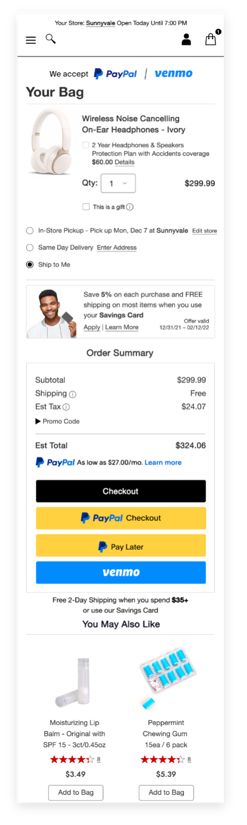
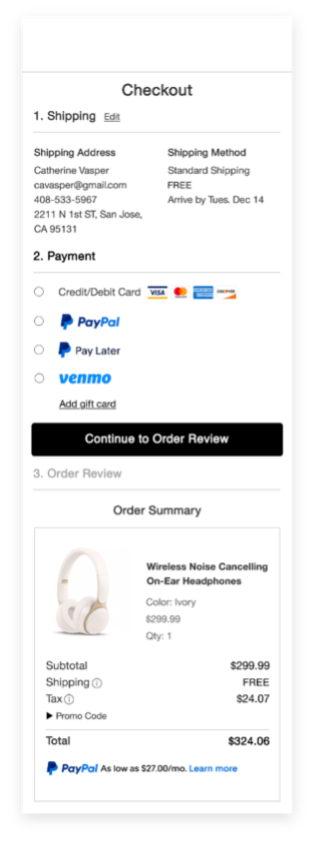
onSavecallback is saved and used to populate the Messaging Configurator, the saved configuration overrides the default configuration. - Pay Later messages are rendered appropriately, similar to the images in Example 2, when the necessary HTML inline attributes are defined in your front-end code.
 |
 |
 |