Upgrade your checkout integration
If you have an Express Checkout integration, PayPal recommends upgrading to PayPal Checkout using the JavaScript SDK. The JavaScript SDK has the following benefits:
Visit the Eligibility Page to learn more about the countries, currencies, and card brands that PayPal Checkout supports.
Get Started
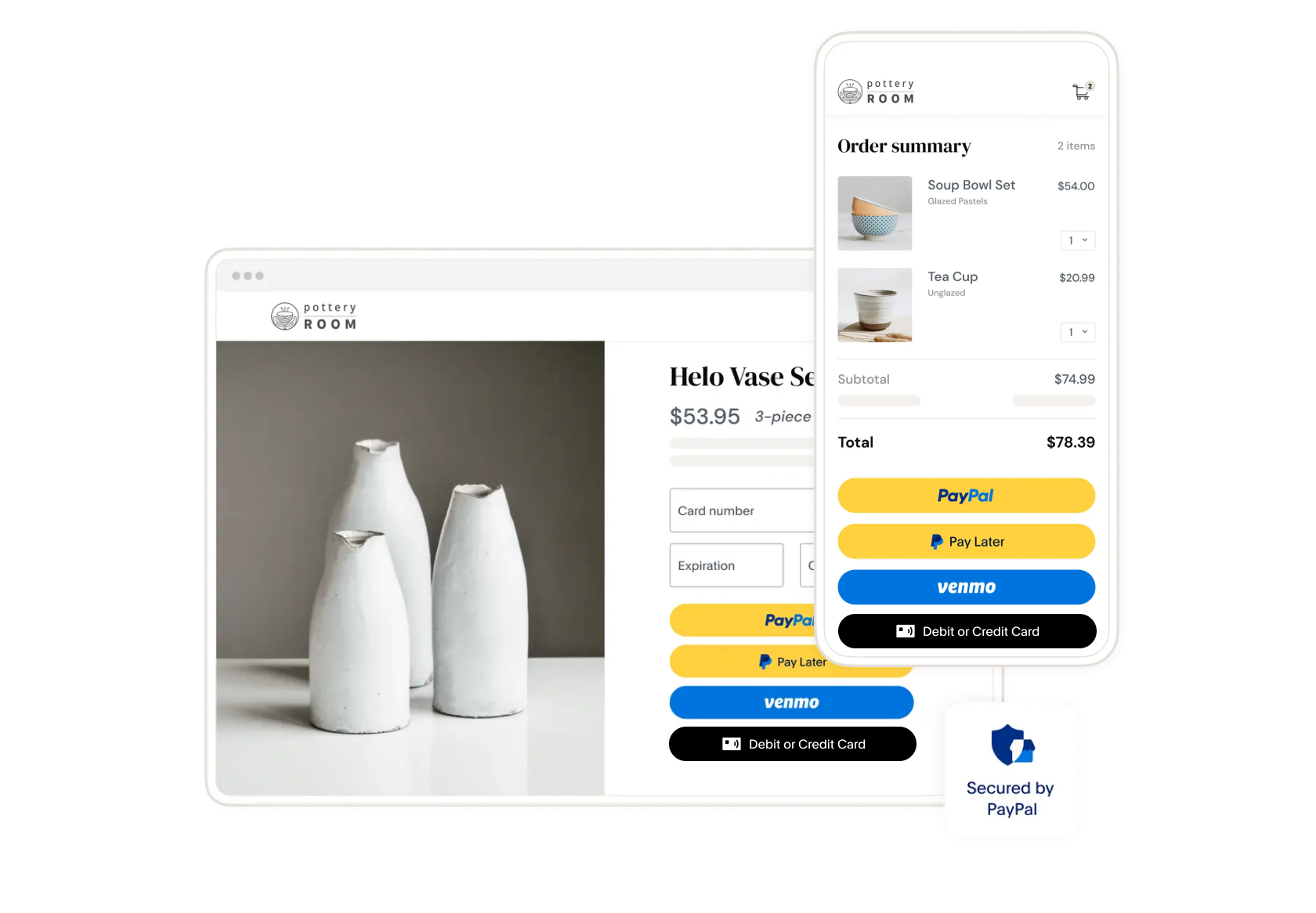
If your current integration is Express Checkout, you must upgrade to PayPal Checkout. You can use your site’s branding with PayPal Checkout, allowing customers to pay with PayPal, Pay Later options, Venmo, and alternative payment methods.
1. Review your current integration
1. Identify core API calls
Locate the endpoint URLs in your code that manage starting, reviewing, and completing paymetns. Check the API requests for the following METHOD parameter values:
SetExpressCheckout, GetExpressCheckoutDetails, CreateRecurringPaymentsProfile, DoExpressCheckoutPayment, DoReferenceTransaction
2. Document parameters
Review the core API calls from your current integration and make a list of the parameters, such as L_BILLINGTYPE.
2. Setup your sandbox
Sign in to your developer account
If you don't already have one, sign up for a PayPal developer account.
Get your sandbox credentials
Follow this onboarding document to get a client ID and secret, access token, and your sandbox account credentials.
- Client ID: Authenticates your account with PayPal and identifies an app in your sandbox.
- Client secret: Authorizes an app in your sandobx. Keep this secret safe and don't share it.
- Access token: Authenticates your app when calling PayPal REST APIs.
Set up your sandbox account
Follow this account configuration document to set up your sandbox account and test purchases before going live in your live account.
- Log in to the PayPal Developer Dashboard, toggle Sandbox, and go to Apps & Credentials.
- Select Create App.
- Input App Name, and under Type, select Merchant.
- Click Create App.
Update your front end
Set up your front end to use PayPal subscription buttons. The JavaScript SDK handles displaying the subscription button and managing the customer consent flow.
Add the PayPal JavaScript SDK
Add the PayPal JavaScript SDK to your web page with the vault parameter to enable subscription functionality:
12345678910
Replace YOUR_CLIENT_ID with your actual client ID from the PayPal Developer Dashboard.
Note: For production, ensure you're using your live client ID, not your sandbox client ID.
Render the subscription button
Add a container element where the PayPal subscription button will render:
12345678910
12345678910
This replaces the legacy Express Checkout flow where customers were redirected to PayPal's site. The SDK keeps customers on your site with a seamless popup experience.
Configure the checkout experience
If you have an Express Checkout integration, you must set up server-side processing. You'll need to generate a client token, upgrade your NVP/SOAP API integraiton to the Payments v1 API, and set up a listener to handle API responses.
Architecture overview
The Subscriptions API requires three core components:
- Catalog Products API - Define the goods or services customers subscribe to
- Billing Plans API - Define pricing, frequency, and billing structure
- Subscriptions API - Create and manage individual subscription instances
1. Create a product
Before creating billing plans, you must first create a product in the catalog. A product represents the actual goods or services being offered.
API Endpoint: POST /v1/catalogs/products
12345678910
12345678910
Save the returned id (Product ID) for use when creating billing plans.
2. Create a billing plan
A billing plan defines the subscription pricing, billing frequency, and payment schedule. This is the "blueprint" that replaces your legacy CreateRecurringPaymentsProfile logic.
API Endpoint: POST /v1/billing/plans
12345678910
12345678910
Key billing cycle configurations:
- Trial periods: Set tenure_type to TRIAL with discounted or zero pricing
- Regular billing: Set tenure_type to REGULAR for ongoing charges
- Infinite subscriptions: Set total_cycles to 0 for ongoing billing
- Finite subscriptions: Set total_cycles to a specific number (e.g., 12 for annual)
- Custom frequencies: Use interval_unit (DAY, WEEK, MONTH, YEAR) and interval_count
Payment failure handling:
The payment_failure_threshold defines how many consecutive payment failures trigger automatic suspension. PayPal automatically attempts payment recovery for failed payments.
Save the returned id (Plan ID) for use when creating subscriptions.
3. Create a subscription
After a customer approves the subscription through the JavaScript SDK, your server receives the subscription ID. Use this to verify and activate the subscription.
API Endpoint: GET /v1/billing/subscriptions/{subscription_id}
12345678910
12345678910
Store the subscription ID in your database associated with the customer account.
Upgrade your NVP/SOAP API integration to REST APIs
The following table shows how Express Checkout recurring payment calls map to the Subscriptions API:
| NVP/SOAP API | Payments v1 REST API |
METHOD=SetExpressCheckout (with L_BILLINGTYPE) |
POST /v1/billing/plans |
METHOD=CreateRecurringPaymentsProfile |
POST /v1/billing/subscriptions |
METHOD=CreateBillingAgreement |
JavaScript SDK subscription flow |
METHOD=DoReferenceTransactiont |
Automated by PayPal based on plan |
METHOD=DoReferenceTransaction (variable amounts) |
POST /v1/billing/subscriptions/{id}/revise |
| Manual charge for outstanding | POST /v1/billing/subscriptions/{id}/capture |
| Profile status management | POST /v1/billing/subscriptions/{id}/suspendPOST /v1/billing/subscriptions/{id}/activatePOST /v1/billing/subscriptions/{id}/cancel |
Changing order details between request and capture
THe NVP/SOAP integration uses the DoExpressCheckoutAPI to process both order updates and capture order requests. When you need to change the order details, such as the address or amount, after your original SetExpressCheckout call, you can make a single DoExpressCheckout call to simultaneously change the order details and capture the payment.
To change the order details between request and capture using PayPal Checkout, you need to make 2 calls to the Payments v1 API: an Update order PATCH request to update the order, and a Capture payment for order request to finalize the checkout flow.
Handle responses
Create a handleResponse function to set up a listener that returns an HTTP status code from the API response.
- Set up
handleResponsefunction to make aPOSTcall to the/api/paymentsendpoint and return an HTTP status code response. - Declare an
errorMessageobject to show an error message whenhandleResponsereturns an error code.
For more information about Payments V1 error scenarios, see Payments v1 Error Messages page.
This example shows a handleResponse() function:
12345678910
Upgrade IPNs to Webhooks
Replace IPN(Instant Payment Notification) to webhooks for asynchronous event processing.
- Create Endpoint: Build a secure HTTP POST endpoint (e.g.,
/webhook) to receive events. -
Register URL: In your PayPal Developer Dashboard, add your webhook URL and select desired events (e.g.,
PAYMENT.CAPTURE.COMPLETED). - Validate Signatures: Implement signature verification to confirm events come from PayPal.
-
Update Logic: Replace IPN processing with webhook event handling in your code (e.g., update order status on
PAYMENT.CAPTURE.COMPLETED). - Test Sandbox: Simulate events in the sandbox to ensure your endpoint handles notifications correctly.
- Go Live: Update your live PayPal settings with your production URL and monitor logs for real-time event processing.
Fine-tune your experience
See the Payments v1 API reference to configure the details of your integration.
Test the Integration
Before going live, test your integration in the sandbox environment. Learn more about card testing, simulating successful payments using test card numbers and generating card error scenarios using rejection triggers.
Note: Use the credit card generator to generate test credit cards for sandbox testing.
PayPal Payment
- Select the PayPal button on your checkout page.
- Log in using one of your personal sandbox accounts. This ensures the payments will be sent to the correct account. Make sure that you use the sandbox business account that corresponds to the REST app you are using
- Note the purchase amount in the PayPal checkout window.
- Approve the purchase with the Pay Now button. The PayPal window closes and redirects you to your page, indicating that the transaction was completed.
Confirm the money reached the business account:
- Log in to the PayPal sandbox using the sandbox business account that received the payment. Remember that the SDK source now uses a sandbox client ID from one of your REST apps, and not the default test ID.
- In Recent Activity, confirm that the sandbox business account received the money, subtracting any fees.
- Log out of the account.
Card payment
- Go to the checkout page for your integration
- Generate a test card using the credit card generator.
- Enter the card details in the hosted field, including the name on the card, billing address, and 2-character country code. Then, submit the order.
- Confirm that the order was processed.
- Log in to your merchant sandbox account and navigate to the activity page to ensure the payment amount shows up in the account.
Go Live
Follow this checklist to take your application live:
- Log into the PayPal Developer Dashboard with your PayPal business account.
- Obtain your live credentials.
- Include the new credentials in your integration and Update your PayPal endpoint.
See Move your app to production for more details