This feature modifies an existing checkout integration and uses the following:
Messaging with buttons
DOCSCURRENT
Last updated: Dec 16th, 5:33am
Integrate messaging directly with your buttons to promote Pay Later offers and other PayPal value propositions to your customers. Adding messaging can help improve conversion and attract new customers.

Note: Messaging is currently only supported for US merchants and US customers. Merchants must be eligible for Pay Later to display Pay Later offers with buttons. Other PayPal value propositions will still show, if ineligible for Pay Later.
Know before you code
RequiredPrerequisites
OptionalExplore PayPal APIs with Postman
You can use Postman to explore and test PayPal APIs. Learn more in our Postman guide.
1
Add messaging to buttons
Include your messaging options to the buttons configuration object. Learn more about the full list of available options by reviewing the JavaScript SDK reference page. To display the strongest message to the customer, use message.amount with the current total based on the product or cart.
Note: The message.amount option functions independently from the captured order total and has no impact on it.
1const buttons = paypal.Buttons({2 message: {3 amount: 100, // Update to your cart or product total amount4 align: 'center',5 color: 'black',6 }7});8buttons.render('#paypal-button-container');
Button Examples
The message content adapts to the buttons that are displayed:
| Description | Options | Buttons |
|---|---|---|
| Vertical Stack |
Note: The message is positioned to the top to make room for the text that accompanies the debit/credit Card button. |
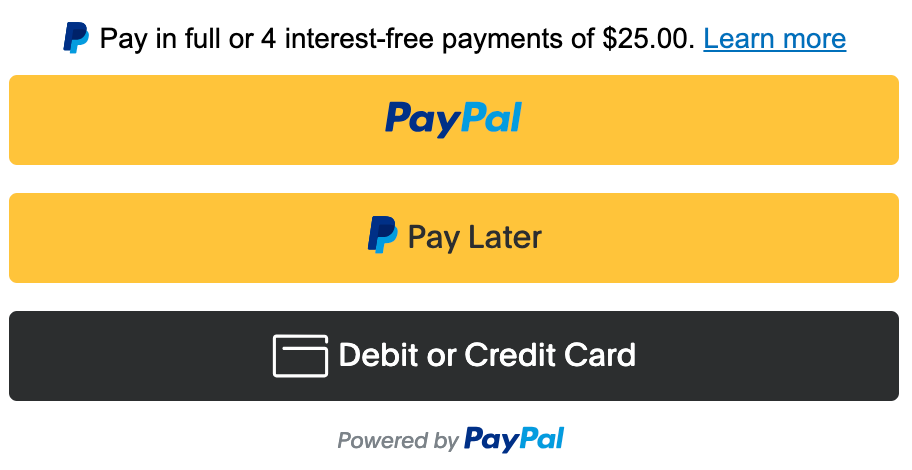
|
| Horizontal Stack |
|

|
| Standalone PayPal |
|

|
| Standalone Pay Later |
|

|
Learn more about standalone button integration best practices by reviewing the Standalone Buttons page.
2
Update the message amount
As the product count or cart total changes, you can update the message.amount to reflect the latest total.
1buttons.updateProps({2 message: {3 amount: 200, // Update to your cart or product total amount4 align: 'center',5 color: 'black',6 }7});
Note: Ensure that all previously specified message options are passed into updateProps including any options that have not changed; otherwise, they will be overwritten with default values.
3
Complete your integration
Return to the Set up standard payments guide to create and capture the order.