Pay Now or continue
Last updated: May 6th, 10:39pm
Overview
You can set User Action to control the message on the PayPal button at the bottom of the PayPal review page. There are two messaging options:
- Pay Now: The payer will complete the transaction on the PayPal review page.
- Continue: The payer will return to the merchant site to complete the transaction.
Note: The message on the button may vary depending on the type of PayPal flow used. The general indication matches the User Action provided.
Pay Now flow
We recommend Pay Now for most PayPal flows. Pay Now streamlines checkout by using the payer's PayPal account information.
If the button is placed on cart and product detail pages, use the Pay Now User Action with the Shipping and Contact Modules to help the payer select shipping and payment details on the PayPal review page.
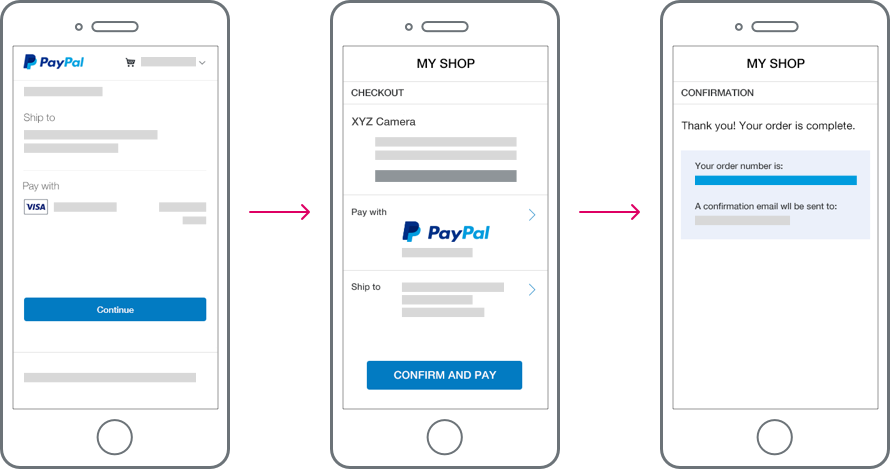
For payment page placements, payers can use PayPal to skip entering payment information.
When a payer completes a Pay Now flow, they are returned to the merchant site. There, they will see a confirmation page with details about the transaction.
Continue flow
PayPal recommends a Pay Now button for the fewest steps to complete a transaction.
Use Continue to indicate the payer will return to the merchant site to complete a transaction. Use this flow if the final amount will change after the payer returns to the merchant site.
When the payer returns to the merchant site, present them with no more than one additional page to complete the transaction. When they complete a transaction, they see a confirmation page.
Configure User Action
There are two ways to configure the User Action for a PayPal flow:
- Use an Orders API request to set up the PayPal flow (recommended).
- Use the JavaScript SDK v5 to render the PayPal button.
Note: If you use the Orders API and the JavaScript SDK in an integration, set the User Action to the same experience in both.
Orders API
When making a Create order API request, set the User Action through the payment_source.paypal.experience_context.user_action field. The field is an enum that can take a PAY_NOW or CONTINUE value. The default value is CONTINUE.
JavaScript SDK
When configuring the JavaScript SDK, set the User Action through the commit query parameter. Set the parameter to true for a Pay Now flow and false for a Continue flow. The default value is true.